Background
Apply Functions provide the capability for Strategy customers to leverage functions specific to RDBMS but not standard in Strategy. However, end users have to provide both custom SQL and function inputs every time they use these functions in creating Strategy objects like metrics, filters and so on. The main drawbacks of Apply Functions on usability include:
With the 70 new customizable functions, all the pain with Apply Functions will be soothed and a new capability is brought out to handle Heterogeneous Data Access (HDA) cases by supporting different SQL patterns to be specified for different RDBMS when customizing a function. It will be much easier for regular users to use the functions once application architects complete the customization of them.
Content
70 new customizable functions of 5 types shown below have been introduced to suit various needs of customers to leverage RDBMS-specific functions through Strategy. These functions can be customized by application architects and then be made available for regular users like business Analysts to use.
Prerequisites
Metadata must be upgraded to Strategy 2021 or above to populate the new functions.
How to configure and use the new functions
All the new functions are hidden by default.
How to display new functions
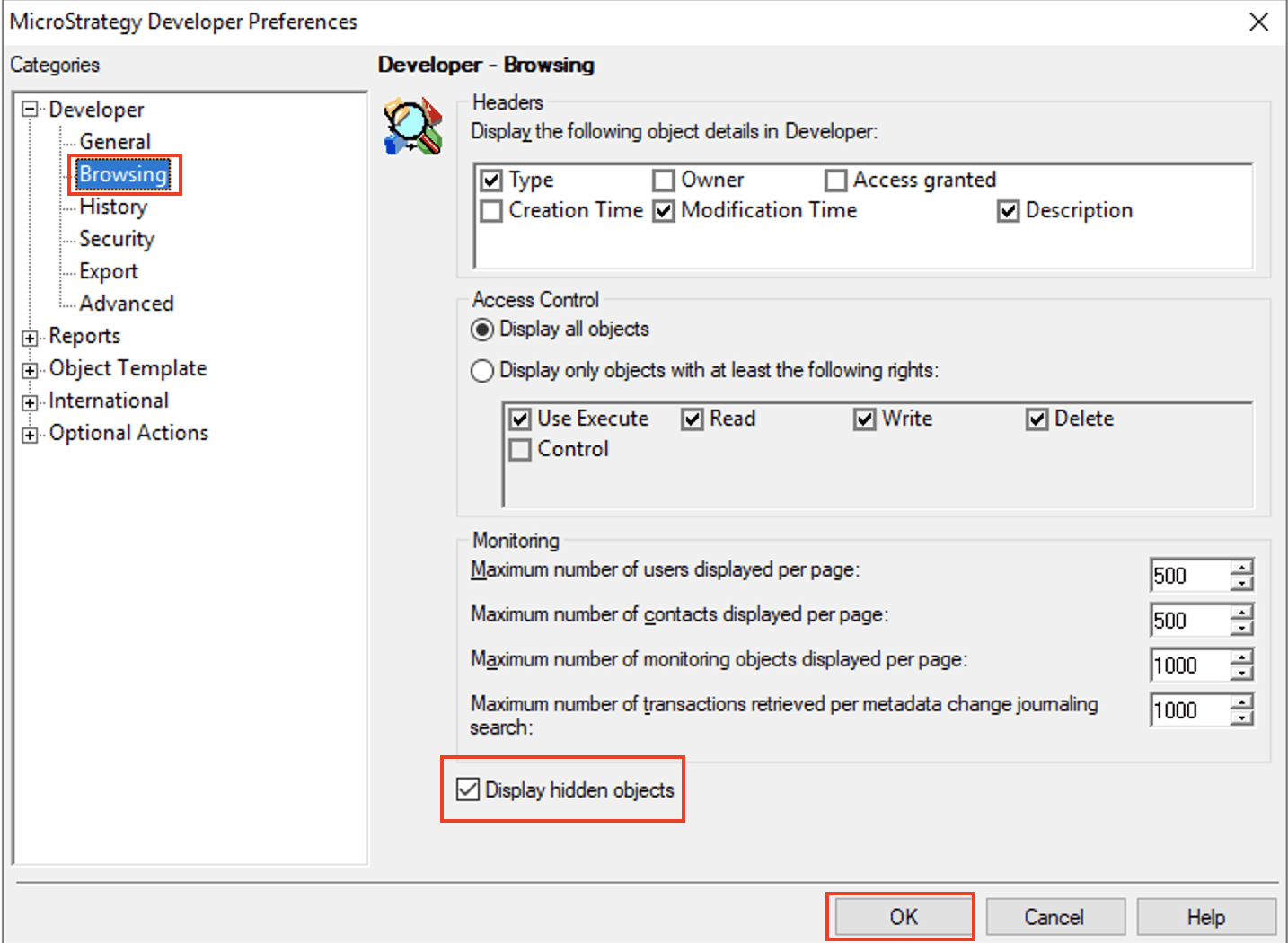
On Strategy Developer, connect to a project source with a user who has the right privilege to do the following setting change. After opening one project, right click on the project, go to Tools -> Preference. Select Browsing on the dialog box of Strategy Developer Preferences, and then check Display hidden objects to display the hidden Customizable folder with all 70 new functions in it. Click OK to close the dialog box.
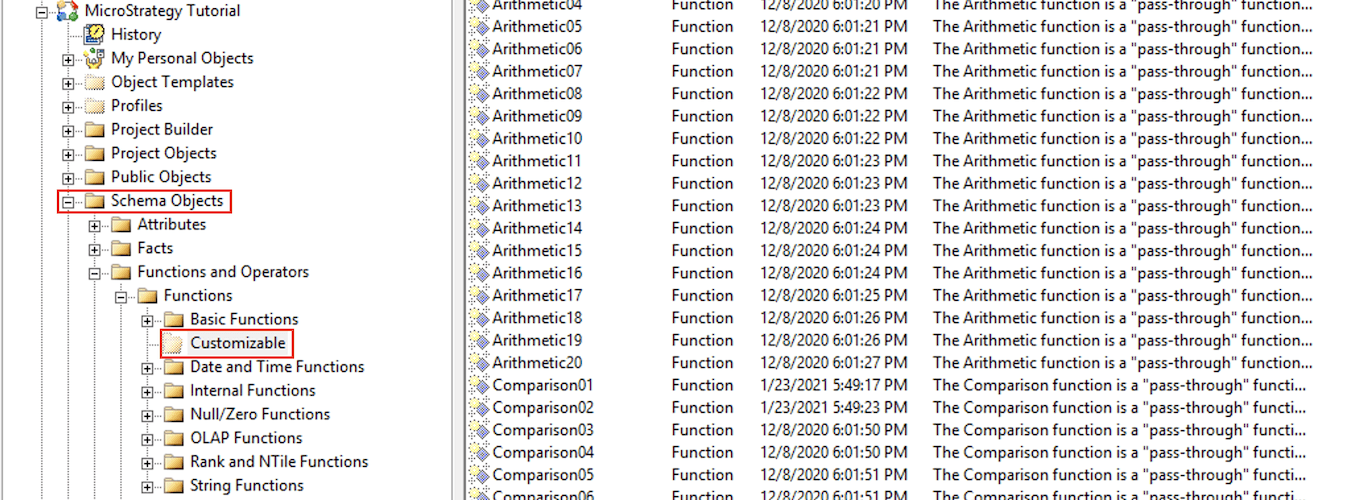
Go back to the opened project and a folder called Customizable with the 70 new functions can be found under Schema Objects -> Functions and Operators -> Functions.
How to configure and use Aggregate01-10 & OrderedSetAggregate01-10 functions
The 20 new customizable functions of Aggregate01-10 and OrderedSetAggregate01-10 belong to the aggregate function family whose function type is called DssFunctionSQLTypeAggregation in Strategy. They are group-value functions which take one or more lists of values as input and generate a single output value for each list. They can be used to define simple metrics or facts. Common examples of aggregate function include Sum, Max, Min, Avg, Count and so on. OrderedSetAggregate01-10 work as a special group of aggregate functions whose output varies depending on the sorting order of the value list of the function input, like the function First, or Last. Aggregate01-10 and OrderedSetAggregate01-10 are ready to be used in Strategy 2021 and any newer releases.
To customize any of the 20 customizable aggregate functions to be a specific aggregate function supported by your RDBMS, please follow the steps shown below. Aggregate01 will be used as an example to show the customization.
Suppose you want to customize Aggregate01 to be a function called Approximate Count Distinct which is a popular function for counting the number of distinct rows in a large dataset and supported in SQL Server, Oracle, Redshift, PostgreSQL, Vertica and so on. If the SQL pattern of this function for your RDBMS is Approx_Count_Distinct(), the SQL pattern entry to be added into DATABASE.PDS for Aggregate01 will be:
<FUNCTION_REF ID="xxxxxxxxxxxxxxxxxx" SQLPATTERN="APPROX_COUNT_DISTINCT(#0)"/>
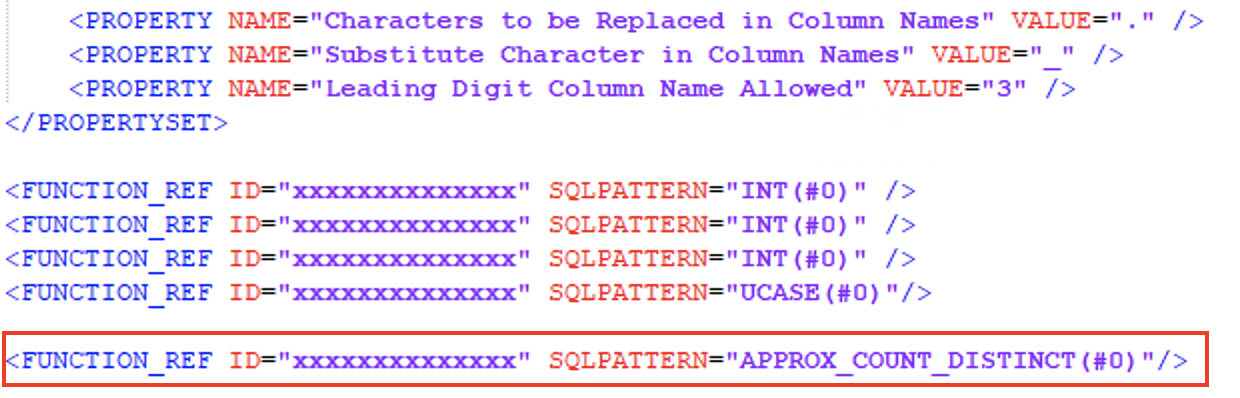
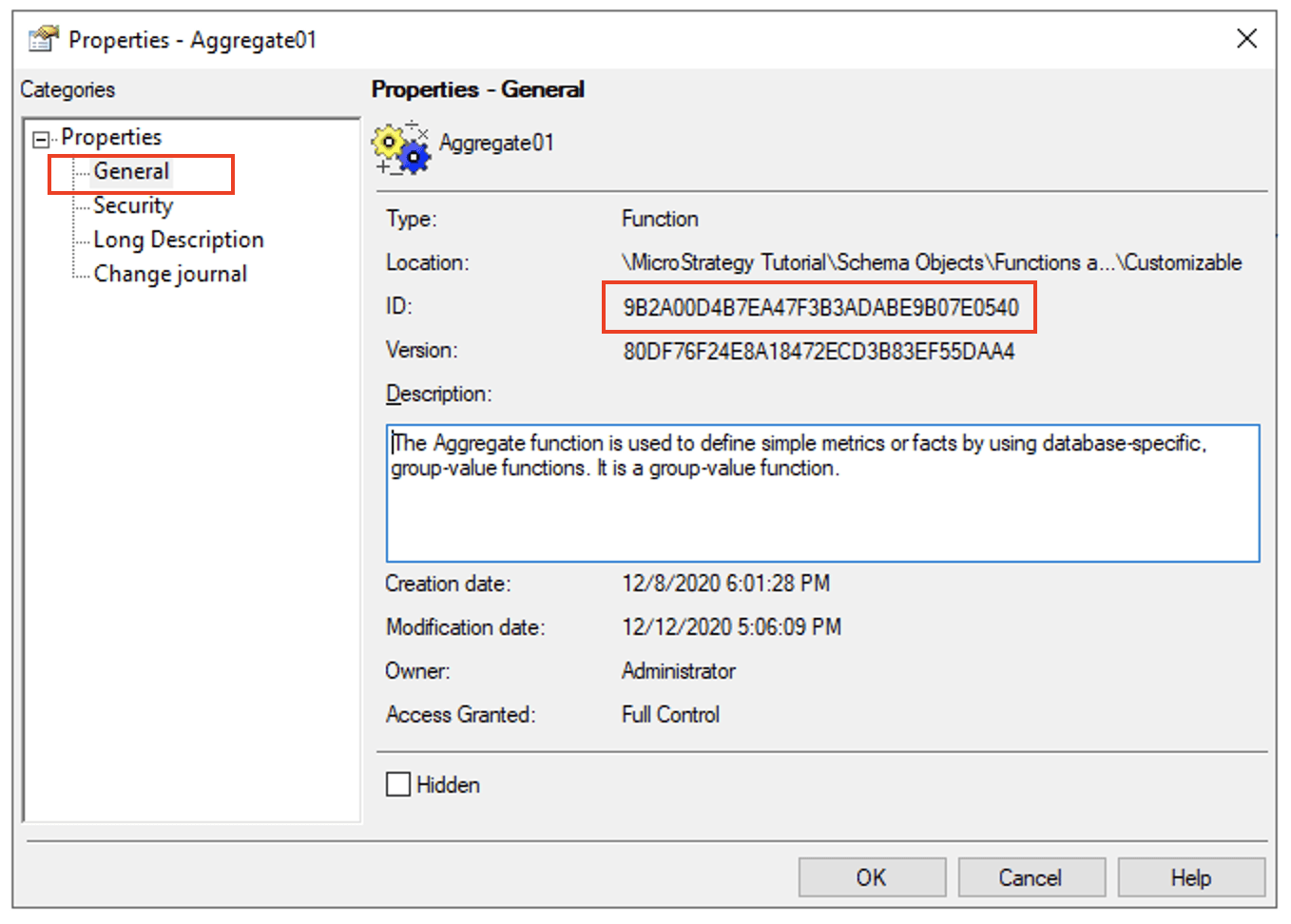
In the SQL pattern entry above, “#0” is the placeholder for the input of the function, which is the object to be counted in this specific case and will be replaced by the specific function input provided later on when you use the customized function. If there are multiple inputs for the function, #0, #1, #2 and so on should be used as the placeholders. “xxxxxx” is the object ID of Aggregate01 which can be obtained by going to Strategy Developer, opening a project, finding the function in Customizable folder under Schema Objects Functions and Operators Functions and right clicking on it to check Properties.
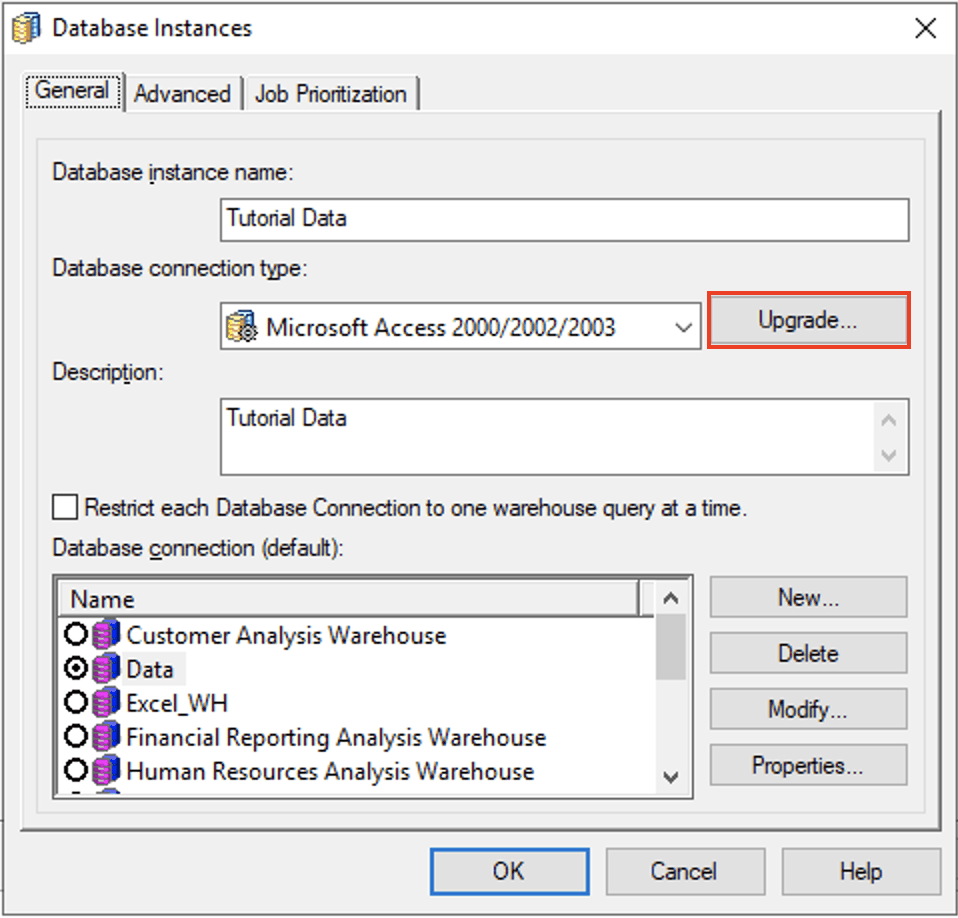
Firstly, launch Strategy Developer, connect to your project source and double click on a project to open it. Then, right click on the opened project, go to Project Configuration Database instances Modify to open Database Instances dialog box as the following image shows, and click on Upgrade to go to the next step.
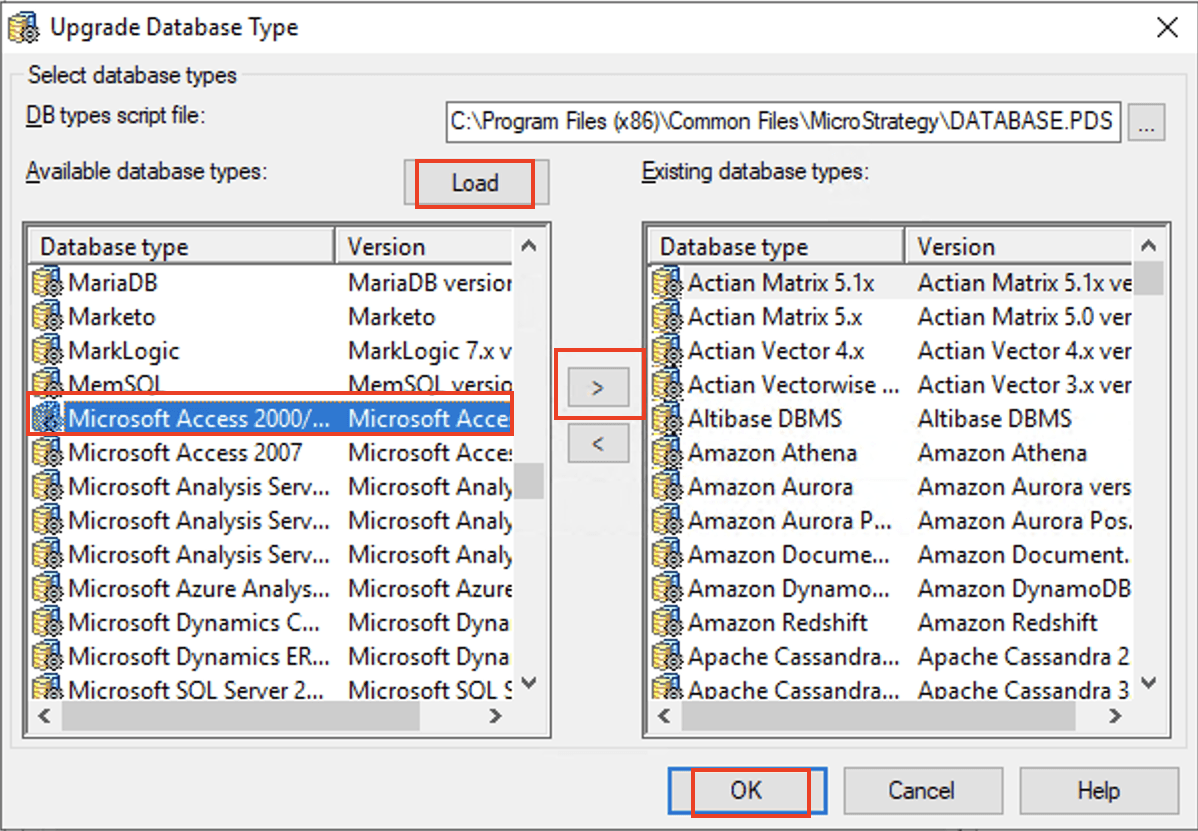
On the dialog box for Upgrade Database Type, click Load, and find the RDBMS for which the custom SQL pattern entry of Aggregate01 was added earlier, select it and click the > button to populate the newly added SQL pattern for Aggregate01 into Strategy Metadata, and click OK. Click OK on all opened dialog boxes and restart Strategy Intelligence Server for the Metadata update to take effect.
To update the function name, there are 2 tables to be modified, DSSMDOBJINFO and DSSMDOBJTRNS. DSSMDOBJINFO is the object information table, while DSSMDOBJTRNS is the table with translations of object information in different languages. The sample SQLs for updating the name of Aggregate01 to be Approx_Count_Distinct are:
Update DSSMDOBJINFO
SET Object_name='Approx_Count_Distinct' where object_id= 'xxxxxxx';
Update DSSMDOBJTRNS
SET [Translation]='Approx_Count_Distinct ' where object_id= 'xxxxxxx' and property=1 and locale=1033;
In order to construct the update SQL statements above, object_id is required to identify Aggregate01, locale code (LCID from Microsoft standard) is also required which is for English in this example case, and property=1 is fixed for all use cases to help identify the row for the function object name.
After running the update SQL against Metadata database, restart Strategy Intelligence Server and check the updated function name from Developer.
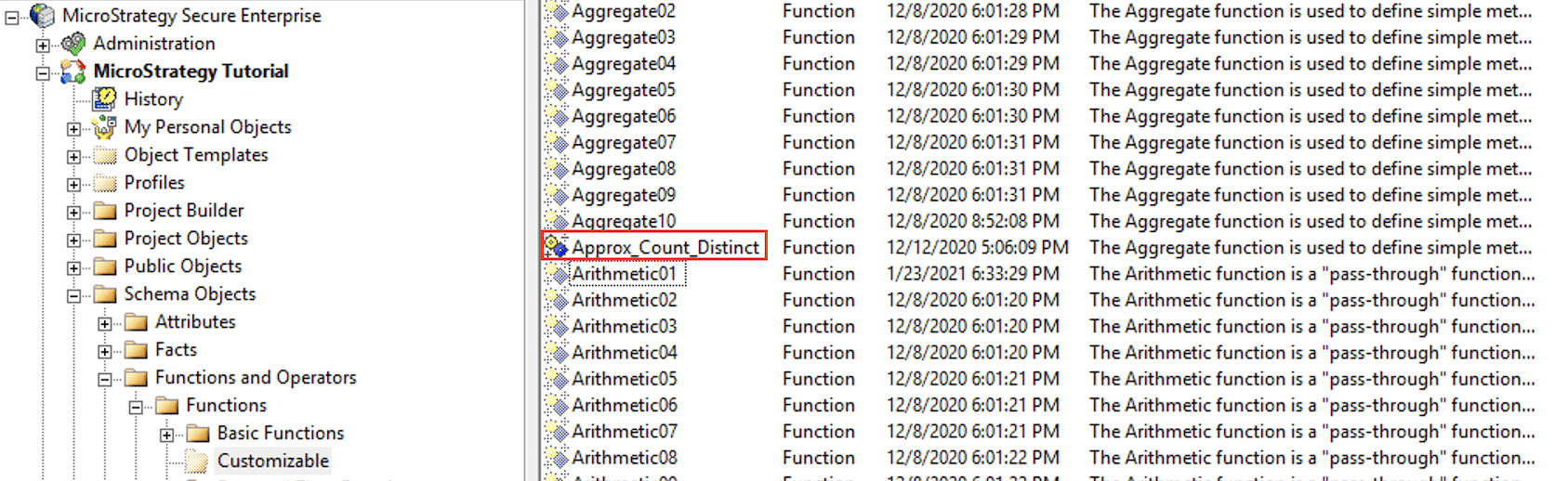
Now the customization of Aggregate01 has been completed and it is ready for use. To make the customized functions be exposed to users of different privileges, Access Control List(ACL) needs to be changed for the folder Customizable containing all the customizable functions and the hidden folder and functions should be unhidden.
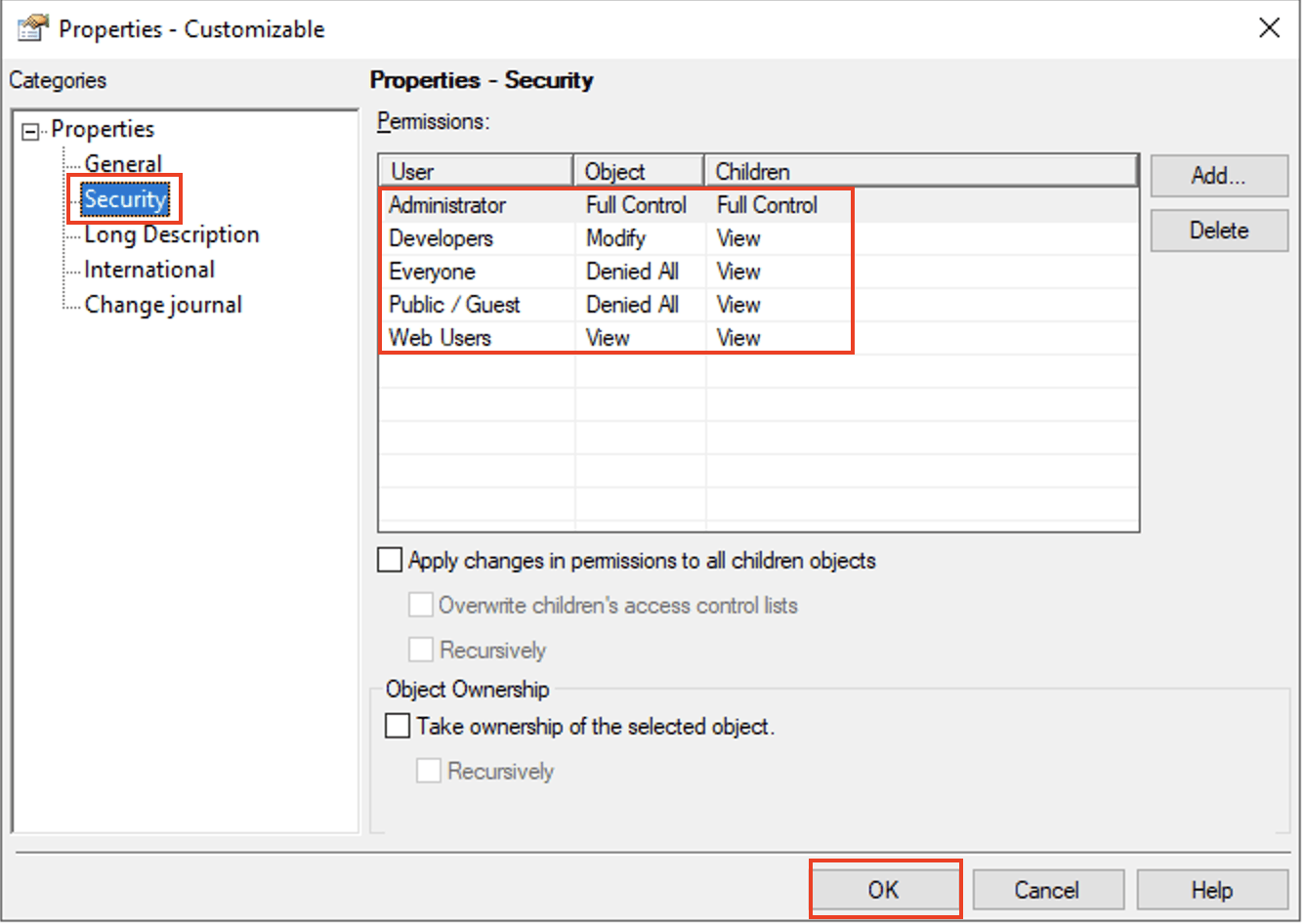
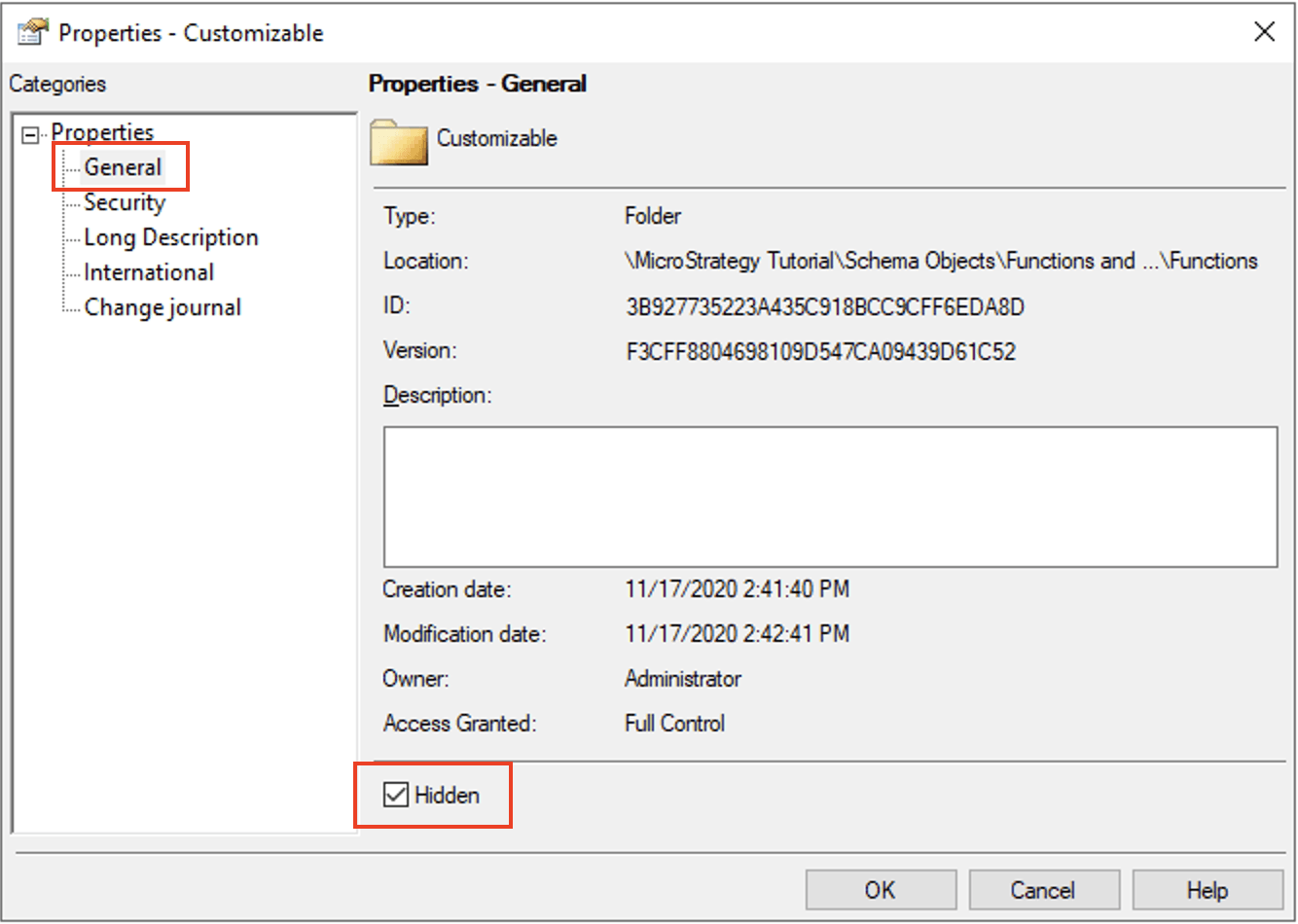
The default ACL setting can be checked and modified by right clicking on the Customizable folder on Developer and go to PropertiesSecurity. Click Ok after the modification is done.
To unhide the Customizable Folder or any function in it, right click on the folder or the function, go to Properties and uncheck the Hidden option.
To use the customized Aggregate01 function in a metric, you can choose Strategy Developer, Strategy WorkStation or Strategy Web to do it. Strategy Developer will be used to do all demonstrations in this article.
Firstly, launch Strategy Developer, open a project and navigate to a folder where you want to create a metric with Aggregate01. Open a metric editor to create a new metric.
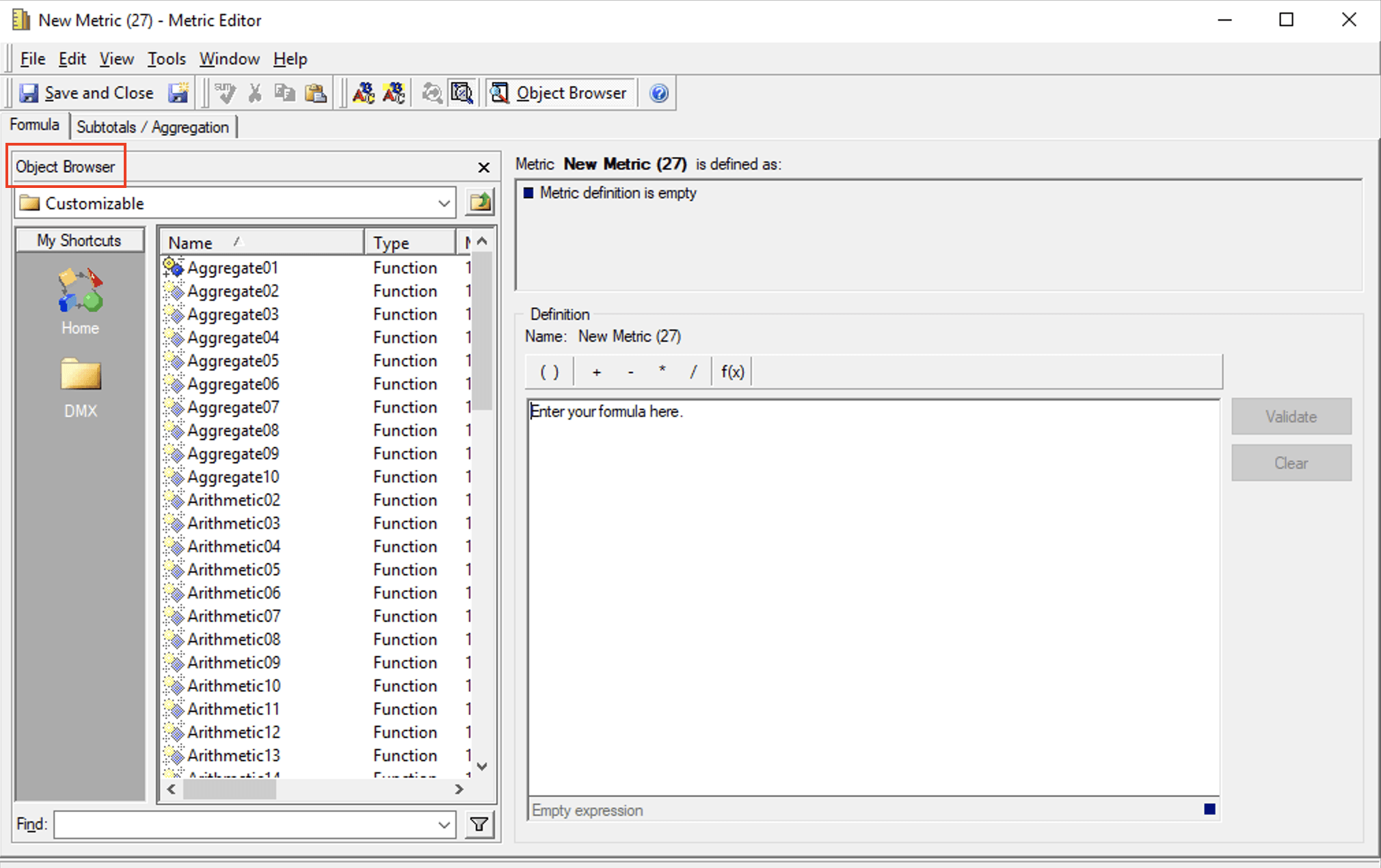
Then, add the customized Aggregate01 into the function expression box by either typing in the function name Approx_Count_Distinct or using Object Browser to find Approx_Count_Distinct under Schema Objects Functions and Operators Functions Customizable, and drag it into the expression box. If the goal is to count the number of distinct customers, add the attribute Customer as the function input to produce a metric expression like Approx_Count_Distinct(Customer) and then click Validate to verify the expression.
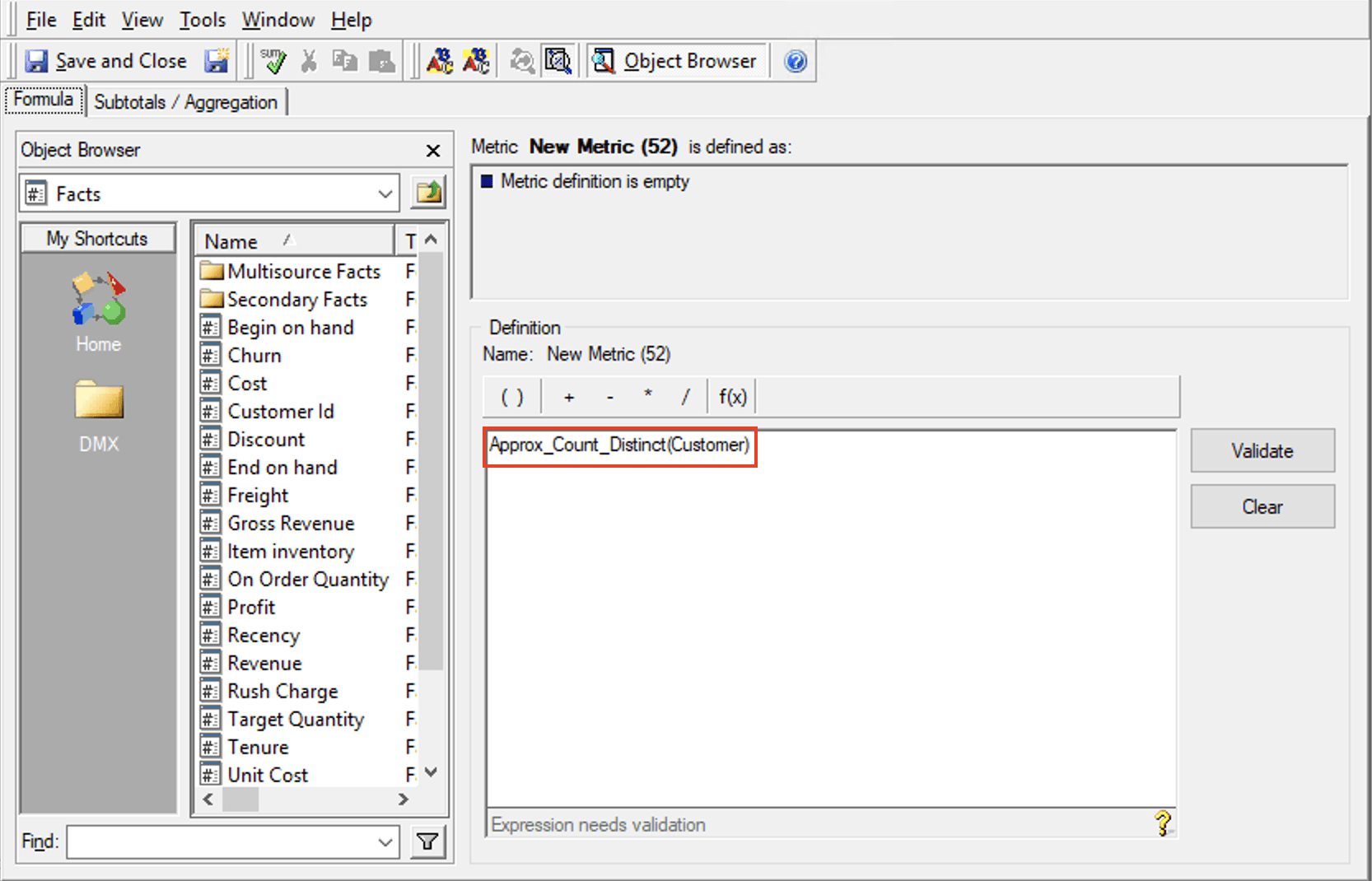
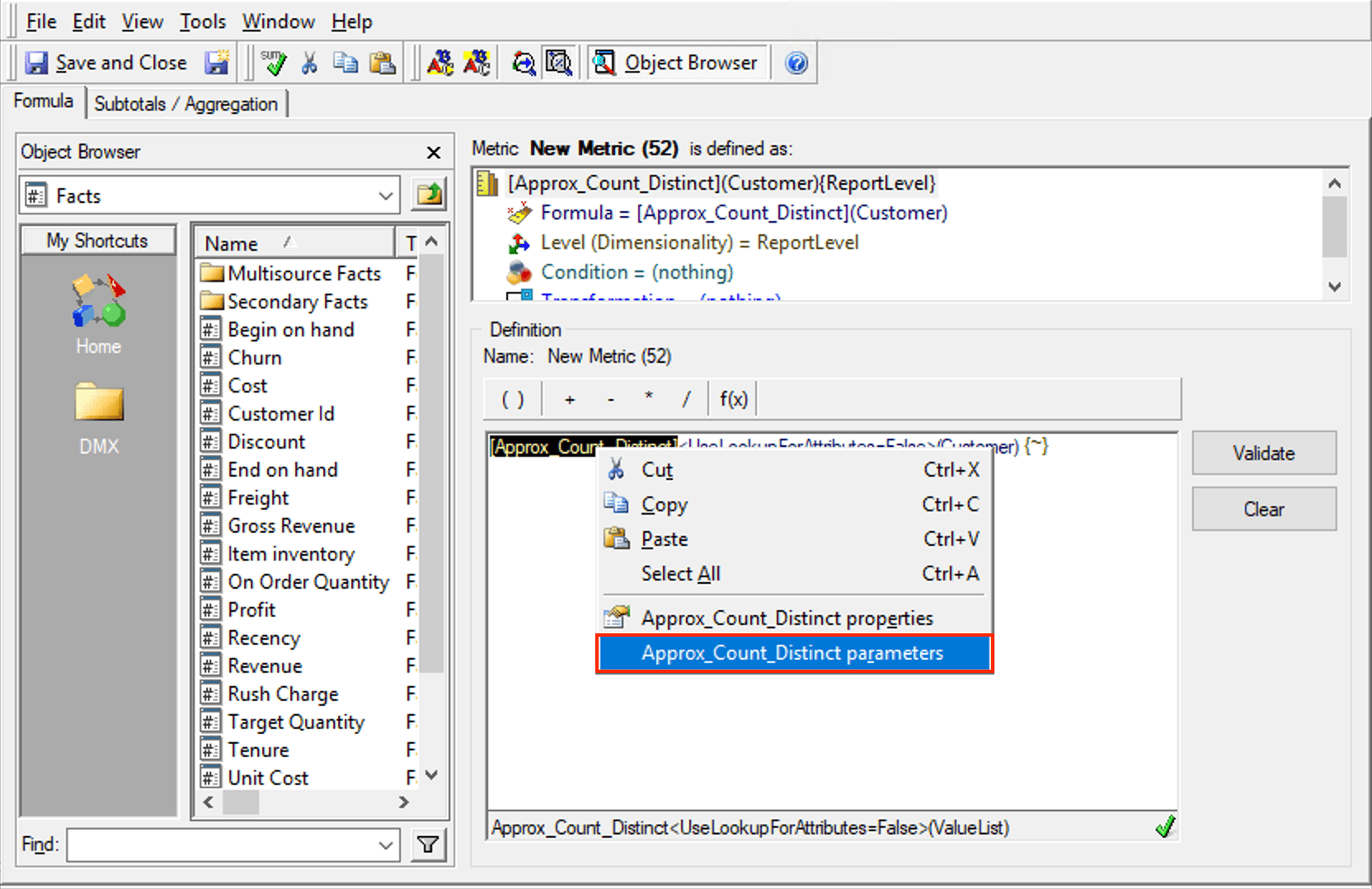
After validation passes, highlight the function name and right click on it to set related parameters for the function.


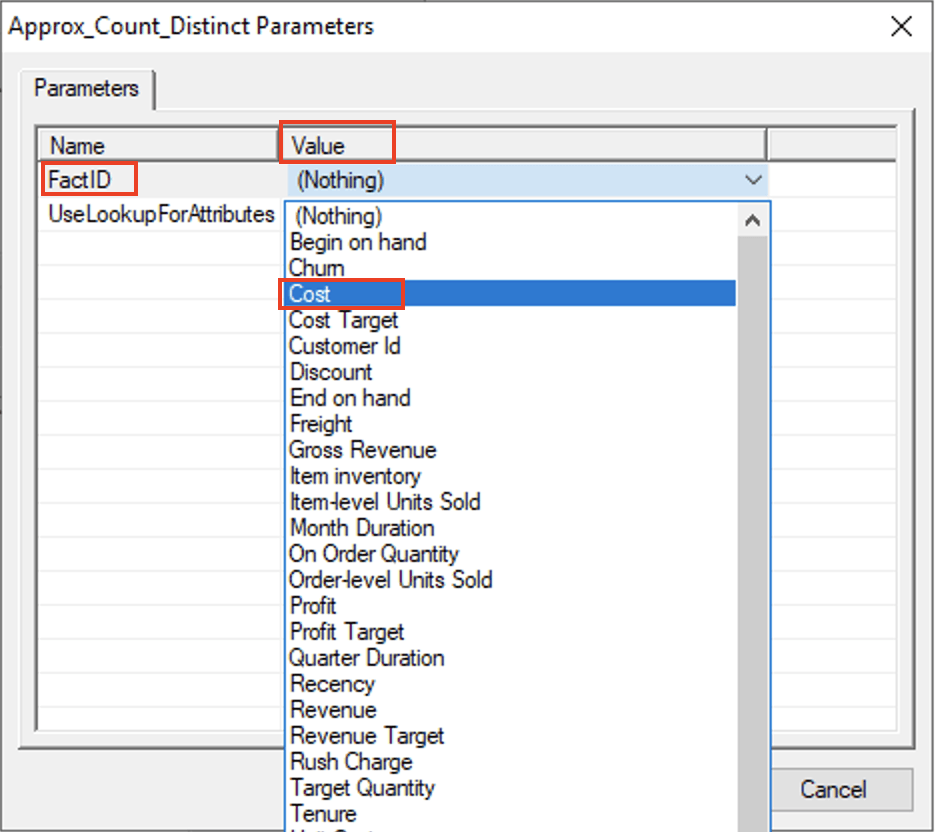
In the dialog box for parameter setting, there are two parameters available for Approx_Count_Distinct function, FactID and UseLookupForAttributes. To specify a fact like Cost to find a related fact table to do the counting, select the fact Cost from the dropdown list of Value for the parameter FactID, and keep the default setting False for UseLookupForAttributes. Click Ok to go back to metric editor.
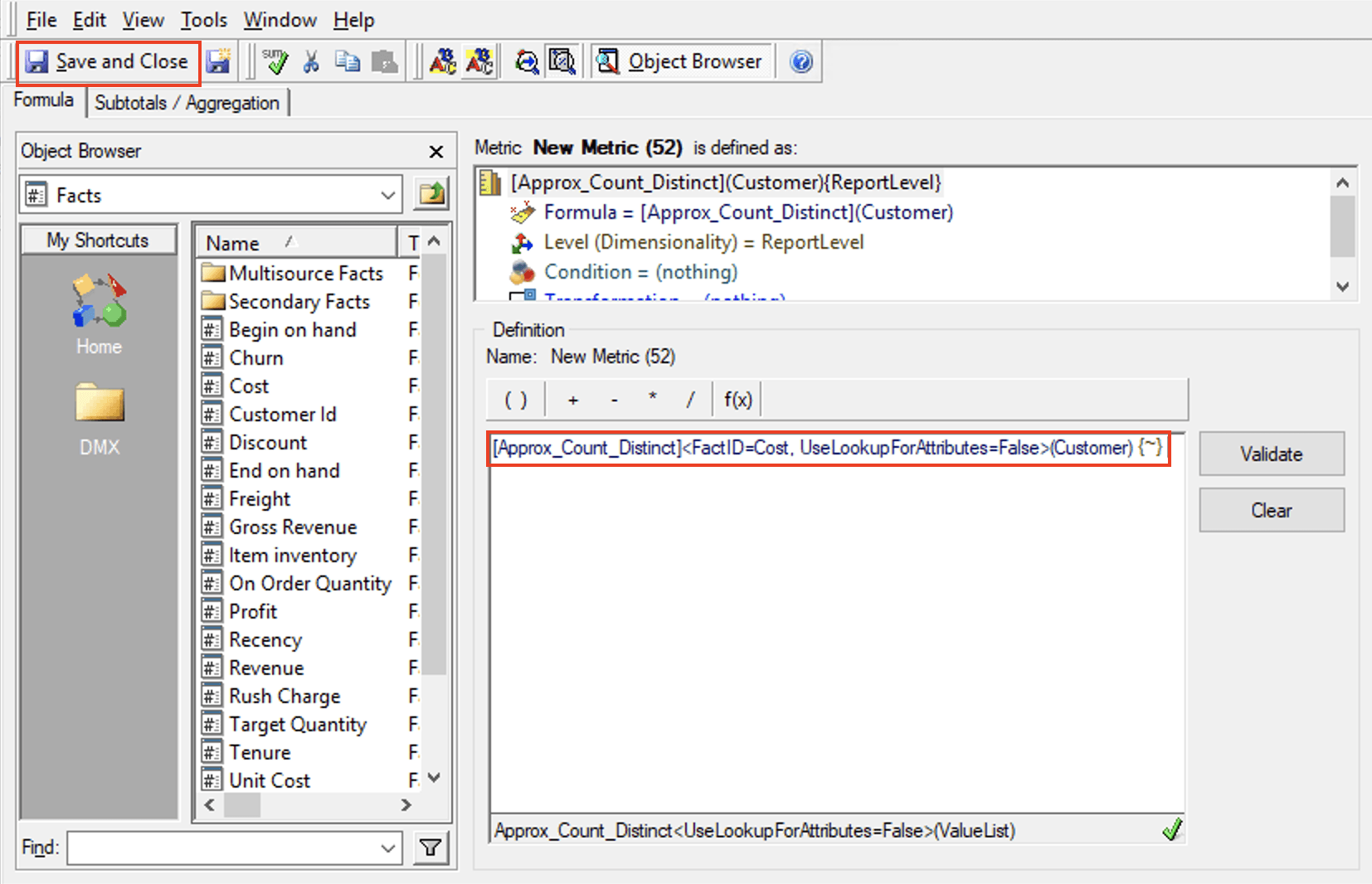
Now that the metric definition has been completed, click Save and Close to save the metric with the name of ApproxCntDistnt.
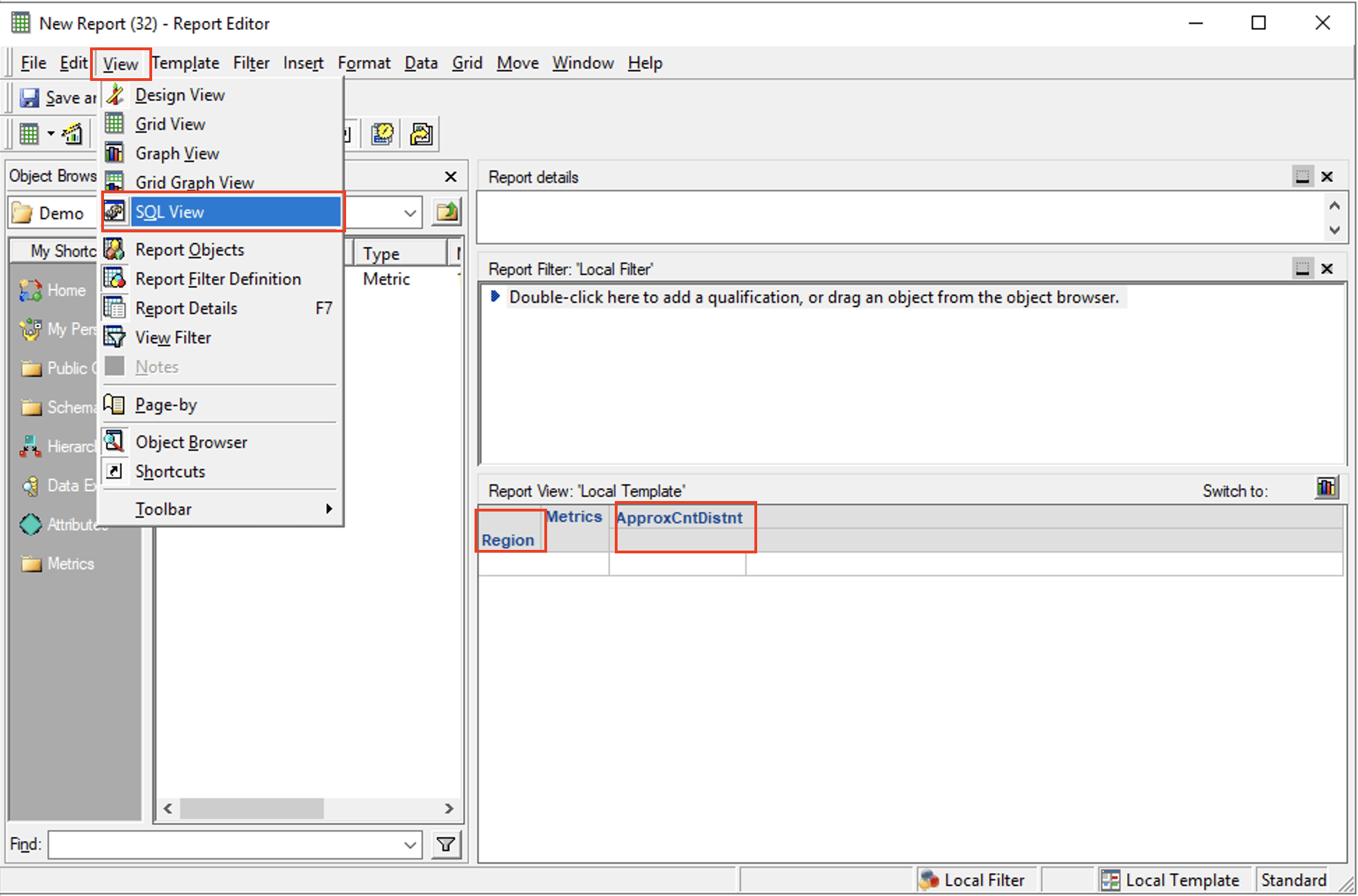
To check whether the customized Aggregate01 function will work as expected, open a report editor to create a new report with the attribute of Region and the metric ApproxCntDistnt added to the template, and go to View SQL view to check the SQL statement for the report.
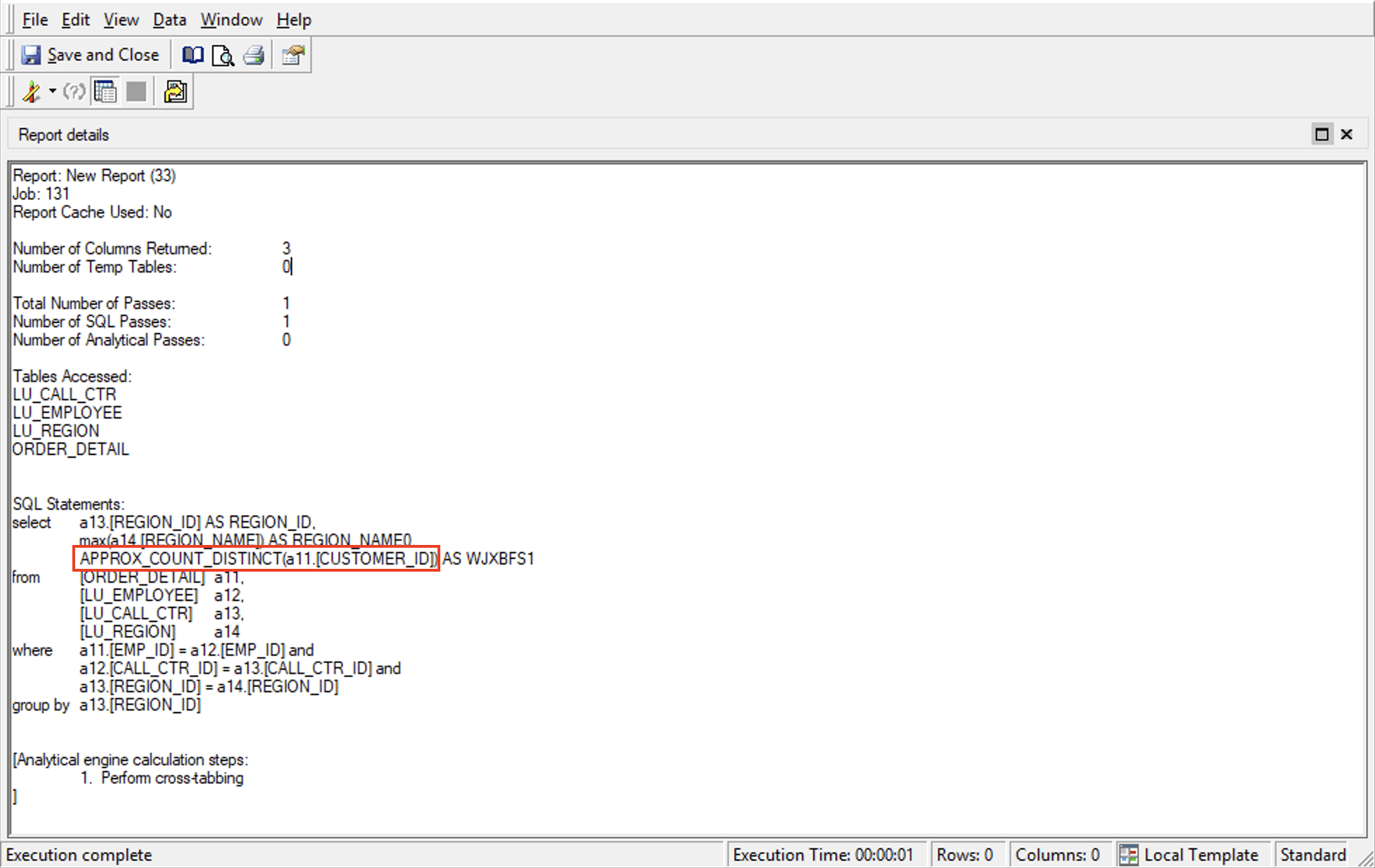
In the SQL statement, it can be seen that the SQL pattern for the metric ApproxCntDistnt matches the custom SQL pattern specified earlier for Aggregate01 in the DATABASE.PDS file with the input placeholder #0 replaced by the counting target “a11.[CUSTOMER_ID]”.
The demonstration above has shown how to configure and use Aggregate01. To customize and use one of OrderedSetAggregate01-10, the steps are almost the same except that there is an additional parameter Sort-by to be set when creating a metric. As shown in the dialog box of parameters setting for an OrderedSetAggregate function, the default setting for sort-by is Sort by values of the subexpression, which means sorting is done based on the value of the function input. The option of Sort by objects allows for using any object for the sorting.
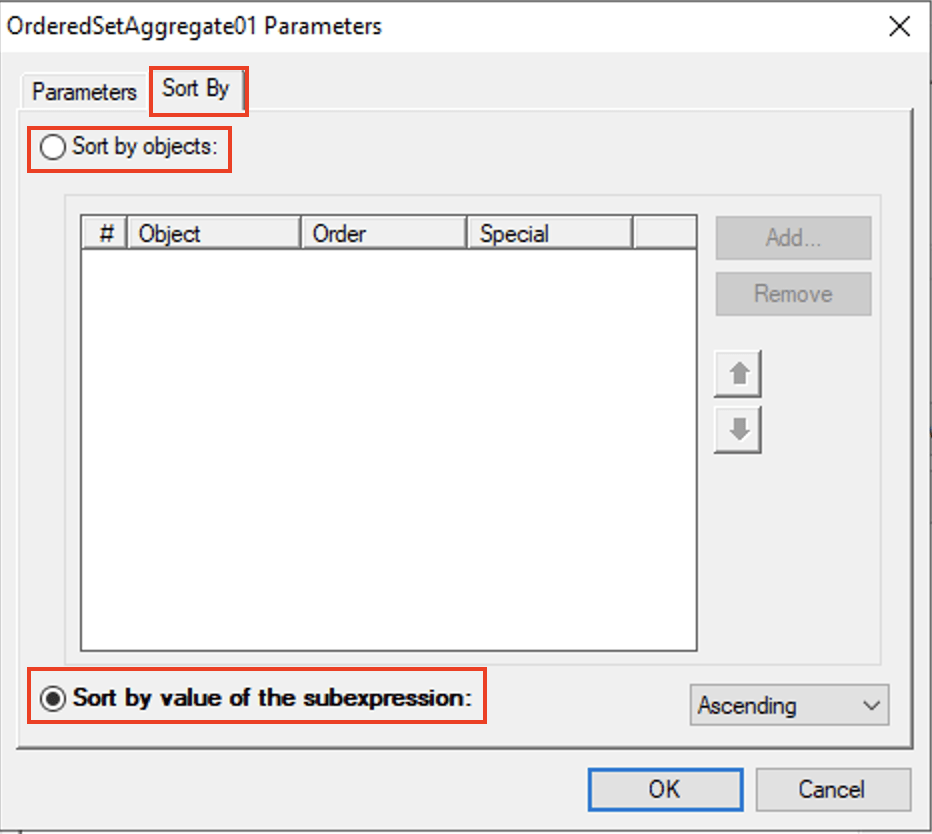
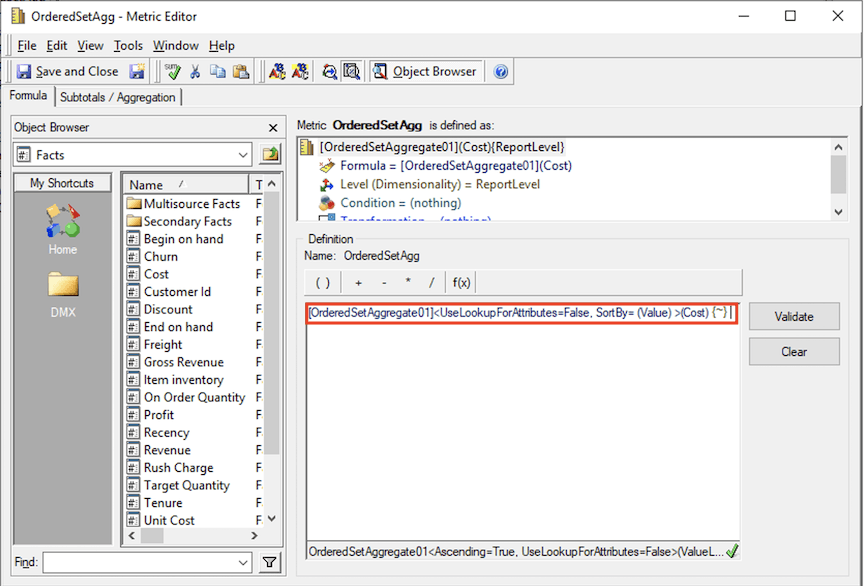
A sample function expression for a metric using OrderedSetAggregate01 will be like:
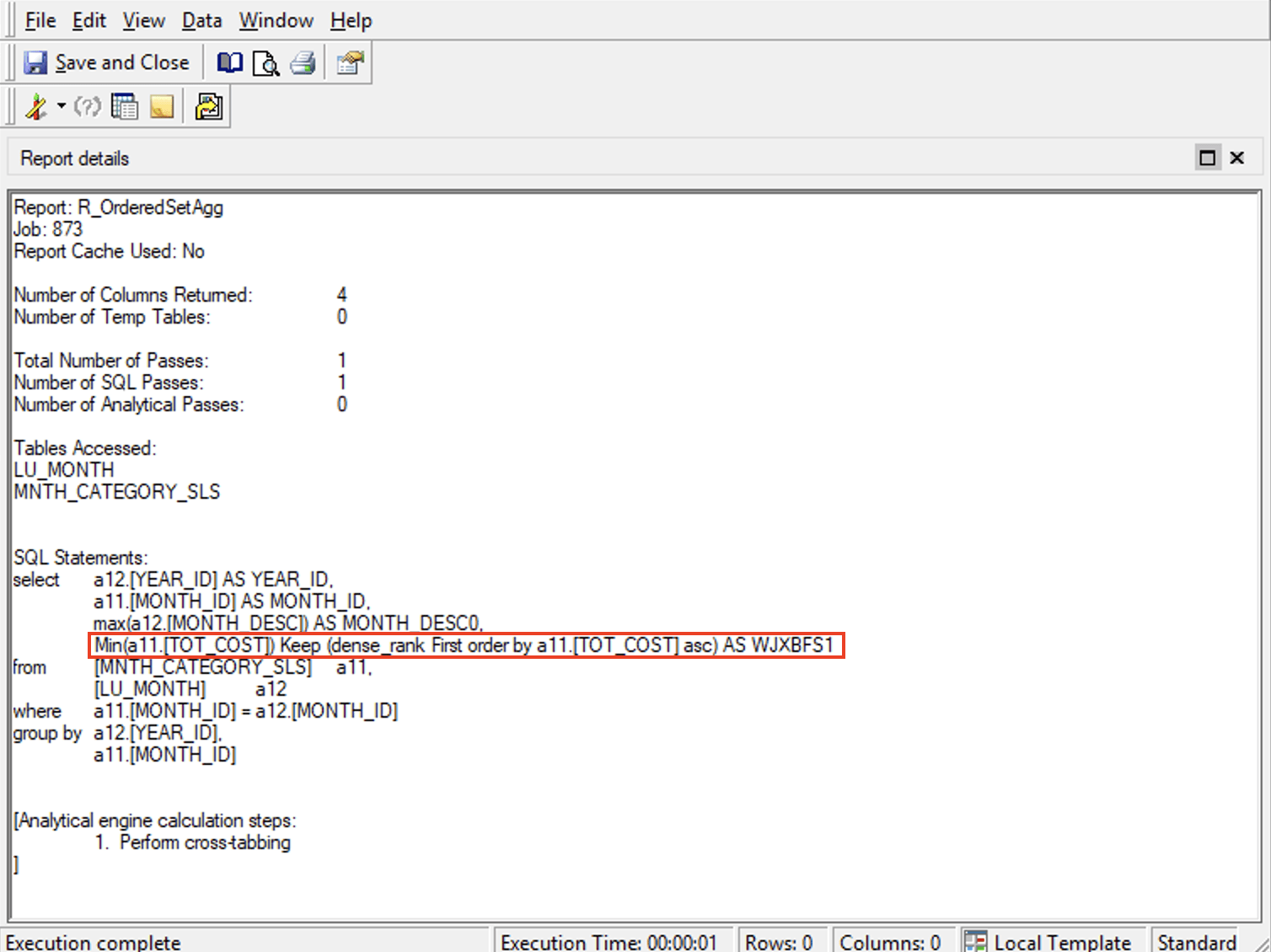
If OrderedSetAggregate01 is customized to be the function First in Oracle, the SQL pattern entry added in DATABase.PDS file and the SQL statement of a report with a metric using OrderSetAggregate01 will be like:
<FUNCTION_REF ID="xxxxxxxx" SQLPATTERN="Min(#0) Keep (dense_rank First order by #1)"/>
How to configure and use OLAP01-10 functions
10 new customizable OLAP functions (OLAP01-10) belong to the OLAP function family whose function type is called DssFunctionSQLTypeRelative in Strategy. OLAP functions take multiple elements from a list as input and return a new list of elements as output just like the commonly used function Rank(). They are used to define compound metrics and thus can only accept metrics as input. They are ready to be used in Strategy 2021 and any newer releases.
To customize any of OLAP01-10 functions to work as a specific OLAP function supported by your RDBMS, the general steps are the same as what has been described previously for how to customize Aggregate01. As an example, the following demonstration will show how to customize OLAP01 to work as dense_rank() function which is similar to the commonly used rank() function but has slight difference with the rank numbers being consecutive. Dense_rank() function is supported in SQL Server, Oracle, MySQL, PostgreSQL, Amazon Redshift, Snowflake, VoltDB and so on.
The general SQL syntax for Rank() function is: rank() over (<partition_by_clause> <order_by_clause>). In a specific case, if you want to use Rank() to rank revenue per category level with the ranking restarted for each year, the SQL syntax will be like: rank() over (partition by Year order by Revenue). The input of Rank(), Revenue, is the same object specified for the parameter Order by. Similarly, to use dense_rank() to do the same ranking, the SQL syntax will be like: dense_rank() over (partition by Year order by Revenue). Therefore, to customize OLAP01 to be dense_Rank(), the SQL pattern entry to be added into DATABASE.PDS file will be like:
<FUNCTION_REF ID="xxxxxxxxxxxxxxxxxxxxxxxxxxxxxxxx" SQLPATTERN="dense_rank() over ([#P] [#O])" OLAPDBPATTERN="P:o|O:r|W:o" />
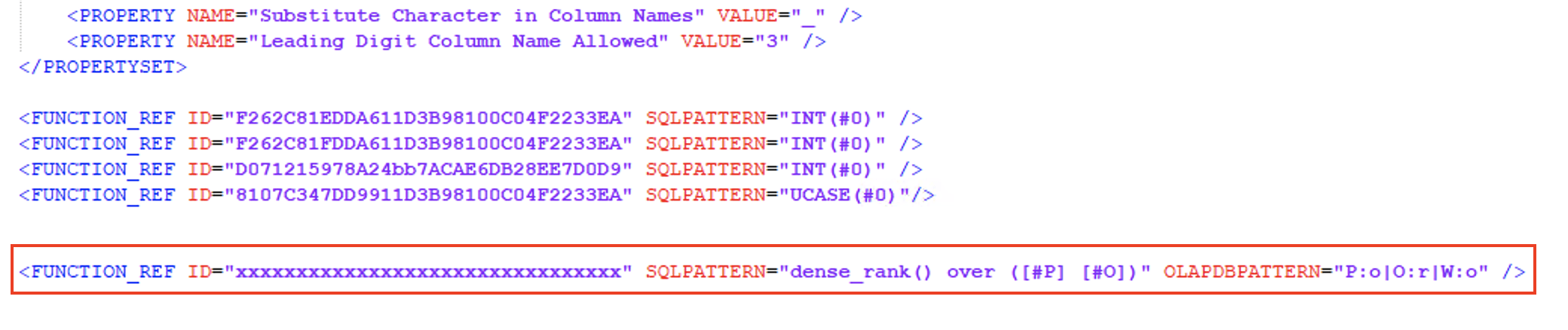
In the SQL pattern entry for OLAP01, #P and #O are the placeholders for the two parameters of the customized function, Partition By and Order By, whose specific values will be collected when OLAP01 is used to create a metric. Because the object specified for #O will be the same object to be ranked, you don’t need to particularly set an input placeholder for the function like dense_rank(#0) in the SQL pattern entry. It should be noted that there is an additional part about OLAPDBPATTERN in the SQL pattern entry for OLAP01, which is not needed for the other 4 categories of customizable functions. The OLAPDBPATTERN is required by Strategy SQL Engine to generate correct SQL syntax for the customized OLAP functions with all related parameters being collected and set appropriately. In the present OLAPDBPATTERN for OLAP01, P:o|O:r|W:o, ‘P:o’ means the parameter Partition By is optional, ‘O:r’ means the parameter Order By is required, and ‘W:o’ means the parameters related to Window boundary setting are optional.
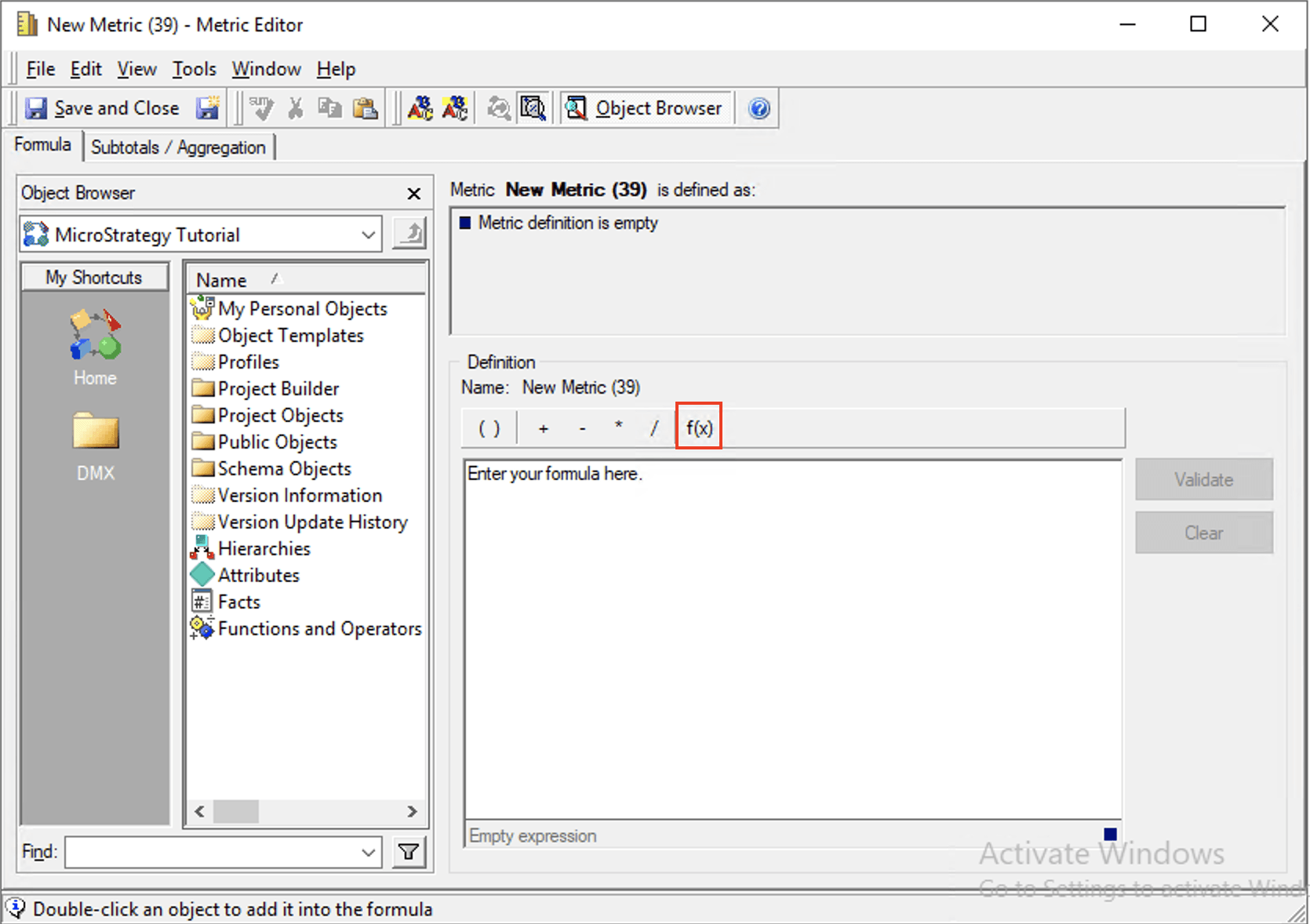
To use the customized OLAP01 in a metric, go to Strategy Developer, open a project and open a metric editor. Click f(x) button on the metric editor to use Insert Function Wizard interface to construct a metric formula.
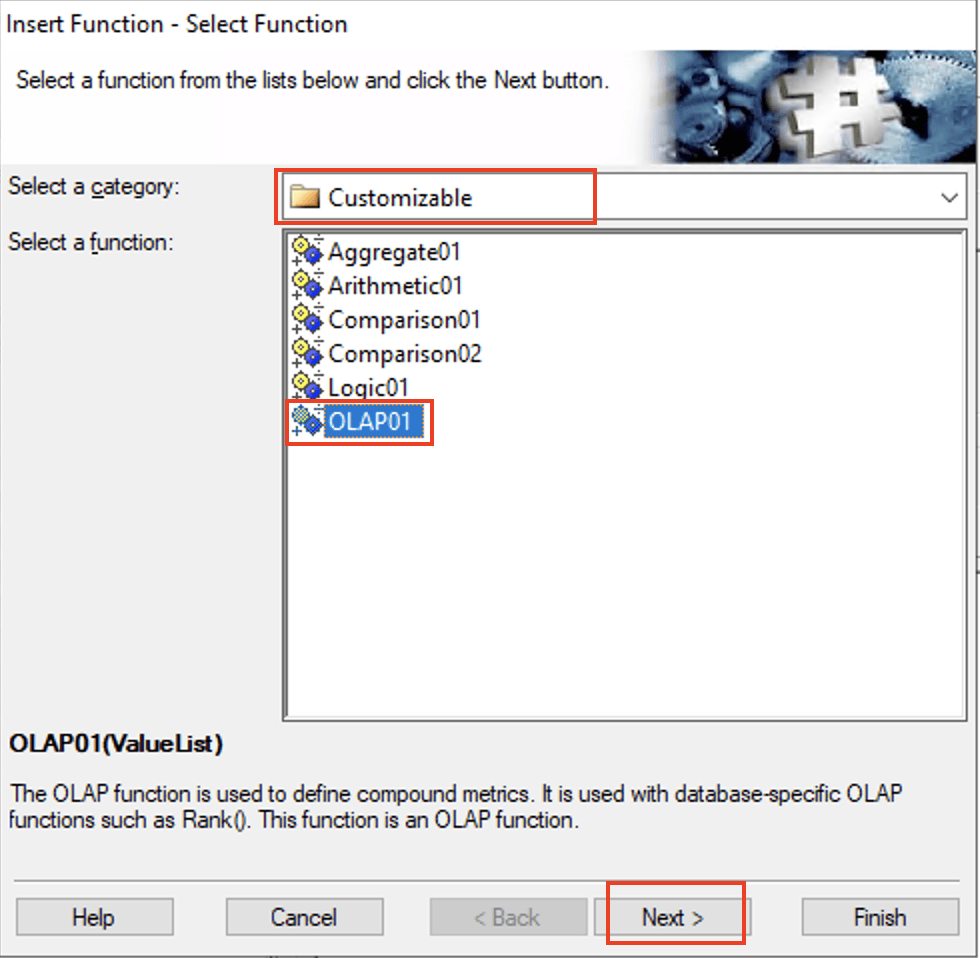
In the first dialog box of Insert Function Wizard for Select Function, use object browser to navigate to Schema ObjectsFunctions and OperatorsFunctionsCustomizable folder, select OLAP01, and click Next to go to the next step.
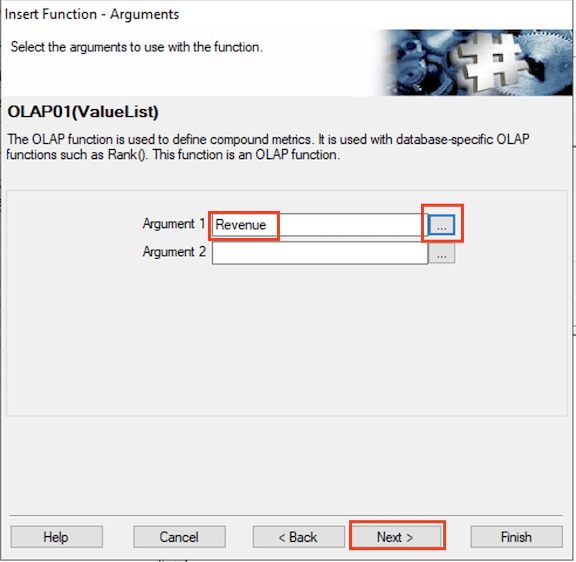
In the Arguments dialog box, use object browser to find the object to be use as input for OLAP01. If the goal is to use OLAP01 to do ranking on Revenue per Category within each year, find the metric Revenue, select it and click Next to go to the next step.
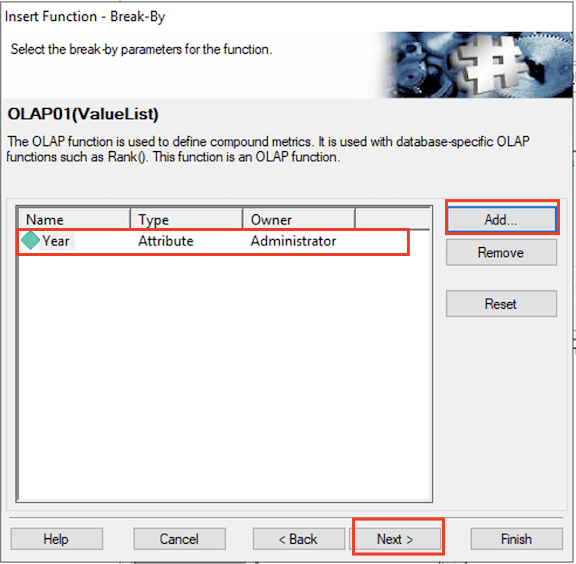
In the Break-By dialog box, click Add to add the object to do Break-by so that the ranking of Revenue will restart for each new element of this Break-by object. It should be Year in current case. This break-by setting corresponds to the parameter partition-by specified earlier in the SQL pattern entry for OLAP01. After Year is added, click Next to go to the next step.
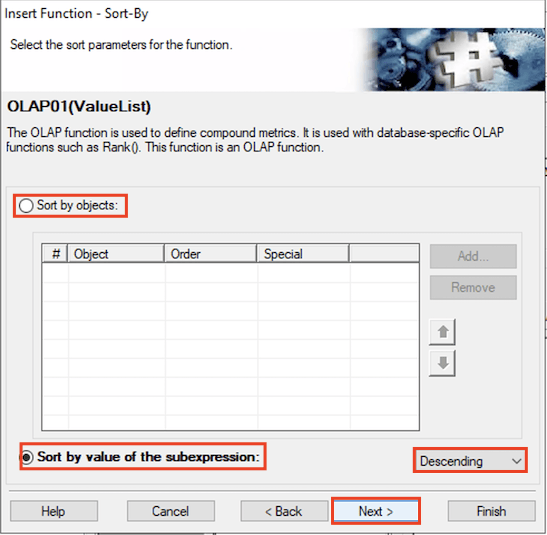
In the Sort-By dialog box, keep the default setting of Sort by value of the subexpression for Sort-By, which means ranking will be done for the input of the function, Revenue, with sorting executed based on the values of revenue. The option Sort by Objects for Sort-By setting is not applicable for rank() function, because ranking is always done for the ranked object with the only sorting option of sorting by the values of the ranked object. Sort-by setting corresponds to the parameter Order-By in the SQL pattern entry for OLAP01. Ascending and Descending are available for the specific sorting need. Descending is selected in current example. Click Next to move to the next step.
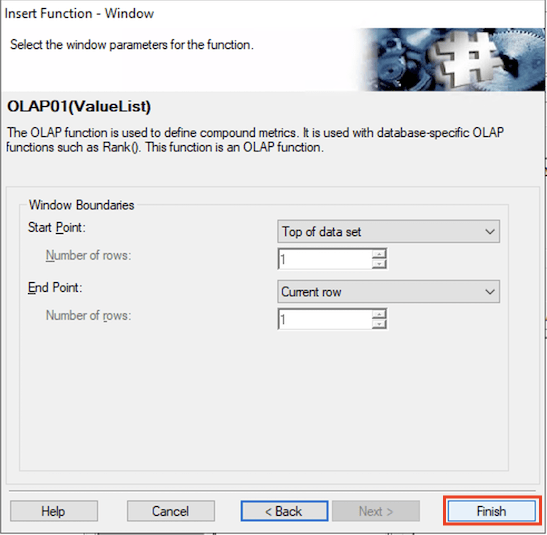
In the dialog box for Window setting, no action is needed since Window setting is not an option for dense_rank() function and thus no place holder was set for Window setting in the SQL pattern entry when customizing OLAP01. Accordingly, Window setting won’t be used by Strategy SQL Engine to generate SQL syntax for the current metric. However, if OLAP01 has been customized to be a function which allows window setting, the window setting in this dialog box will be taken by Strategy SQL Engine and be placed in SQL syntax for the function. Since all setting is done, click Finish and go back to metric editor.
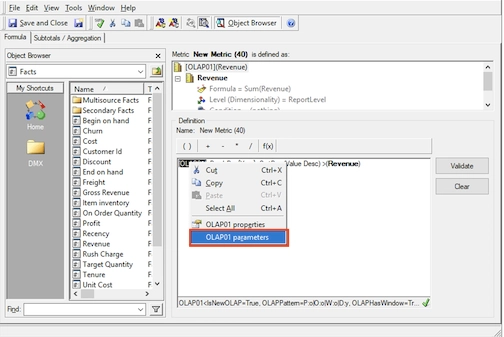
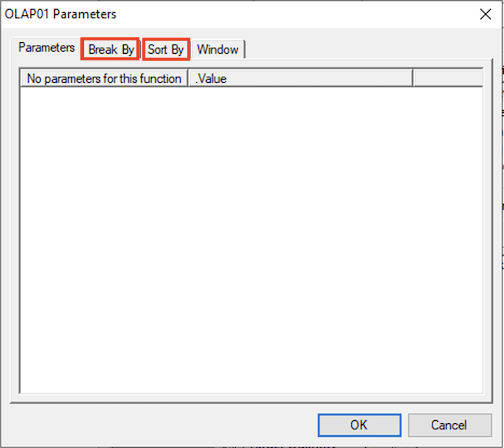
If there is any change to be made on the parameter setting of OLAP01 at any time, you can always open the metric editor, click on OLAP01 in the function formula box to highlight the function name, then right click on it, and choose OLAP01 parameters to access parameter editing dialog box to change the parameter settings.
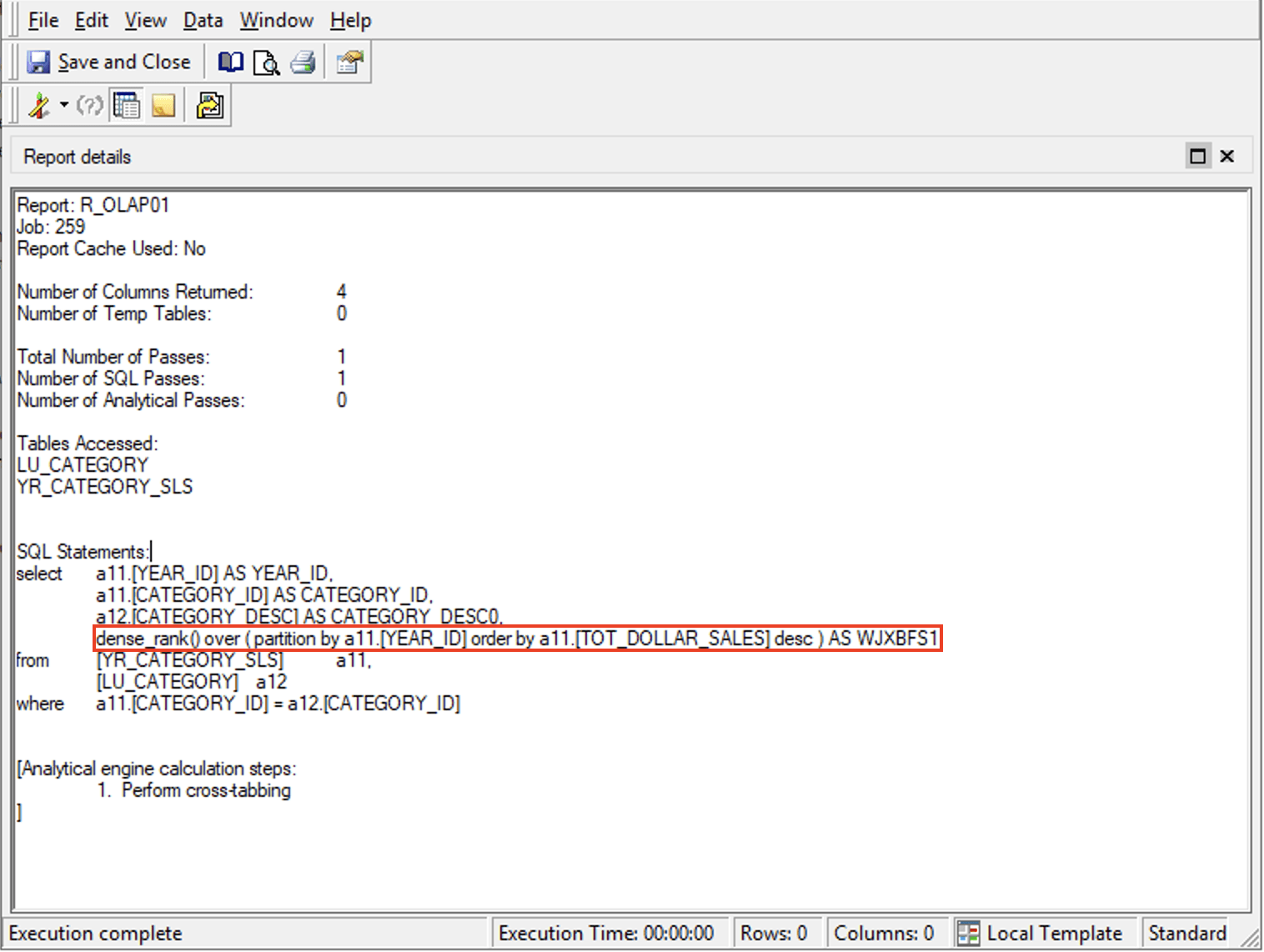
Now that the definition of the metric is completed, click Save and Close to save it with the name of DenseRank. To use this new metric in a report and check the SQL pattern of it, open a report editor, create a new report by adding Year, Category, and the newly created metric DenseRank to the report template, and then go to View SQL View to check the SQL statement. It can be seen that the SQL pattern for the metric DenseRank matches the custom SQL pattern specified earlier for OLAP01 with #P replaced by “partition by a11.[Year_ID]” and #O replaced by “order by a11.[TOT_DOLLAR_SALES] desc”.
To customize any of OLAP01-10 functions to be any other OLAP functions with more parameter settings like window setting, you will only need to adjust the SQL pattern entry accordingly. For example, if the target OLAP function is like RunningSum but with adjustable window setting, then the SQL pattern entry will be like:
<FUNCTION_REF ID="xxxxxx" SQLPATTERN="sum(#0) over ([#P] [#O] [#W])" OLAPDBPATTERN="P:o|O:o|W:o" />
In the SQL pattern entry above, #0 is the placeholder for the input of sum(), while #P, #O and #W are the placeholders for the parameters of the function. #W corresponds to the window setting mentioned earlier, which defines the window boundary so that specific rows will be included in the sum calculation for each output element.
How to configure and use Arithmetic01-20 functions
The 20 new customizable Arithmetic functions (Arithmetic01-20) work as single-value functions whose function type is called DssFunctionSQLTypeArithmetic in Strategy. They operate on each individual element of an input variable or argument and result in an output element for each. Common examples of single-value functions include simple mathematical operators (+, -, *, /), Abs, Cos and so on. Arithmetic01-20 are ready to be used in Strategy 2021 and any newer releases.
To customize any of Arithmetic01-20 functions to work as a specific arithmetic function which is supported by your RDBMS, follow the steps described in previous section for how to customize Aggregate01 and the only difference will be the specific SQL pattern to be specified in DATABASE.PDS file.
As an example, the following demonstration will show how to customize Arithmetic01 to work as soundex() function which takes a word as input and produce a 4-digit code output to catch the sound of the input word. Soundex() function is supported in SQL Server, Oracle, Redshift, MySQL, PostgreSQL & Vertica and so on. To customize Arithmetic01 to work as soundex(), add the SQL pattern entry in DATABASE.PDS file as:
<FUNCTION_REF ID=" xxxxxxxxxxxxxxxxxxxxxxxxxxxxxxxx " SQLPATTERN="Soundex(#0)"/>
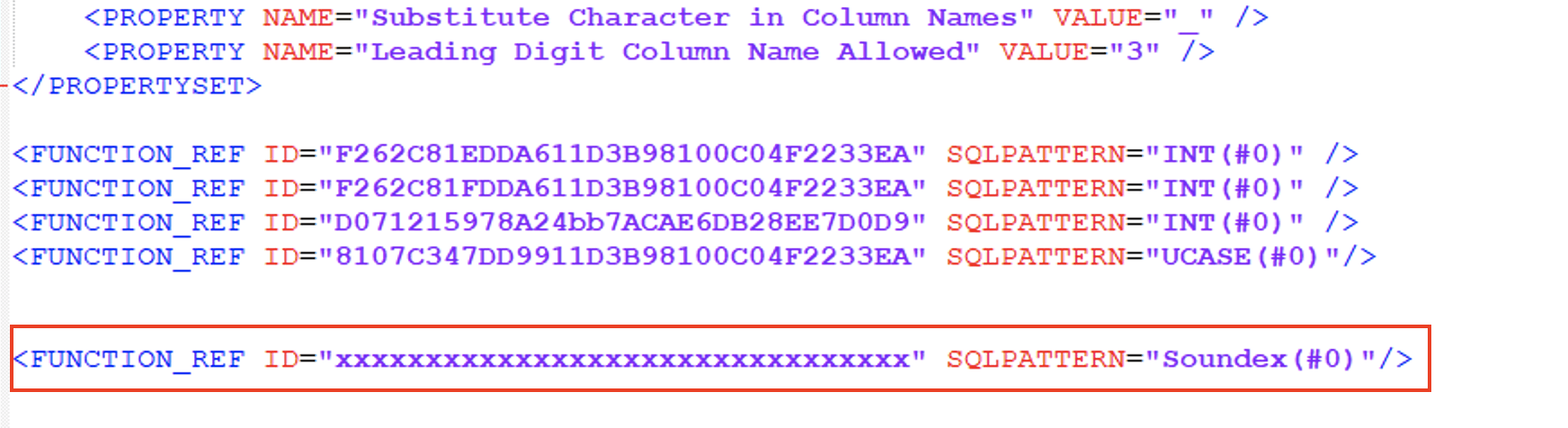
In the SQL pattern entry, #0 is the place holder for the input of Arithmetic01 which will be specified when the customized Arithmetic01 is used in a Strategy object.
After SQL pattern entry is set for Arithmetric01, it’s ready to be used as Soundex() function now. The following demonstration will show how to use the customized Arithmetic01 to construct a filter to fulfil a goal of searching from a table for all customers’ last names which sound like “Anderson”.
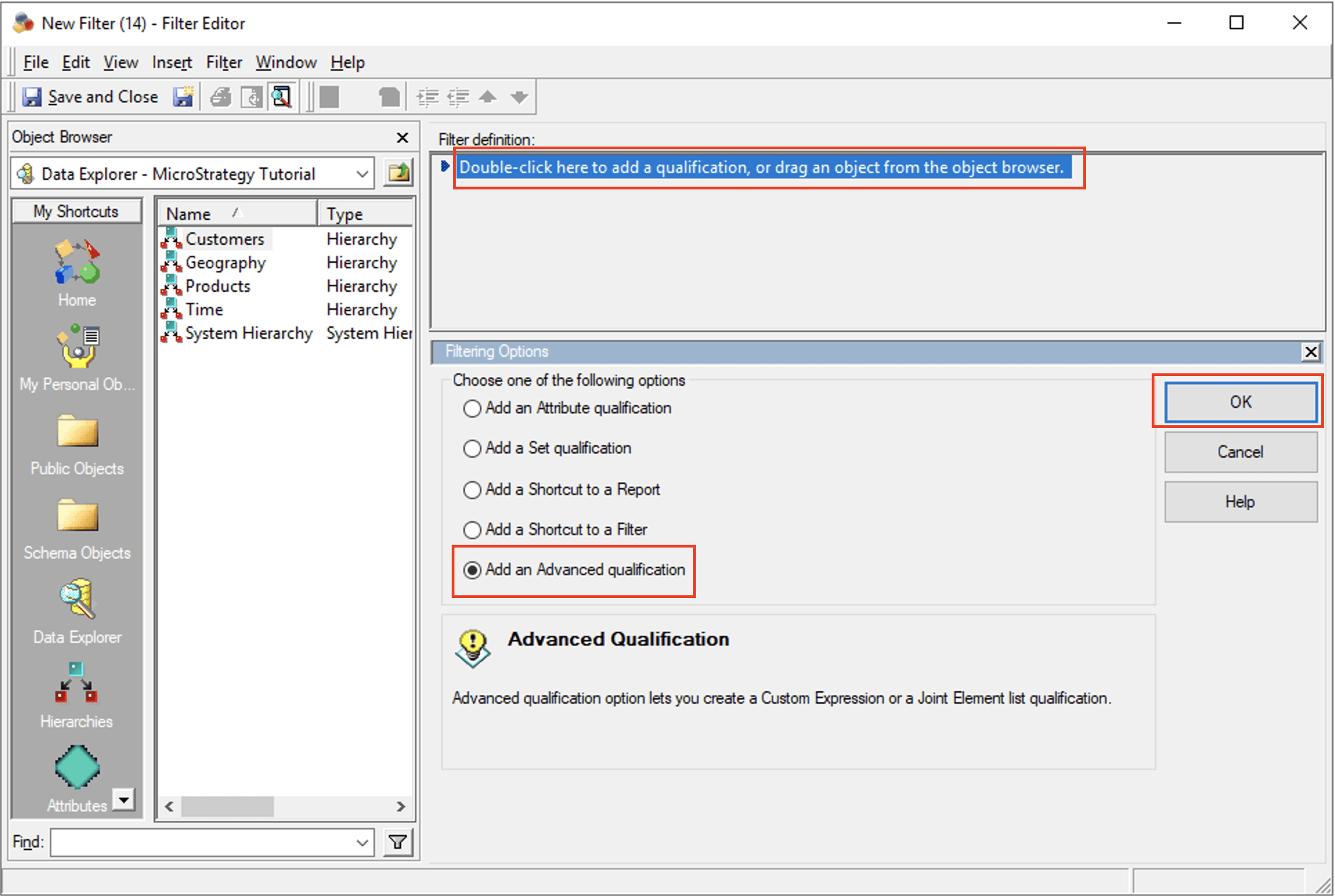
Firstly, launch Strategy Developer, open a project and then go to a folder where you want to create a filter with Arithmetic01. Then, open a filter editor to create a new filter by right clicking on any blank space in the folder and go to New Filter. On the Filter Editor, double click in the filter definition box, select the option of Add an Advanced qualification, and click OK to go to Advanced Qualification pane to construct the filter expression.
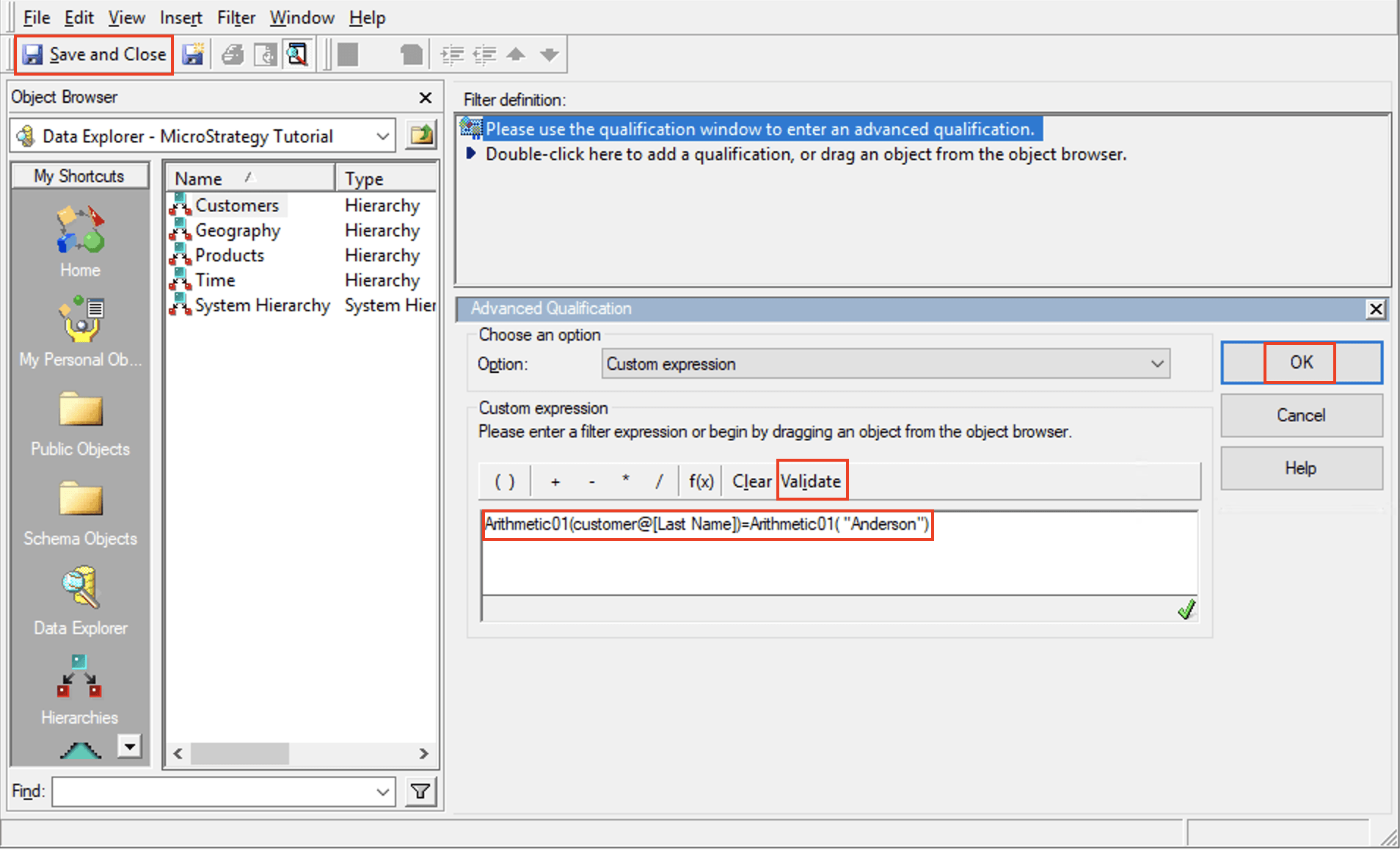
In the filter expression editing box of Advanced Qualification pane, type in a filter expression like Arithmetic01(customer@[Last Name])=Arithmetic01("Anderson"), and click Validate. After validation passes, click OK and then Save and Close to save the filter with the name SoundOfAnderson.
To check if the customized Arithmetic01 will work as expected, use the newly created filter SoundOfAnderson in a report and check the SQL statement for the report. Open a report editor to create a new report, add an attribute Customer to the report template and add the new filter SoundOfAnderson as the report filter. From report editor, go to View SQL view to check SQL statement.
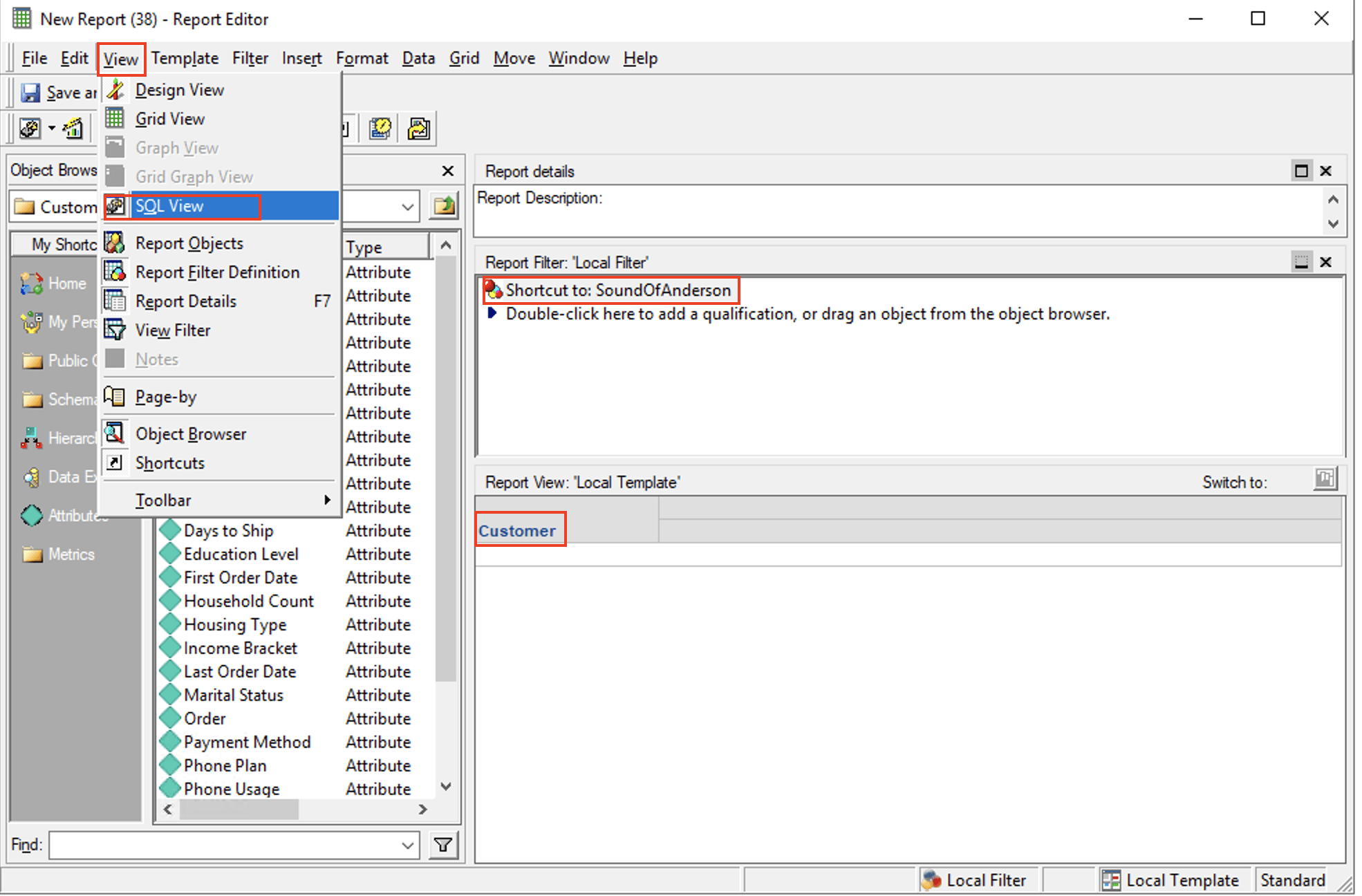
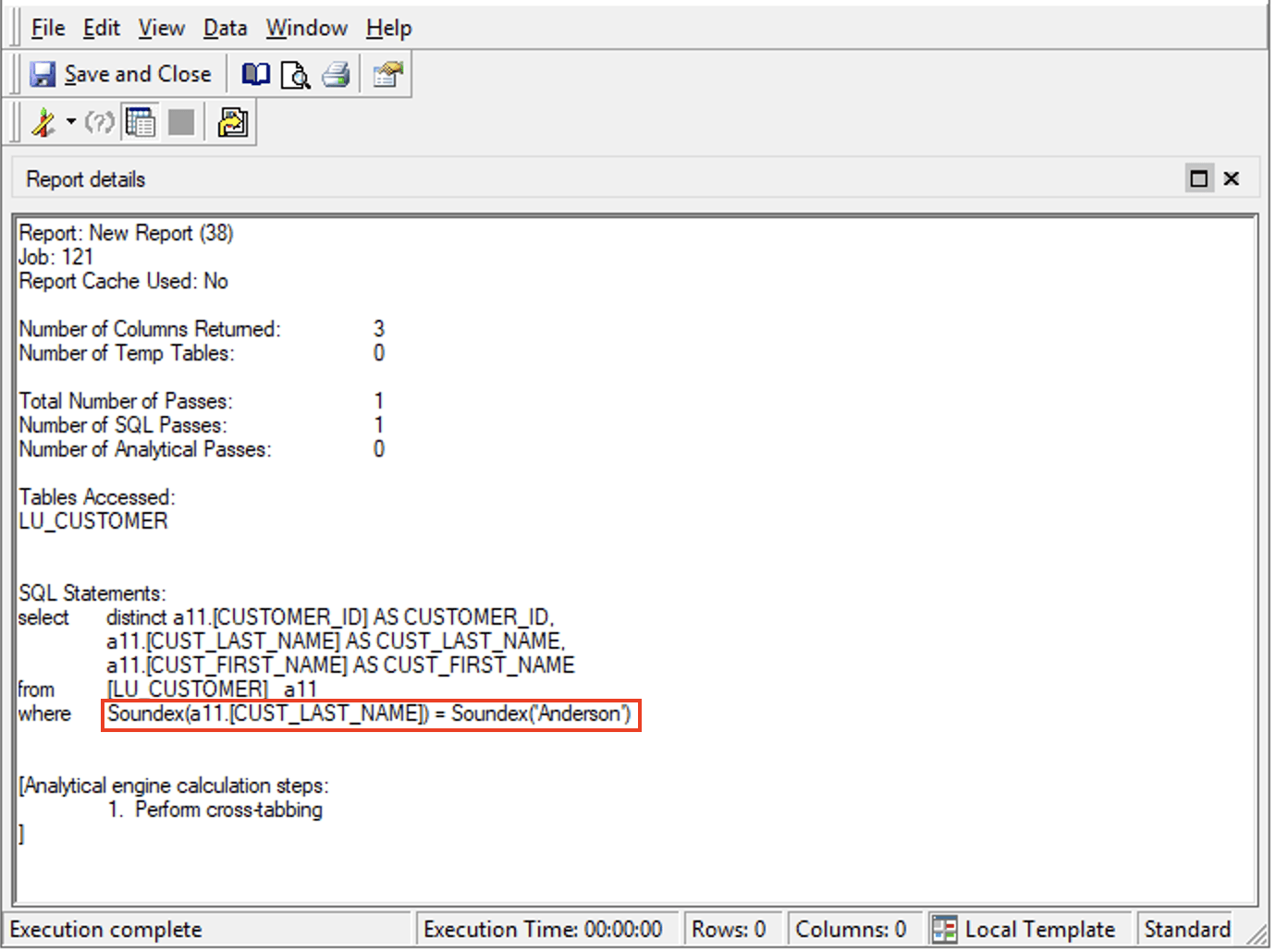
In Where clause of the SQL statement where the report filter goes to, it can be seen that Arithmetic01() function has been translated to Soundex() according to the SQL pattern specified earlier, with the function input place holder #0 replaced by the actual input “a11.[CUSTOMER_LAST_NAME]” and “Anderson”.
How to configure and use Comparison01-10 functions
The 10 new customizable Comparison functions (Comparison01-10) are used in filters for constructing filtering conditions by comparing single values or list of values, or comparing a list to a threshold value. The function type of Comparison01-10 is called DssFunctionSQLTypeComparison in Strategy. Common examples of comparison functions include >, <, Between, Like and so on. Comparison01-10 are ready to be used in Strategy 2021 and any newer releases.
To customize any of Comparison01-10 functions to work as a specific comparison function which is supported by your RDBMS, the general steps are the same as described in previous section for how to customize Aggregate01 and the only difference will be the specific SQL pattern entry to be added into the DATABASE.PDS file.
As an example, it will be demonstrated how to customize Comparison01 to work as RegExp_LIKE() function which is similar to Like but provides more flexibility on constructing expressions for more complicated pattern matching through regular expression. RegExp_like function is supported in RDBMS like Oracle, SQL Server, MySQL, PostgreSQL and so on. If there is a goal like searching for employees who have last name like Anderson, Andersan, or Andersen in a table, it can be easily achieved by using RegExp_LIKE() to construct a filter in a Where clause of a SQL statement and the SQL statement will be like:
Select First_Name, Last_Name from [table_name] where RegExp_LIKE(Last_Name, ‘Anders(o|e|a)n’.
To customize Comparison01 to be RegExp_LIKE function, the following SQL pattern entry should be added into DATABASE.PDS file for Comparison01 if REGEXP_LIKE() is the SQL syntax for your RDBMS.
<FUNCTION_REF ID=" xxxxxxxxxxxxxxxxxxxxxxxxxxxxxxxx " SQLPATTERN="REGEXP_LIKE(#0, #1)"/>
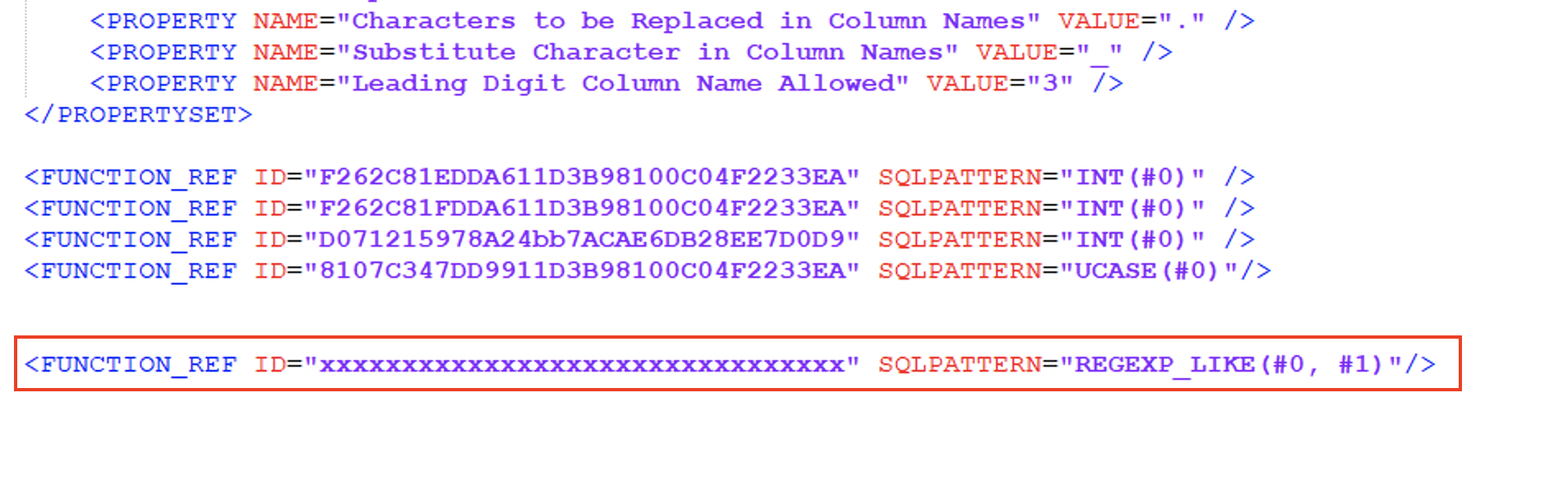
In the SQL pattern entry above, #0 is the placeholder for the searching target, and #1 is the placeholder for searching pattern/criteria.
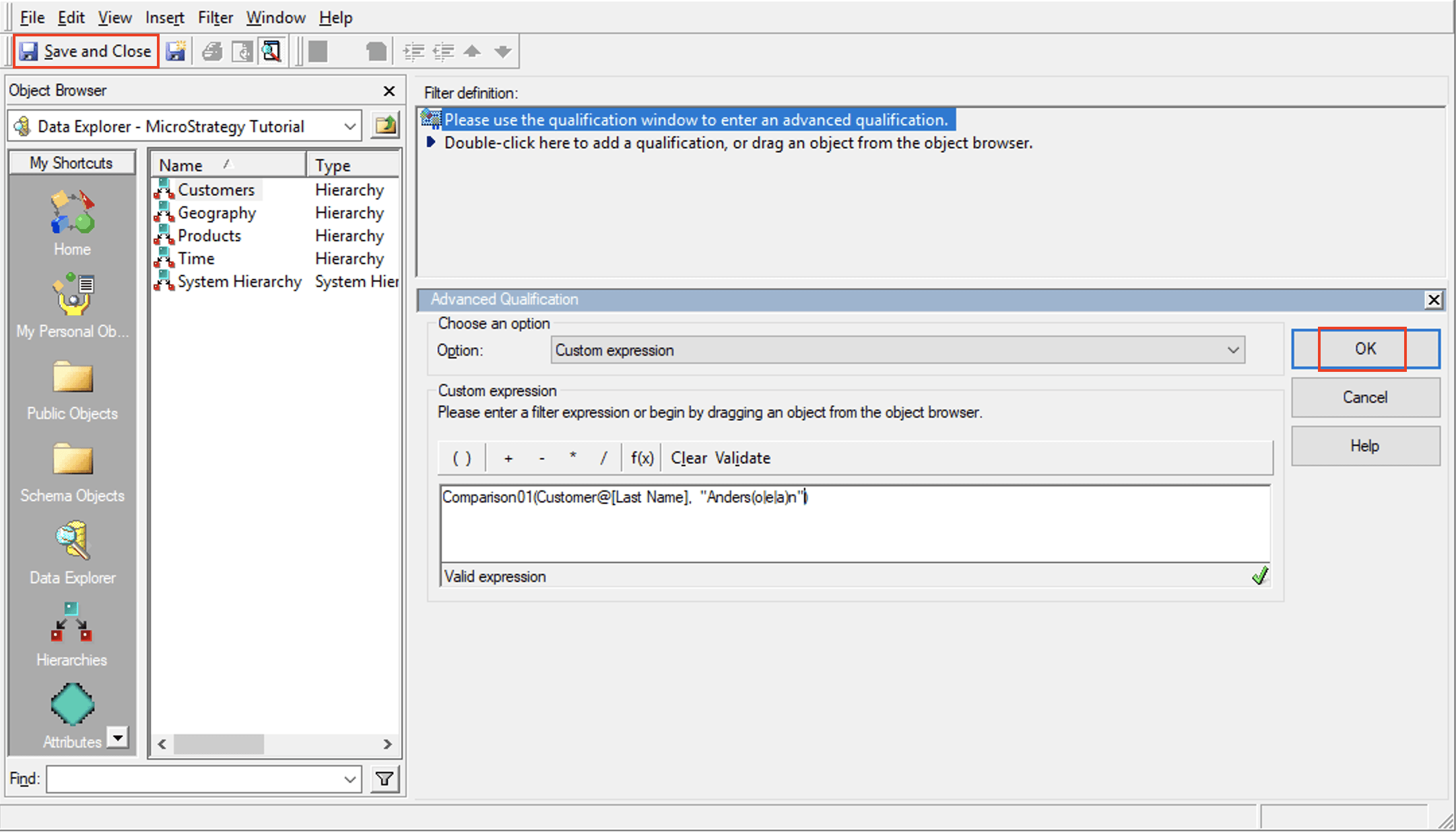
To use the customized Comparison01 in a filter, the steps are similar to what has previously been shown for how to use the customized Arithmetic01 in a filter. Firstly, launch Strategy Developer, open a project, go to a folder where you want to create a filter, and open a filter editor. On the Filter Editor, double click in the filter definition box, select Add an Advanced qualification, and click OK to construct the filter expression. For example, if the goal is to filter for all customers whose last name is Anderson, Andersan or Andersen, type in an expression in the filter expression editor as Comparison01(Customer@[Last Name], "Anders(o|a|e)n"). It should be noted that, beside directly typing a function name into the filter expression editor, another option is to use Object Browser to explore and find the function under Schema Objects Functions and Operators Functions Customizable, and double click on the function to add it into the expression editor.
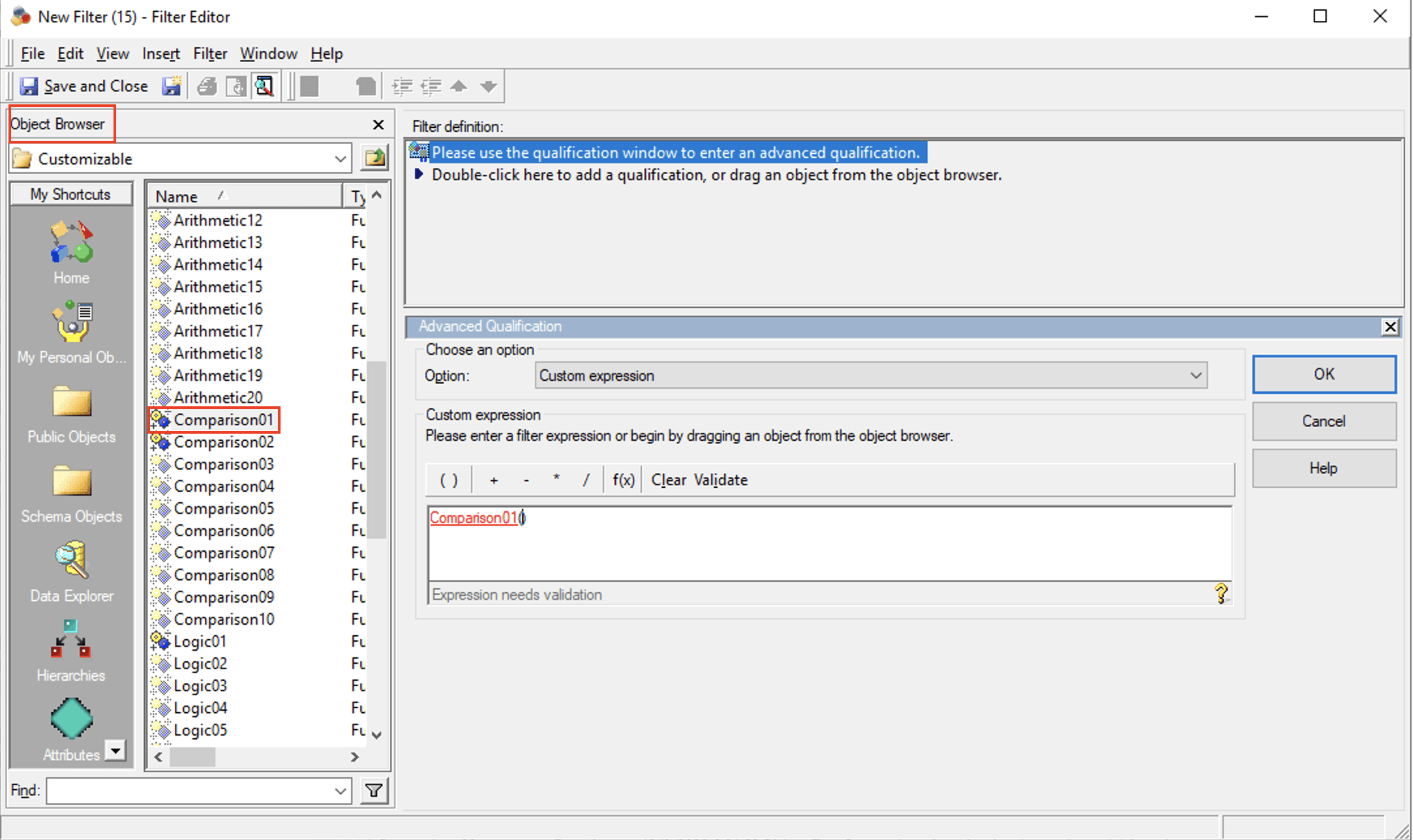
After completing the filter expression, click Validate. After validation passes, click OK and then Save and Close to save your filter with the name LastNames_Anderson.
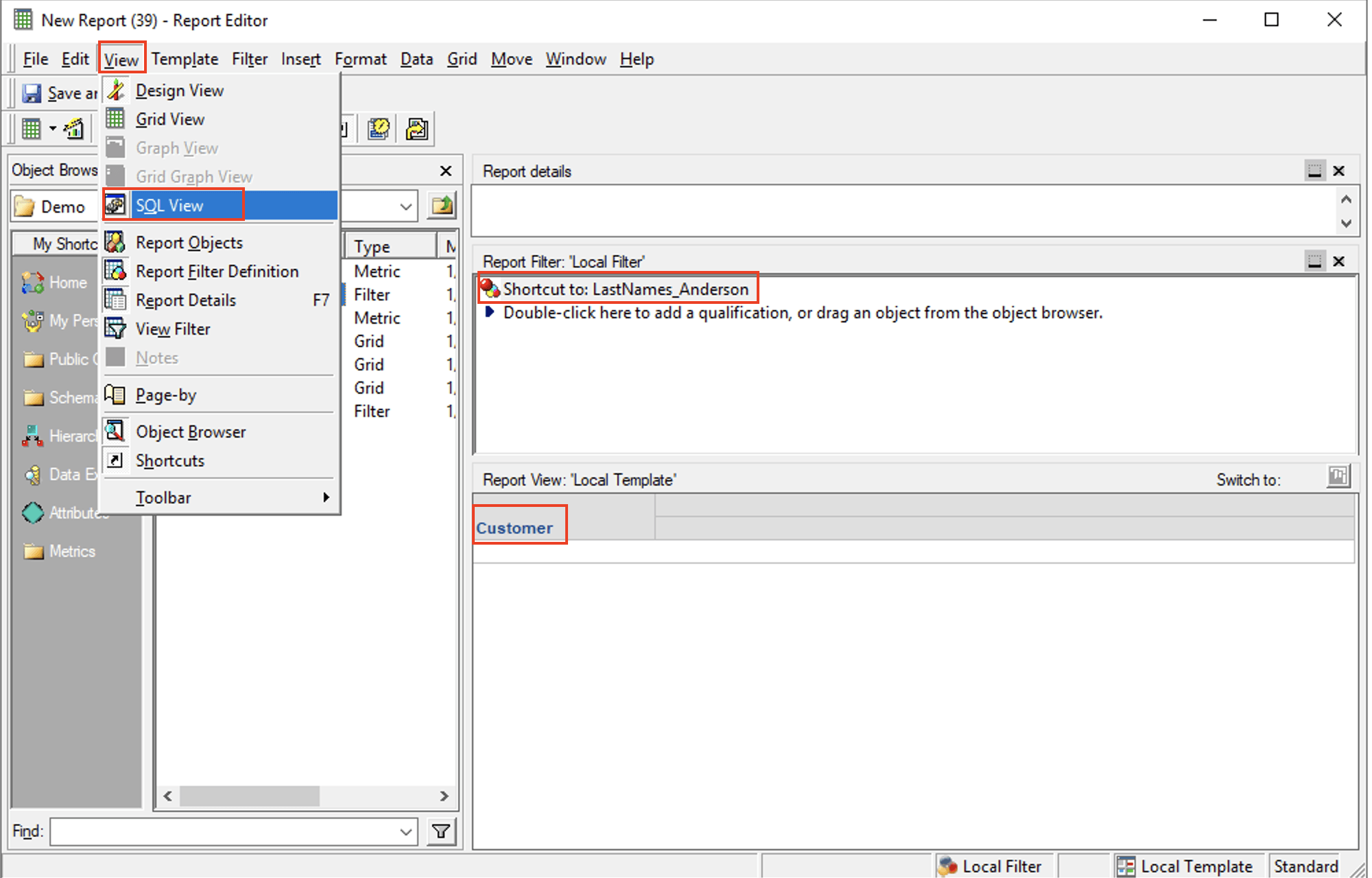
To check if the customized Comparison01 works as expected, use the newly created filter LastNames_Anderson in a report and check the SQL statement of the report. Open a report editor to create a new report, add an attribute Customer to the report template and add the new filter LastNames_Anderson as the report filter. From report editor, go to View SQL view to check SQL statement.
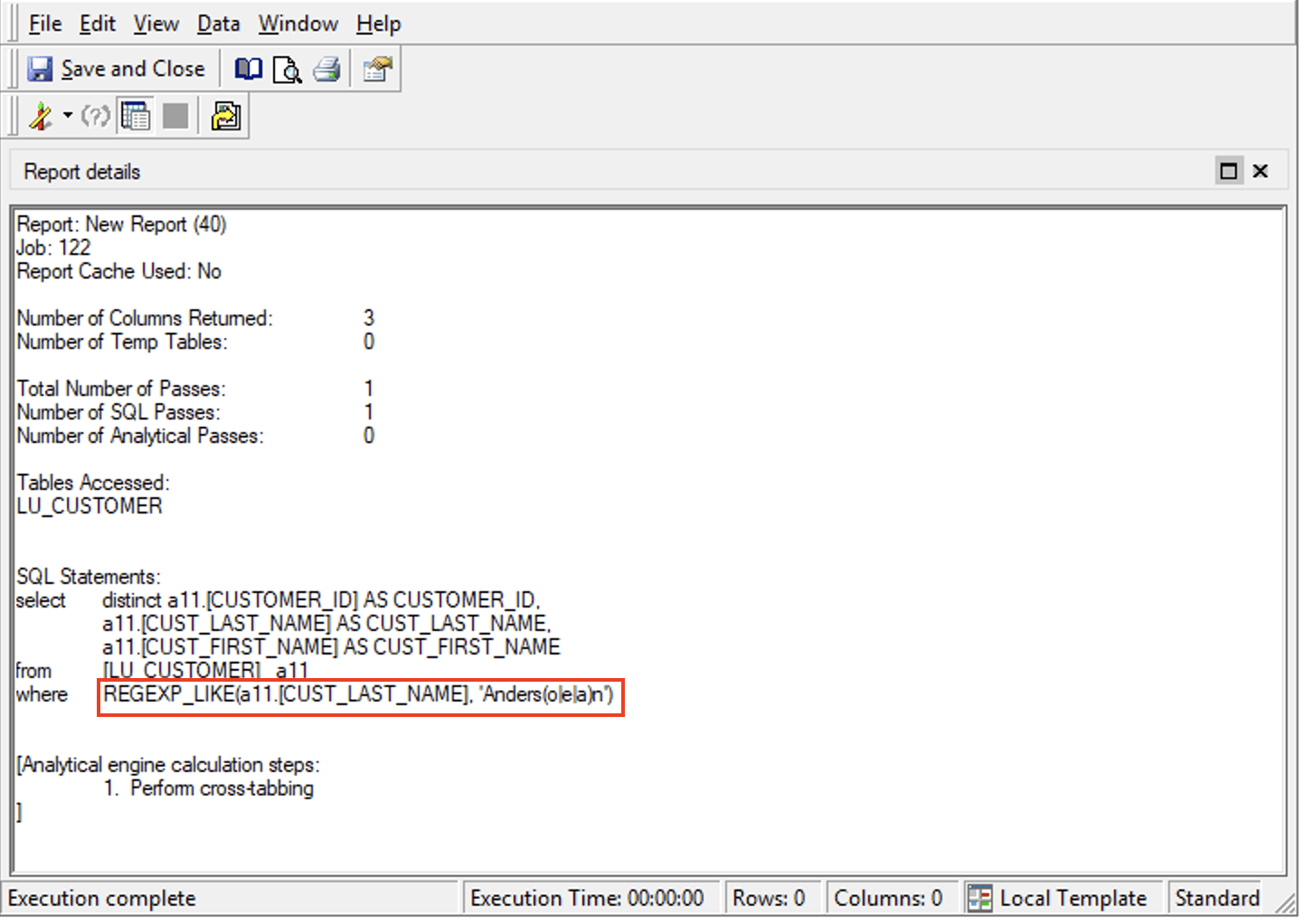
In Where clause of the SQL statement where the report filter goes to, it can be seen that Comparison01() has been translated to REGEXP_LIKE() according to the custom SQL pattern specified earlier for Comparison01, with the function input placeholder #0 replaced by the actual searching target “a11.[CUSTOMER_LAST_NAME]” and #1 replaced by the searching pattern “Anders(o|e|a)n”.
How to configure and use Logic01-10 functions
The 10 new customizable Logic functions (Logic01-10) work as logical operators like AND, OR, NOT and so on, which allow certain conditions to be applied to two sets of filter expressions simultaneously for the inclusion and exclusion of data from a report display or metric calculation. The function type of these 10 Logic functions is called DssFunctionSQLTypeLogic in Strategy. They will be ready to be used in Strategy 2021 Update1 and any newer releases.
To customize any of Logic01-10 functions to work as a specific logic function, please follow the steps described in previous section for how to customize Aggregate01 and the only difference will be the specific SQL pattern to be added into the DATABASE.PDS file.
For instance, to customize Logic01 to work as a specific operator which is called CustomAND in your RDBMS, add the following SQL pattern entry for Logic01 into DATABASE.PDS file:
<FUNCTION_REF ID="xxxxxxxxxxxxxxxxxxxxxxxxxxxxxxxx " SQLPATTERN="#<(#>#1#<#0 CustomAND #*#>#<)#>" />
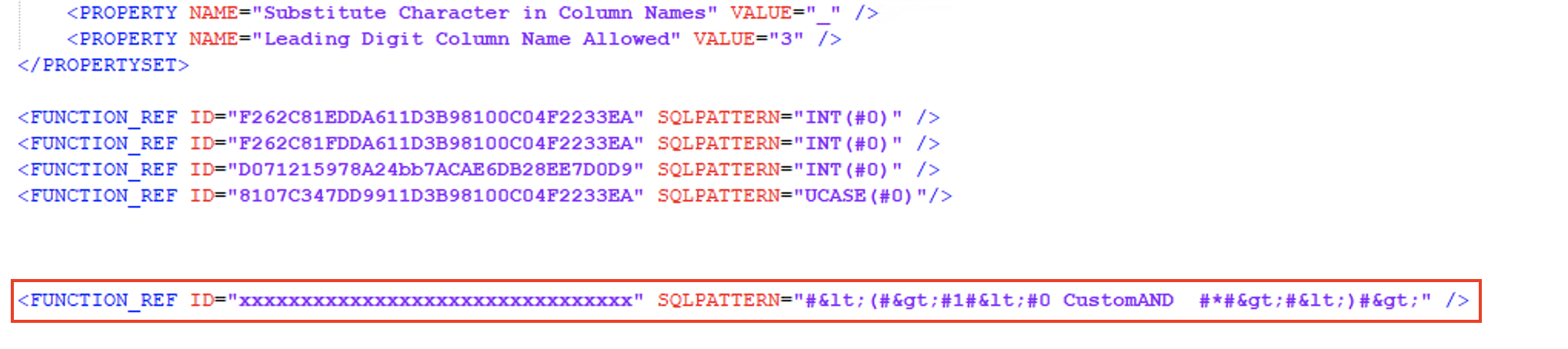
The SQL pattern entry above has the flexibility to accommodate any number of set of individual filter expression to which the logical operation of CustomAND will be applied, and the final SQL pattern shown in Where clause will be like, (#0 CustomAND #1 CustomAND #2…..). In the SQL pattern entry, #0, #1, and #* are placeholders for all filter expressions provided as input of Logic01 when a filter is created, while “#<” and “#>” represent “#<” and “#>” respectively. Strategy SQL Engine will be able to translate the special format of the specified SQL pattern into correct SQL syntax for Logic01 and pass it to RDBMS.
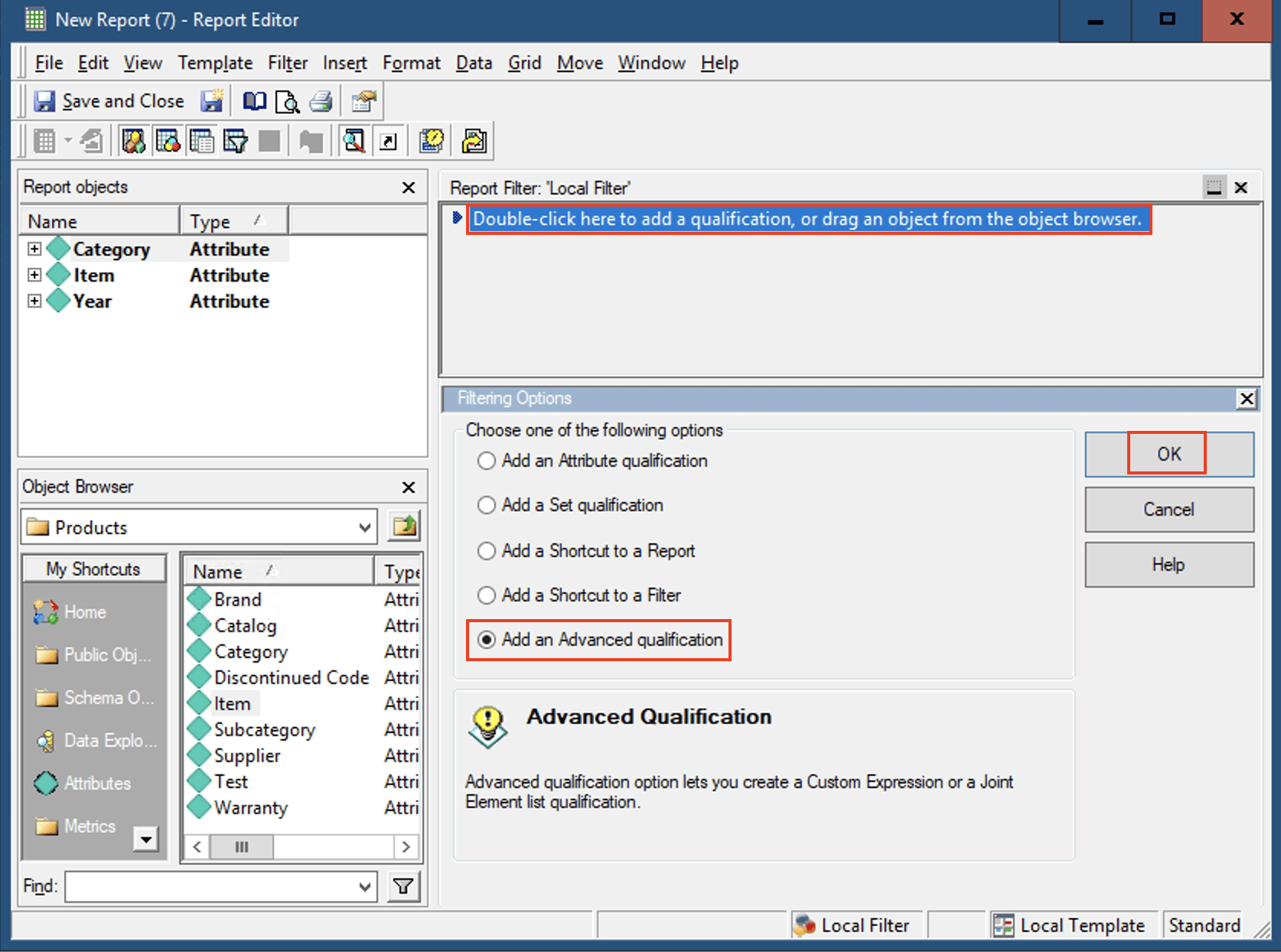
To use the customized Logic01 in a report filter, follow the steps below to create a report, and then create a report filter in the report. Firstly, launch Strategy Developer, open a project and go to a folder where you want to create a report. Then, open a report editor and add Year, Category and Item into the report template. Double click in the Report Filter box to open Filtering Options pane to start creating a report filter, select Add an Advanced qualification and click OK to go to the next step.
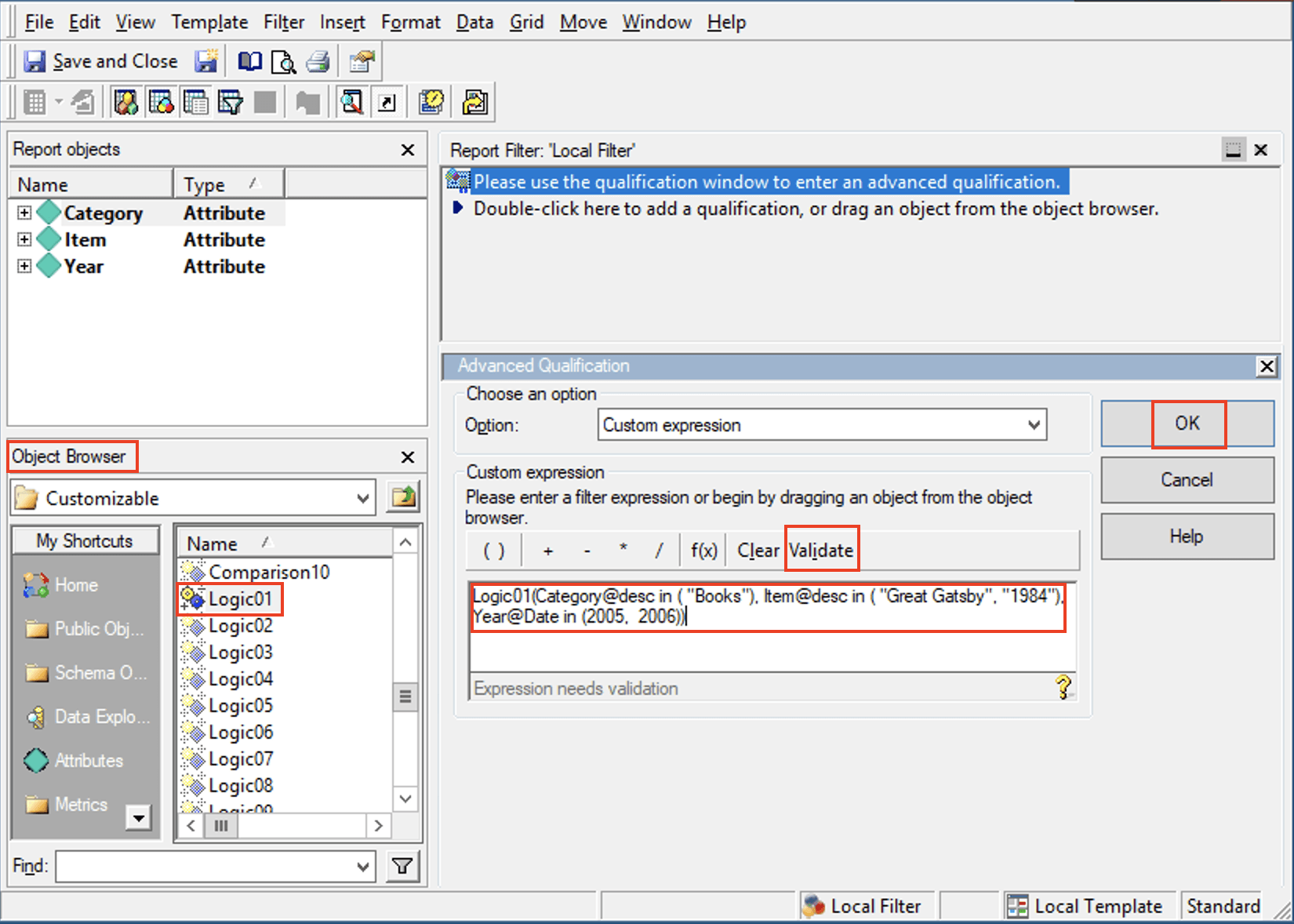
On the Advanced Qualification pane, find the function Logic01 through Object Browser and drag it into the filter custom expression box, and type in filter expressions as input of Logic01. As an example, the filtering conditions are set as Category of Books, Item of Great Gatsby, 1984, and year of 2005, 2006. Click Validate to verify the filter expression and click OK to complete the filter editing after validation passes.
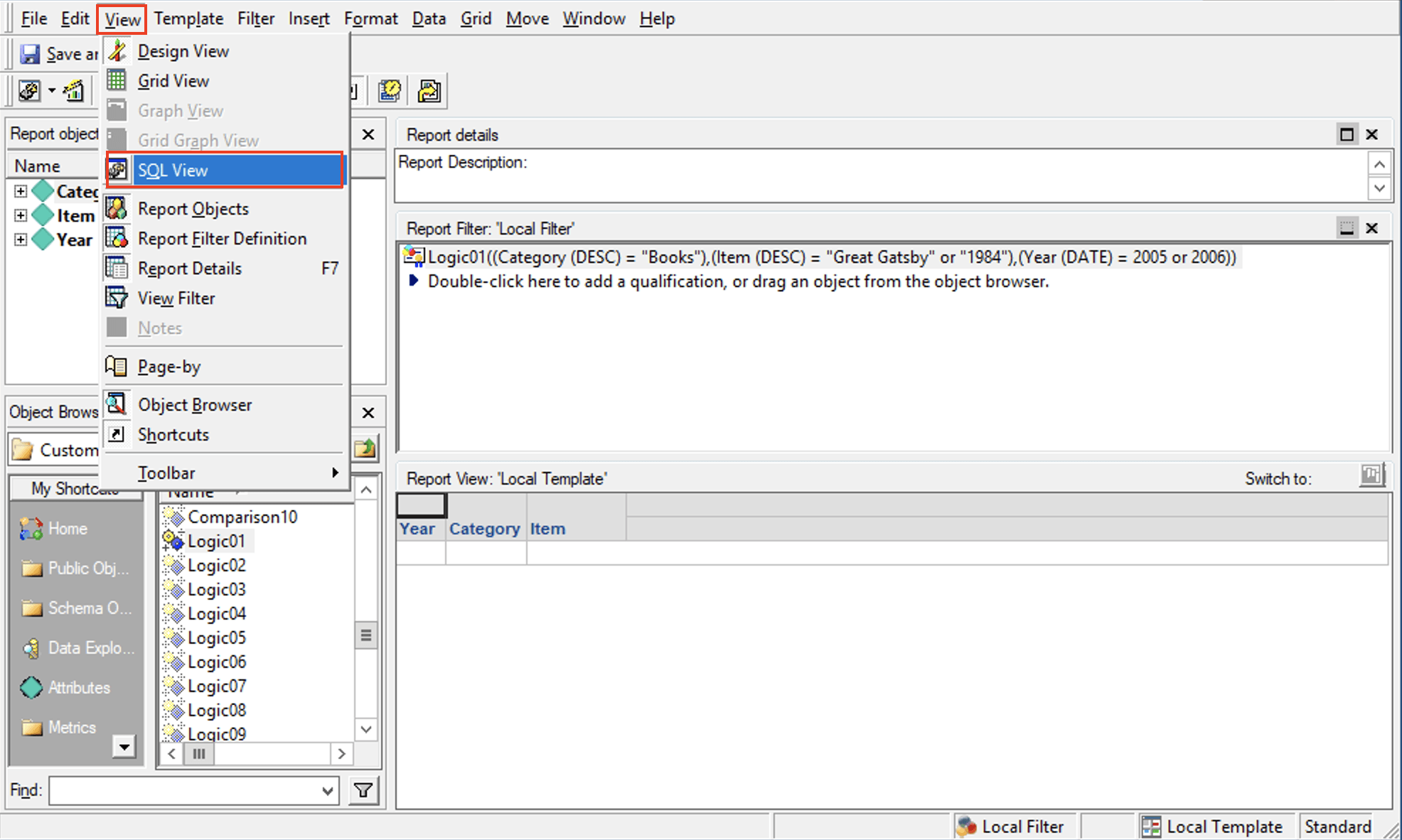
To check the SQL pattern for the newly created filter, go to View SQL View to view the SQL statement of the report.
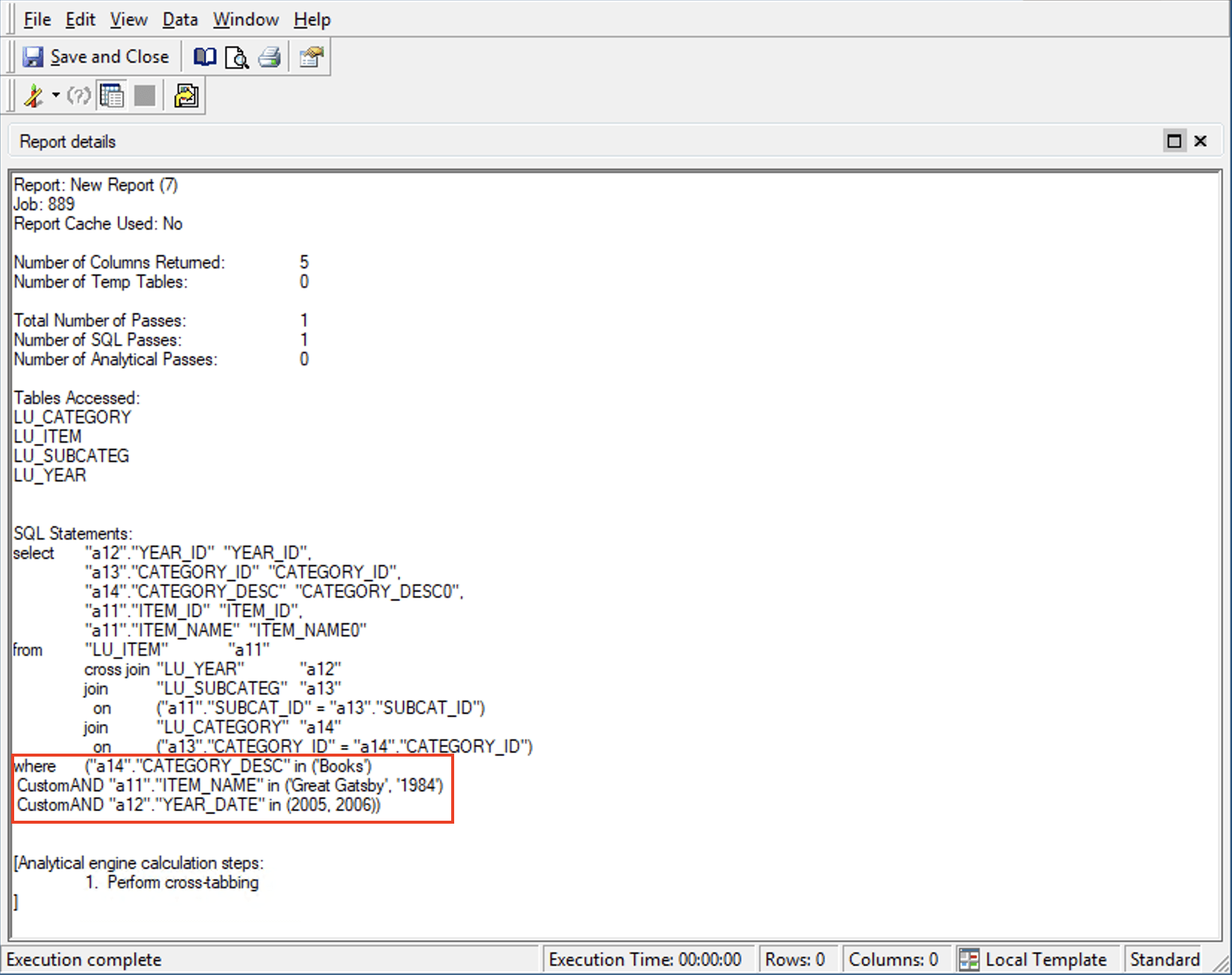
In Where clause of the SQL statement where the report filter goes to, it can seen that the filter created with Logic01 has been translated into 3 sets of filter expressions related by 2 logical operators CustomAND according to the custom SQL pattern specified earlier for Logic01.
Strategy internal reference number for this technical note is F33714.
