EducationSoftwareStrategy.com
StrategyCommunity

Knowledge Base

Product

Community

Knowledge Base

TopicsBrowse ArticlesDeveloper Zone

Product

Download SoftwareProduct DocumentationSecurity Hub

Education

Tutorial VideosSolution GalleryEducation courses

Community

GuidelinesGrandmastersEvents
x_social-icon_white.svglinkedin_social-icon_white.svg
Strategy logoCommunity

© Strategy Inc. All Rights Reserved.

LegalTerms of UsePrivacy Policy
  1. Home
  2. Topics

KB440792: Add Direct Links when Using Dossier in MicroStrategy


Community Admin

• Strategy


Since MicroStrategy version 10.11, users can create custom workflows or guided analysis in dossiers by allowing users to open additional pages, dossiers, reports, and webpages (targets) from the dossier. The workflow allows you to tell a story about your data by guiding users to seamlessly navigate across different views and levels of information within the same dossier. Check it out and get started with these next steps!

Starting with the release of Strategy ONE (March 2024), dossiers are also known as dashboards.
Since Strategy version 10.11, analysts can add direct links within a dossier. This will help authors of dossiers embed workflows that provide consumers with options for guided analyses. Authors can add links via Desktop, Web, or Workstation. Users can link the dossier to the following elements:
• Any external URL 
• Other pages within the dossier
• Other dossiers, reports, or documents when connected to a Strategy environment
How to link from a text box to a dossier
 

  1. Open Strategy Workstation.
  2. Click New Dossier.
  3. The default grid visualization will appear.
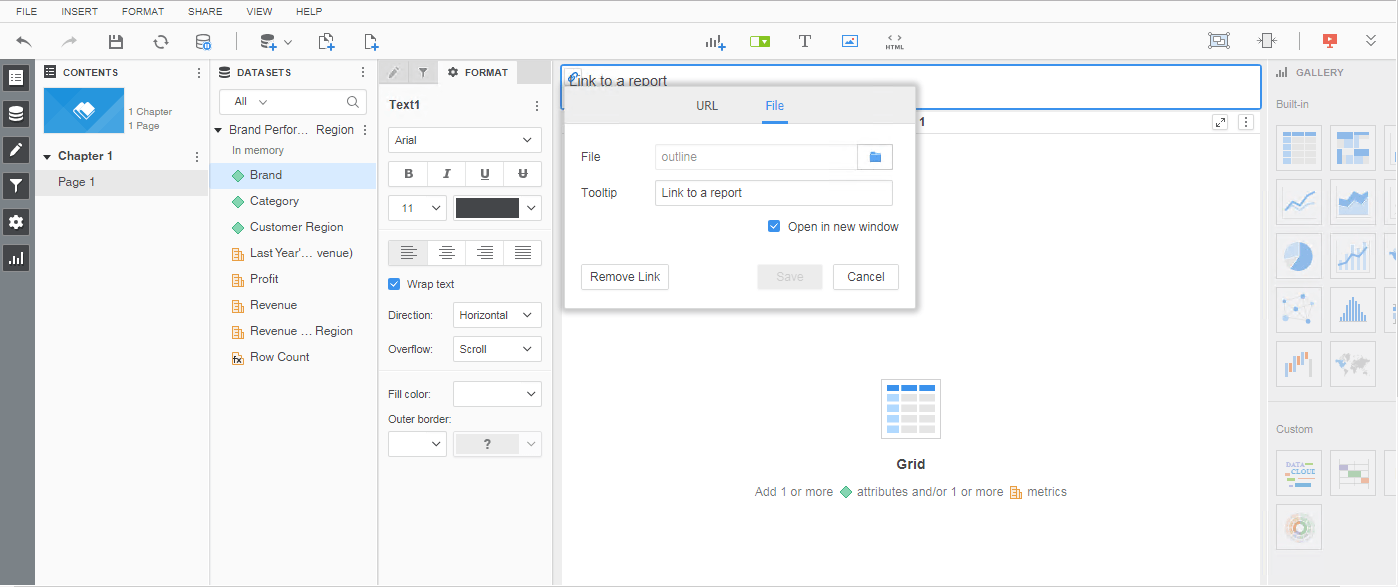
  4. Add a Text Box with the T icon in the top center toolbar. 
  5. Click the Menu Icon (Vertical Ellipses).
  6. Select Link...
  7. Choose the File option.
  8. Upload the dossier to link to the text box.
  9. You are good to go!
ka0PW0000001JmsYAE_0EM44000000WN0g.png

How to link a grid to external content
 

  1. Open Strategy Workstation.
  2. Right-click an attribute in the Datasets panel. 
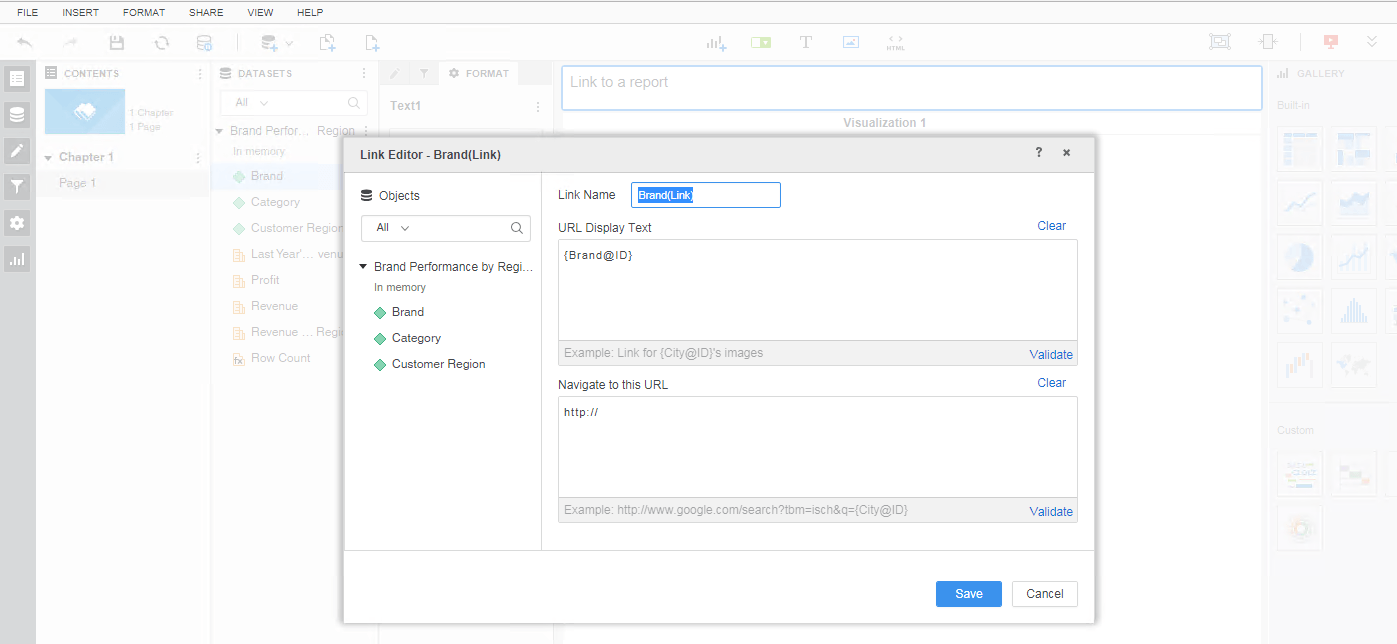
  3. Select Create Links.
  4. In the Link Editor, you can define the following: 
ka0PW0000001JmsYAE_0EM44000000WN0l.png

 
More about the Link Editor fields and information
•  The display name of the link, in the Link Name box.
•  The display name for the link on each attribute element, in the URL Display Text box.

  • In the example above, it is North and South, which are dynamic, and represented by {Region@ID} in the Link Editor)

•  The URL for each link, in the Navigate to this URL box.
More on Dossier Authoring. Check out this KB article!


Comment

0 comments

Details

Knowledge Article

Published:

May 10, 2018

Last Updated:

March 21, 2024