EducationSoftwareStrategy.com
StrategyCommunity

Knowledge Base

Product

Community

Knowledge Base

TopicsBrowse ArticlesDeveloper Zone

Product

Download SoftwareProduct DocumentationSecurity Hub

Education

Tutorial VideosSolution GalleryEducation courses

Community

GuidelinesGrandmastersEvents
x_social-icon_white.svglinkedin_social-icon_white.svg
Strategy logoCommunity

© Strategy Inc. All Rights Reserved.

LegalTerms of UsePrivacy Policy
  1. Home
  2. Topics

Adding shadows to rectangles through HTML container


Anna Sadowska

Senior Consultant • MicroStrategy


This article shows an example use of html container - adding shadows to the rectangle and modifying its parameters using html code.

Starting with the release of Strategy ONE (March 2024), dossiers are also known as dashboards.
 

  1. In the dossier's toolbar, click HTML Container . A blank HTML container is added to the dossier. 
      
  2. Click HTML Text and add the following code: 


<style> 

/* adding shadows to rectangles */ 

[aria-label*="Rectangle-"]   

{ 

    filter: drop-shadow(5px 10px 12px rgb(0 0 50 / 0.16)) !important; 

} 


/* disabling frame around rectangles - */ 

[aria-label*="Rectangle-"]  rect { 

stroke: #EBEBEB 

 !important; 

} 

</style> 
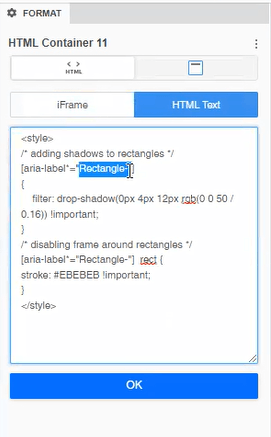
 

ka0PW0000001JlPYAU_0EM4W000005aIi0.png


Shadow will be added to all rectangles that name starts with "Rectangle-". 
  
Note: shadow will be added to all rectangles within the same Chapter, not only to the current page. 
 

  1. For Web view remove the frames by typing HEX for white color - #FFFFFF in this part of the code. 


/* disabling frame around rectangles - */ 

[aria-label*="Rectangle-"]  rect { 

stroke: #EBEBEB 

 !important; 

} 

  
Leave the frame if you're using Dossier on Mobile to make the rectangles visible on Mobile. 


  1. To change the horizontal and vertical position of a shadow modify the first and second parameters after the brackets: 


{ 

    filter: drop-shadow(5px 10px 12px rgb(0 0 50 / 0.16)) !important; 

} 


  1. The third parameter is the shadow's blur.  


{ 

    filter: drop-shadow(5px 10px 12px rgb(0 0 50 / 0.16)) !important; 

} 


  1. To change the shadow's color, we need to modify the following RGB code: 


{ 

    filter: drop-shadow(5px 10px 12px rgb(0 0 50 / 0.16)) !important; 

} 


  1. Last one is shadow's opacity.  


{ 

    filter: drop-shadow(5px 10px 12px rgb( 

}
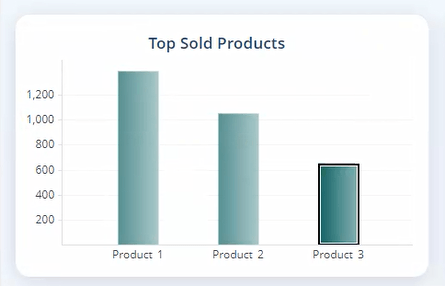
 
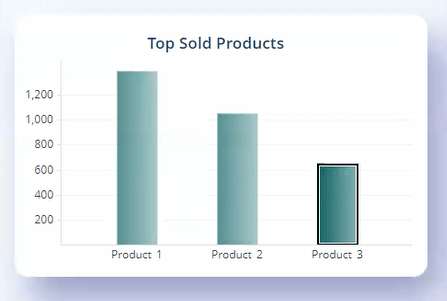
Before: 
 

ka0PW0000001JlPYAU_0EM4W000005aIi1.png


After: 
 

ka0PW0000001JlPYAU_0EM4W000005aIi2.png


Comment

0 comments

Details

Knowledge Article

Published:

June 30, 2023

Last Updated:

March 21, 2024