SYMPTOM:
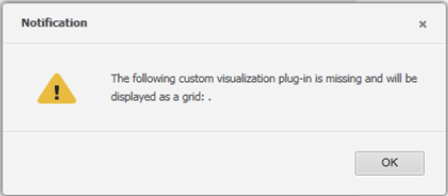
In Strategy version 10.x, after switching layouts and triggering an information window in a graph report that is converted from a Visual Insight dashboard, error will appear with "The following custom visualization plug-in is missing and will be displayed as a grid"
STEPS TO REPRODUCE:
1. In Strategy 10.4.x Web, create a VI dashboard with a bar graph in the Strategy Tutorial project
2. Save the VI dashboard.
3. Convert the VI dashboard to document.
4. Create a new Blank Document.
5. In the document design page, go to Tools --> Import Document; choose to import the converted document. This will import it as a new layout.
6. On the original layout (not the imported document), create the text box.
7. Insert a new panel stack.
8. Right click --> Go to Properties and formatting, and choose "Use as Information Window"
9. On the imported layout, copy visualization and paste it in the information window panel stack.
10. In the text box, enable the information window.
11. Run the document to Presentation Mode.
12. Click on the text box to trigger the information window. Note that the information window comes up successfully.
13. Click on the second layout. Note that the bar graph shows up successfully.
14. Navigate back to the first layout and trigger the information window. Note that the error comes up.
CAUSE:
This is an identified defect in Strategy version 10.4.x
ACTION:
Currently this issue is still being reviewed for feasibility by our Technology team and it is not scoped for any upcoming scheduled Strategy release. 40420 KB440420
