EducationSoftwareStrategy.com
StrategyCommunity

Knowledge Base

Product

Community

Knowledge Base

TopicsBrowse ArticlesDeveloper Zone

Product

Download SoftwareProduct DocumentationSecurity Hub

Education

Tutorial VideosSolution GalleryEducation courses

Community

GuidelinesGrandmastersEvents
x_social-icon_white.svglinkedin_social-icon_white.svg
Strategy logoCommunity

© Strategy Inc. All Rights Reserved.

LegalTerms of UsePrivacy Policy
  1. Home
  2. Topics
  3. Alation

Alation


Dylan Davis

Product Management Associate • Strategy


Alation is a data catalog which helps organizations access data easily. You have the ability to import tables and queries from the Alation Data Catalog into MicroStrategy.

Features

  • Ability to import tables and queries from Alation Data Catalog
  • Support for multiple Alation database instances

Pre-requisites

  • Any Java servlet container (i.e. Apache Tomcat, Jetty, GlassFish, etc.) installed on the virtual machine that contains your Strategy Web Server. Apache Tomcat is used in this example
  • Access to the Alation database from within the virtual machine that contains the Alation database instance

Installation

  1. Download the war file attached to this article (AlationConnector.war).
  2. Deploy the war file to your Java servlet container. In Apache Tomcat, this means placing the war file in the directory <Tomcat-Home>/webapps​ and restarting the Tomcat server
  3. ​Open the file <Tomcat-Home>/webapps/AlationConnector/WEB-INF/classes/sdk.properties with a text editor and update the line below to reflect the information for your Alation instance


alationSDK=https://<your-alation-instance>:<port>/integration/catalog_chooser/v1/sdk.js

  1. Within the same directory as step 3, open the file driverClass.properties with a text editor. If the database type you'd like to use is not currently listed in the file, follow the two steps below. 
    1. Add a line in the following format to reflect your database type (MySQL is used in this example)


<database-type>=<Driver-full-path> #e.g. mysql=com.mysql.cj.jdbc.Driver

  1. Add the jar files for your JDBC driver to the folder <Tomcat-Home>/webapps/AlationConnector/WEB-INF/lib

Please note that the database type you'd like to use must be supported by Alation. The supported database types are as follows:

  • 'bigquery'
  • 'db2'
  • 'greenplum'
  • 'hive'
  • 'hive2'
  • 'impala'
  • 'mysql'
  • 'netezza'
  • 'oracle'
  • 'orient'
  • 'postgresql'
  • 'presto'
  • 'redshift'
  • 'sap'
  • 'sas'
  • 'snowflake'
  • 'sqlite'
  • 'sqlserver'
  • 'sybase'
  • 'teradata'
  • 'teradataaster'
  • 'vertica'

​
 

  1. Restart your Tomcat server after saving your edits to the driverClass.properties file.
  2. To test whether your Alation connector was properly installed, you can access the connector through the following url:


http(s)://<your-tomcat-host>:<port>/AlationConnector
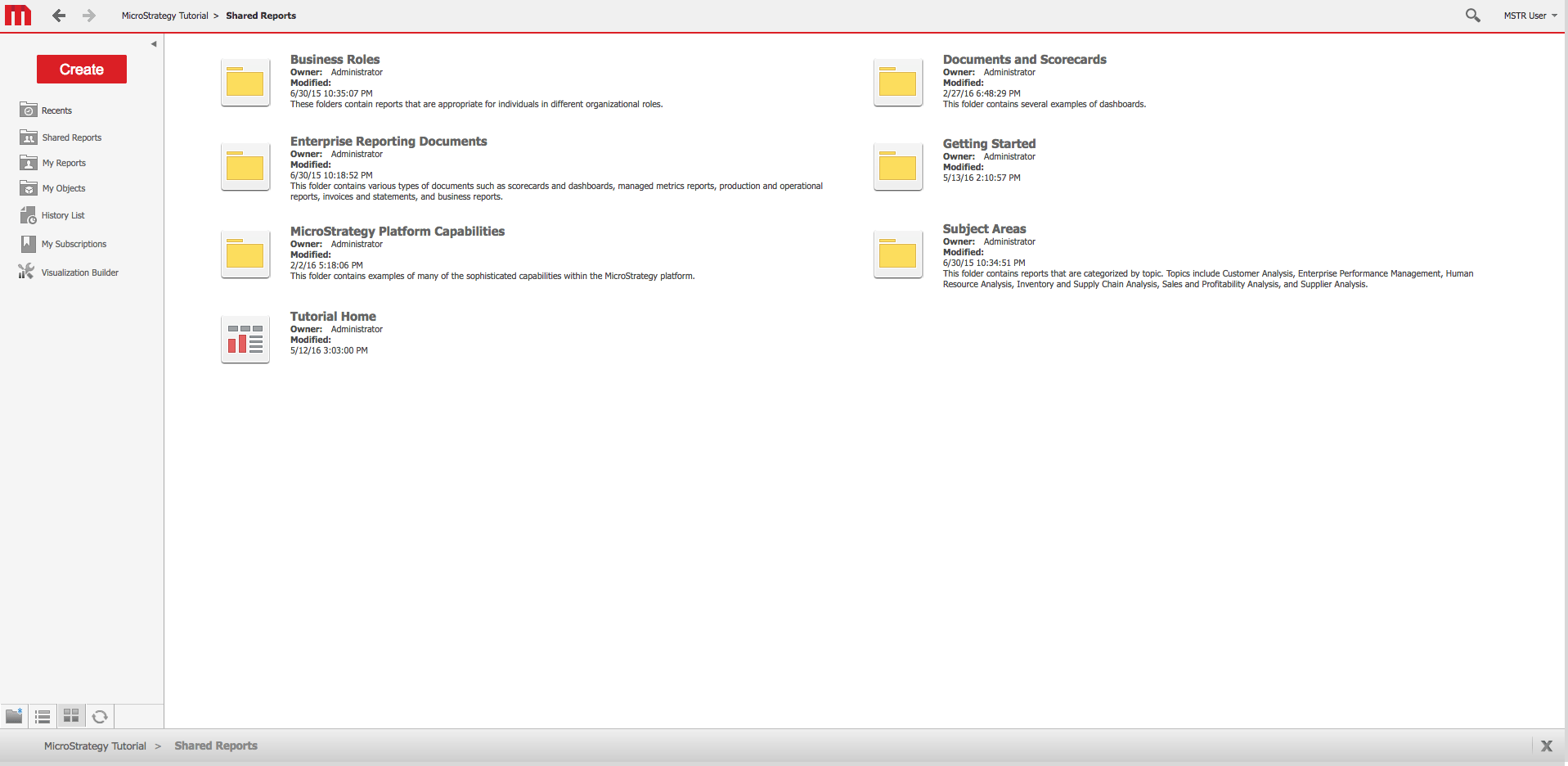
 

Connect and Import Data

  1. Login to Strategy Web
ka02R000000bsnQQAQ_0EM440000002Kks.png
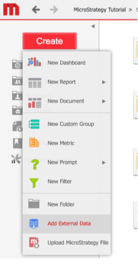
  1. Select Create > Add External Data to launch the Data Import interface
ka02R000000bsnQQAQ_0EM440000002Kl7.png
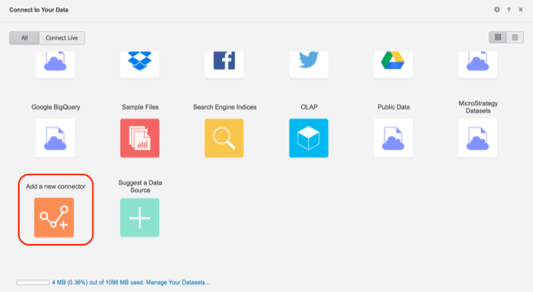
  1. Select the option to Add a New Connector
ka02R000000bsnQQAQ_0EM440000002KlW.png
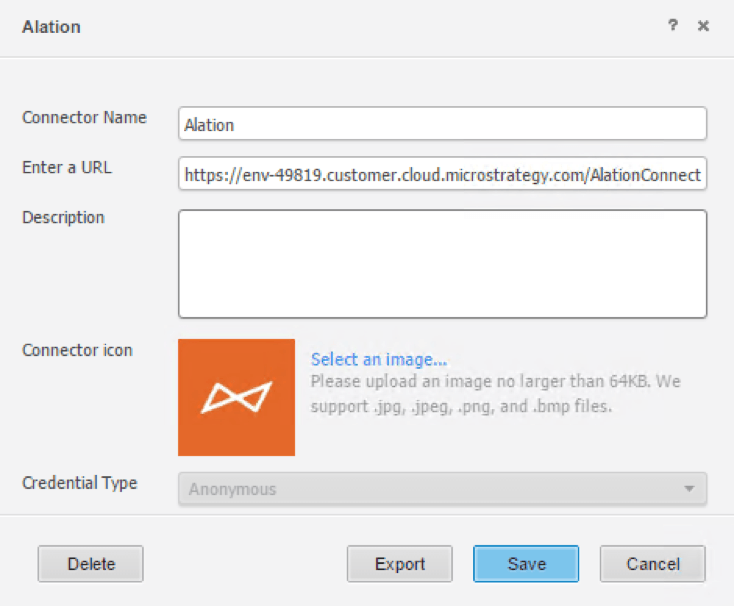
  1. ​Select the option to manually enter connection details. Then fill in the necessary information for the menu that appears as follows (where the required URL is http(s)://<your-host-name>:<port>/AlationConnector):
ka02R000000bsnQQAQ_0EM440000002RzD.png

​

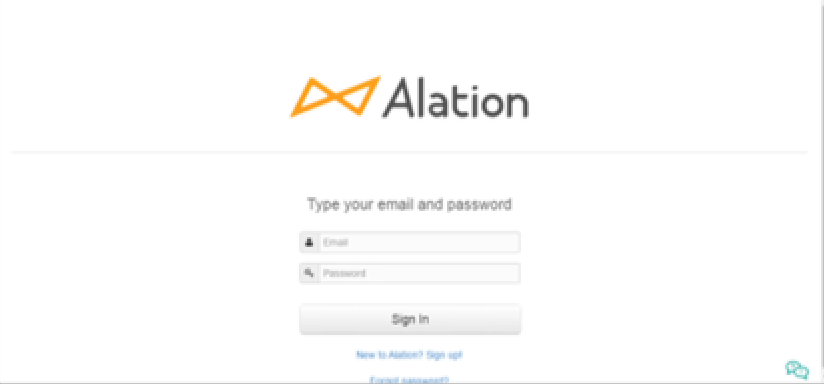
  1. After clicking save, you will be able to select your Alation connector when adding external data in Strategy Web. After clicking on Alation in the Data Import menu, you will be asked for authentication with valid Alation credentials through the following screen:
ka02R000000bsnQQAQ_0EM440000002S0V.png
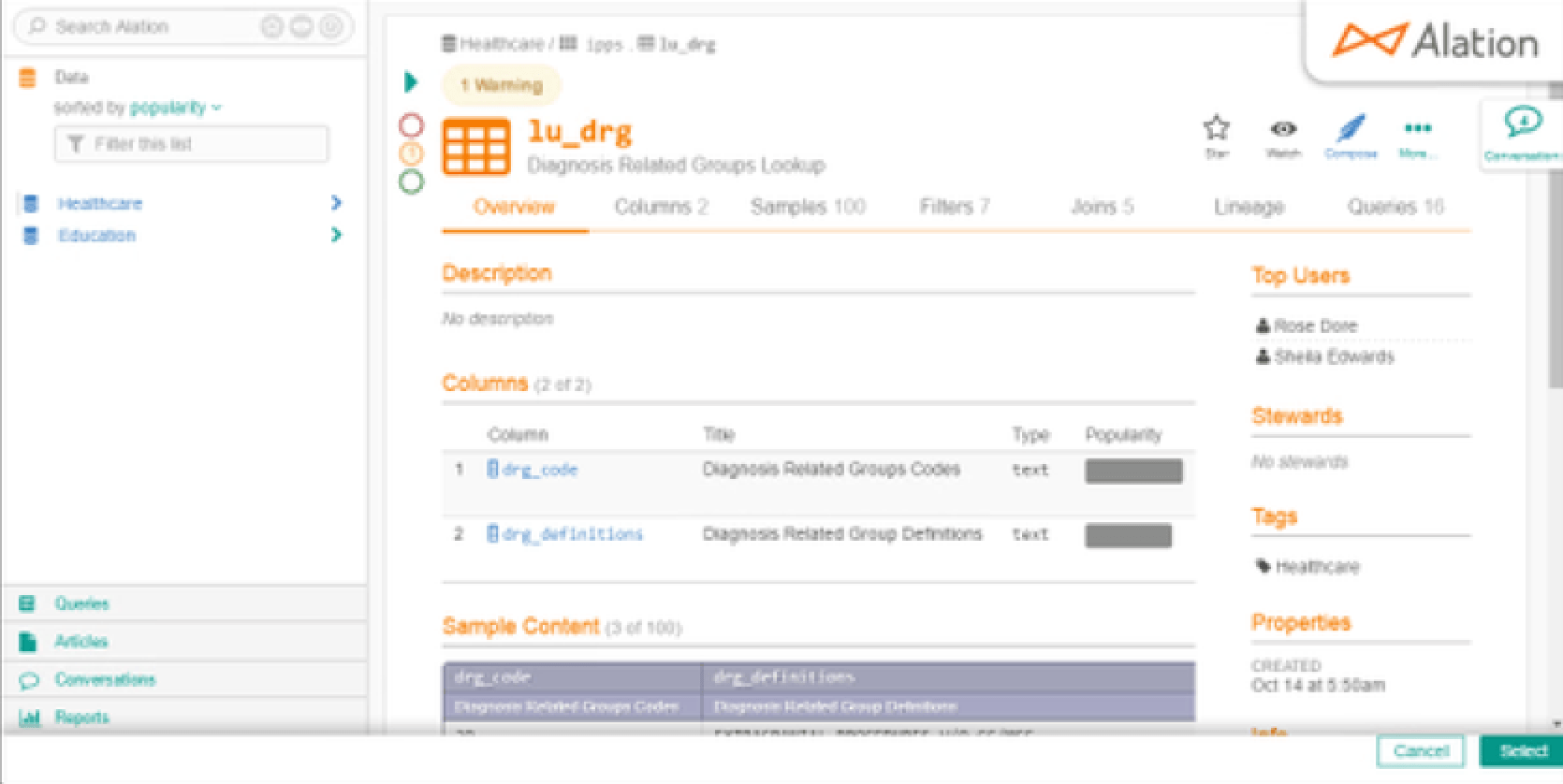
  1. ​After logging in, you will be able to select the table or query of interest
ka02R000000bsnQQAQ_0EM440000002RzS.png
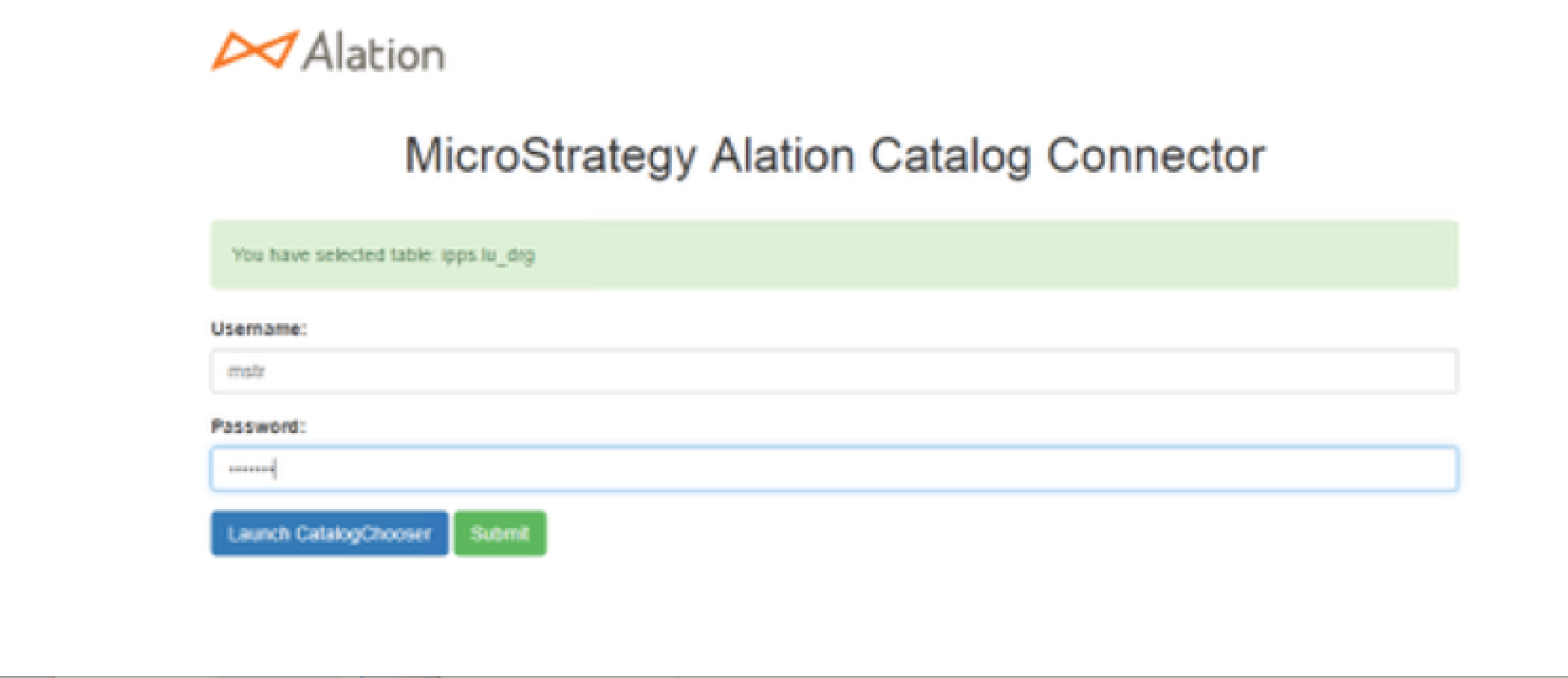
  1. Once you have selected objects for import, you will be prompted for the data source credentials to bring the data into Strategy. You can then choose to add another object by clicking the "Launch CatalogChooser" button. When you are done choosing data to import, click the "Submit" button.
ka02R000000bsnQQAQ_0EM440000002RzX.png


Data Connector Disclaimer

By downloading or using this data connector, you accept and acknowledge these terms.
This data connector is provided as a sample and supported by Strategy Technical Support if the Testing Conditions are met. Defects found within the Testing Conditions will be triaged by the Strategy team as they are raised. Further adaptation may be needed for this sample to function correctly in other conditions than the Testing Conditions listed, as other conditions may not have been tested for the context of this sample. High-level guidance may be provided by Strategy Technical Support to those with an active maintenance contract, but for specific guidance or assistance in adapting this sample in different scenarios, contact your Account Executive for Strategy Professional Services involvement. Post any additional feedback within the article's comments.

Testing Conditions

This sample has been built for and tested under these conditions:
Web Browser(s): 

  • Google Chrome version 66.0.3359.181

Strategy Product(s):

  • Strategy Web version 10.11.0.15860
  • Strategy Intelligence Server version 10.11.0.15860

3rd Party Product(s):

  • Apache Tomcat 8.x
  • Alation Data Catalogue

Comment

0 comments

Details

Example

Published:

May 3, 2017

Last Updated:

June 28, 2018