EducationSoftwareStrategy.com
StrategyCommunity

Knowledge Base

Product

Community

Knowledge Base

TopicsBrowse ArticlesDeveloper Zone

Product

Download SoftwareProduct DocumentationSecurity Hub

Education

Tutorial VideosSolution GalleryEducation courses

Community

GuidelinesGrandmastersEvents
x_social-icon_white.svglinkedin_social-icon_white.svg
Strategy logoCommunity

© Strategy Inc. All Rights Reserved.

LegalTerms of UsePrivacy Policy
  1. Home
  2. Topics

KB485621: An attribute element prompt list does not show all elements available on MicroStrategy Android Mobile app


Lingling Wang

Product Owner, Principal • MicroStrategy


SYMPTOM: 
An attribute element prompt list does not show all of the elements for that attribute on  
  
CAUSE: 
One cause may be that the attribute element browsing is set a maximum number of elements list. Even though the “maximum number of elements list” is modified to a larger value then purge element cache, answer the attribute element prompt on Strategy Android still cannot show all elements.  
  
ACTION: 
Here we provide a workaround temporarily and hope this can help the customer: 
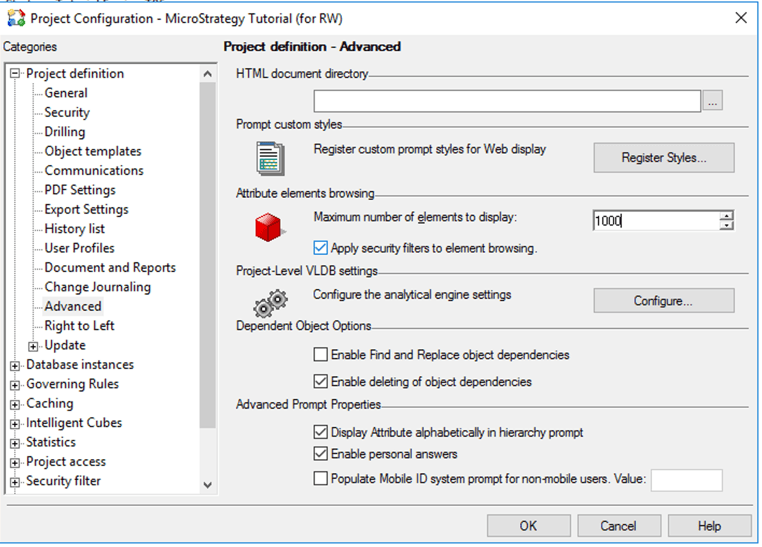
  1. Modify the “maximum number of elements list” in Desktop to a large value under project configuration -> Project definition->Advanced 
ka04W000001IwGmQAK_0EM4W000005lzc9.png

 
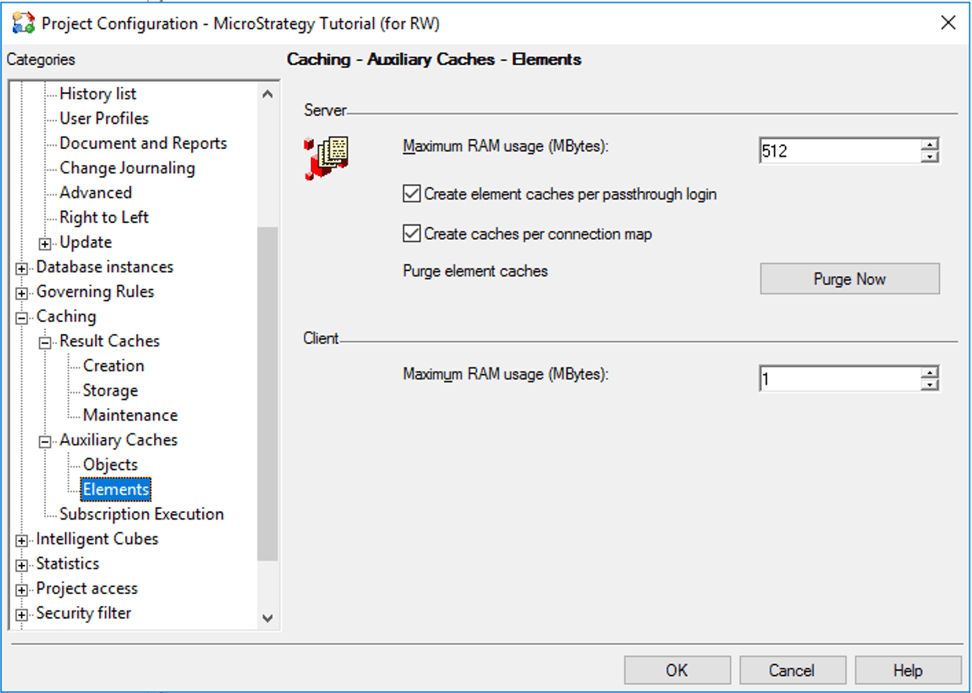
2. Open the project configuration, and turn to 'Caching->Auxiliary Caches' 
3. Purge the element cache 
ka04W000001IwGmQAK_0EM4W000005lzcA.png

 
4. Restart Strategy Intelligence Server as the new settings will take affect only after Strategy Intelligence Server is restarted. 
5. Execute the document on the Strategy Web firstly. (must have) 
6. Then Execute the document on the Strategy Android mobile app and notice the number of the elements in the prompt is correct. 


Comment

0 comments

Details

Knowledge Article

Published:

August 12, 2022

Last Updated:

August 12, 2022