EducationSoftwareStrategy.com
StrategyCommunity

Knowledge Base

Product

Community

Knowledge Base

TopicsBrowse ArticlesDeveloper Zone

Product

Download SoftwareProduct DocumentationSecurity Hub

Education

Tutorial VideosSolution GalleryEducation courses

Community

GuidelinesGrandmastersEvents
x_social-icon_white.svglinkedin_social-icon_white.svg
Strategy logoCommunity

© Strategy Inc. All Rights Reserved.

LegalTerms of UsePrivacy Policy
  1. Home
  2. Topics

KB483946: An error appears when enabling incremental refresh on the Platform Analytics cube using a PostgreSQL warehouse


Jing (Sally) Cheng

Senior Principal Consultant • MicroStrategy


This article explains how to modify the DSN setting to make the incremental refresh work on the Platform Analytics Cube using a PostgreSQL database.

Description


In Strategy 2020, Platform Analytics offers a new feature that allows customers to incrementally refresh the Platform Analytics Data Import cube. This action is recorded in the Platform Analytics warehouse as Republish DI Cube via Incremental Refresh. For instructions, see the Platform Analytics Help.
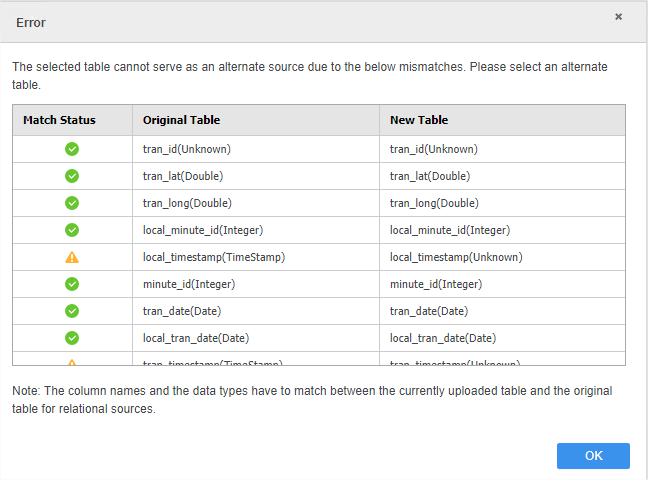
When enabling incremental refresh on a PostgreSQL warehouse, you may encounter an error. This error says, "The selected table cannot server as an alternate source due to the below mismatches. Please select an alternate table."
Steps to Reproduce

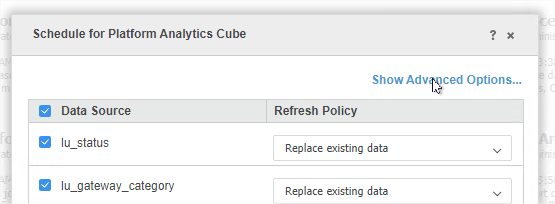
  • In Strategy Web, right-click the Platform Analytics cube and select Schedule.
  • Click Show Advanced Options.
ka02R000000g5VwQAI_0EM2R000000nJmh.jpeg
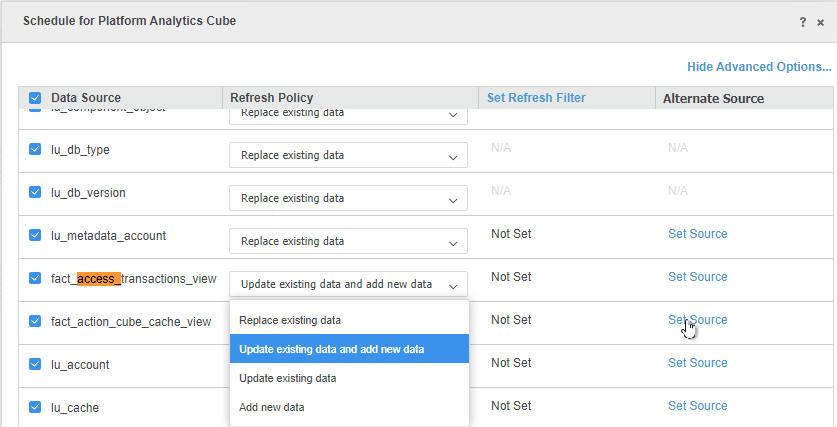
  • Choose the Data Source and modify the Refresh Policy. For example, select Update existing data and add new data.
  • Under Alternate Source, click Set Source.
ka02R000000g5VwQAI_0EM2R000000nJmw.jpeg
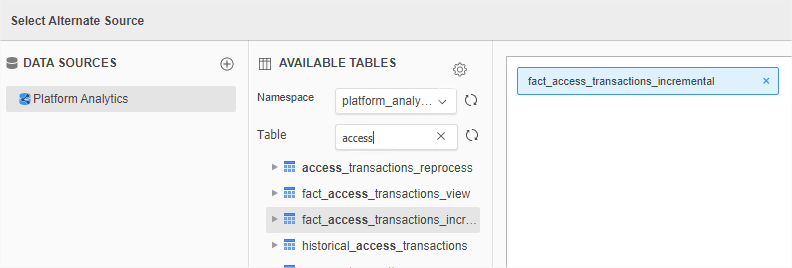
  • Choose your data source and select a table. 
ka02R000000g5VwQAI_0EM2R000000nJn6.jpeg
  • Click Finish. Notice the error appears.
ka02R000000g5VwQAI_0EM2R000000nJnB.jpeg

Why is this happening?


The error is appearing because the setting Fetch TSWTZ as Timestamp is disabled.

Solution


To resolve the error, modify the DSN to enable Fetch TSWTZ as Timestamp.
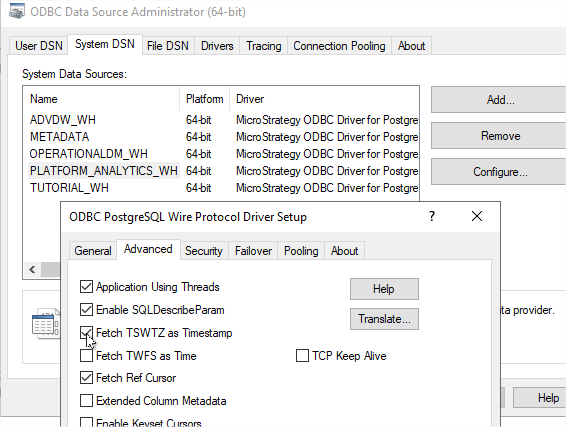
On Windows

  • Open ODBC Data Sources (64-bit) and select the DSN for the Platform Analytics warehouse.
  • Click Configure.
  • Click the Advanced tab.
  • Select  the Fetch TSWTZ as Timestamp checkbox.
ka02R000000g5VwQAI_0EM2R000000nJnQ.jpeg
  • Click OK.

On Linux

  1. Open the odbc.ini file.
  2. Add
    FetchTSWTZasTimestamp=1
    to the
    PLATFORM_ANALYTICS_WH
    section.
    For example:
    [PLATFORM_ANALYTICS_WH]	ApplicationUsingThreads=1	AlternateServers=	Description=Strategy ODBC Driver for PostgreSQL Wire Protocol	FailoverPreconnect=0	FetchTWFSasTime=1	Driver=/opt/mstr/MicroStrategy/install/lib/MYpsqlXX.so	ConnectionRetryDelay=3	EnableDescribeParam=1	InitializationString=	FetchRefCursors=1	Database=platform_analytics_wh	QueryTimeout=0	HostName=10.250.149.169	FetchTSWTZasTimestamp=1	ReportCodePageConversionErrors=0	FailoverMode=0	LoadBalancing=0	ConnectionRetryCount=0	ExtendedColumnMetaData=0	XMLDescribeType=-10	LoginTimeout=15	TransactionErrorBehavior=0	FailoverGranularity=0	PortNumber=5432	LogonID=postgres

  3. Save the file.

Comment

0 comments

Details

Knowledge Article

Published:

December 30, 2019

Last Updated:

December 30, 2019