EducationSoftwareStrategy.com
StrategyCommunity

Knowledge Base

Product

Community

Knowledge Base

TopicsBrowse ArticlesDeveloper Zone

Product

Download SoftwareProduct DocumentationSecurity Hub

Education

Tutorial VideosSolution GalleryEducation courses

Community

GuidelinesGrandmastersEvents
x_social-icon_white.svglinkedin_social-icon_white.svg
Strategy logoCommunity

© Strategy Inc. All Rights Reserved.

LegalTerms of UsePrivacy Policy
  1. Home
  2. Topics

KB483744: An error appears when logging in to the MicroStrategy connector


Ruiqing Xu

Software Engineer, Principal • MicroStrategy


This article explains why you may receive the error "Failed to fetch" when trying to use the MicroStrategy connector. This article also provides two ways to resolve the error.

Description

To use the Strategy connector, users must first log in to the Library Server. However, when logging in to the Library Server on Google Chrome, users may receive the following error message:
"Failed to fetch."

ka02R000000g3VpQAI_0EM2R000000mTyr.jpeg

If you try to log in to the Library Server using a different web browser, you may see one of the following error messages.
On Safari:
"Preflight response is not successful."
On Firefox:
"NetworkError when attempting to fetch resource."
On Internet Explorer 11:
"Network request failed."
Attempting to log in to the Library Server from Strategy Workstation may also result in an error.
For instructions on how to use the Strategy Connector, click here.
 

Why is this happening?


The error appears because the Library Server does not allow the cross-origin request. This is because of the same-origin policy. The same-origin policy controls interactions between two different origins, such as when you use 

XMLHttpRequest
 or an 
<img>
 element. For more information, click here.

Solution


There are two ways to resolve this issue, by either enabling your CORS settings or modifying the connector URL.
 

How to Enable CORS Settings

To allow cross-origin access, you can enable your CORS setting. CORS is a part of HTTP that lets servers specify what hosts are permitted to load content from that server.
To enable this, you must modify the Allow Library embedding in other sites setting in the Library Server.
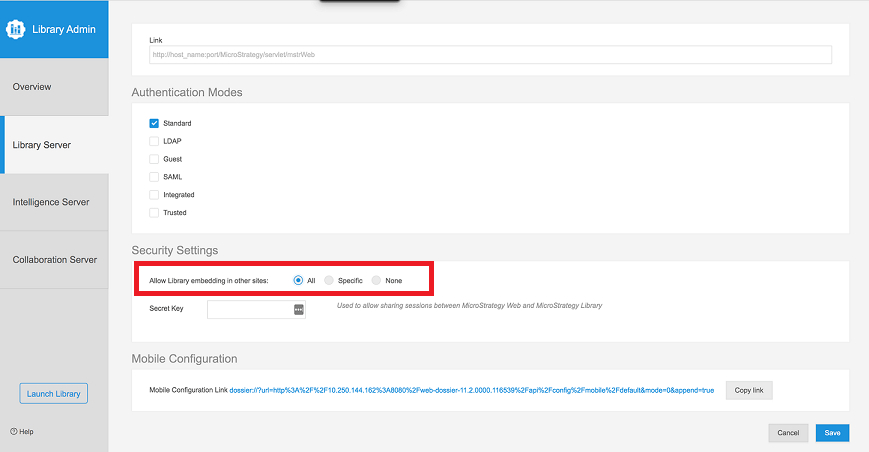
  • As the Library Administrator, open the Library Admin page and select Library Server from the menu bar.
  • Under Security Settings, select All or Specific with the allowed URL.
ka02R000000g3VpQAI_0EM2R000000mU1R.jpeg
  • Click Save.


Alter the Connector URL


Your Web Server administrator can also modify the connector URL to allow the connector to access your data.
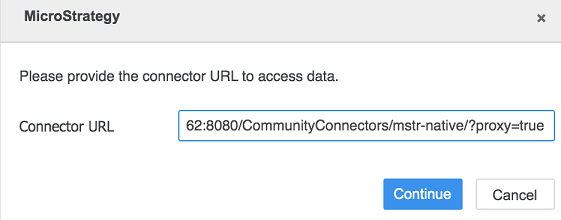
  • In Strategy Web, click Create > Add External Data.
  • Click the Strategy Connector.
  • Append ?proxy=true to the end of the connector URL.
ka02R000000g3VpQAI_0EM2R000000mU25.jpeg
  • Click Continue.

Comment

0 comments

Details

Knowledge Article

Published:

October 21, 2019

Last Updated:

October 21, 2019