EducationSoftwareStrategy.com
StrategyCommunity

Knowledge Base

Product

Community

Knowledge Base

TopicsBrowse ArticlesDeveloper Zone

Product

Download SoftwareProduct DocumentationSecurity Hub

Education

Tutorial VideosSolution GalleryEducation courses

Community

GuidelinesGrandmastersEvents
x_social-icon_white.svglinkedin_social-icon_white.svg
Strategy logoCommunity

© Strategy Inc. All Rights Reserved.

LegalTerms of UsePrivacy Policy
  1. Home
  2. Topics

KB483462: An error occurs when connecting DSN from MongoDB ODBC on Windows with MicroStrategy 2019


Rui Du

Quality Engineer, Principal • MicroStrategy


This article describes an issue users may encounter when connecting DSN from the MicroStrategy ODBC driver for MongoDB on Windows with MicroStrategy 2019. This issue is specific to Intelligence server, Desktop, and Workstation.

Symptom


On Windows machines, the Intelligence server, Desktop, and Workstation are unable to successfully connect to MongoDB using a DSN created in ODBC Data Source Administrator.
When a user tests connectivity for MongoDB by using the DSN created in ODBC Data Source Administrator, an error occurs:
SQL Engine service could not be reached, falling back to Direct SQL Engine mode. 

ka02R000000kesmQAA_0EM2R000000hV9q.jpeg


Cause


This error appears because the MongoDB ODBC connection needs to load 

mongodb.jar
and
sforce.jar
besides
mymongo64.dll
and
mymongo64s.dll
.
Incorrect JVM classpath settings will cause the MongoDB ODBC connection failure.
 

Solution


The explicit path of 

mongodb.jar 
and
sforce.jar
must be set in JVM classpath when connecting to MongoDB. 

To set the JVM Classpath

  • Open ODBC Data Source Administrator (64-bit).
  • Select Create New Data Source.
  • Select the driver Strategy ODBC Driver for MongoDB Client to set up as a data source.
ka02R000000kesmQAA_0EM2R000000hVAZ.jpeg
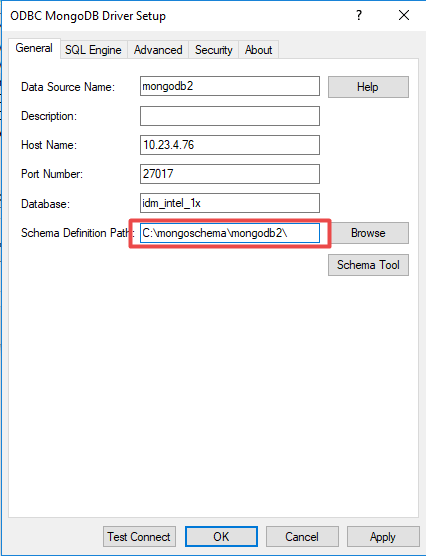
  • Set a separate folder for the DSN to save the schema.
ka02R000000kesmQAA_0EM2R000000hVAe.jpeg
  • Select the SQL Engine tab.
  • Set SQL Engine Mode to 2 - Direct.
  • Manually input the JVM Classpath where 
    mongodb.jar
    and
    sforce.jar
    are stored. These files are under the ODBC folder where you installed the Strategy product.
    The JVM Classpath for products installed in the default path is:
    Windows Intelligence server: 
    C:\Program Files (x86)\Common Files\MicroStrategy\ODBC\mongodb.jar	C:\Program Files (x86)\Common Files\MicroStrategy\ODBC\sforce.jar

    Windows Desktop:
    C:\Program Files\MicroStrategy\Desktop\odbc\mongodb.jar	C:\Program Files\MicroStrategy\Desktop\odbc\sforce.jar

    Windows Workstation:
    C:\Program Files\MicroStrategy\Workstation\odbc\mongodb.jar	C:\Program Files\MicroStrategy\Workstation\odbc\sforce.jar

ka02R000000kesmQAA_0EM2R000000hVB3.jpeg
  • Click Apply and OK.
  • Click Test Connect.
    This process may take some time to generate the config files under the schema definition path set in step 4.
ka02R000000kesmQAA_0EM2R000000hVBN.jpeg
  • Once complete, the connection should be established. 


Comment

0 comments

Details

Knowledge Article

Published:

July 8, 2019

Last Updated:

July 9, 2019