SYMPTOM:
When an object package is created using a command line with a XML file, the child objects inside shortcuts are found left out.
STEPS TO REPRODUCE:
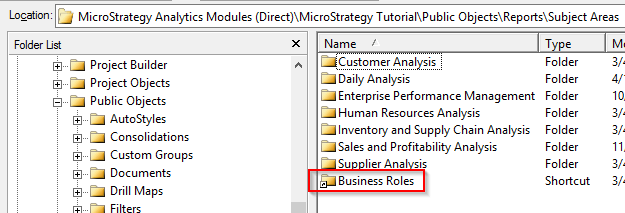
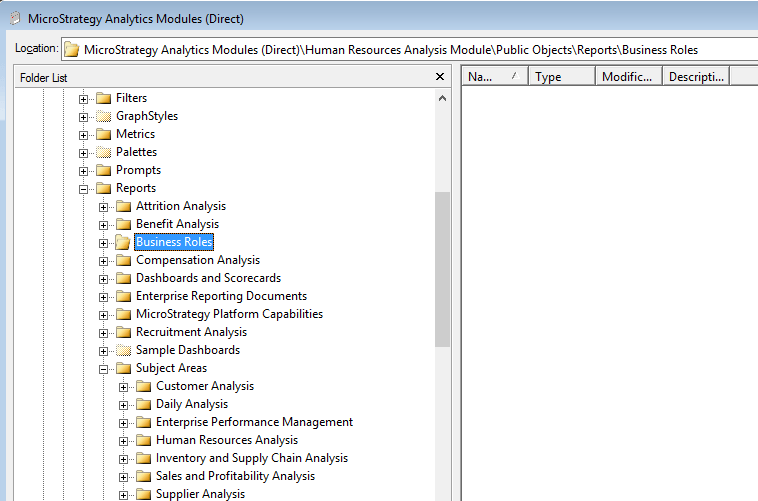
1. In this example, a Strategy Tutorial project is used where a shortcut for "Business Roles" is created inside Strategy Analytics Modules (Direct)\Strategy Tutorial\Public Objects\Reports\Subject Areas
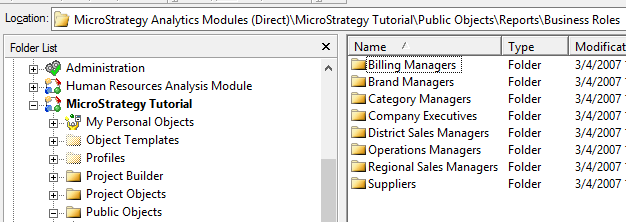
Note: "Business Roles" Folder has multiple subfoldes as shown below:
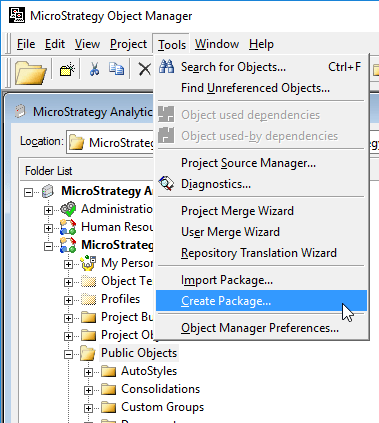
2. Launch Strategy Object Manager, and login to Strategy Tutorial project. Then, nagivete into Public Folders, then, select Tools > Create Package..
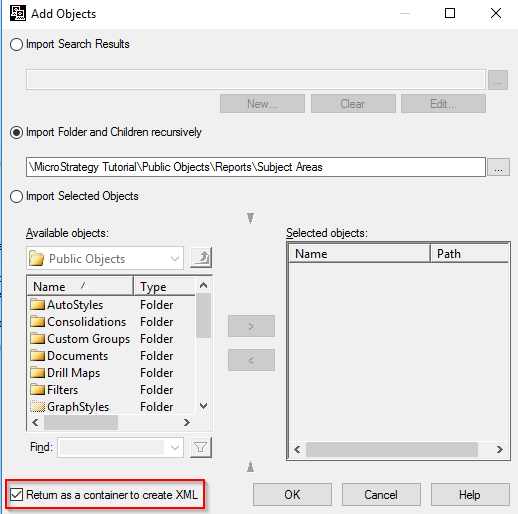
3. Click "Add" button and select "Import Folder and Children recursively" option in the 2nd window, then, select "Subject Areas" folder as shown below:
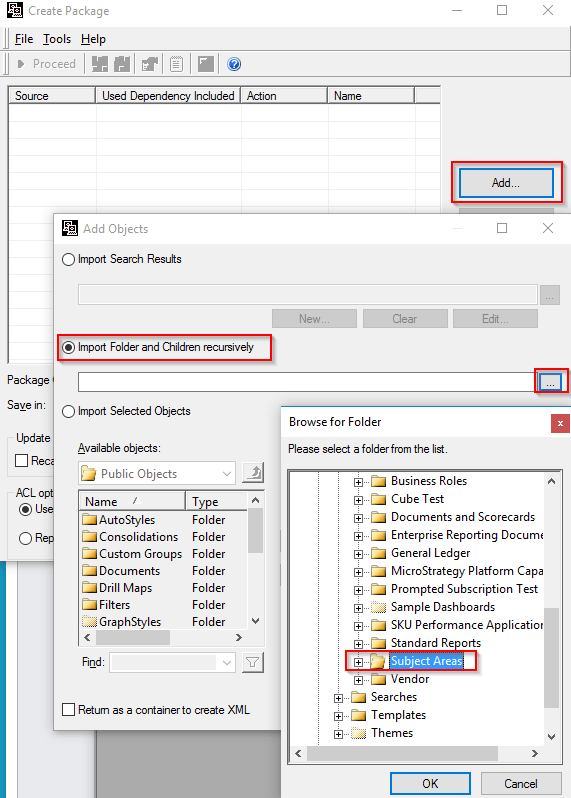
4. Make sure to check "Return as a container to create XML."
5. Make sure "Add All Used Dependencies" checked and click "Create XML" button.
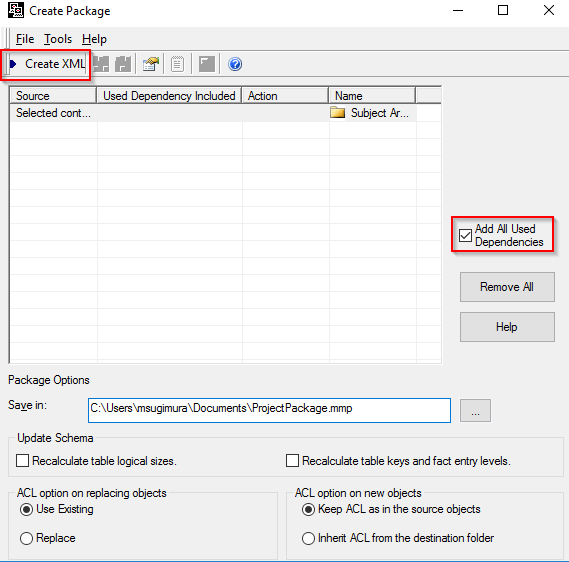
6. Once the XML file is generated, launch command line to execute the following command:
projectmerge.exe -f<filename.xml>

Note: For more option for this command, execute "projectmerge.exe -h" to find out.
7. Confirm that an object package is created by this command, then, try importing it to another project using Object Manager. Click "Edit" to see what is included in the package and notice that no objects inside "Business Roles" are included.
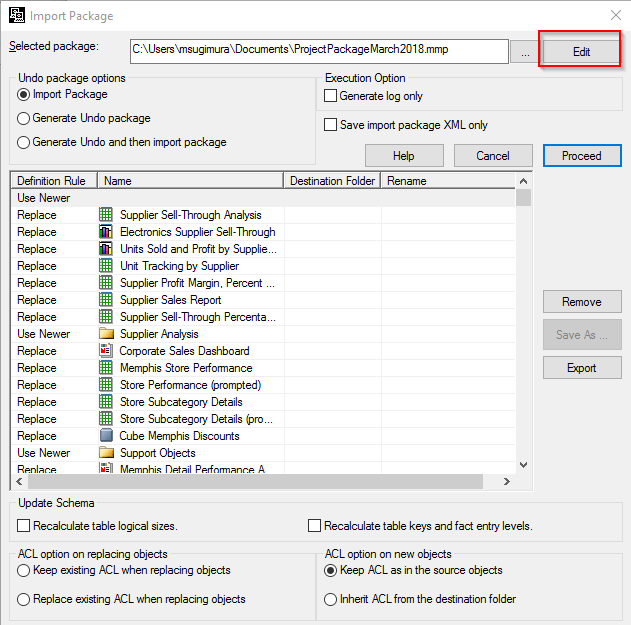
8. Proceed with importing and confirm that shortcut to "Business Roles" can be found inside "Subject Areas" folder, and the "Business Roles" folder is created. However, the "Business Roles" folder is empty.
CAUSE:
This is a known issue with object packages created by a XML file. The file can be manually created, but there is no option to ensure that the child objects inside a folder are pointed by a shortcut to be included in the package.
ACTION:
Currently this issue is still being reviewed for feasibility by our Technology team and it is not scoped for any upcoming scheduled Strategy release.
WORKAROUND:
There are two workarounds:
Workaround 1: Use Object Manager to complete your object migration. When the GUI is used, all of the child objects are included in the object package. Refer to KB18829: How to migrate multiple objects at the same time that exist in different folder paths of the source in MicroStrategy Object Manager 9.x
Workaround 2: Create multiple object packages. Each object package should contain one source folder without relying on shortcut objects.
Also, refer to:
KB36167: How to create an Object Manager package from the command line in MicroStrategy 9.4.x-10.x?https://www2.microstrategy.com/producthelp/10.10/SystemAdmin/WebHelp/Lang_1033/Content/Copying_objects_between_projects__Object_Manager.htm
KB39860
