EducationSoftwareStrategy.com
StrategyCommunity

Knowledge Base

Product

Community

Knowledge Base

TopicsBrowse ArticlesDeveloper Zone

Product

Download SoftwareProduct DocumentationSecurity Hub

Education

Tutorial VideosSolution GalleryEducation courses

Community

GuidelinesGrandmastersEvents
x_social-icon_white.svglinkedin_social-icon_white.svg
Strategy logoCommunity

© Strategy Inc. All Rights Reserved.

LegalTerms of UsePrivacy Policy
  1. Home
  2. Topics
  3. Anemone Color Palette

Anemone Color Palette


Nida Imtiaz

Product Manager, Senior • Strategy


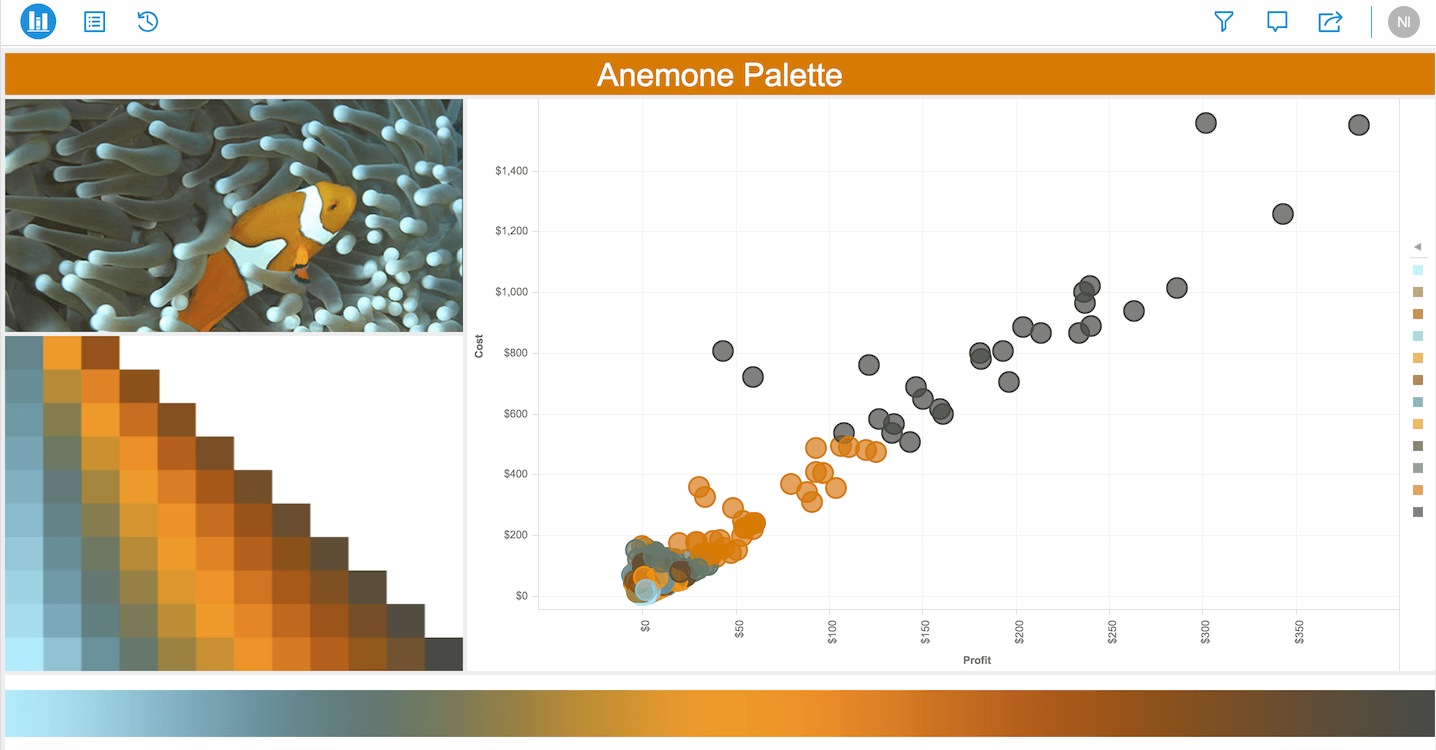
Use the Anemone palette to make your visualizations look as vibrant as the anemonefish (also known as the clownfish).

Starting with the release of Strategy ONE (March 2024), dossiers are also known as dashboards.
Strategy Best Practices  
The Anemone Color Palette 
Color palettes are designed to make data visualizations even more engaging and easily consumable. The anemone color palette is inspired by the photo of a clown fish swimming in an anemone. This palette consists of mainly bright colors like blues, orange, and brown colors. Such use of colors can easily distinguish data points for seamless analysis. With our dossiers, we had our design team custom design beautiful color palettes based on nature photography. With a single click, you can change colors of your visualizations as you like. Our goal here at Strategy is to make your presentations more sophisticated and visually appealing without compromising your data analysis. 
Are you ready to ramp up your dossier with new colors?
ka0PW0000001JOuYAM_0EM44000000QClc.png

Requirements

  • Attributes: 1 or more
  • Metrics: 1 or more

Minimum Strategy version: 10.9
Publisher: Strategy 
Installation Instructions

  1. To view this dossier with the visualization, download the .mstr file below. 
  2. Deploy it in Strategy Desktop or Strategy Web. You will then view the color palette.  
  • To open the demo visualization in Strategy Desktop, double-click the .mstr file.
  • To open the demo visualization in Strategy Web, choose Create > Upload Strategy File > View Dossier.

Learn How to Change Color Palette Selections
Though you will be able to view the color palettes with Web, feel free to download MicroStrategy Desktop! 
Photo Credit
Photographer: Cezary Raczko
Have more questions about dossier authoring? Upgrade to Strategy 2019 to get Workstation! 


Comment

0 comments

Details

Example

Published:

December 24, 2017

Last Updated:

March 21, 2024