Starting with the release of Strategy ONE (March 2024), dossiers are also known as dashboards.
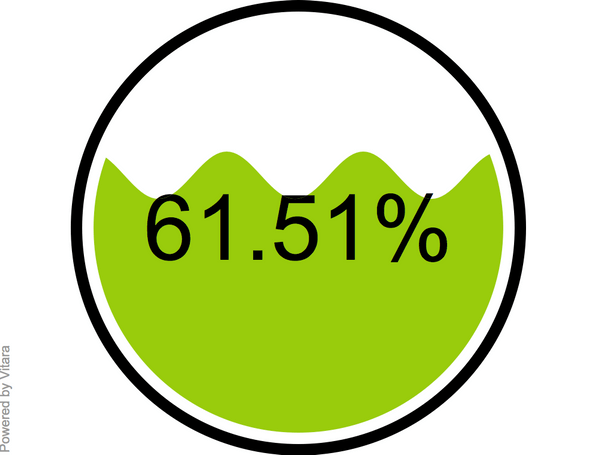
The Animated Gauge chart displays a percentage calculated as M1/M2, where M1 and M2 are measurements (metrics). These visualization gauges are ideal for displaying KPIs for executive-level dashboards or other management performance summaries.
Object requirements:
Minimum Strategy version: 10.2
Chart version: VitaraCharts 2.0
MicroStrategy Features
Vitaracharts is now FREE for Desktop and Workstation.
Please contact sales@vitaracharts.com to get a 30-day trial key.
Take note that this visual is a part of the VitaraCharts library.
Download visualizations: www.vitaracharts.com
Online interactive visualizations can be accessed here: https://cloud.vitaracharts.com
Publisher: Vitara
Vitara is a Strategy technology partner and offers a fully supported, production-ready chart plugin (VitaraCharts) with 30+ stunning visualizations to enhance Strategy analytics. All Vitara visualizations are customizable and supported through upgrades for a hassle-free experience. We perform extensive testing for backward compatibility with all currently certified versions of Strategy and also ensure all new versions of Strategy are tested and supported across all charts.
For more details please contact sales@vitaracharts.com or www.vitaracharts.com.
To install this visualization:
Create > Upload Strategy File > View Dashboard.
Interested in learning more about custom visualizations? Visit the Learning Center on Community!
Or visit our Documentation pages for more product information.
