EducationSoftwareStrategy.com
StrategyCommunity

Knowledge Base

Product

Community

Knowledge Base

TopicsBrowse ArticlesDeveloper Zone

Product

Download SoftwareProduct DocumentationSecurity Hub

Education

Tutorial VideosSolution GalleryEducation courses

Community

GuidelinesGrandmastersEvents
x_social-icon_white.svglinkedin_social-icon_white.svg
Strategy logoCommunity

© Strategy Inc. All Rights Reserved.

LegalTerms of UsePrivacy Policy
  1. Home
  2. Topics
  3. Benefits of creating a dossier vs. creating a document

Benefits of creating a dossier vs. creating a document


Amy Laresch

Product Manager • Strategy


The goal of this article is to help users become more comfortable deciding whether they should create a document or a dossier.
Starting with the release of MicroStrategy ONE (March 2024), dossiers are also known as dashboards.

So, do you want to build a dossier or document?

To the tune of Frozen's Do you want to Build a Snowman?
Come on, let's get started! 
Unsure whether you should create a dossier or a document? This article will cover the strengths and best use cases for each.
Let's start at the beginning. What is the difference between a dossier and a document?
A dossier is our modern product that has an intuitive authoring experience and enables faster speed of delivery, making it ideal for a more agile delivery of dashboards. Documents allow you to have more control over the formatting and also provides a wider array of functionality, which is ideal for highly customizable applications.
Before you can decide between the two, it's recommended to write down a list of your design requirements. Identify your overall goal and the must-haves to accomplish it. 
Tip: Prepare a list of your requirements and run them by your stakeholders to make sure you are on the same page.
Sample design requirements:
  • Easy to make weekly changes based on stakeholder feedback
  • Create links to other dashboards with more granular data
  • Require users to answer prompts
Once you have your design requirements, we can begin looking at the different authoring capabilities between a dossier and a document.
Use the table below for a high-level understanding of the similarities and differences between dossiers and documents. Click the capability to read more about the comparison between the two. 

Capability

Dossier

Document

Open Canvas

As of 2020, use Free-form layout to build dossiers.

Design documents pixel-by-pixel.

Formatting

Use responsive design for formatting and out-of-the-box color palettes to brand your dossier. 

Use themes to format and color your document or specific objects.

Responsive Design

Dossiers automatically adjust to fit your screen, but you can group objects to customize the mobile layout.

You must build a specific view for every device a user will view the document on.

Linking

Link from visualizations, text boxes, or images to other dossiers while preserving filtering criteria.

Link from visualizations, text boxes, or images to other documents while preserving filtering criteria.

Creating Visualizations

Use a variety of out-of-the-box visualizations or add third party visualizations.

Use grids or graphs to illustrate data.

Creating Grids

Two grid options: grid and compound grid.

One grid option.

Thresholds

Apply advanced thresholds.

Apply advanced thresholds.

Sorting

Advanced sort is always absolute.

Easy to set a hierarchical sort based on attributes and metrics.

Prompts

Support prompts.

Support prompts.

Offline Authoring and Consumption

Support for offline consumption and authoring.

Support for offline consumption, but not authoring.

Speed of Authoring

Quick start to finish delivery. 

Requires meticulous editing at the benefit of a more precise, highly-formatted document.

Using Open Canvas 

With an open canvas, you, as the designer, have complete control over the look and feel of your dossier or application. In both dossier and documents, you can use panels or layers to move objects to the background or foreground to create a layered effect.


Dossiers

As of MicroStrategy 2020, dossier’s free-form layout allows you to place your visualizations, text boxes, images, selectors, etc. wherever you want on the canvas and use the layers panel to control their placement. No matter the device, the visualizations placed on your dossier are responsive and will fit the size of your screen.
Strategy Video

In the free-form layout, you can enter the precise position of your visualizations based on the X and Y axes of your canvas.
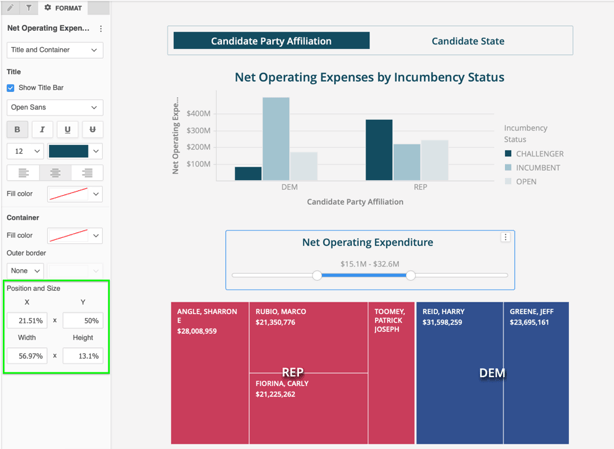
ka0PW0000001JbfYAE_0EM2R000000nuwF.jpeg
Want some guide rails?
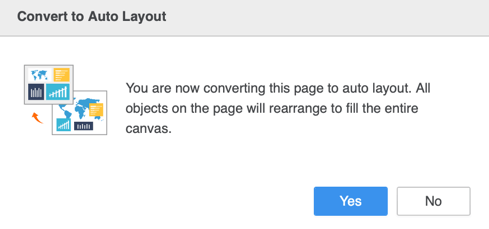
You can always use dossier's traditional auto layout, where objects automatically fill the entire canvas and can be repositioned around each other. To switch between auto layout and free-form layout, click Convert in the top-right of the dossier.
ka0PW0000001JbfYAE_0EM2R000000nuxS.jpeg

Documents

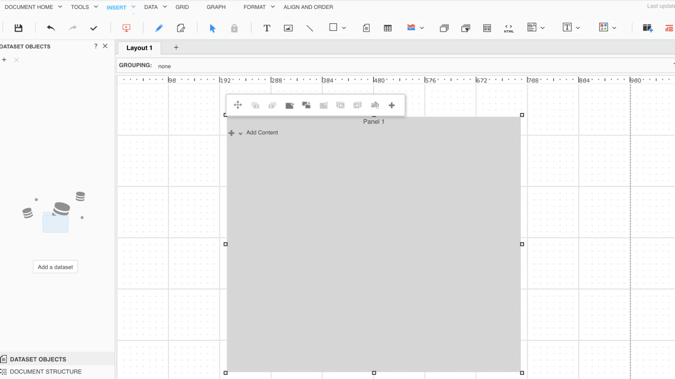
Documents allow you to design pixel-by-pixel in multiple editing and previewing modes. Like graph paper, you can move each object to a precise location.
ka0PW0000001JbfYAE_0EM2R000000nuxc.jpeg

Want some guide rails?
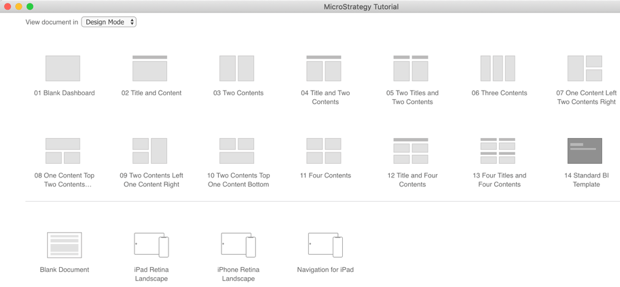
Documents provide out-of-the-box templates that you can select from. Once you pick a template, you can customize the document with your content.
ka0PW0000001JbfYAE_0EM2R000000nuxm.jpeg

Formatting

Now that you’ve picked the canvas right for your design, let’s think about your formatting needs. How specifically and precisely do you need to format your information?


Dossiers

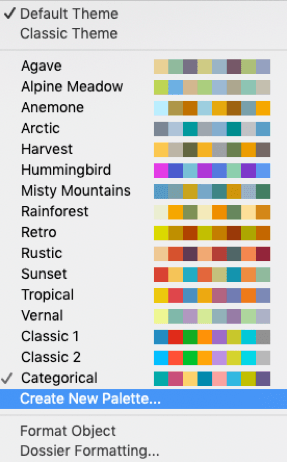
In general, dossiers allow you to easily and quickly format your visualizations and objects. Dossiers come with out-of-the-box color palettes. MicroStrategy's design team curated these palettes based on nature photography, but you can also make your own color palette by choosing Create New Palette and adding your own HEX codes.

Fun fact: The Hummingbird palette was inspired by the Lesser Violetear hummingbird!
ka0PW0000001JbfYAE_0EM2R000000nuyV.jpeg

For more information on dossier design, see Dossier Authoring Best Practices from a MicroStrategy Expert.


Documents

Documents allow you to select the color theme, fonts, and the colors of the document's objects. Utilize any of the following design options when creating a document:
  • Display theme for a document
  • Display theme for an object
  • Create custom display themes
For more information on formatting documents, see How to Format a Document.


Enabling Responsive Design
Dossiers

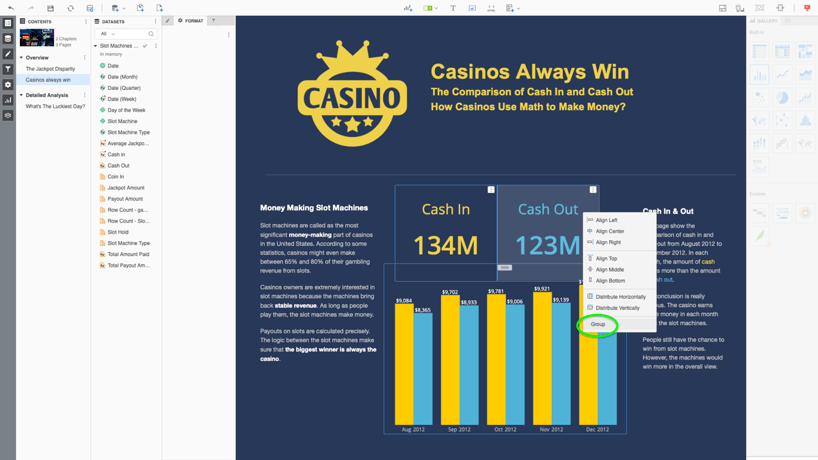
No matter your device, dossiers automatically adjust to fit to your screen. If you want to customize your dossier's mobile layout, use the responsive design editor in the auto layout of a dossier to group visualizations together so they appear side-by-side on a mobile device.
Strategy Video

In free-form layout, use grouping to control your mobile layout.
ka0PW0000001JbfYAE_0EM2R000000nuyp.jpeg

To have responsive design on every device automatically, then a dossier would be your best bet.

Documents

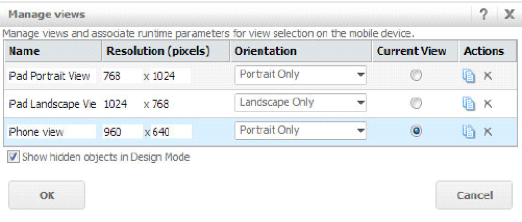
When building a document, you need to build a view for every device you expect users to access the application on. Although this takes more time, you have a high level of control over the mobile experience.
You can pick how the document elements are displayed when:
  • Users rotate their device (landscape vs. portrait orientation)
  • Users access the document from a different device (iPhone, Android, or tablet)
  • Users access the document from different screen sizes (iPhone 6s or iPhone X)
ka0PW0000001JbfYAE_0EM2R000000nuyz.jpeg
For more information about mobile layouts, see Formatting documents for various screen sizes and different orientations: Mobile Views.
If you have precise requirements for the look of a mobile layout and plan to maintain each view, then a document might be your pick. 


Linking

Both dossiers and documents allow users to create links to navigate between different dossiers or documents while preserving filtering criteria. Linking can improve performance by eliminating the need to include all possible datasets for a single workflow in the same dossier/document.
For example, you include high-level business KPIs in an overview dossier for executives that then provides links to different dossiers focused on different areas of the organization with more detailed datasets, such as regional sales trends or marketing campaign performance. You have the option to link from visualizations, text boxes, and images.


Dossiers

For dossiers, you can return to your last dossier with the back-button in MicroStrategy Library.
To create contextual links in your dossier, see the video below. For more information, see Use a Visualization to Filter Data in a Different Dossier.
Strategy Video

Documents

For documents, you can return to your last document by creating a back-button arrow or navigation bar. For example, you can create a Home icon to help users easily navigate through the document.

ka0PW0000001JbfYAE_0EM2R000000nv0M.jpeg

For more information on creating links, see Creating links in a document.

Creating Visualizations

Dossiers and documents both come with out-of-the-box visualizations and the ability to add third party visualizations. However, there are differences in the types of visualizations available out-of-the-box in dossiers vs. documents.


Dossiers

Dossiers visualizations are all HTML5-based and they offer certain visualizations that are not available in documents, including:
  • Smart KPI
  • Box Plot
  • Histogram
  • Waterfall Chart
  • Compound Grid
  • Geospatial Service (a premium mapping solution powered by Mapbox)
It's also easy to add third party visualizations. Simply view the Community Visualization Gallery, pick a visualization you like, and import it into Workstation. To make the third party visualization available to all users in your enterprise environment, an admin must deploy it via the MicroStrategy Web Admin page.
Strategy Video

Documents

The number of out-of-the-box visualizations in documents is much smaller than dossiers. Documents allow you to display your reports as either a Grid, Graph, or both a Grid and Graph. Although the number of visualizations is smaller in documents, these visualizations provide you with more formatting properties for more specific design requirements. For more information, see the Document Creation Guide.
To add custom visualizations to your documents, see How to Add Custom Widgets.
Which option represents your analysis better? To decide, you need to understand your data and identify the most impactful visualization to tell your story. For example, if you have geographic data and want to identify what regions are the top performers, you'll want to use a map visualization. Since Mapbox is not currently available in documents,  you would want to create a dossier.


Creating Grids

Now let's talk about grids. Grids allow you to view row level details about your enterprise data and analyze through thresholds, sorting, totals, and formatting.
In both documents and dossiers, you can use outline mode to expand and collapse attributes and display more or less details.


Dossiers

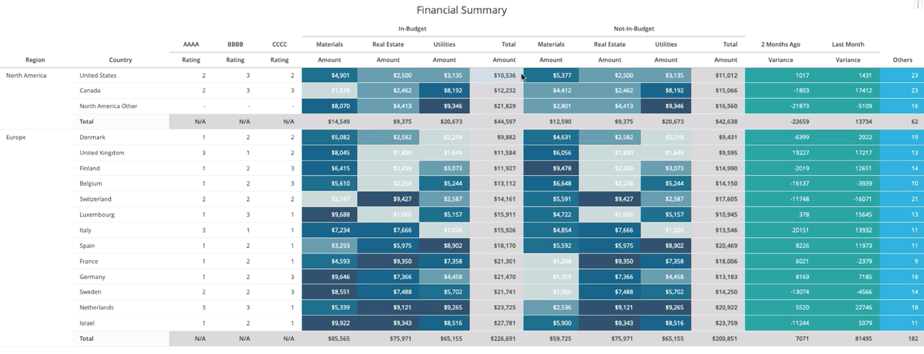
Dossiers have two grid visualizations: Grid and Compound Grid. Introduced in MicroStrategy 2020, the Compound Grid is especially useful for financial analysis when you need to analyze several KPIs across a common dimension, like investment vehicle or region.
ka0PW0000001JbfYAE_0EM2R000000nv57.jpeg

Using this grid, you can have multiple unrelated attributes and metrics in different sets of columns that are stitched together. Here you can also show totals, like average or count, by each attribute. This allows users to get a 360-degree view of the data, make connections, and find relationships in the same grid. 
Strategy Video

Documents

In documents, you can use a grid as a type of summary for a group or the entire document, because the data displayed in it is aggregated to the level of the document section in which the grid is placed. If the grid is in one of the Group Header or Group Footer sections, it limits the data displayed in it to only that which is included in that group. 
Additionally, documents offer more flexibility when it comes to formatting your grids. Grids within a document can be formatted on a specific column. Document grids also allow you to define totals by rows or columns.
For more information, see Display Reports in Documents.


Using Thresholds 

In both dossiers and documents, you can apply advanced thresholds to your grid to emphasize important data. For example, sales numbers above their target might be highlighted green or show a star icon.
Strategy Video

Sorting
Dossiers

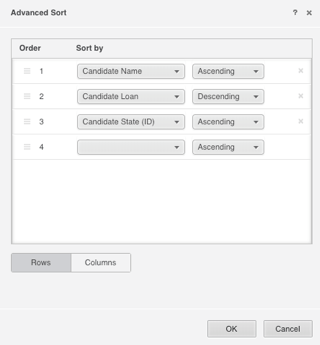
In dossiers, advanced sort is always absolute. If you want hierarchical sort, enable subtotals on a grid.

ka0PW0000001JbfYAE_0EM2R000000nv5b.jpeg

Documents

With documents, it's easy to set a hierarchical sort based on your attributes and metrics.


Enabling Prompts

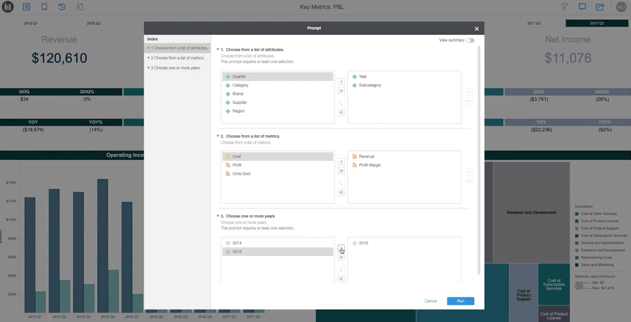
Both dossiers and documents support prompts. Prompts not only help with performance by limiting the data that is displayed, but also help by only showing data relevant to the user to help with a more refined analysis. Both work by having report datasets that have prompts.
ka0PW0000001JbfYAE_0EM2R000000nv60.jpeg

In Library, you can re-prompt both documents and dossiers to change your prompt answer. For more information about creating prompts, see How to Create a Prompted Dossier and Using Prompts in a Document.

Offline Authoring and Consumption

Both dossiers and documents can be consumed offline. Download the MicroStrategy Library app for iOS or Android to take advantage of offline analysis on-the-go. 
However, for authoring, only dossiers can be created and edited while offline. You must be online to create or edit a document.

Speed of Authoring

Although speed may not be a design requirement, it can be a necessary factor in which option you choose. 


Dossiers

Dossiers allow for a quick start to finish delivery. They are intuitive to build and can be created online or offline, giving you more time and places to create a dossier.


Documents

Documents require more meticulous editing at the benefit of a more precise, highly-formatted presentation. Documents are great for when you need more control over the design and interactions that a user will experience.

So...what should I pick?

Circle back to your design requirements. We've seen that dossiers provide faster speed to market and documents provide more control and customization of the look and feel. If both options meet your requirements, I recommend using dossier for a quicker and more seamless authoring experience.


Test Your Knowledge

Want to test your knowledge? Take this quiz to see if you can pick the best option for analysis based on the provided use case.
See below for an explanation of each answer.Use Case 1You want to create an application for your Sales team that is white-labeled to have your company's logo deployed across all their mobile devices.
Answer: Go with documents. Documents allow you to leverage the MicroStrategy Mobile SDK, which makes it easy to publish white-label applications across your enterprise with customized logos, icons, and splash screen animations to reflect your brand.
Use Case 2You need to be able to author offline when you are visiting Store Managers on the floor and want to make changes on-the-fly.
Answer: Go with dossier. With Workstation and Desktop, you can access all your dossiers offline and make all your changes without being connected to a MicroStrategy environment or WiFi.
Use Case 3You are a human resources analyst and want to build analytics content to investigate your recruiting and retention trends. You plan to share this with executives, and you aren’t sure if they will be viewing it on their laptops or mobile devices, so you want to create one responsive view that looks good on all products.
Answer: Go with dossier. Dossiers automatically adjust to look great on any screen.
Use Case 4You are a financial analyst and want to build a grid to analyze each region’s performance across different set of products, like home equity loans and certificates of deposit, all in the same view.
Answer: Go with dossier. Dossiers have compound grids that enable you to analyze all your KPIs across a common dimension.


Additional Resources

Explore our Education courses to learn these skills from a MicroStrategy expert. Then, prove your knowledge with a certification.
I recommend going with the Analyst pass, which is a 12-month subscription that gives you access to all the courseware related to Analyst, Data Scientist, and Developer certifications.
For more video tutorials, see below:

Dossier Authoring

Contextual Linking

Attribute/Metric Selectors

Formatting Capabilities

 For more, go to the Learning Center.

Document Authoring

Creating a Document in Workstation

Get familiar with the document interface

Adding Selectors to Documents

Adding Information Windows to Documents

Adding Data and Visualizations to Documents


Comment

0 comments

Details

Blog Post

Published:

March 21, 2024

Last Updated:

March 21, 2024