Starting with the release of Strategy ONE (March 2024), dossiers are also known as dashboards.
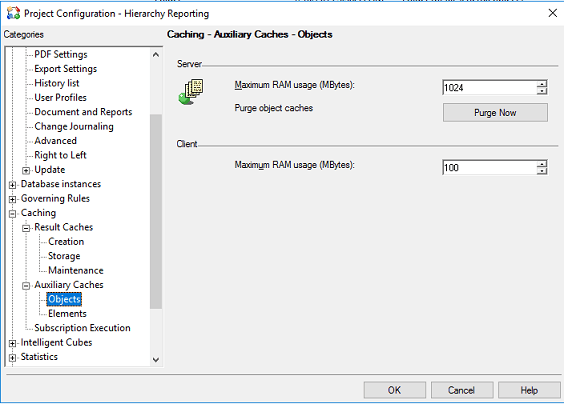
The following outlines four recommended ways to configure large MDX queries: (1) by modifying the Maximum query execution time (sec) setting to a smaller, positive value, or (2) change the job priority setting on DI MDX instance, or (3) adjust the configuration for "MaxTableRows" in the Strategy cube provider, or (4) increaes the maximum RAM usage of the object cache.
The Maximum query execution time (sec) setting is the maximum amount of time that a single pass of SQL can execute on the data warehouse. When the SQL statement or fetch operation begins, a timer starts counting. If the Maximum query execution time (sec) limit is reached before the SQL operation is concluded, Intelligence Server cancels the operation.
By default, this value is set to -1, which means the query will timeout after one hour. With large MDX queries, it will likely take longer than one hour to execute. In these cases, it's recommended to change the value to a positive meaningful integer based on the query execution time.
By default, the Data Import Database Instance maximum number of concurrency jobs is two. The job priority setting on the Data Import Database Instance will not take affect if the database instance is not in the warehouse database instance list of the project.
To support multiple jobs running parallel in a concurrency scenario, you can open the MDX Cube Catalog on the Data Import Database Instance in Developer. Doing this will add the database instance into the warehouse database instance list of the project and the job priority setting on it will work.

It's recommended that you set a smaller number for the MaxTableRow value for the Strategy cube provider on Windows platforms when a query contains a large number of columns in a row. Otherwise, the Intelligence Server child process may die and no data is returned to the Intelligence Server due to limitation of the child process.
On a Windows Intelligence Server, edit the Datasources.xml file under the installation path of the MDX cube provider. Change the parameter: <MaxTableRows>240000</MaxTableRows> to <MaxTableRows>120000</MaxTableRows> or a smaller value.
For Example:
<DataSource> <DataSourceName>Localhost</DataSourceName> <DataSourceDescription>Strategy MDX Cube Provider for MSOLAP on Localhost</DataSourceDescription>
<URL>http://localhost/StrategyMDX/StrategyMDX.asmx</URL>
<DataSourceInfo>Localhost</DataSourceInfo> <ProviderName>Strategy MDX Cube Provider for MSOLAP on Localhost</ProviderName> <ProviderType>MDP</ProviderType> <AuthenticationMode>MSOLAPIntegrated</AuthenticationMode> <DatasourceType>3</DatasourceType> <ProgramID>MSOLAP</ProgramID> <MaxXMLSize>1000</MaxXMLSize> <MaxTableBufferSize>12000</MaxTableBufferSize> <MaxTableRows>240000</MaxTableRows> <DecryptionDelay>10</DecryptionDelay> <IncrementalFetchInterval>30</IncrementalFetchInterval> </DataSource></DataSources>
Schema objects of an MDX data source can be loaded in the Object Cache. As a result, this improves the execution performance of dossiers and documents. However, if the cache size is too small, those objects may be purged.
To avoid this situation, it's recommended that you increase the Maximum RAM usage of the Object Cache if you have a large schema or many objects in your cube.