EducationSoftwareStrategy.com
StrategyCommunity

Knowledge Base

Product

Community

Knowledge Base

TopicsBrowse ArticlesDeveloper Zone

Product

Download SoftwareProduct DocumentationSecurity Hub

Education

Tutorial VideosSolution GalleryEducation courses

Community

GuidelinesGrandmastersEvents
x_social-icon_white.svglinkedin_social-icon_white.svg
Strategy logoCommunity

© Strategy Inc. All Rights Reserved.

LegalTerms of UsePrivacy Policy
  1. Home
  2. Topics

KB484275: Best practices for using the Snowflake Single Sign-on (SSO) feature in MicroStrategy 2021


Rong Yu

Quality Engineer, Senior • MicroStrategy


This article outlines the best practices for integrating Snowflake Single Sign-on (SS0) with MicroStrategy 2021.

Starting with the release of Strategy ONE (March 2024), dossiers are also known as dashboards.

Best Practices


Use https for Web, and not http

Http for Web does not support the Snowflake SSO feature. 


Enable the Create Intelligence Cube by database connection setting via Developer

For the Snowflake SSO feature, different user groups are mapped into different database connections.

  • In the Project Configuration dialog go to Intelligent Cubes > General.
  • Select the Create Intelligent Cube by database connection checkbox. 
  • Click OK.
ka0PW0000001JmaYAE_0EM2R000000fdTq.jpeg
  • If the setting is not enabled, the following could happen:
    • If user1 publishes the cube, user2 could see the data.
    • If user downloads the .mstr file then uploads to another Intelligence Server without the user's specific database connection, the user will need to republish the cube first.

Disable catalog cache via Developer

  • In the Strategy Intelligence Server Configuration dialog, go to Governing Rules > Default > Catalog cache.
  • Deselect the Enable catalog cache checkbox.
ka0PW0000001JmaYAE_0EM2R000000fdUU.jpeg
  • If the setting is enabled, if one user uses the DB role, another end user could see the database catalog (e.g., the namespace and tables) with logging in.

Only refresh token in the metadata is valid for successful scheduling


If schedule fails, follow the workaround:

  1. Log in to Web.
  2. Click the DB role to log in. This step could re-store the refresh token in the metadata.

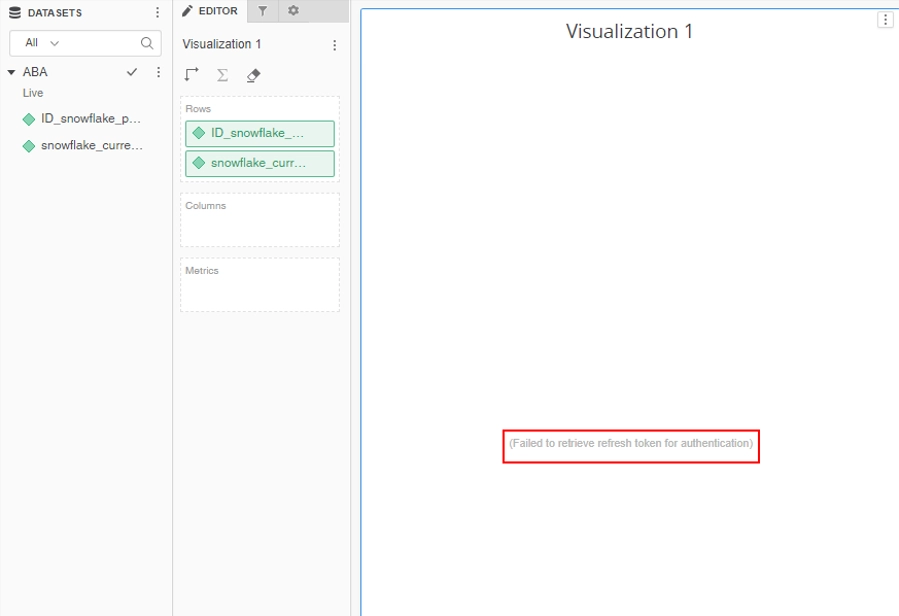
For a SAML environment, if id token/access token/refresh token is expired and unable to run a dossier/report/publish cube, the end user may receive an error


Error: Failed to retrieve refresh token for authentication
ka0PW0000001JmaYAE_0EM2R000000fdVw.jpeg
ka0PW0000001JmaYAE_0EM2R000000fdW1.jpeg


To work around the error:

  • In a SAML environment: Log out of Web and log in again.
  • In a Standard environment: Click Snowflake DB role to input Azure account to re-log in with DB role.

Comment

0 comments

Details

Knowledge Article

Published:

May 19, 2020

Last Updated:

March 21, 2024