EducationSoftwareStrategy.com
StrategyCommunity

Knowledge Base

Product

Community

Knowledge Base

TopicsBrowse ArticlesDeveloper Zone

Product

Download SoftwareProduct DocumentationSecurity Hub

Education

Tutorial VideosSolution GalleryEducation courses

Community

GuidelinesGrandmastersEvents
x_social-icon_white.svglinkedin_social-icon_white.svg
Strategy logoCommunity

© Strategy Inc. All Rights Reserved.

LegalTerms of UsePrivacy Policy
  1. Home
  2. Topics

Cassandra String Datatype Performance Degradation


Norman Matos

Associate Scrum Master • Strategy


This article explains how to manage the "Varchar" datatypes when they are displayed with precision "(0)" in a table.

Symptom:


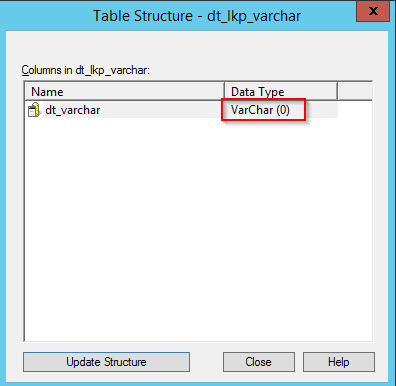
The datatype of varchar columns is displayed with precision 0 in warehouse catalog while viewing table structures of underlying Cassandra tables
ka044000000kPCCAA2_0EM440000002MBB.png


Cause:


This is expected behavior as Cassandra doesn’t have a limit on the varchar datatype. It is stored in Cassandra as a UTF-8 encoded string.

Note:


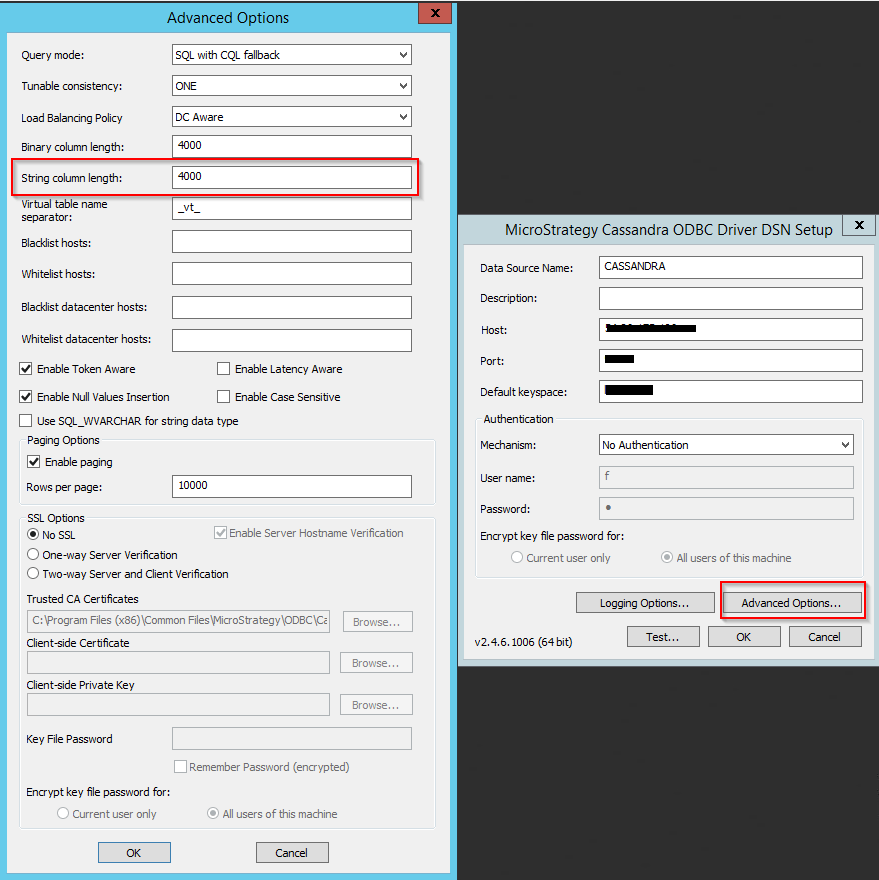
By default, the varchar datatype length is set to 4000 in the Strategy Cassandra ODBC Driver. Strategy Intelligence Server uses an ODBC Call (SQLDescribeCol) to determine the proper resources to allocate for the query results, for varchar columns the default size is 4000 as specified by the “string column length” setting in the ODBC driver. You may either see a degradation in performance if this value is set too high causing a lot of memory to be allocated or you may see truncation of data if this value is set too low. Please consult your DBA to set the values for the string column length field if the defaults don’t meet your requirements.
To edit this setting
Windows

  1. Configure the Strategy Cassandra ODBC driver in the ODBC Administrator and navigate to the Advanced Tab
  2. Edit the value for the String column length field


ka044000000kPCCAA2_0EM440000002MBG.png


Linux

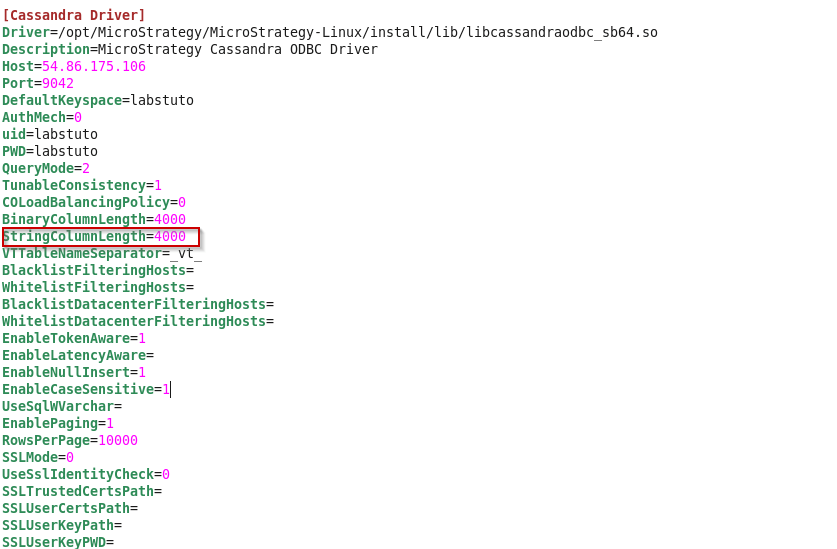
  1. Copy the section for Cassandra driver connection parameters from the odbc.ini.example file and add it to the odbc.ini in your Strategy install. Edit the values for Host,Port,DefaultKeyspace and AuthMech.
  2. Edit the the StringColumnLength value to avoid perfomance degradation while quering string/varchar/text datatype values or data truncation issues
ka044000000kPCCAA2_0EM440000002MBL.png


DSN-Less

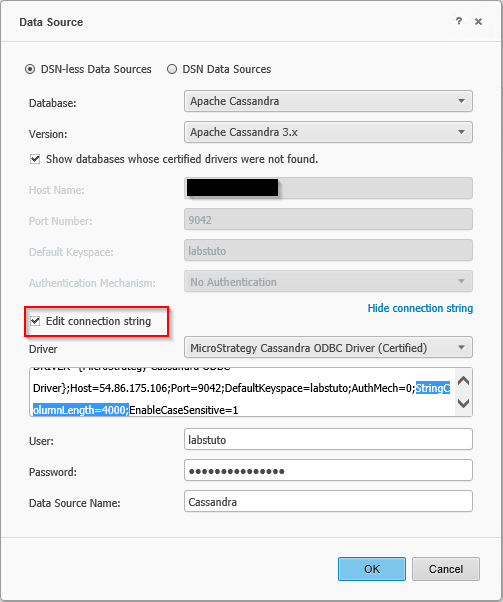
  1. Navigate to MSTR Web → Access External Data → Amazon Redshift → Select DSNLess Connection
  2. Enter the Server name, Port and Database name ,check the Edit Connection String option and edit the value for StringColumnLength based on your DBA’s recommendation
ka044000000kPCCAA2_0EM440000002MBQ.png


Comment

0 comments

Details

Knowledge Article

Published:

May 18, 2017

Last Updated:

May 18, 2017