EducationSoftwareStrategy.com
StrategyCommunity

Knowledge Base

Product

Community

Knowledge Base

TopicsBrowse ArticlesDeveloper Zone

Product

Download SoftwareProduct DocumentationSecurity Hub

Education

Tutorial VideosSolution GalleryEducation courses

Community

GuidelinesGrandmastersEvents
x_social-icon_white.svglinkedin_social-icon_white.svg
Strategy logoCommunity

© Strategy Inc. All Rights Reserved.

LegalTerms of UsePrivacy Policy
  1. Home
  2. Topics

KB484883: Certificate error is returned when importing from MicroStrategy Community Connectors


Hang Zheng

Software Engineer, Principal • MicroStrategy


This article addresses the certificate error encountered when importing from MicroStrategy Community Connectors. This article also provides a solution to avoid this error.

Description


When importing from a Strategy Community Connectors, data import may fail and one of the following certificate errors is returned.
2020-09-25 11:35:35.426-04:00 [HOST:biapp][SERVER:CastorServer][PID:1984][THR:7280][Database Classes][Error][UID:B6CD16C240D4A71C4B7C2A8031C6EBE2][SID:2769E1E05068EB1B9CAF42773B13FA73][OID:0] Retrieving data from data connector failed. Error in importing files. Please check the file to import. Error type: Data Import Error. Fail to load scripts from data connector. Please check whether IServer machine can access the connector's url: https://xxx.com:8443/CommunityConnectors/mstr-native/?proxy=false. Error: unable to verify the first certificate.
Or
2020-09-25 11:35:35.426-04:00 [HOST:biapp][SERVER:CastorServer][PID:1984][THR:7280][Database Classes][Error][UID:B6CD16C240D4A71C4B7C2A8031C6EBE2][SID:2769E1E05068EB1B9CAF42773B13FA73][OID:0] Retrieving data from data connector failed. Error in importing files. Please check the file to import. Error type: Data Import Error. Fail to load scripts from data connector. Please check whether IServer machine can access the connector's url: https://xxx.com:8443/CommunityConnectors/mstr-native/?proxy=false. Error: self signed certificate.
Or
2020-09-25 11:35:35.426-04:00 [HOST:biapp][SERVER:CastorServer][PID:1984][THR:7280][Database Classes][Error][UID:B6CD16C240D4A71C4B7C2A8031C6EBE2][SID:2769E1E05068EB1B9CAF42773B13FA73][OID:0] Retrieving data from data connector failed. Error in importing files. Please check the file to import. Error type: Data Import Error. Fail to load scripts from data connector. Please check whether IServer machine can access the connector's url: https://xxx.com:8443/CommunityConnectors/mstr-native/?proxy=false. Error: unable to get local issuer certificate.
 

Why is this happening? 


This occurs when the Node.js process tries to verify the certificate in the SSL handshake stage between the Community Connectors server and the Intelligence server. By default, Node.js is built with a bundle of commonly used CA root certificates. However, you may still encounter errors when your Community Connectors server is deployed with self-signed certificates (e.g., a company-specific private CA). Some of these errors include:

  • UNABLE_TO_GET_ISSUER_CERT_LOCALLY
  • UNABLE_TO_VERIFY_LEAF_SIGNATURE
  • DEPTH_ZERO_SELF_SIGNED_CERT

Solution 1: Disable the strict SSL 


Disable the strict SSL by configuring the

JSDisableStrictSSL
under
KEY_LOCAL_MACHINE\SOFTWARE\WOW6432Node\Strategy\Common Files
. 
For more details, see Handling Invalid Certificates.
This solution disables thee strict SSL, thus, it is a general solution for all certificate-related errors. It is suggested that you use this solution for quick deployment on the test environment. 
 

Solution 2: Add extra CA certificates for node


Disabling the strict SSL, as proposed in Solution 1, thoroughly increases the security risk for the system. If you are in the production environment, you are suggested to use this solution. 
For the following errors reported by the Node.js process, you should add the extra CA certificates for the Nod.js. 
  • "unable to verify the first certificate"
  • "self signed certificate"
  • "unable to get local issuer certificate" 

Steps for adding CA certificates

  • Export the certificate/certificate chain of the Community Connectors server. 
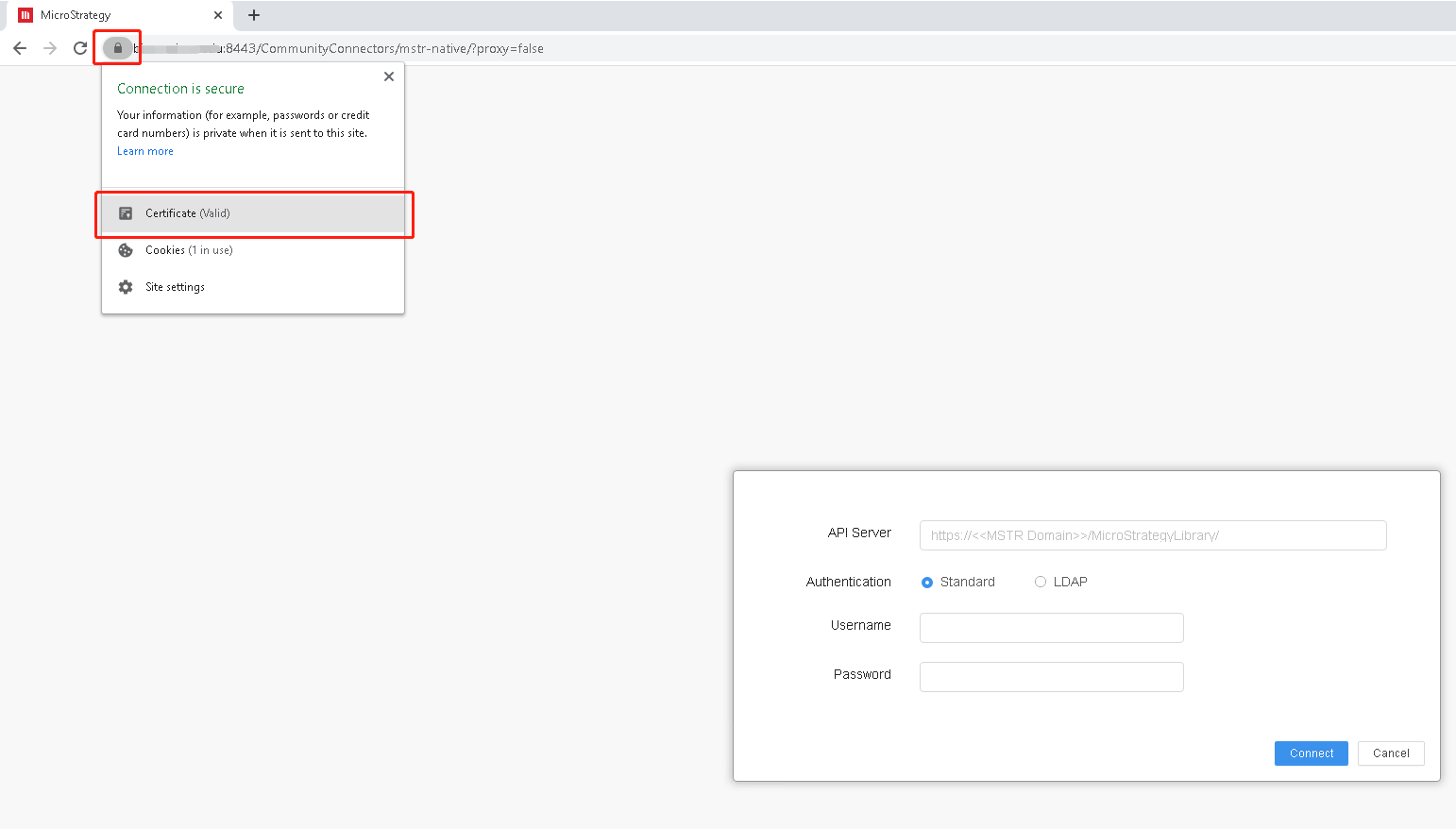
    • Navigate to the Community Connectors server page, click the lock icon and then the certificate option.
ka0PW0000000oknYAA_0EM4W000001KzdH.jpeg
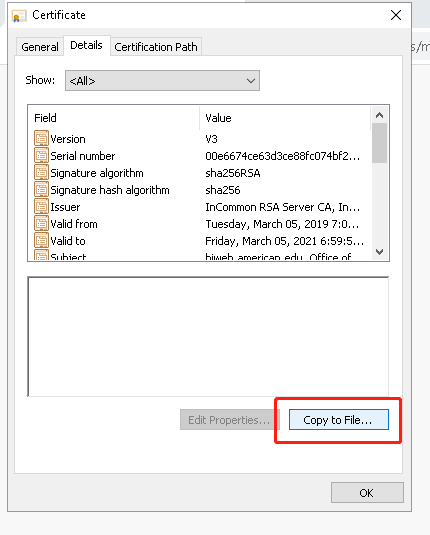
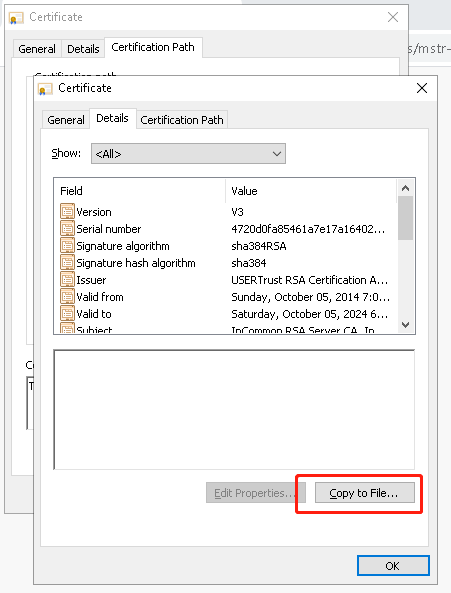
    • In the Certificate dialog, go to the Details tab. From the Show drop-down, choose All, and then click Copy to File.
ka0PW0000000oknYAA_0EM4W000001KzdM.jpeg
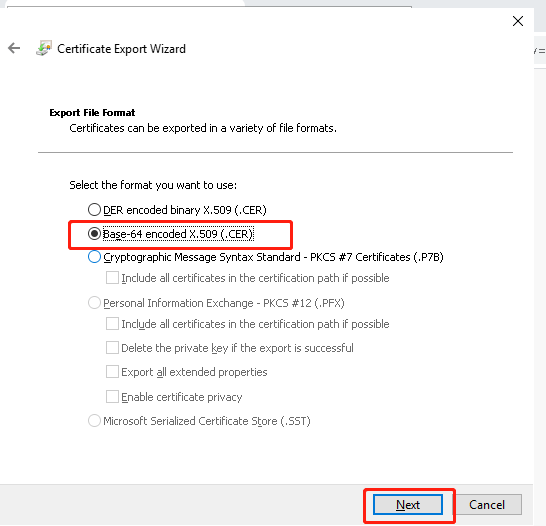
    • In Certificate Export Wizard. select Base-64 encoded X.509 (.CER).
ka0PW0000000oknYAA_0EM4W000001KzdR.jpeg
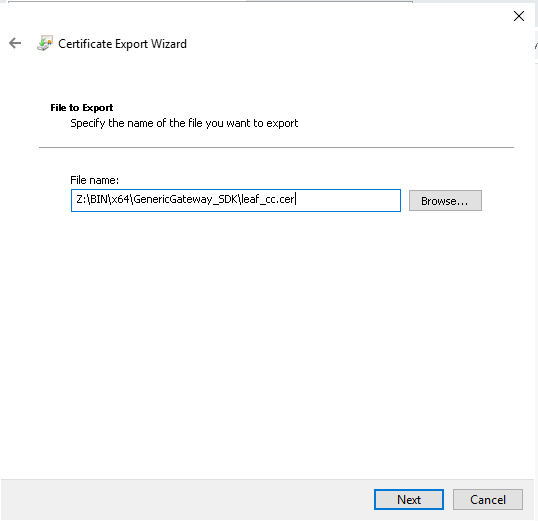
    • Name the exported file.
ka0PW0000000oknYAA_0EM4W000001KzdW.jpeg
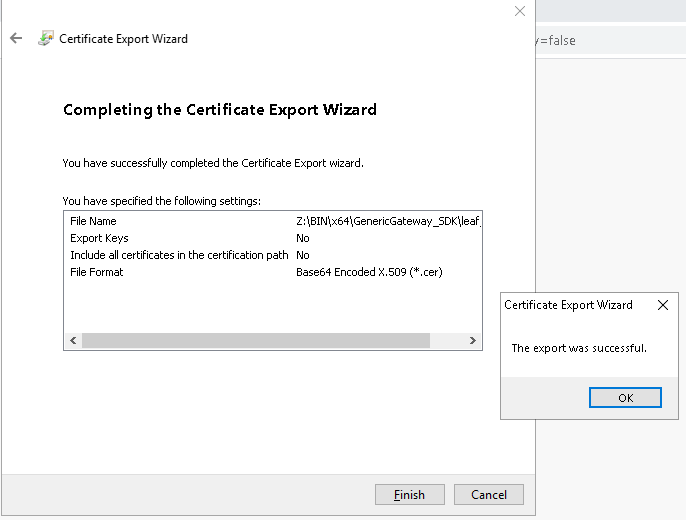
    • Export the file successfully.
ka0PW0000000oknYAA_0EM4W000001Kzdb.jpeg
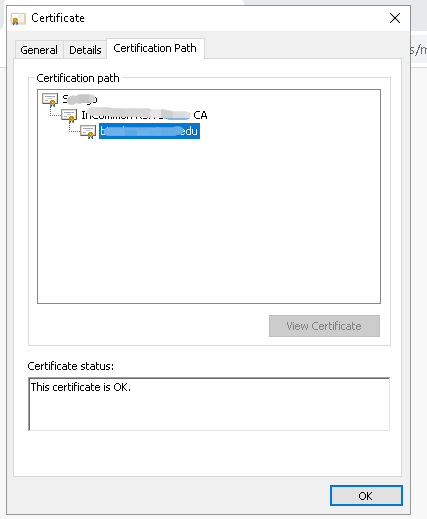
    • In the Certificate dialog, go to the Certification Path tab and check whether there is a parent path of the certificate.
ka0PW0000000oknYAA_0EM4W000001Kzdg.jpeg
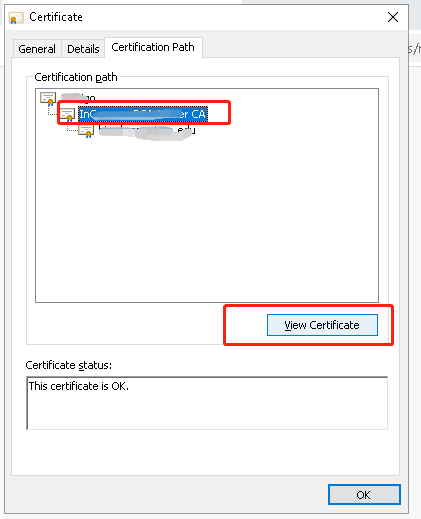
    • If there is a parent path for the certificate, select the parent certificate, and click the View Certificate button.
ka0PW0000000oknYAA_0EM4W000001Kzdl.jpeg
    • In the new Certificate dialog that appears, export the file for the parent certificate.
ka0PW0000000oknYAA_0EM4W000001L03P.jpeg
    • Export every certificate to a separated file with thee same step (in this example, there are three certificates that need to be exported to three certificate files).
    • Manually merge all the certificates into one certificate file in order.
      Locate your exported certificates and open them with Notepad or Notepad++.
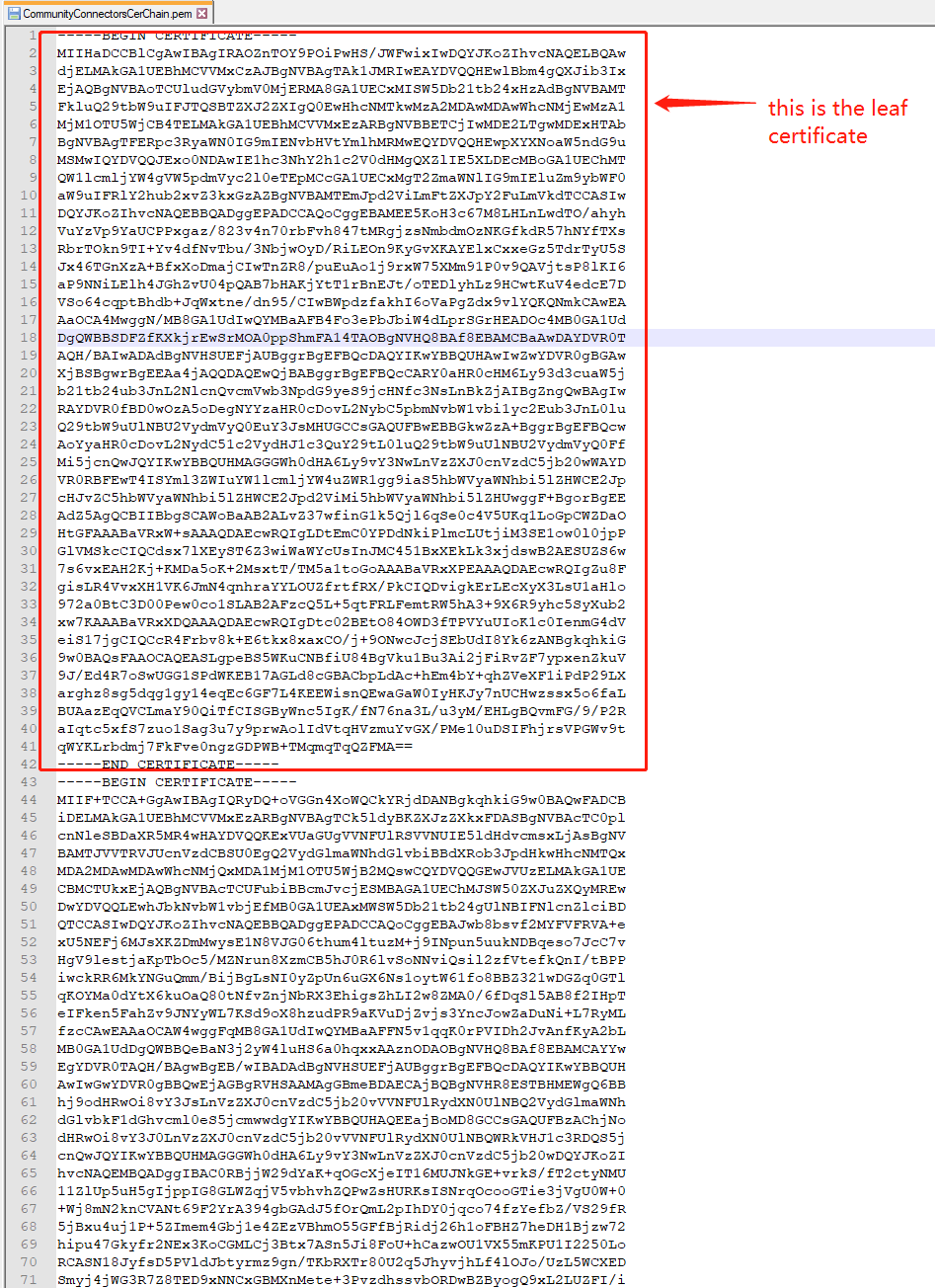
      If there are both root and intermediate certificates, append the content of all the certificates into one certificate file with the intermediate certificates on top, then root certificate at the bottom (e.g., in reverse of the issuing order). The following is an example of the order for a root and two intermediate certificates:
      
      [Intermediate certificate 2 - issued by Intermediate certificate 1]
      [Intermediate certificate 1 - issued by Root certificate]
      [Root certificate] 
ka0PW0000000oknYAA_0EM4W000001L03U.jpeg
    • There should now be a certificate file with the entire issuing certificate chain.
       
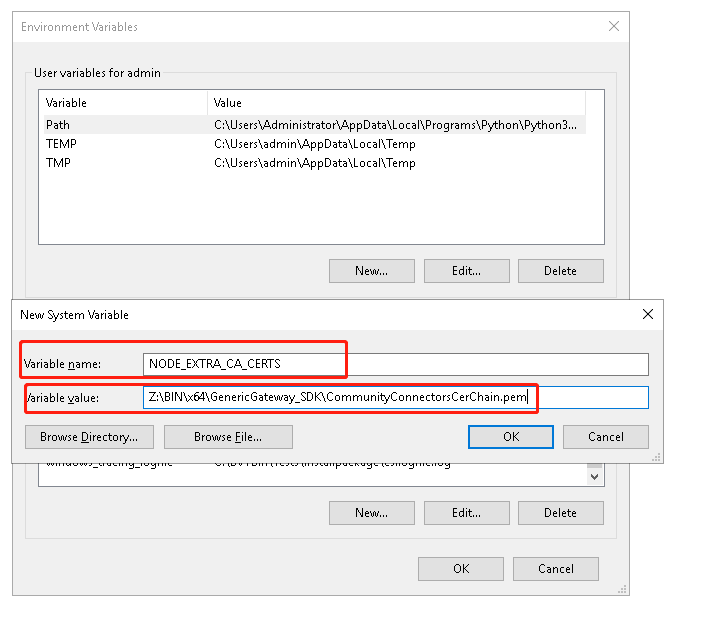
  • Set the environment variable NODE_EXTRA_CA_CERTS to the full path of the certificate chain file exported in Step 1
    • On Windows:
ka0PW0000000oknYAA_0EM4W000001L05B.jpeg
    • On Linux:
      • Upload the certificate chain file to the Linux Intelligence Server install folder. By default, it is locate at
        /opt/mstr/MicroStrategy/install.
      • Create the shell script file Node.sh with the following content:
        
        NODE_EXTRA_CA_CERTS="${MSTR_INSTALL_PATH:?}"/CommunityConnectorsCerChain.pem
        export NODE_EXTRA_CA_CERTS

        Upload the Node.sh file to the env folder (by default,
        /opt/mstr/MicroStrategy/env
        ) and grant the execute privilege to the script file. In this folder, there are also many other shell scripts to set environment variables for other purposes, such as ODBC.sh, Registry.sh, JVM32.sh, etc.
      • Modify the mstrctl scripts to execute the newly created scripts so that the Intelligence Server can get the environment variables.
        . "${MSTR_HOME_PATH:?}"/env/Node.sh
        
        #! /bin/ksh
        #
        # This is the startup script for
        # Strategy Control utility
        #
        # Copyright (c) 2003-2004 Strategy Incorporated
        #
        
        . "$(dirname "$0")"/../env/Principal.sh
        # . "${MSTR_HOME_PATH:?}"/env/PatchLevel.sh
        . "${MSTR_HOME_PATH:?}"/env/BinaryPaths.sh
        . "${MSTR_HOME_PATH:?}"/env/Registry.sh
        . "${MSTR_HOME_PATH:?}"/env/ODBC.sh
        . "${MSTR_HOME_PATH:?}"/env/FontConfiguration.sh
        . "${MSTR_HOME_PATH:?}"/env/RIntegrationPack.sh
        . "${MSTR_HOME_PATH:?}"/env/Node.sh
        
        
        exec "${MSTR_INSTALL_PATH:?}"/bin/MSTRCtl "$@"
        

  • Restart the Intelligence Server
    • Check whether the environment variable,
      NODE_EXTRA_CA_CERTS
      , has taken effect.
      
      [mstr@env-235219laiouse2 bin]$ ps -ef|grep libMSTRSvr
      mstr   10041     1   20 04:29 ?    00:00:14 /opt/mstr/MicroStrategy/install/bin/MSTRSvr -w /opt/mstr/MicroStrategy/ -t status-iserver.xml /opt/mstr/MicroStrategy/install/lib/libMSTRSvr2.so -n CastorServer
      [mstr@env-235219laiouse2 bin]$strings /proc/10041/environ |grep NODE_EXTRA_CA_CERTS

      There should be the environment variable
      NODE_EXTRA_CA_CERTS
      set.
    • Retry to import data from the Community Connector.

Comment

0 comments

Details

Knowledge Article

Published:

February 18, 2021

Last Updated:

February 16, 2024