EducationSoftwareStrategy.com
StrategyCommunity

Knowledge Base

Product

Community

Knowledge Base

TopicsBrowse ArticlesDeveloper Zone

Product

Download SoftwareProduct DocumentationSecurity Hub

Education

Tutorial VideosSolution GalleryEducation courses

Community

GuidelinesGrandmastersEvents
x_social-icon_white.svglinkedin_social-icon_white.svg
Strategy logoCommunity

© Strategy Inc. All Rights Reserved.

LegalTerms of UsePrivacy Policy
  1. Home
  2. Topics

Connection Requirements & Data Flow for MicroStrategy Geospatial Services


Community Admin

• Strategy


MicroStrategy Geospatial Services provides our customers a new and advanced mapping solution. It is powered by Mapbox’s vector maps; vector maps are an advanced approach to mapping where all the features from the map are rendered faster and smoother providing an exceptional user experience. Users can now build beautiful map visualizations, analyze global location data, and perform advanced geospatial analysis in just a few clicks.

Connection Requirements & Data Flow for Strategy Geospatial Services
This specific article is targeted towards Strategy Administrators who need to understand the flow of data with Strategy Geospatial Services. In this article, you will find helpful tips and tricks, as well as diagrams of the data flow. The following diagrams at the end of the article will explain the complete data flow and all servers involved in the process.  Below, you'll find the workflow diagrams. 
The Four Workflow Diagrams
 
There are four workflow diagrams:  
 

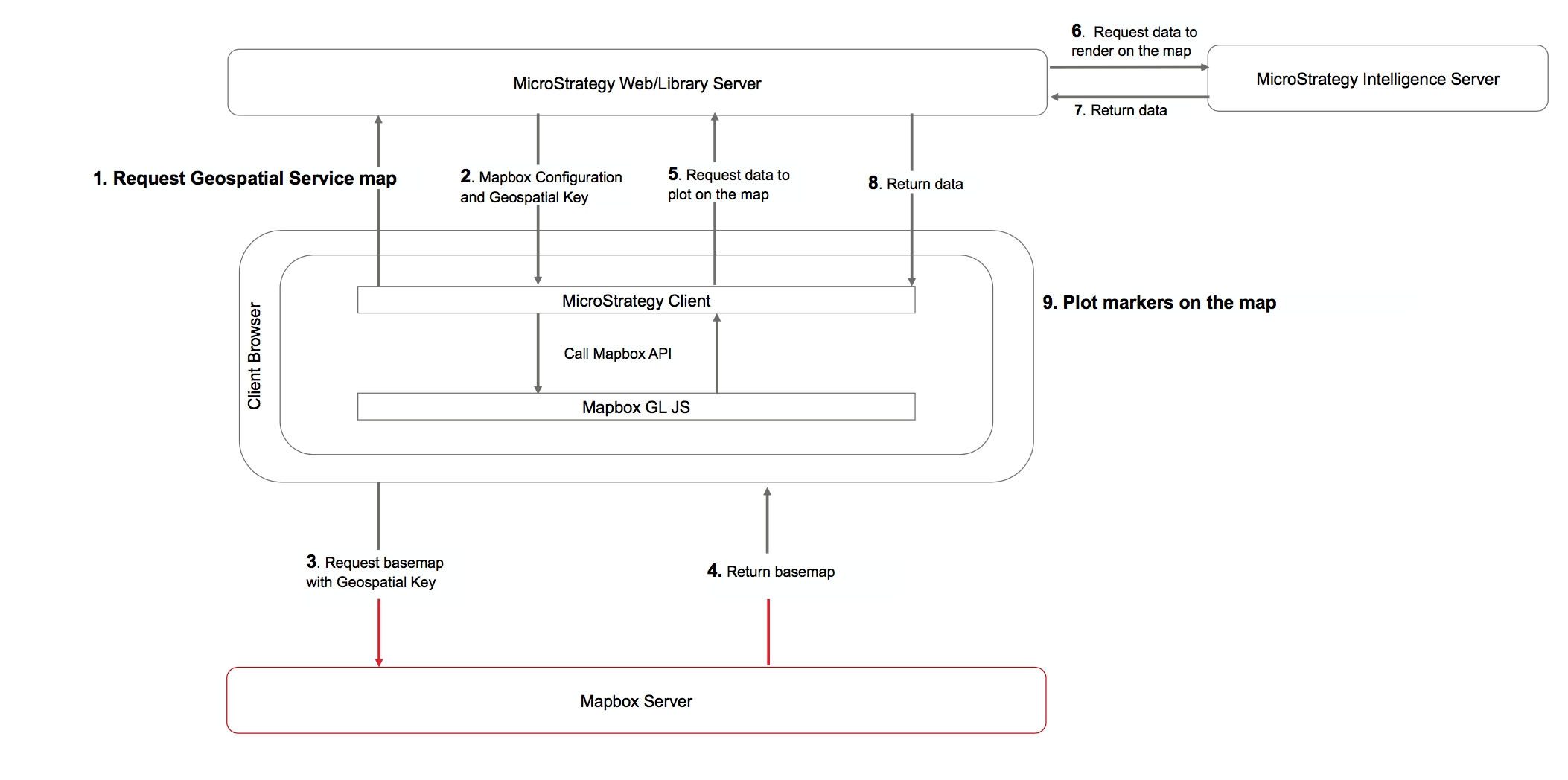
  1. Plotting markers for Strategy Web and Strategy Library (Web) 
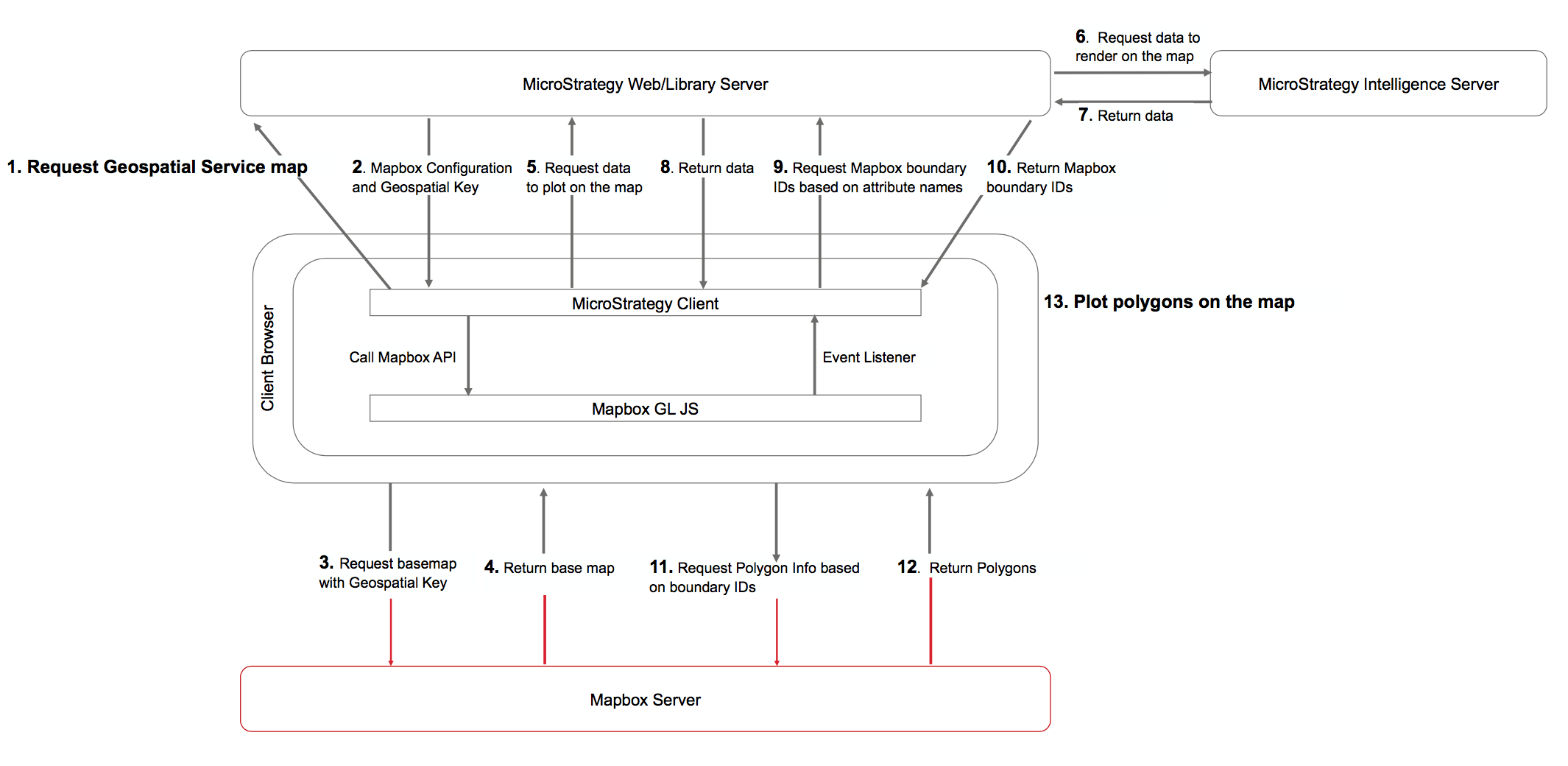
  2. Plotting filled maps or polygons for Strategy Web and Strategy Library (Web) 
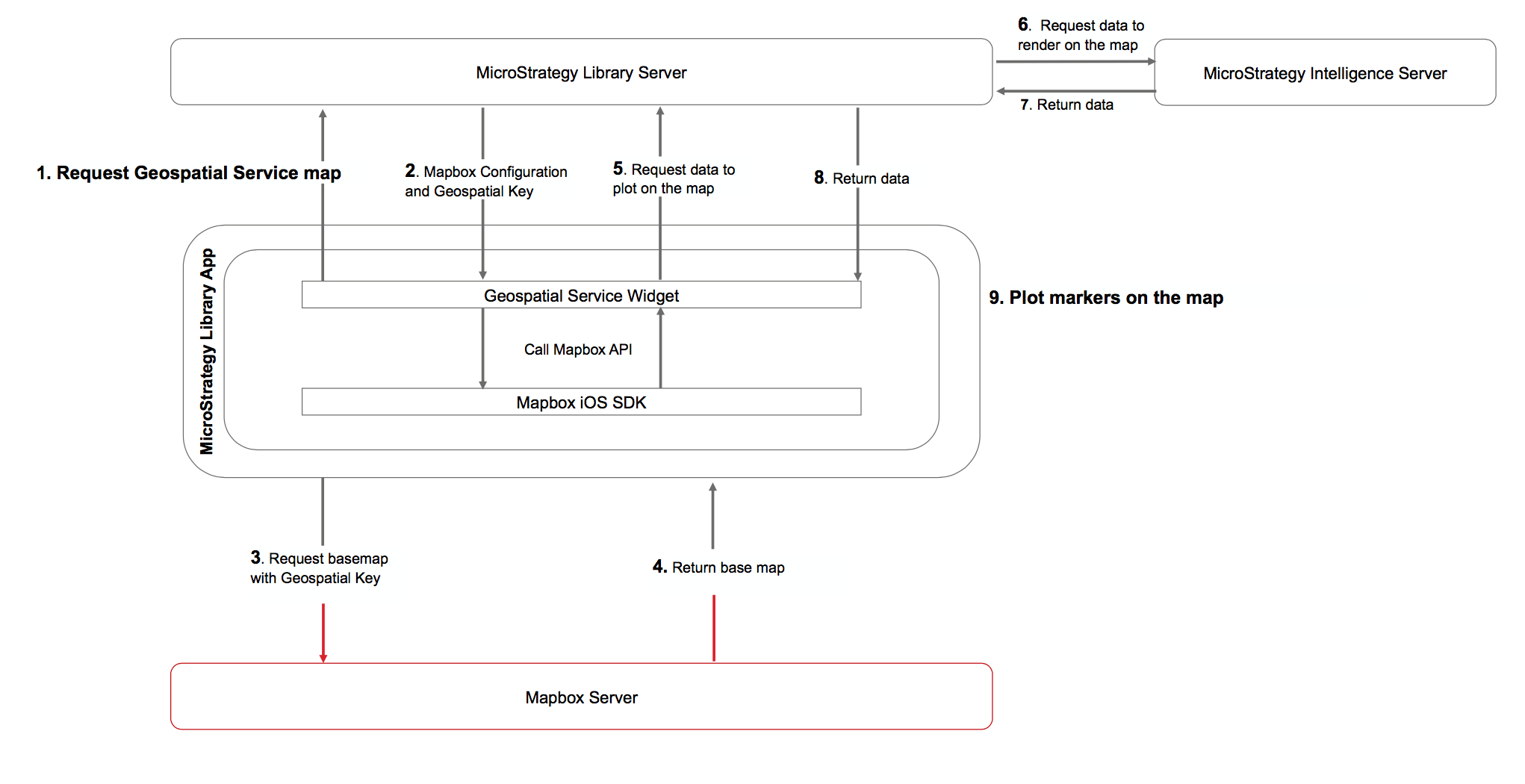
  3. Plotting markers for Strategy Library (Mobile) 
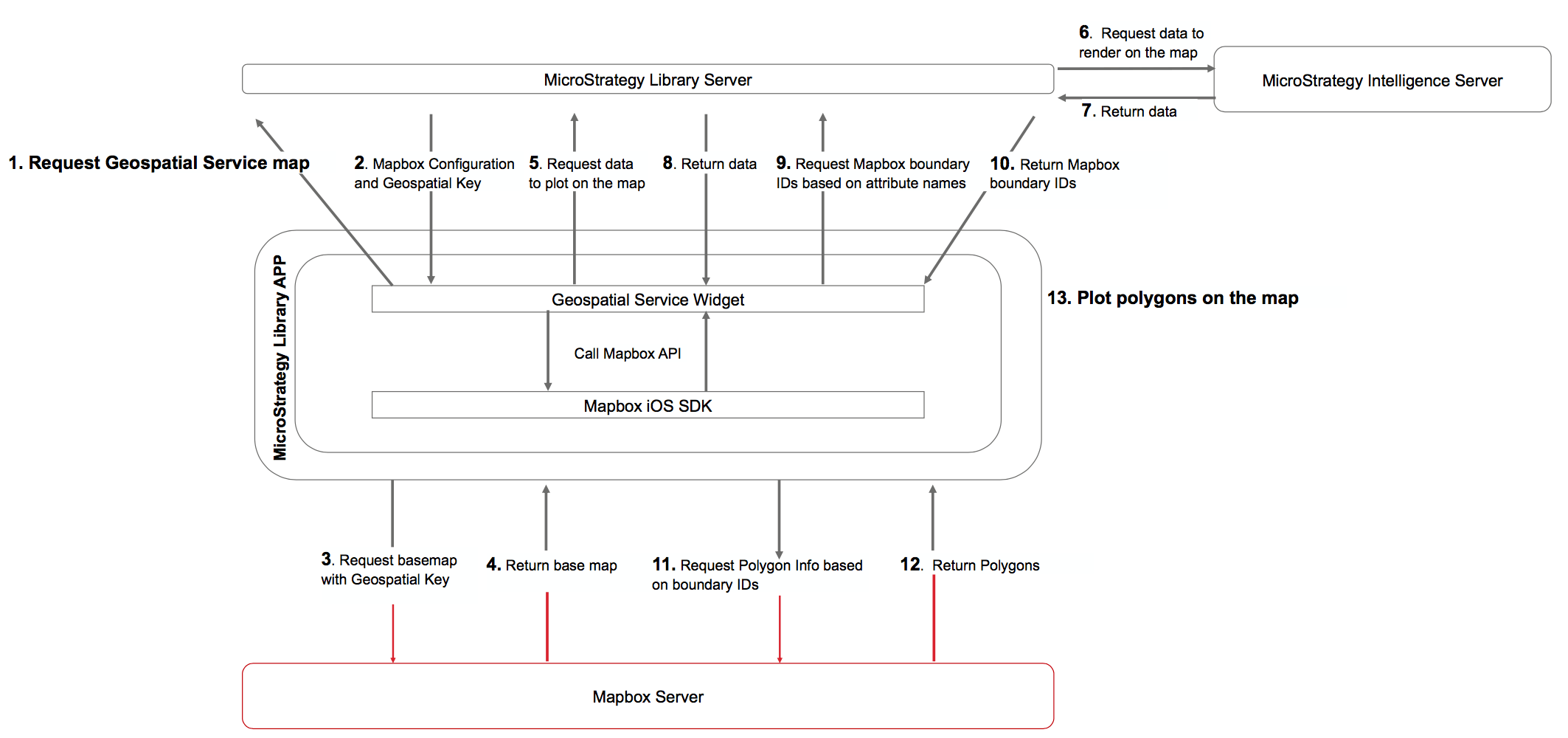
  4. Plotting filled maps or polygons for Strategy Library (Mobile) 

Reading the workflow diagrams
In order to better understand the data flow within the following diagrams, keep the following in mind:

  • Arrows are numbered with the steps of the workflow 
  • Red arrows and boxes indicate that the server or communication might reside in the Internet or an external network
  • The Strategy Geospatial Services key mentioned in Step 2 can be obtained and configured as explained in this Technical Note . See the Step within the diagram itself!
  • No warehouse or metadata information is sent to external servers

 
Review the workflow diagrams
 

  1. Plotting markers for Strategy Web and Strategy Library (Web)
ka04W00000148oaQAA_0EM44000000RCG1.png
  1. Plotting filled maps or polygons for Strategy Web and Strategy Library (Web)

ka04W00000148oaQAA_0EM44000000RCGG.png
  1. Plotting markers for Strategy Library (Mobile)


ka04W00000148oaQAA_0EM44000000RCGL.png
  1. Plotting filled maps or polygons for Strategy Library (Mobile)


ka04W00000148oaQAA_0EM44000000RCGQ.png

 
Working with firewalls 
 
If your Strategy client is behind a firewall,  add  api.mapbox.com  to an "allow list" (sometimes called a  whitelist). Mapbox uses distributed and dynamically-allocated servers rather than a fixed set of IP addresses. Normally you can add  mapbox.com  to an allow list, but in some cases you may also need to add specific domains including: 
 

  • mapbox.com 
  • www.mapbox.com 
  • api.mapbox.com 
  • api.tiles.mapbox.com 
  • a.tiles.mapbox.com 
  • b.tiles.mapbox.com 
  • c.tiles.mapbox.com 
  • d.tiles.mapbox.com 

For any further questions, feel free to start a discussion or reach out to your Support liaison to open a case.


Comment

0 comments

Details

Knowledge Article

Published:

October 29, 2018

Last Updated:

October 29, 2018