Many requests from cloud customers require modifying connection properties to their relational data gateways. To reduce the administration overhead of managing cloud environments for customers, converting data sources based on DSN to be DSN-Less through REST APIs is supported from Strategy 2021 Update 8, converting data sources in Data Sources and Scripts entry in Windows and MAC Workstation clients is supported from Strategy 2021 Update 9.
With the release of Strategy 2021 Update 8, privileged users can convert a data source from DSN to be DSN-Less is through REST APIs.
More details about how to use the API, please refer to https://microstrategy.github.io/rest-api-docs/common-workflows/datasource-management/convert-connection-string-from-dsn-to-dsnless-for-a-datasource/
By POST /api/auth/login, a privileged user is authenticated and an HTTP session is created. This request returns an authorization token (X-MSTR-AuthToken) which will be submitted with subsequent requests.
By GET /api/datasource, information for all data sources are returned. You can find the id of the specific data sources. It is expected to see the DSN name in the [database][embeddedConnection][connectionString] field of the response. The authorization token got in Step 1 is needed in the request header.
By POST /api/datasources/{id}/conversion, DSN in data source is converted to DSN-Less connection string and update the object to metadata. Data source id and the authorization token got in Step 1 are needed in the request header. Status code 204 is returned when converting operation is successful.
By GET /api/datasources/{id}, information of converted data source is returned. Data source id and the authorization token got in Step 1 are needed in the request header. It is expected to see the DSNLess connection string in the [database][embeddedConnection][connectionString] field of the response.
It’s the same with convert a data source created from Web.
By GET /api/datasources/connections, information for all datasource connections are returned. You can find the id of the specific data source connection. It is expected to see the DSN name in the [connectionString] field of the response. The authorization token got in Step 1 is needed in the request header.
By POST /datasources/connections/{id}/conversion, DSN in data source connection is converted to DSN-Less connection string and update the object to metadata. Data source connection id and the authorization token got in Step 1 are needed in the request header. Status code 204 is returned when converting operation is successful.
By GET /api/datasources/connections/{id}, information of converted data source connection is returned. Data source connection id and the authorization token got in Step 1 are needed in the request header. It is expected to see the DSNLess connection string in the [connectionString] field of the response.
Connect to Library Server by a privileged user in Windows or MAC Workstation.
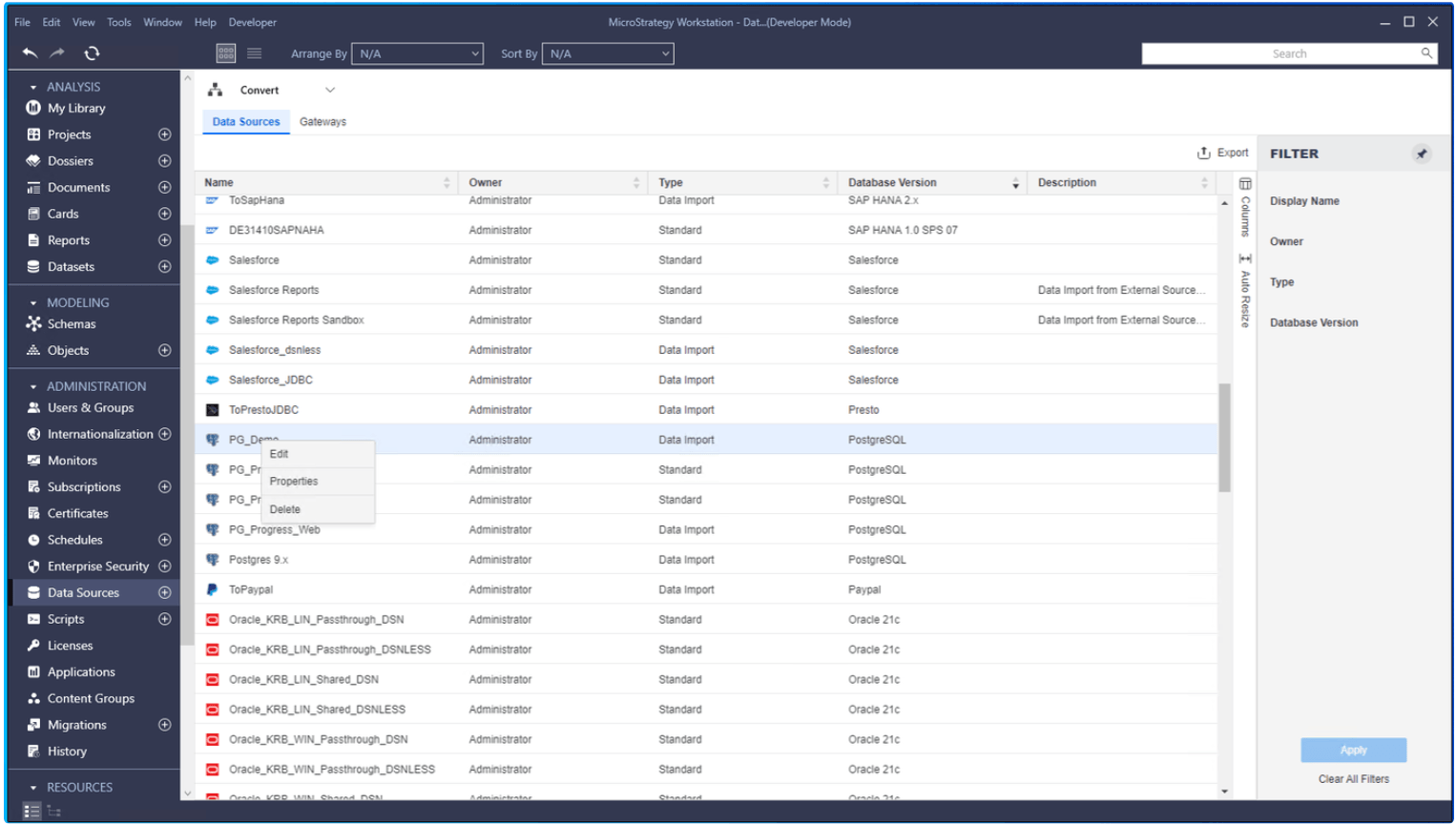
Click to enter Data Sources entry, RMC a data source in Data Sources tab. Edit the data source.
Click the Convert to DSN-less button to convert the data source.
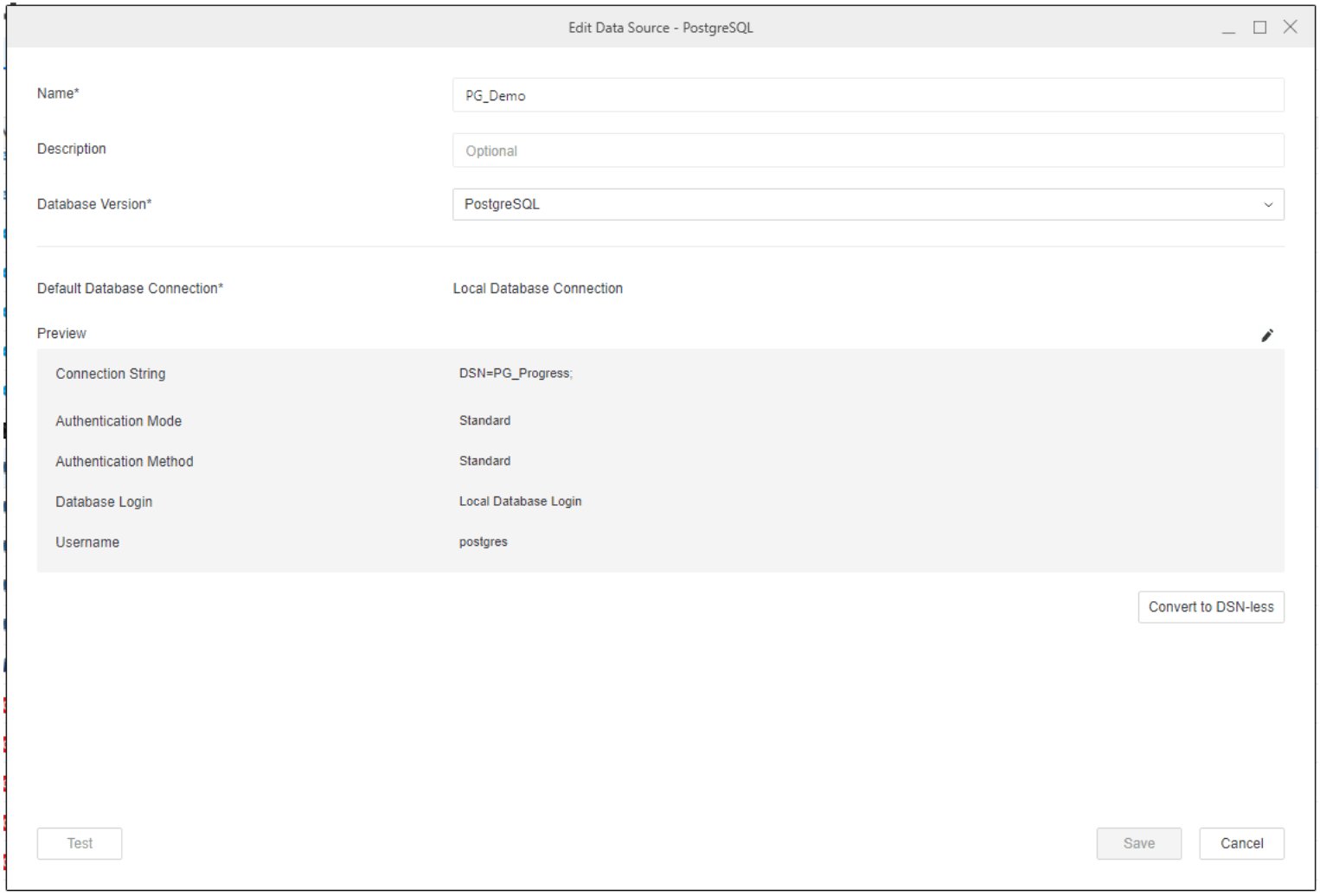
Once the Convert to DSN-less button is clicked, the data source is converted, no matter user clicks Save button or not. Of course, user can modify the converted data source and save afterwards.
It’s same with convert a data source from DSN to be DSN-Less in Data Sources entry.
Click to enter Scripts entry. Create a new script and Run. Sample codes are listed below.
from mstrio.connection import Connectionfrom mstrio.datasources import (DatasourceInstance, list_datasource_instances)from pprint import pprintlibrary_url = 'your library server url'user_name = 'username to connect to library server'user_password = 'password to connect to library server'project_name = 'project name'conn = Connection(base_url=library_url, username=user_name, password=user_password, project_name=project_name)ds = DatasourceInstance(conn, id='data source id')pprint(ds.list_properties())ds.convert_ds_connection_to_dsn_less()pprint(ds.list_properties())
for ds_id in DATASOURCE_INSTANCE_ID_DSN_LIST: ds_instance = DatasourceInstance(conn, id='data source id') ds_instance.convert_ds_connection_to_dsn_less()
It’s same with convert a data source from DSN to be DSN-Less in Data Sources entry.
Click to enter Scripts entry. Create a new script and Run. Sample codes are listed below.
from mstrio.connection import Connectionfrom mstrio.datasources import (list_datasource_instances, DatasourceConnection)from pprint import pprintfrom mstrio.datasources.datasource_connection import list_datasource_connectionslibrary_url = 'your library server url'user_name = 'username to connect to library server'user_password = 'password to connect to library server'project_name = 'project name'conn = Connection(base_url=library_url, username=user_name, password=user_password, project_name=project_name)ds_conn = DatasourceConnection(conn, id='database connection id')pprint(ds_conn.list_properties())ds_conn.convert_to_dsn_less()pprint(ds_conn.list_properties())
for ds_conn_id in DATASOURCE_CONNECTION_ID_DSN_LIST: ds_conn = DatasourceConnection(conn, id='database connection id')) ds_conn.convert_to_dsn_less()
Connection strings are different between Windows and Linux platform after conversion. Keys with empty value are returned in DSN-Less connection string in Linux platform but not in Windows platform.
Example of connection string in Window platform:
DRIVER={Strategy ODBC Driver for PostgreSQL Wire Protocol};APPLICATIONUSINGTHREADS=1;DATABASE=<database>;DEFAULTLONGDATABUFFLEN=1024;DESCRIPTION=Strategy ODBC Driver for PostgreSQL Wire Protocol;ENABLEDESCRIBEPARAM=1;ENCRYPTIONMETHOD=0;FETCHTSWTZASTIMESTAMP=1;FETCHTWFSASTIME=1;HOSTNAME=<hostname>;PORTNUMBER=<portnumber>;TRANSACTIONERRORBEHAVIOR=0;UID=<username>;VALIDATESERVERCERTIFICATE=1;XMLDESCRIBETYPE=-10;DRIVER={Strategy ODBC Driver for PostgreSQL Wire Protocol};ALTERNATESERVERS=;APPLICATIONUSINGTHREADS=1;AUTHENTICATIONMETHOD=0;BATCHMECHANISM=1;CLIENTSSLCERTIFICATE=;CLIENTSSLKEY=;CONNECTIONRESET=0;CONNECTIONRETRYCOUNT=0;CONNECTIONRETRYDELAY=3;CRYPTOPROTOCOLVERSION=;DATABASE=<database>;DESCRIPTION=Strategy ODBC Driver for PostgreSQL Wire Protocol;ENABLEDESCRIBEPARAM=1;ENABLEKEYSETCURSORS=0;ENCRYPTIONMETHOD=0;EXTENDEDCOLUMNMETADATA=0;EXTENDEDOPTIONS=;FAILOVERGRANULARITY=0;FAILOVERMODE=0;FAILOVERPRECONNECT=0;FETCHREFCURSOR=1;FETCHTSWTZASTIMESTAMP=0;FETCHTWFSASTIME=0;GSSCLIENT=native;HOSTNAME=<hostname>;HOSTNAMEINCERTIFICATE=;INITIALIZATIONSTRING=;KEEPALIVE=0;KEYPASSWORD=;KEYSTORE=;KEYSTOREPASSWORD=;KEYSETCURSOROPTIONS=0;LOADBALANCETIMEOUT=0;LOADBALANCING=0;LOGINTIMEOUT=15;MAXCHARSIZE=;MAXLONGVARCHARSIZE=;MAXPOOLSIZE=100;MAXVARCHARSIZE=;MINPOOLSIZE=0;POOLING=0;PORTNUMBER=<portnumber>;QUERYTIMEOUT=0;REPORTCODEPAGECONVERSIONERRORS=0;SERVICEPRINCIPALNAME=;TRANSACTIONERRORBEHAVIOR=1;TRUSTSTORE=;TRUSTSTOREPASSWORD=;UNBOUNDEDNUMERICPRECISION=1000;UNBOUNDEDNUMERICSCALE=6;VALIDATESERVERCERTIFICATE=1;XMLDESCRIBETYPE=-10;Some parameters in the converted DSN-Less connection string are lost when editing data sources in Web in Strategy 2021 Update 8. The lost parameters are the ones not in the DSN-Less template in Web.
Solution: The issue is fixed in Strategy 2021 Update 9.
Value of DESCRIPTION is malformed in Advanced tab of Data Sources entry in Workstation in Strategy 2021 Update 8 with error:
The provided parameters contain errors. The correct format is “key=value“.
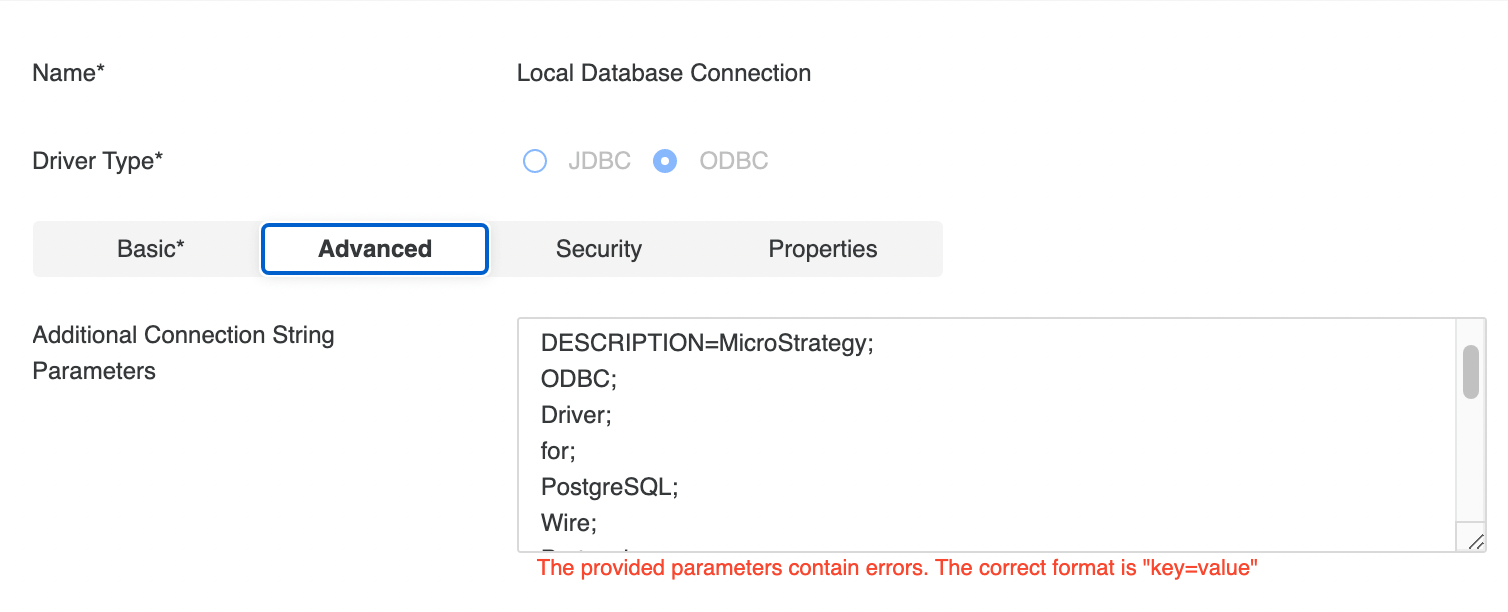
Solution: The issue is fixed in Strategy 2021 Update 9.
Fail to save data sources after editing in Data Source entry in Workstation with error in Advanced tab:
Key “ValidateServerCertificate“ is already defined in a separate form field.
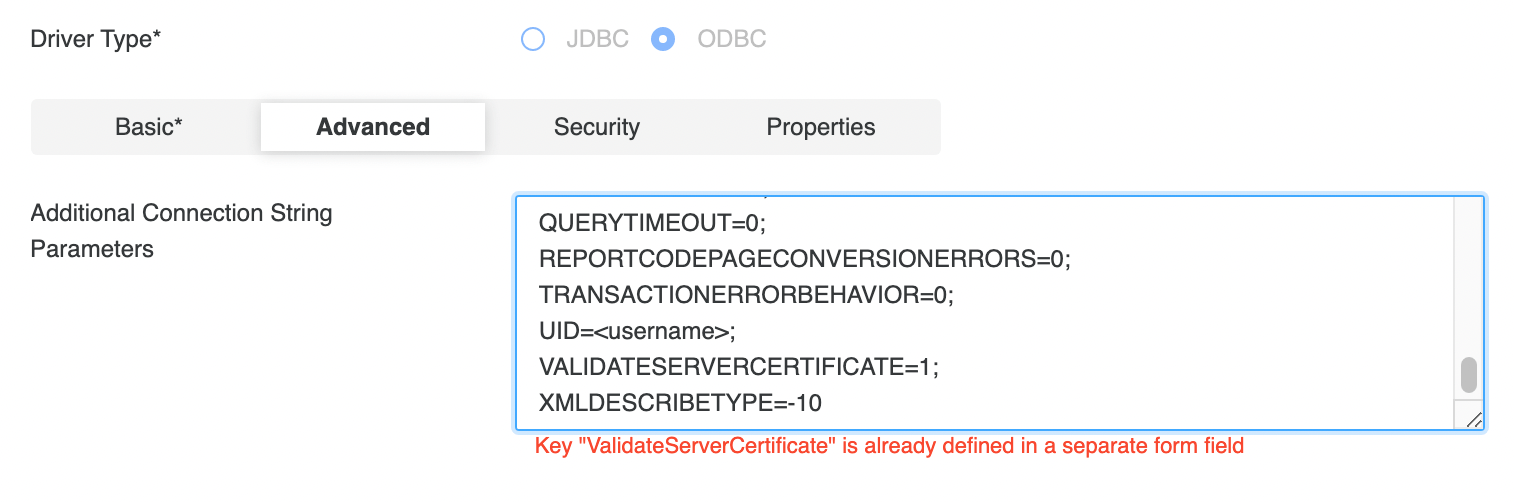
Solution: Remove the redundant ValidateServerCertificate key-value pair.
Password is not removed in the converted DSN-Less connection string when using PostgreSQL native ODBC driver.
PostgreSQL data sources fail to connect after converting DSN to DSN-Less with error:
Database error<5>: Connect failed. Error type: Odbc error. Odbc operation attempted: SQLDriverConnect. [HY000:0: on SQLHANDLE][Strategy][ODBC PostgreSQL Wire Protocol driver] Invalid attribute in connection string: XO.
Solution: Edit the connection string and remove parameters EXTENDEDOPTIONS=; in the connection string.
MongoDB data sources fail to connect after converting DSN to DSN-Less with error in Linux platform:
(Database error <5>: Connect failed. Error type: Odbc error. Odbc operation attempted: SQLDriverConnect. [HY000:2704: on SQLHANDLE] [Strategy][ODBC MongoDB driver]Error parsing connect string at offset 697. Attribute specified twice using keywords 'UID' and 'LOGONID'.)
Solution: Edit the connection string and remove parameters LOGONID=; in the connection string.
MongoDB data sources fail to connect after converting DSN to DSN-Less with error in Windows platform:
(Database error <5>: Connect failed. Error type: Odbc error. Odbc operation attempted: SQLDriverConnect. [HY000:2704: on SQLHANDLE] [Strategy][ODBC MongoDB driver]Error parsing connect string at offset 193. )
or
(Database error <5>: Connect failed. Error type: Odbc error. Odbc operation attempted: SQLDriverConnect. [HY000:2704: on SQLHANDLE] [Strategy][ODBC MongoDB driver]Error parsing connect string at offset 476. Attribute specified twice using keywords 'FS' and 'FetchSize'.)
Solution: Edit the connection string and remove parameters FETCHSIZE=100; <your_mongo_db_odbc_driver_path>/sforce.jar; in the connection string.
Key value in Additional connection string parameters of Exasol DSN can not be converted successfully.
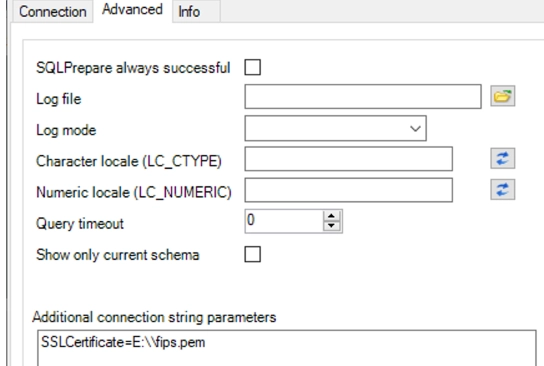
The value in registry is as below
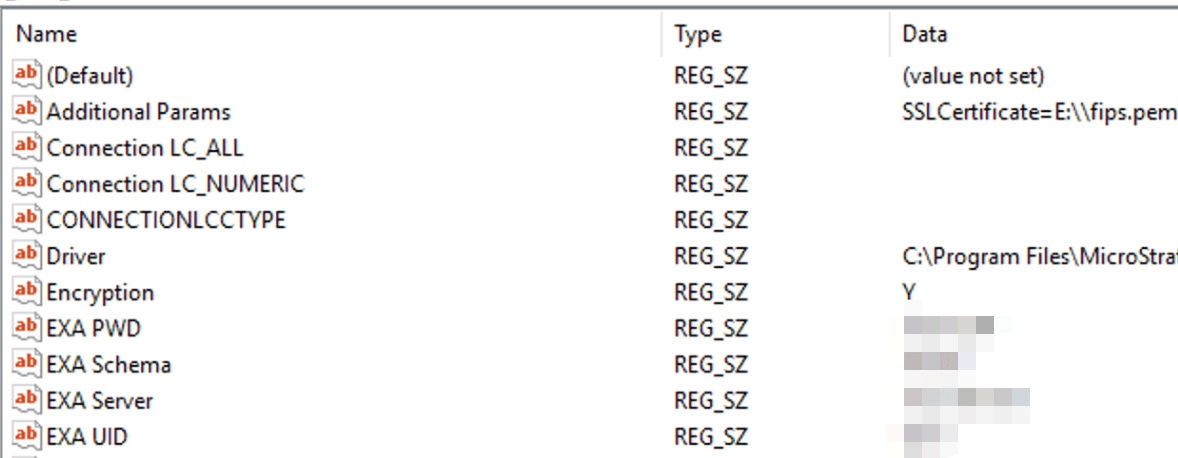
After converted using API, the connection string is:
DRIVER={EXASolution Driver};ADDITIONAL PARAMS="SSLCertificate=<your_certificate_path>";EXA PWD=;EXA SERVER=;EXA UID=;ENCRYPTION=Y;PREPARE AS=N;QUERY TIMEOUT=0;SHOWONLYCURRENTSCHEMA=N;DRIVER={EXASolution Driver};SSLCertificate=<your_certificate_path>;EXA PWD=;EXA SERVER=;EXA UID=;ENCRYPTION=Y;PREPARE AS=N;QUERY TIMEOUT=0;SHOWONLYCURRENTSCHEMA=N;Standalone data sources created in Developer are not able to go through OAuth workflow for Azure Synapse Analytics.
The database connections can’t be edited in Data Sources entry after converting when data sources are from Spark SQL, Cloudera Hive, Cloudera Impala, Google BigQuery(in Windows platform), SAP HANA, Oracle TNS.
Key “AUTHENTICATION“ is already defined in a separate form field warning after converting a Teradata data source.
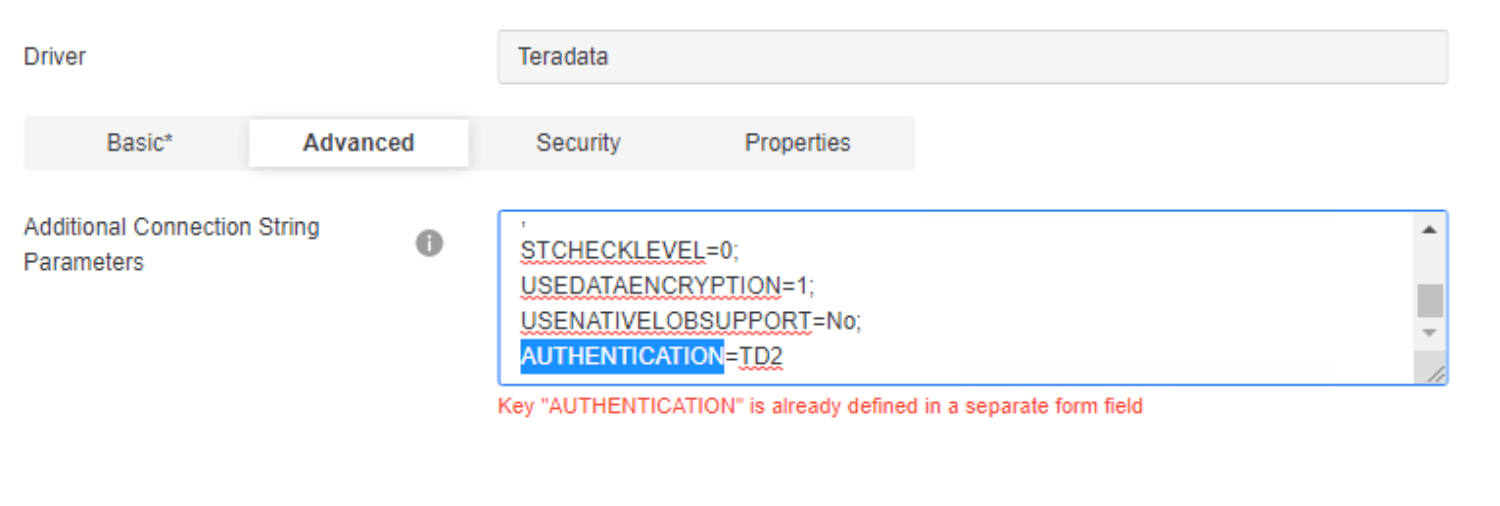
Solution: Remove the redundant AUTHENTICATION key-value pair in Advanced tab.
Convert to DSN-less button is disabled when the data source is from PostgreSQL Native driver.
Solution: User API or Python Scripts to convert the data source.
Trust store is lost when editing a converted data source which is created with trust store from Web. When trying to connect the converted data source, error is like:
(Database error<5>: Connect failed. Error type: ODBC error. Odbc operation attempted: SQLDriverConnect. [28000:0: on SQL HANDLE] [Strategy][ODBC Database Wire Protocol driver]Cannot load trust store. %1)
