EducationSoftwareStrategy.com
StrategyCommunity

Knowledge Base

Product

Community

Knowledge Base

TopicsBrowse ArticlesDeveloper Zone

Product

Download SoftwareProduct DocumentationSecurity Hub

Education

Tutorial VideosSolution GalleryEducation courses

Community

GuidelinesGrandmastersEvents
x_social-icon_white.svglinkedin_social-icon_white.svg
Strategy logoCommunity

© Strategy Inc. All Rights Reserved.

LegalTerms of UsePrivacy Policy
  1. Home
  2. Topics

Creating bullet charts with threshold markers in documents and dossiers


Evan Norris

Content Engineer • Strategy


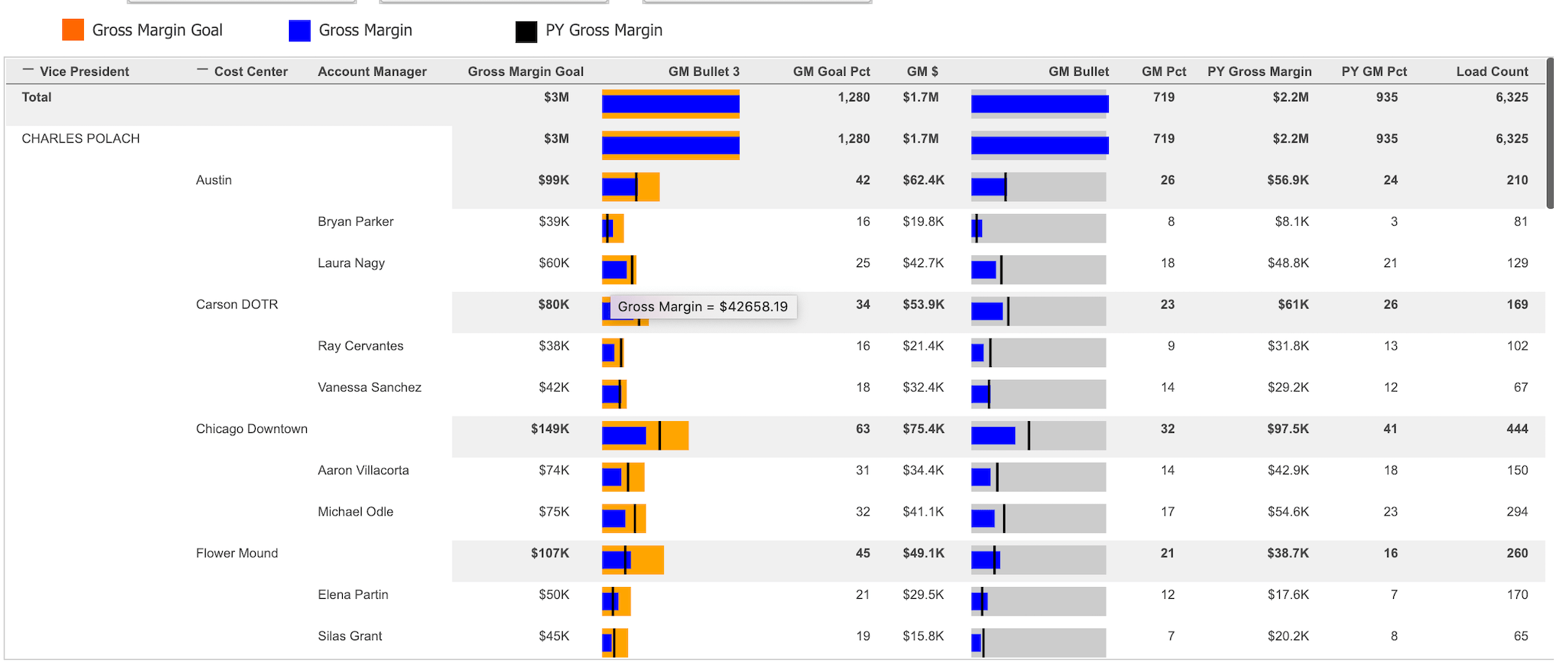
This is a solution for drawing bullet charts and adding threshold markers inside Grids – SVG Graphics

Starting with the release of Strategy ONE (March 2024), dossiers are also known as dashboards.

Credits: Bartlomiej Obolewicz, Piotr Barszcz, Piotr Janeczek


Prerequisites


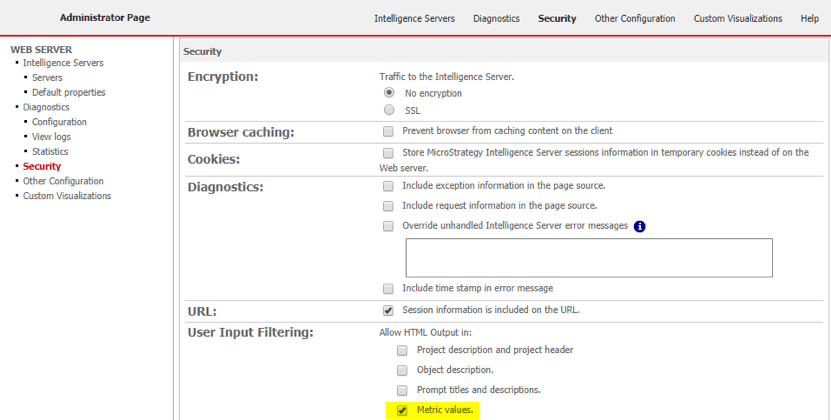
The following solution is based on HTML metrics, to properly render HTML Tag in Documents, “Metric values” needs to be checked under Administrator Page > Security > User Input Filtering. For use in Dossiers no prior steps are required.
ka0PW0000001JWUYA2_0EM44000000gWwz.jpeg


Intro


Strategy allows to render HTML Tags inside metrics. This feature allows to significantly extend capabilities of the MSTR grids. For the purposes of this solution we will use HTML SVG tags to render graphics inside MSTR Metric. Please find attached “Bullet Chart Example_first.mstr” for a working POC and presentation of discussed features.

SVG


SVG stands for Scalable Vector Graphics. Usually this format is used for icons or simple images. SVG’s have general advantages of:

  • Looking great on retina displays
  • Scales to any size without using clarity
  • Being very lightweight


Create SVG rectangle


In order to reproduce bullet chart, we will be using <svg> element and “rect” attribute. To understand the syntax, we will use the code below as a reference.
Best practice while using HTML Tags is to use double parenthesis (“) for MSTR functions and single (‘) for HTML functions. Pay attention to spaces as sometimes copy-pasting HTML code into metric formula field may transfer some invisible characters, hence make it impossible to execute the code.

<
svg width
=
'100%'
 height
=
'65px'
>

 
<
g 
class
=
'bars'
>

   
<
rect fill
=
'blue'
 width
=
'100%'
 height
=
'25'
></
rect
>;

   
<
rect fill
=
'green'
 width
=
'45%'
 height
=
'25'
></
rect
>

 
</
g
>

</
svg
>

 
The code above results in rendering two rectangles on the SVG canvas. First, green rectangle fitting to 45% of the field width and of 25 pixels height, second, blue rectangle fitting to 100% of the width and of 25 pixels. The first line of the code defines SVG canvas size. In this case the width is dynamically allocated to a 100% of available space and statically to the height of 65 pixels.

ka0PW0000001JWUYA2_0EM44000000gWx4.jpeg

You can test it yourself by copy pasting it here: https://www.w3schools.com/tryit/tryit.asp?filename=tryhtml_default
More info on HTML5 SVG tags: https://www.w3schools.com/html/html5_svg.asp
 

Create bullet chart

ka0PW0000001JWUYA2_0EM44000000gWx9.jpeg


Concat
(
"

<svg width='100%' height='20'>

 
      <rect fill='
#5faeb6' width='"
,
Round
(([
Real
%
Value
-
 Perc
.
to
 total
]*
100
)),
"%' height='100%' y = '%'></rect>

 
</svg> "
)
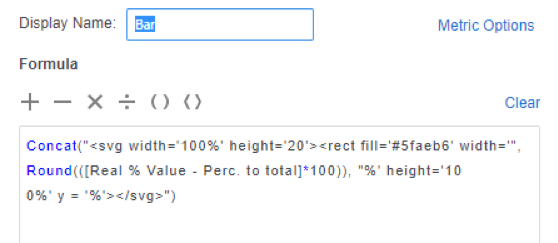


In our case we will be dynamically allocating width of the rectangle to achieve bars of different length. First, create a derived metric. In order to use HTML inside MSTR Metric we will need to use a “Concat” function. The function allows to create blocks of HTML code and insert metrics in between. The template looks as follows:
 
Concat(“<HTML>”,[METRIC]*100,”% <HMTL>”)

ka0PW0000001JWUYA2_0EM44000000gWxO.jpeg

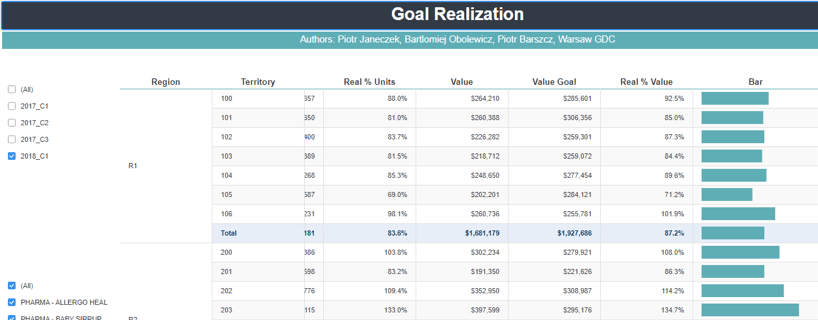
Depending on what we want to see we can show realization to total, realization to plan etc.
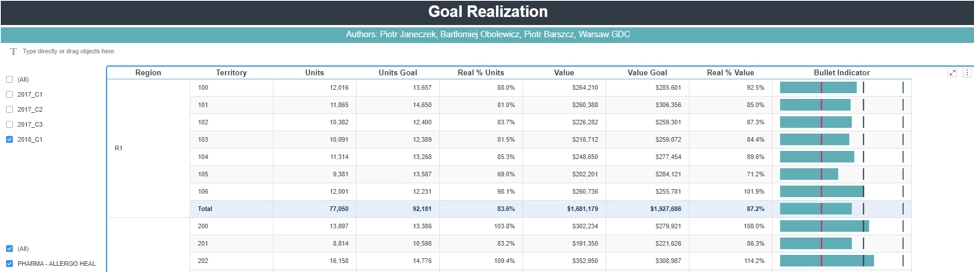
Drag and drop saved metric on the grid and it should show a beautiful bullet bar. Depending which metrics are used this also works with totals and subtotals!
ka0PW0000001JWUYA2_0EM44000000gWxT.jpeg


Concat
(
"

<svg width='100%' height='20'>

 
      <rect fill='
#5faeb6' width='"
,
Round
(([
Real
%
Value
-
 Perc
.
to
 total
]*
100
)),
"%' height='70%' y = '%'></rect>

 
      <rect fill='
#e8175d' width='2' height='100%' x='"
,
Round
(([
Threshold Line 
1
st
]/[
Max
Real
%
Values
-
IF
])),
"%' y='0'></rect>

 
      <rect fill='#323a45' width='2' height='100%' x='"
,
Round
(([
Threshold Line 
2
nd
]/[
Max
Real
%
Values
-
IF
])),
"%' y='0'></rect>

 
      <rect fill='#3f6184' width='2' height='100%' x='"
,
Round
(([
Threshold Line 
3
rd
]/[
Max
Real
%
Values
-
IF
])),
"%' y='0'></rect>

 
</svg> "
)

 

Sometimes client wants to add a reference line to the graph to indicate stages of realization. Reference lines can be achieved by adding slim rectangles on the graphic. The thresholds can be fixed to a certain level, e.g. 30%, or defined by a metric.
Attached example shows more advanced feature when the last threshold indicates 150% of the goal. In order to show this, we have to do follow some calculations to scale down the values. The reason for this recalculation is that we need to fit in 100%, hence everything is scaled down to represent a part of 150%.
Adding Tooltips
If you want to add a tooltip to display the metric value when the user hovers over a rectangle or line object in the SVG image you simply need to add the <title></title> element within the rectangle element.
See the attached "Bullet_Chart_Custom_SVG_Metric.mstr" as an example.

ka0PW0000001JWUYA2_0EM44000000gWzU.jpeg
ka0PW0000001JWUYA2_0EM44000000gWzZ.jpeg


Known limitations

  • In RSDs MSTR 10.11 when exporting to PDF or Excel the code was exported instead of graphic (this is not reported in 11.0)


Comment

0 comments

Details

Knowledge Article

Published:

March 7, 2019

Last Updated:

March 21, 2024