Platform Analytics possesses pre-made objects to fetch the publish actions, cache status, publish time, and cache update time for a cube.
Attributes:
Cache Object – the Strategy Cube Object (Name, GUID, etc..)
(optional) Cache Object Type – Data Import, OLAP, Grid Report, etc…
Cache Status – tells you if the cache is Loaded, Active, Dirty, etc..
Cache – Cache File GUID on the server
Action Type – will tell you the type of load for the cube
Parent Action – the GUID of the Load action in Platform Analytics Warehouse Table access_transactions
Timestamp – the time of the action in access_transactions
Metrics:
Cache Last Update Time – max value of last_update_timestamp for cache file in PA WH table fact_latest_cube_cache
The Report
While one can use variations of these objects, this combination give the possibility to view the cache file on the server connected to Cache Object (OLAP, MTDI, Report, etc..) in the Metadata. In this report, the parent action and action type will tell when the cube update started. The cache last update will tell when the load finished. In the example report, there are three rows. It shows when the cube loaded, when the server started (“Load Cube Cache”), a refresh from a scheduled incremental refresh (“Refresh by upserting via filter”) and when a full refresh is manually executed.

This example report is filtered for Cache Object “Product Sales” and timestamps greater than midnight for the current day.
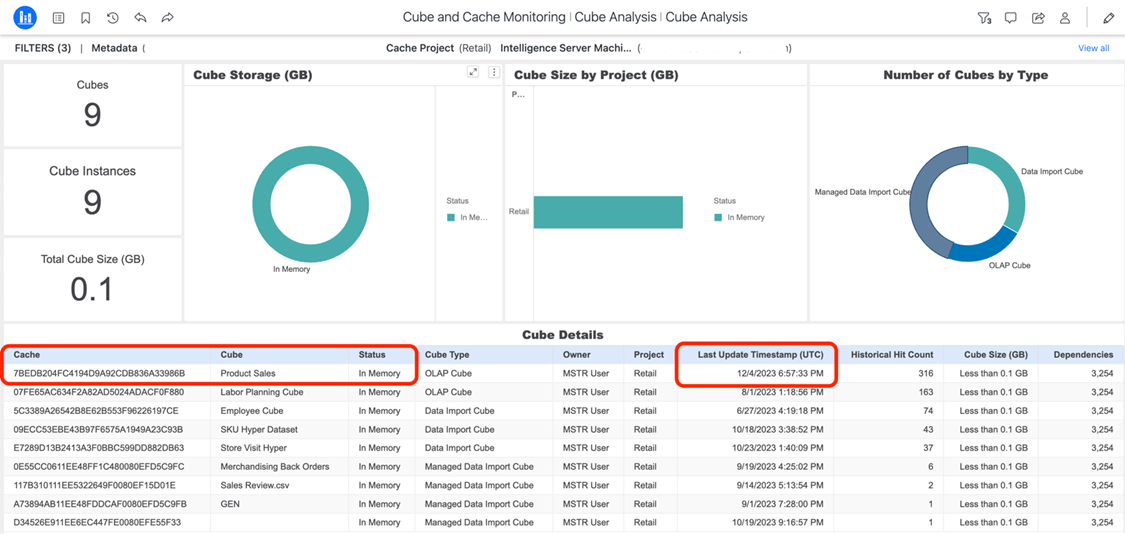
Cache status and last update time is also available out of the box in the Cube and Cache Monitoring dashboard. Highlighted below is the cache file GUID and Last Update Timestamp which match the example report.
The Caches page under the Monitors slice in Workstation provides a detailed view when right-clicking on a cache and View Details of the Status, Access Mode, Project, Usage, and Owner.
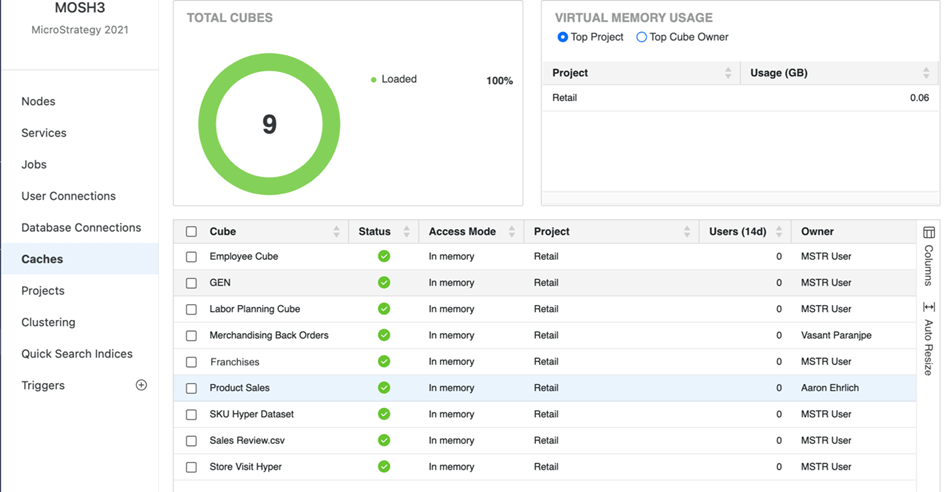
This information can then be cross checked against the Cube Cache Details section within Workstation as below to ensure it is the right element. This is accomplished utilizing the shown Cube Instance ID and Cube Definition ID.

