EducationSoftwareStrategy.com
StrategyCommunity

Knowledge Base

Product

Community

Knowledge Base

TopicsBrowse ArticlesDeveloper Zone

Product

Download SoftwareProduct DocumentationSecurity Hub

Education

Tutorial VideosSolution GalleryEducation courses

Community

GuidelinesGrandmastersEvents
x_social-icon_white.svglinkedin_social-icon_white.svg
Strategy logoCommunity

© Strategy Inc. All Rights Reserved.

LegalTerms of UsePrivacy Policy
  1. Home
  2. Topics

Customize MicroStrategy on AWS Deployments using Macros


Community Admin

• Strategy


MicroStrategy on AWS Deployments can be customized to meet the Cloud standards of any Enterprise.


Strategy on AWS gives Enterprises the flexibility to customize any deployment to meet their internal Cloud Standards. 
Users can customize security group ingress/egress rules for Platform and Developer instances. Please refer to “Customizing security group ingress / egress”.
 
Users can customize resource tags. The resource tags specified will be attached to all resources in the CloudFormation template. Please refer to “Customizing resource tags”.
 
Users can change the KMS key used to encrypt the storage devices at any time. Please refer to “Changing the storage device encryption KMS key”.
 
Users can customize the EBS block storage size once the block device mappings of the specified MSTR version / OS / KMS Key is deployed. Please refer to “Customizing EBS Storage Size” for instructions. It is under the user’s discretion to modify the block device mappings so that it is compliant to AWS CloudFormation rules.
 

Customizing security group ingress / egress rules

Users can add additional inbound/outbound rules to the security group attached to either/or PlatformInstance(s) or the DeveloperInstance.
  • Navigate to Services → SystemsManager → SharedResources → ParameterStore
  • Locate /MicroStrategy/security-groups-platformfor platform instance(s) OR /MicroStrategy/security-groups-developerfor developer instance(s).
  • Refer to https://docs.aws.amazon.com/AWSCloudFormation/latest/UserGuide/aws-properties-ec2-security-group.html
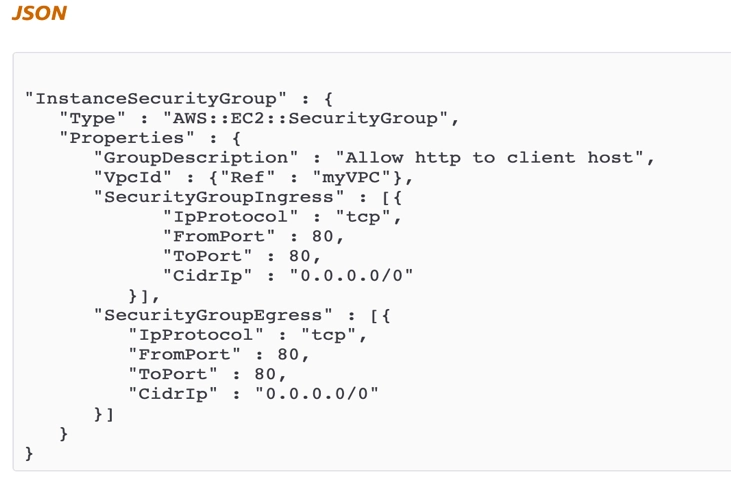
  • Fill in the ingress/egress rule appropriately and please make sure the format reflects like the following:
ka04W000000ObF8QAK_0EM44000000geMP.jpeg
  • If you do not wish to have a custom egress (or ingress) rule, simply remove the entire key from the parameter.
  • Verify that your parameters are in a valid JSON format.


Customizing resource tags

Users can add additional resource tags. All tags specified will be attached to all resources that are currently getting tagged.

  • Navigate to Services → SystemsManager → SharedResources → ParameterStore
  • Locate /MicroStrategy/resource-tags
  • Fill in the resource tags appropriately and please make sure the format reflects like the following:
ka04W000000ObF8QAK_0EM44000000geL7.jpeg
  • Verify that your parameters are in a valid JSON format.


Changing the storage device encryption KMS key

Users can change the KMS key used to encrypt the storage devices at any time. Please be advised that the new key specified will be used instead of the default key provided from the moment it is saved.
 

  • Create your new KMS key (or, locate your KMS key that you wish to use)
  • Copy the KMS Key ARN
  • Navigate to Services → SystemsManager → SharedResources → ParameterStore
  • Edit the parameter, /MicroStrategy/encryption-key
  • Paste the KMS Key ARN as the value for “EncryptionKeyARN”
ka04W000000ObF8QAK_0EM44000000geMZ.jpeg
  • Click Save changes


Customizing EBS Storage Size

The /MicroStrategy/BlockDeviceMappingsfolders are created after the first deployment of the environment.
 
Environment type (ex. Tutorial), MSTR version (ex. 11.1.0000.0123), OS type (ex. AL), and KMS key used to encrypt devices (ex. arn:aws:kms:us-east-1:xxxx) are all components that are used to map an environment to a block device mapping.
 
To customize block device mappings, you must make sure an environment was previously deployed before that matches the criteria (type, version, OS, KMS key) of the type of environment you wish the block device mappings to be modified for. Else, you will not find the correct block device mappings.
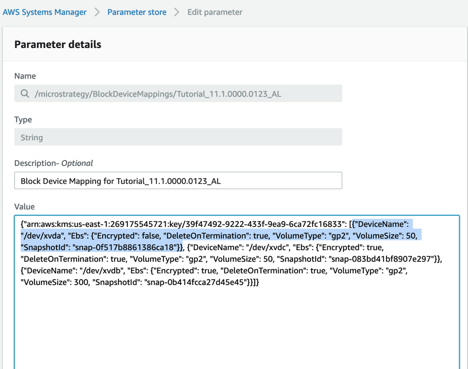
Block Device Mapping Customization Best Practice…

  1. Please refer to https://docs.aws.amazon.com/AWSCloudFormation/latest/UserGuide/aws-properties-ec2-blockdev-mapping.html for proper formatting for block device mappings.
  2. Please verify the block device mapping you desire exists
    1. Navigate to Services ® Systems Manager ® Shared Resources ® Parameter Store
    2. Locate /MicroStrategy/BlockDeviceMappings/NAME
      1. Developer instance will have the name like the following:
        1.  Platform-WindowsDeveloper_11.1.0000.0123
      2. Platform instance will have the name like the following:
        1.  Tutorial_11.0000.0123_AL
      3. If you changed encryption KMS key, locate your currently using KMS key. The KMS key is the key and the block device mapping is the value.
    3. The block device mappings you have located is the one you will modify. Please note that the customization will only be prevalent in environments that are launched with the specified type, version, OS, and key.
  3. Please verify that the modification you wish to make in the EBS volumes is modifications that can be made manually through the console and are compliant with AWS EBS volume rules.
  4. Click Edit for the parameter.
  5. Modify the block device mappings as desired.


ka04W000000ObF8QAK_0EM44000000geLN.jpeg


Troubleshooting

I do not see my changes in the new environment

  • Please verify that the inputs in the Parameter Store are in a valid JSON format.
  • You can also locate the lambda responsible for making the transformation (the macro lambdas all have the prefix MSTRMacro) and view the CloudWatch logs for more logs.

My stack fails with an error “Malformed Transformation”

  • Please verify that the inputs in the Parameter Store are the correct kind each macro requires. As in, if the macro requires an ARN, please make sure to input an ARN, etc.
  • You can also locate the lambda responsible for making the transformation (the macro lambdas all have the prefix MSTRMacro) and view the CloudWatch logs for more logs.


KB482983


Comment

0 comments

Details

Knowledge Article

Published:

March 20, 2019

Last Updated:

March 22, 2019