EducationSoftwareStrategy.com
StrategyCommunity

Knowledge Base

Product

Community

Knowledge Base

TopicsBrowse ArticlesDeveloper Zone

Product

Download SoftwareProduct DocumentationSecurity Hub

Education

Tutorial VideosSolution GalleryEducation courses

Community

GuidelinesGrandmastersEvents
x_social-icon_white.svglinkedin_social-icon_white.svg
Strategy logoCommunity

© Strategy Inc. All Rights Reserved.

LegalTerms of UsePrivacy Policy
  1. Home
  2. Topics

DBMS Object ACL Enforcement in MicroStrategy 2021 Update 8


Sheng Zhao

Vice President, Product Management • Microstrategy, Inc.


To provide more comprehensive security control on which gateways the end users can use, MicroStrategy 2021 update 8 has introduced DBMS object ACL enforcement. In the case that the customer has unintended ACL denial permission defined already, this enhancement might introduce unexpected data source execution errors when the user tries to import data, publish/schedule a cube, or run a report/dossier after the metadata is upgraded to the 2021 Update 8 version. This KB article provides two solutions to resolve the errors.

Starting with the release of Strategy ONE (March 2024), dossiers are also known as dashboards.
Symptom
After manually upgrading metadata to version 2021 update 8, when a user tries to import data, publish/schedule a cube or run a report/dossier, the user may get an error, the error message could be something like below: 

  • “You do not have sufficient permission to access the resource you requested. If the problem persists, please contact the Strategy Intelligence Server Administrator.” 
ka0PW0000001Jk0YAE_0EM4W000006HfT2.png
  • “The user does not have 'Execute' access to this xxx” 
ka0PW0000001Jk0YAE_0EM4W000006HfT3.png

 
Root Cause
The root cause is that we start enforcing an ACL logic to determine who can execute DBMS objects in Strategy 2021 Update 8. The ACL enforcement will take effect after manually upgrading metadata to MSTR 2021 Update 8.  
If one group has Deny Execute ACL to the DBMS objects, the users under this group will have no Execute permission to all data sources associated with these DBMS objects. When the user tries to do some execution on a cube/report/dossier of these DBMS objects, this permission error will occur. 
 
Solutions
Option 1: Disable the feature flag and this new feature will not take effect anymore. 

  1. Open swagger page with visibility=all, the URL should be like “https://library-server-host/MicroStrategyLibrary/api-docs/#!/?visibility=all 
  2. Find the /api/auth/login endpoint under the folder Authentication. Put your admin username and password in the request body. Click execute, then copy the Authorization token from the response header. For more detailed instructions on this step, please visit here.
  3. Find PUT /api/configurations/featureFlags/{id} under the Configurations folder. Paste the Authorization token and paste the Object ID with the value "2B913DBA4D964FB2A5BE2DBEA1A381C9". Modify the request body with status=2, then click Execute. 
ka0PW0000001Jk0YAE_0EM4W000006HfT4.png


Option 2: Modify ACL of DBMS objects if it was set to Deny Execute by mistake. 
There are two ways to update the ACL. One is to configure from the Developer tool, another is to configure from REST API. 
From Developer: 
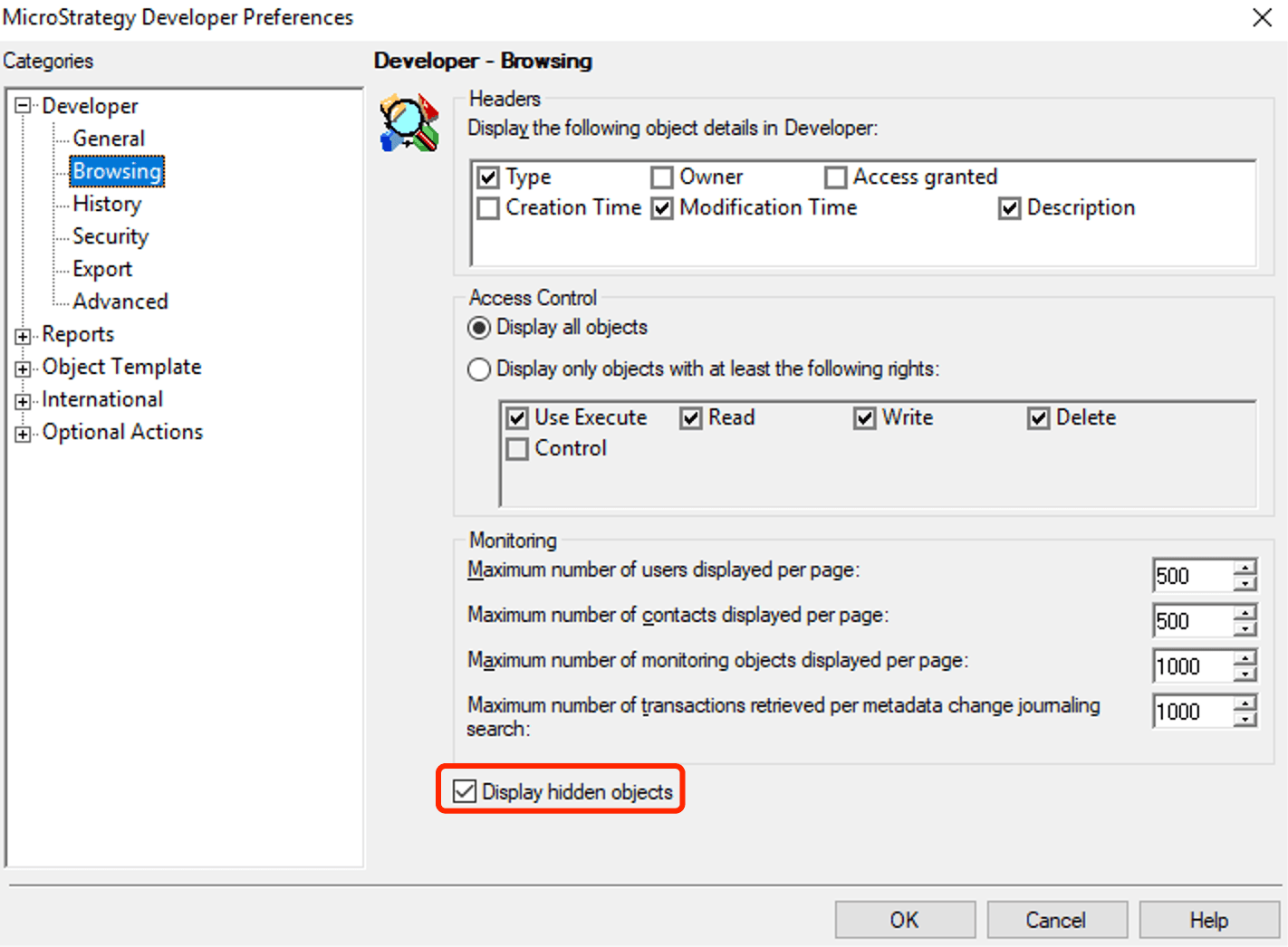
  • Log in to the developer tool as an admin user, who should have at least the “Create configuration objects” privilege.
  • Display hidden objects: Click Tools -> Preferences -> Browsing, select “Display hidden objects” and click OK. 
ka0PW0000001Jk0YAE_0EM4W000006HfT5.png
  • Remove the Deny ACL. 
    • Click “Search in the configuration” in the menu. 
    • Click Search by ID 
ka0PW0000001Jk0YAE_0EM4W000006HfT6.png


  1. Paste ID with “73F7482D11D3596C60001B8F67019608”, click Find Now. 
  2. Right-click the Folder, and choose Properties to open the window. 
ka0PW0000001Jk0YAE_0EM4W000006HfT7.png


  1. Check the Children for Users. For a user whose children is “Denied All”, delete the user.
ka0PW0000001Jk0YAE_0EM4W000006HfT8.png


  1. For a user whose children is “Custom”, click “Custom…” in the dropdown. 
ka0PW0000001Jk0YAE_0EM4W000006HfT9.png


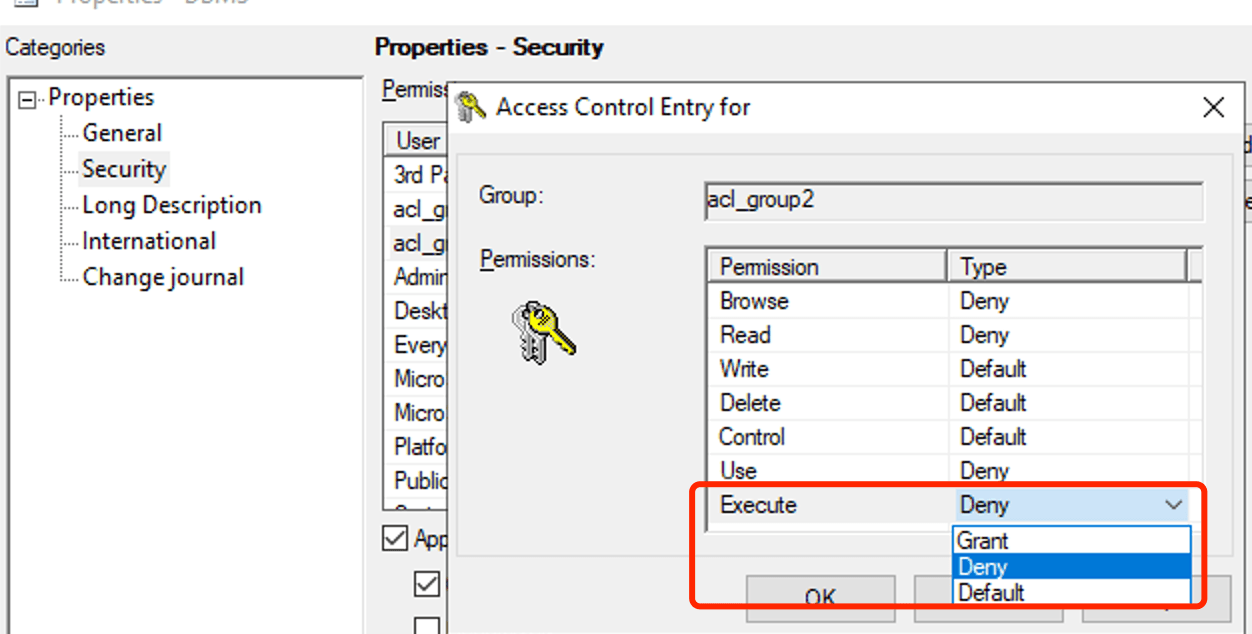
  1. Change the type to grant if it is Deny for Execute. Click OK. 
ka0PW0000001Jk0YAE_0EM4W000006HfTA.png


  1. Select “Apply changes in permissions to all children objects” and “Overwrite children’s access control lists”, click OK to save the changes. 
ka0PW0000001Jk0YAE_0EM4W000006HfTB.png


From REST API

  • Open the Library swagger page and expand the Authentication folder, log in as an admin user, which has at least “Create configuration objects” privilege.
ka0PW0000001Jk0YAE_0EM4W000006HfTC.png

Copy the token in response headers. 

ka0PW0000001Jk0YAE_0EM4W000006HfTD.png


  1. Under Object Management folder, get DBMS folder info from GET /api/objects/{id}  
    1. Fill in the token copied from step 0. 
    2. Paste the id with “73F7482D11D3596C60001B8F67019608” 
    3. Fill in type with 8 
ka0PW0000001Jk0YAE_0EM4W000006HfTE.png


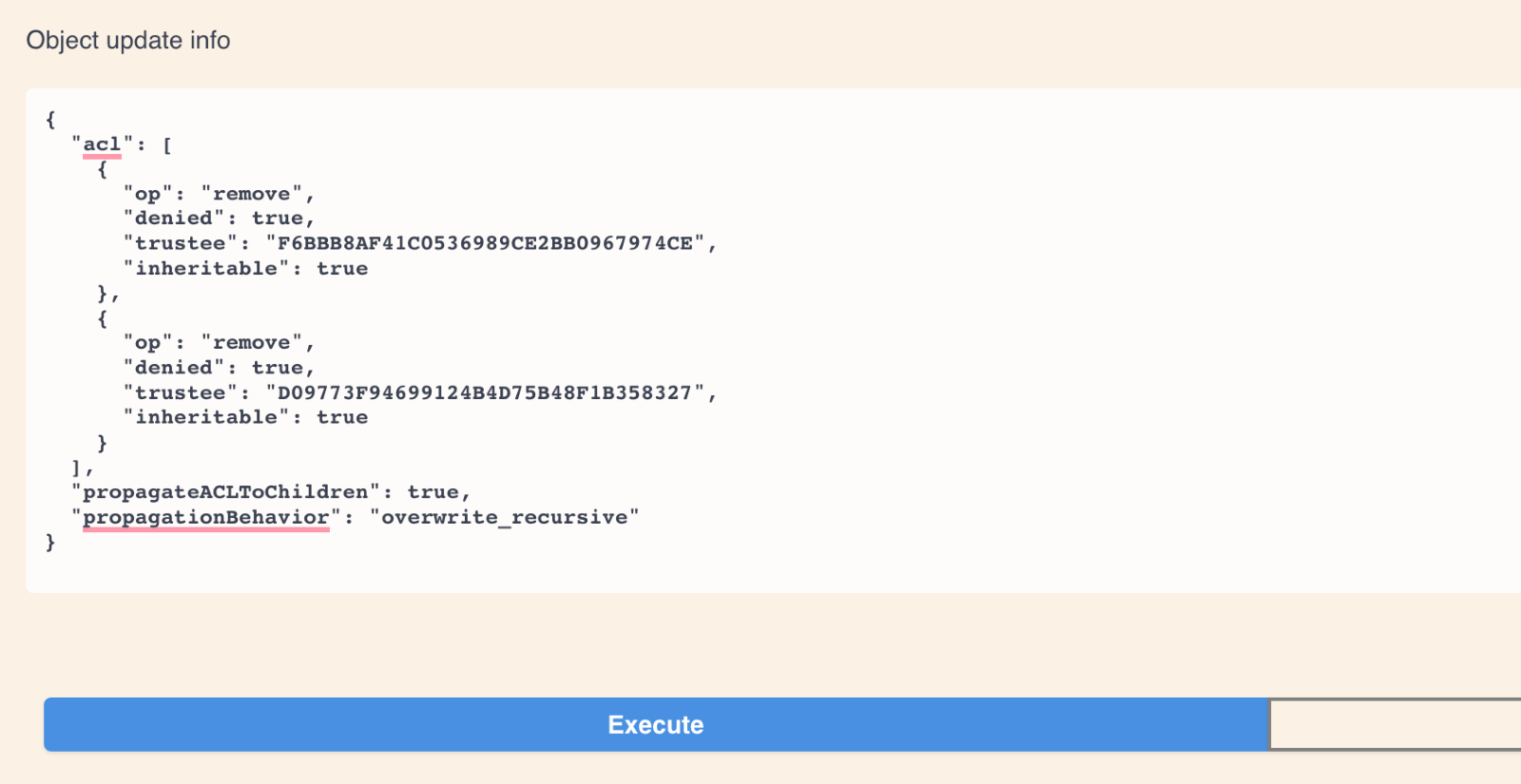
  • Check the response body, and note the trusteeId with deny=true and inheritable=true. If you find more than one trusteeId, copy all of them. 
ka0PW0000001Jk0YAE_0EM4W000006HfTF.png
  • Update the ACL with PUT /api/objects/{id}. For more detailed instructions on ACL related APIs, visit KB442014 .
    • Fill in the authentication token copied from step 1. 
    • Paste the id with “73F7482D11D3596C60001B8F67019608” 
    • Fill in type with 8 and flags with 70 


ka0PW0000001Jk0YAE_0EM4W000006HfTG.png


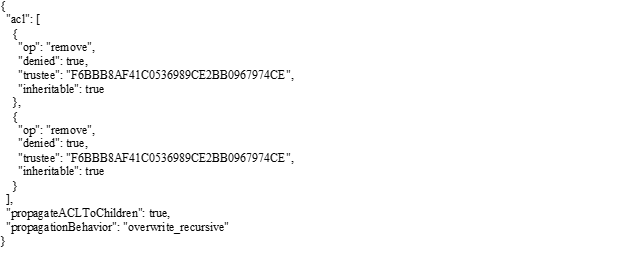
  1. Fill in the request body with update info as below and click execute.  
ka0PW0000001Jk0YAE_0EM4W000006HfTH.png


ka0PW0000001Jk0YAE_0EM4W000006HfVG.png
  1. Note that if there is no trusteeId in step 2, you need just fill in the request body with parameters like: 


ka0PW0000001Jk0YAE_0EM4W000006HfVH.png
  1. You can import data from data sources now. 

Comment

0 comments

Details

Knowledge Article

Published:

December 9, 2022

Last Updated:

March 21, 2024