The Data Wrangling dialog allows user to explore data to evaluate its quality and usability. It is possible then to prepare data to improve its quality before importing it into Web. You can remove white space, filter your data, delete duplicate rows or cells, find and replace data, concatenate columns, etc.
In the dialog, you work with sample data (that is, a subset of your actual data) to build a script that cleans and prepares your data, also known as data wrangling. When you publish the cube, the completed script is applied to your data.
Strategy offers a lot of built-in functions that can be applied to the selected data, such as ‘fill-down’ or ‘change data type.' However, there are many functions that are not possible to be selected, even though they would work when imported as script. GREL generator allows user to enhance their data wrangling with scripts, that are not available out-of-the box.
First of all, let’s look at the construction of a very simple script, which is duplicating a column:
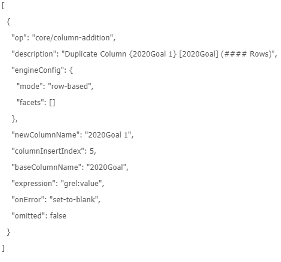
We are going to concentrate only on 4 rows – from “newColumnName” to “expression." In “description,” you can input whatever you want and the other rows will not change in either of scripts presented in GREL generator or documentation.
The first three works of our interest are pretty straightforward:
The last part is “expression,” where we define exactly what we want to create. In this case, the formula inside is easy – we just want a new column to have the same value as the base one, that’s why we have an expression, “grel:value." All of the scripts differentiate mainly in this line, where it is possible to write complex formulas. For more information, you can access the site https://github.com/OpenRefine/OpenRefine/wiki/GREL-Functions, where is a list of functions possible to use, along with description.
The Excel file has been created, to help users generate their own scripts based on data they have. Below, there is an example explaining the idea of the generator.
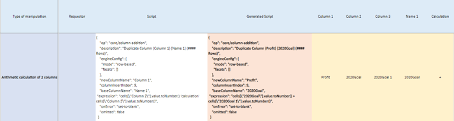
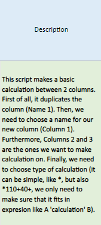
Starting from the left, we have the name of the manipulation and eventually, the requestor. Then we have a bare script, next to which there is a generated one that you need to copy and paste into data wrangling dialog. Before doing that, you should fulfill yellow cells with appropriate names of columns, and in this case calculation. On the right side of the Excel spreadsheet, there is also a description, helping you write names in the correct places.