EducationSoftwareStrategy.com
StrategyCommunity

Knowledge Base

Product

Community

Knowledge Base

TopicsBrowse ArticlesDeveloper Zone

Product

Download SoftwareProduct DocumentationSecurity Hub

Education

Tutorial VideosSolution GalleryEducation courses

Community

GuidelinesGrandmastersEvents
x_social-icon_white.svglinkedin_social-icon_white.svg
Strategy logoCommunity

© Strategy Inc. All Rights Reserved.

LegalTerms of UsePrivacy Policy
  1. Home
  2. Topics

KB485937: Dremio Connection Best Practice


Li (Linatra) Xu

Quality Engineer, Principal • MicroStrategy


Dremio connector is released as out of the box in MicroStrategy 2021 Update 9. This article describes how to connect and use Dremio from MicroStrategy BI Platform.

Install the Driver


To complete the data source set up, you need to install additional components.

  1. Navigate to the driver provider and download latest JDBC driver.
  2. Save the driver file in the JDBC installation locations. Default path is listed below.

Windows: C:\Program Files (x86)\Common Files\MicroStrategy\JDBC
Linux: /opt/mstr/MicroStrategy/install/JDBC
 

Create Connection


To create connection against Dremio, the best practice is to use Workstation, this will help us create a JDBC based connection to Dremio.
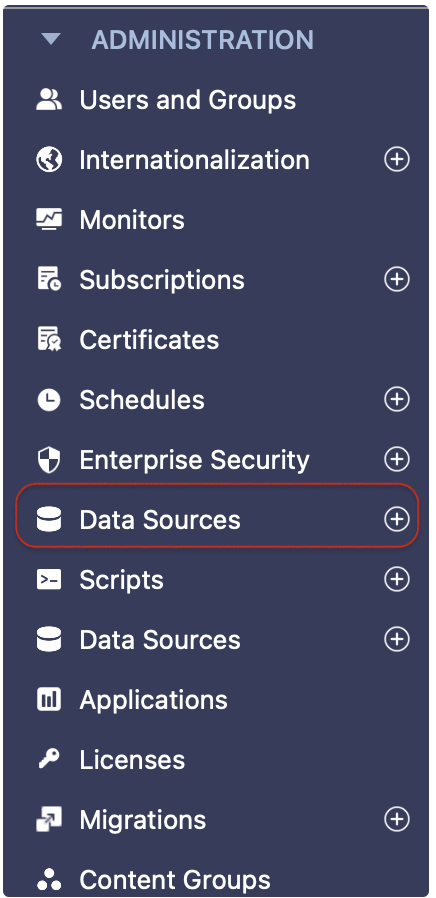
  1. In Workstation, after connect to your environment, click on “Data Sources” add button
ka04W000000OeQSQA0_0EM4W000006zyWX.jpeg
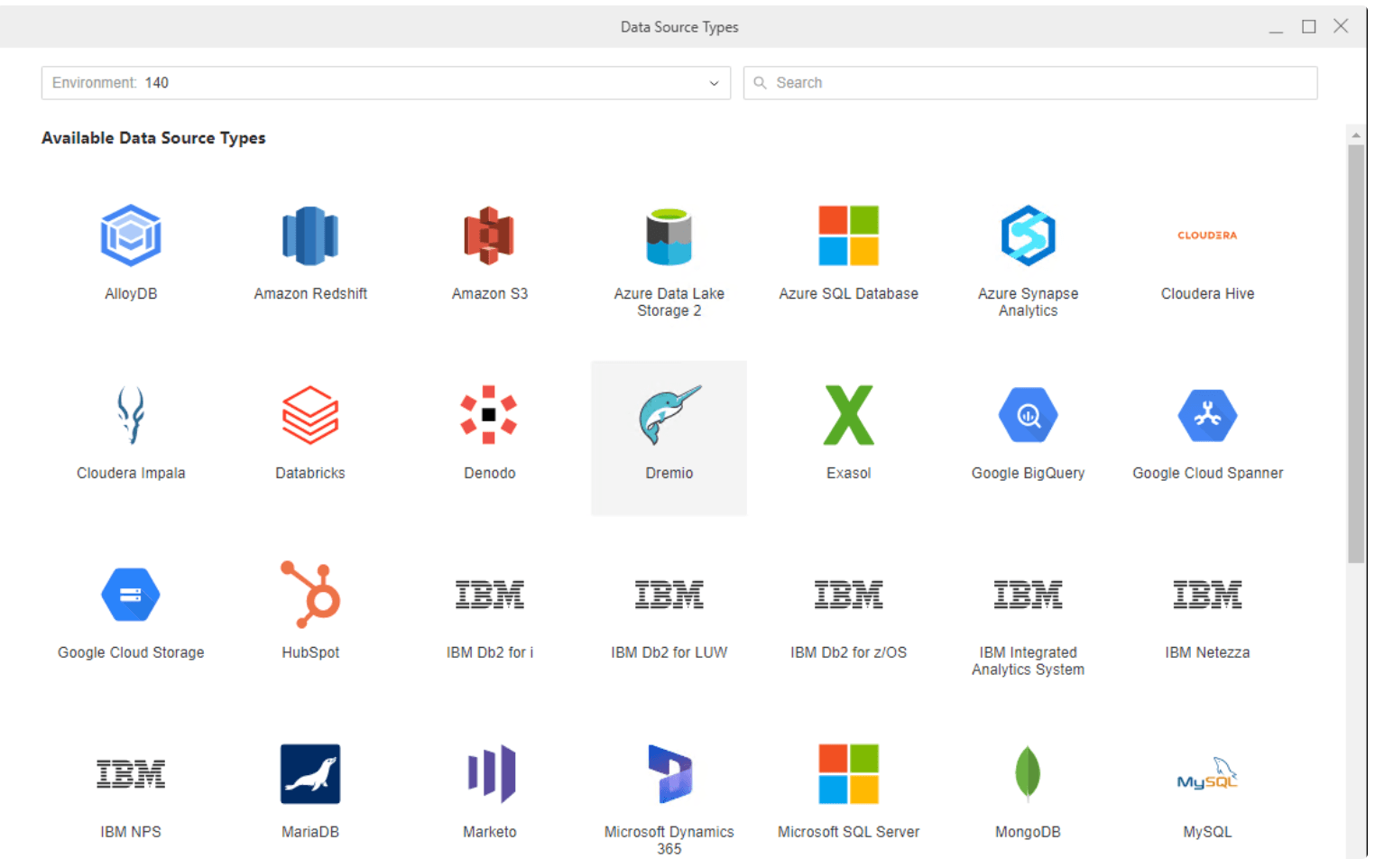
  1. Select Dremio
ka04W000000OeQSQA0_0EM4W000006zyWh.jpeg
  1. Create Data Source

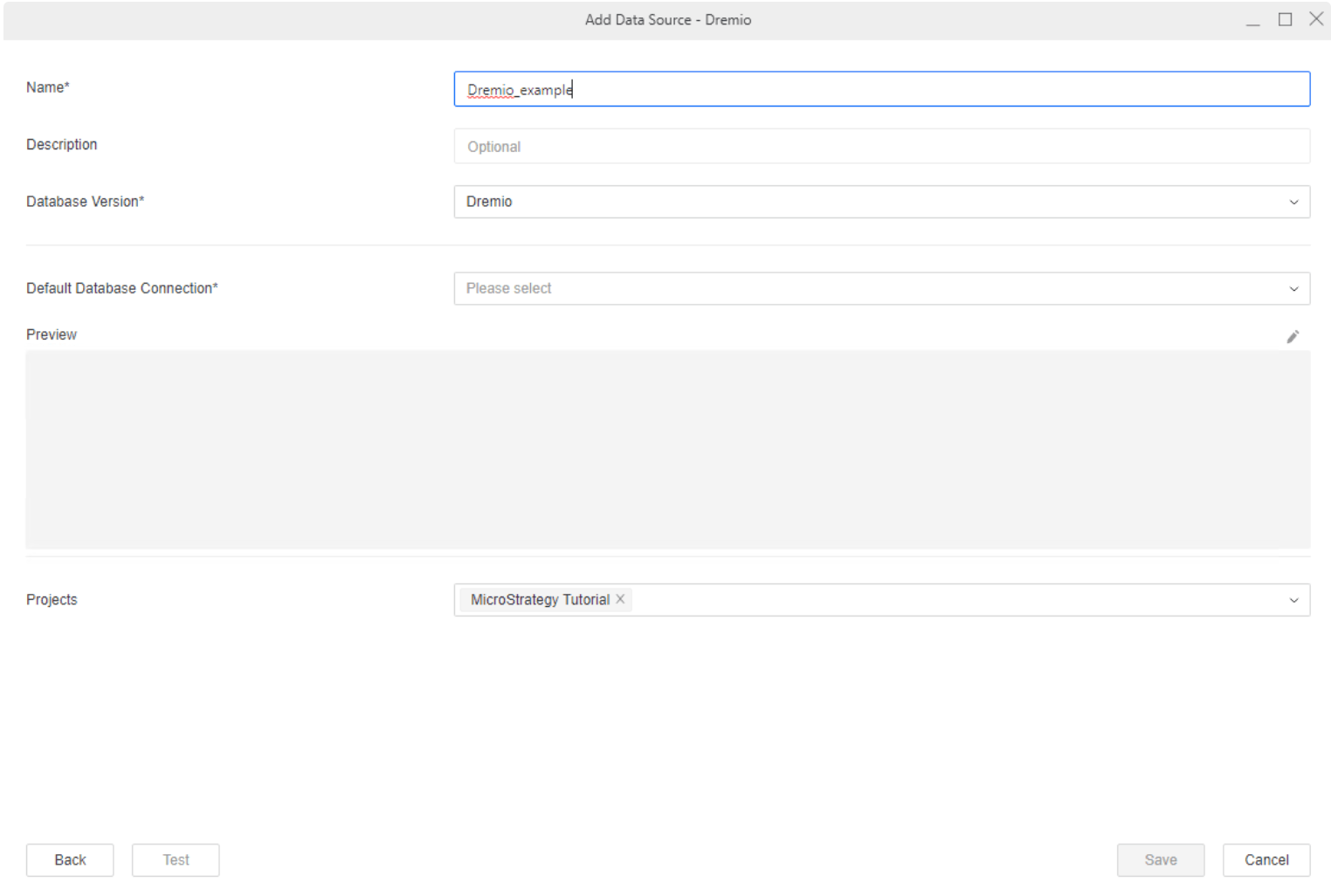
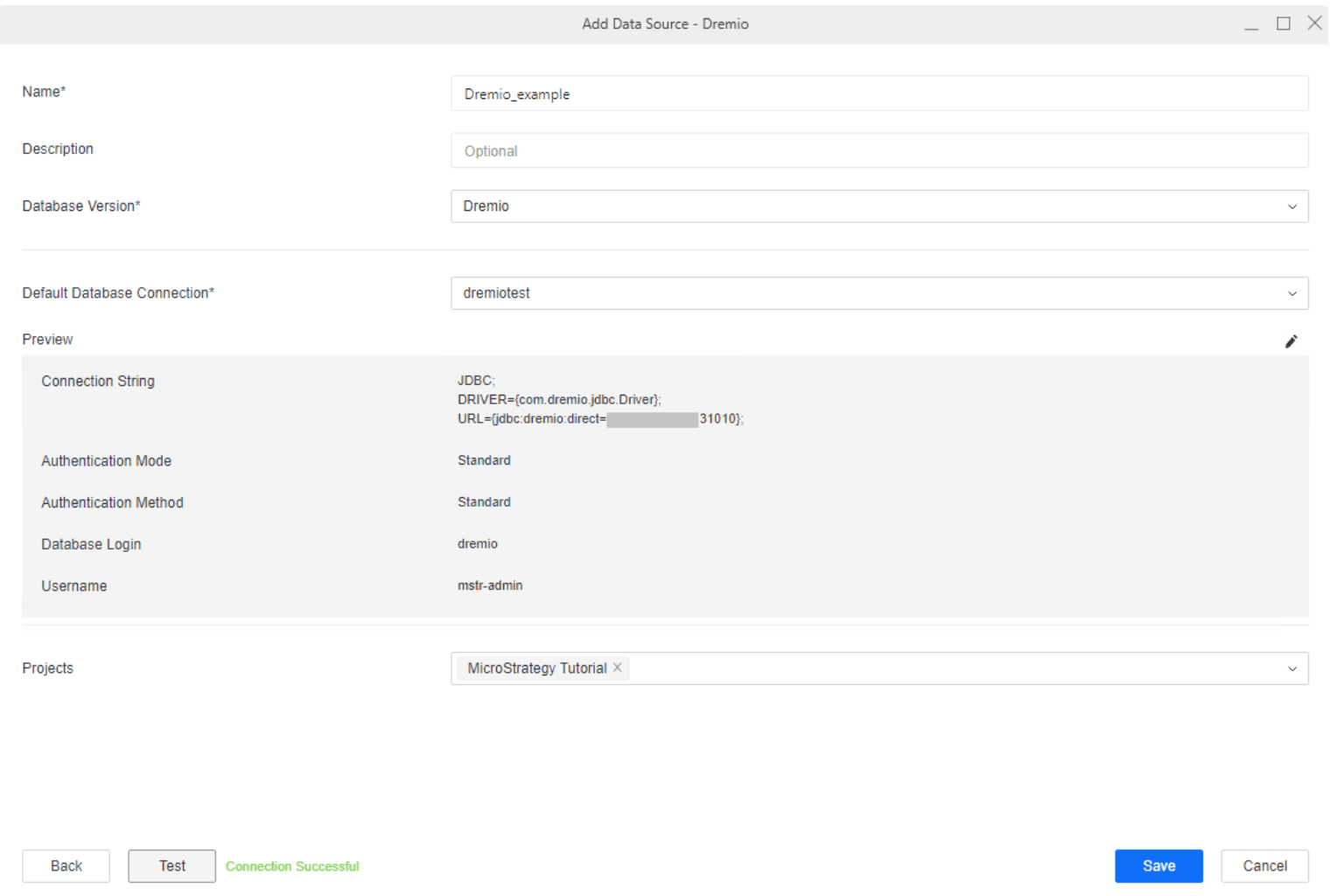
    Input Name, Description field. And choose Projects from drop-down list to assign these Data Source to projects.
ka04W000000OeQSQA0_0EM4W000006zyWr.jpeg


In Default Database Connection field, you can choose existing connection or “Add new database connection”. For adding new connection, assign a name to the connection and enter the Host Name, Port Number.). 
Best practices: 
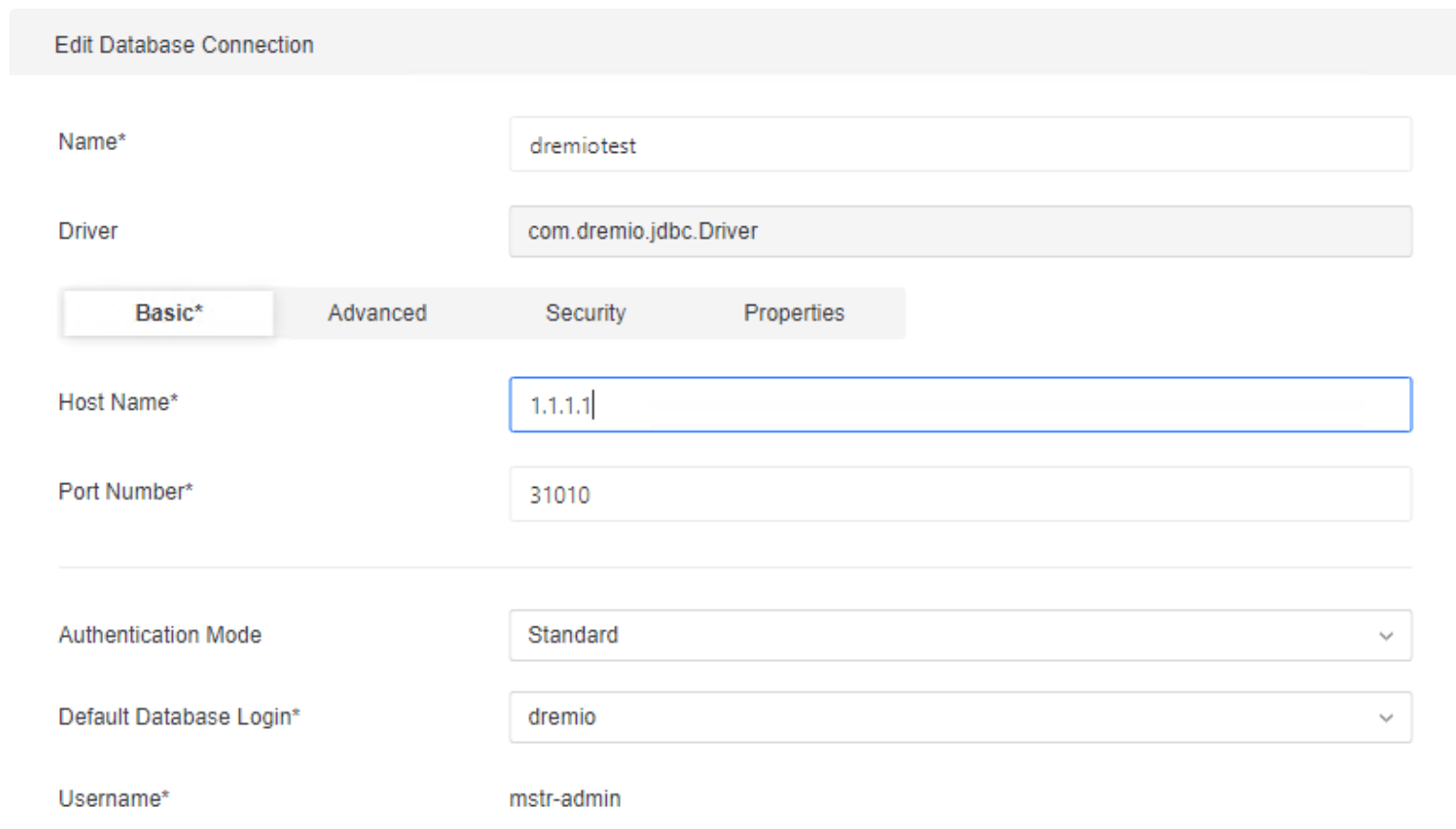
  • If we want to choose the schema, we can add schema parameter into Advanced tab. We can also add other connection parameter in Advanced tab, the supported parameter could be got from the page .
  • Here, we connect directly to Dremio coordinator node, not with ZooKeeper.
ka04W000000OeQSQA0_0EM4W000006zyXB.jpeg


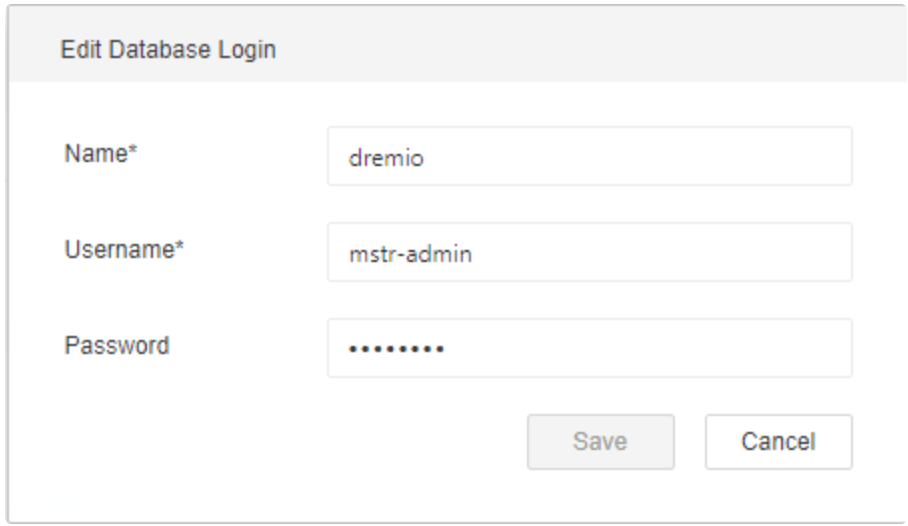
In Database Login page, enter Username/password.
 

ka04W000000OeQSQA0_0EM4W000006zyXG.jpeg


You can click “Test” button to test out the connection, then click “Save”.
 

ka04W000000OeQSQA0_0EM4W000006zyXL.jpeg

Create Data Import Cube


To create Data Import Cube against Dremio, the best practice is to use Workstation.
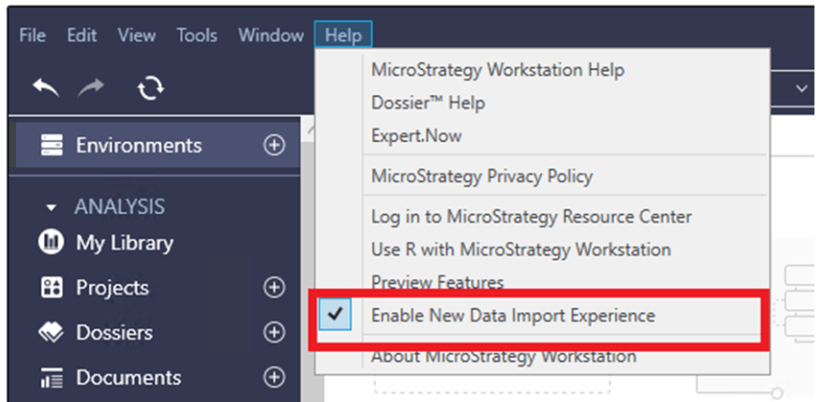
 

  1. “Enable New Data Import Experience” in the “Help” tab.  
ka04W000000OeQSQA0_0EM4W000006zyXk.jpeg
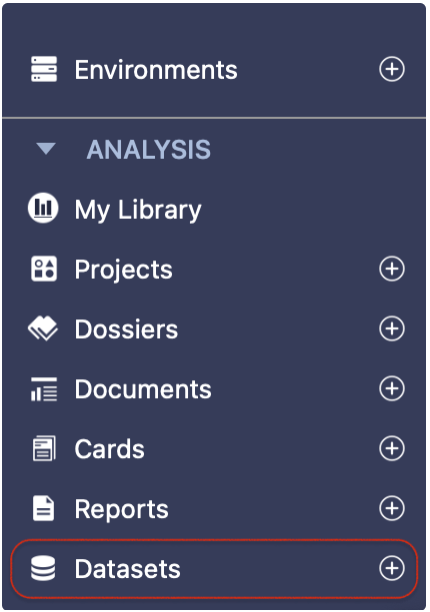
  1. In workstation, click “Add” button on Datasets.
ka04W000000OeQSQA0_0EM4W000006zyXz.jpeg


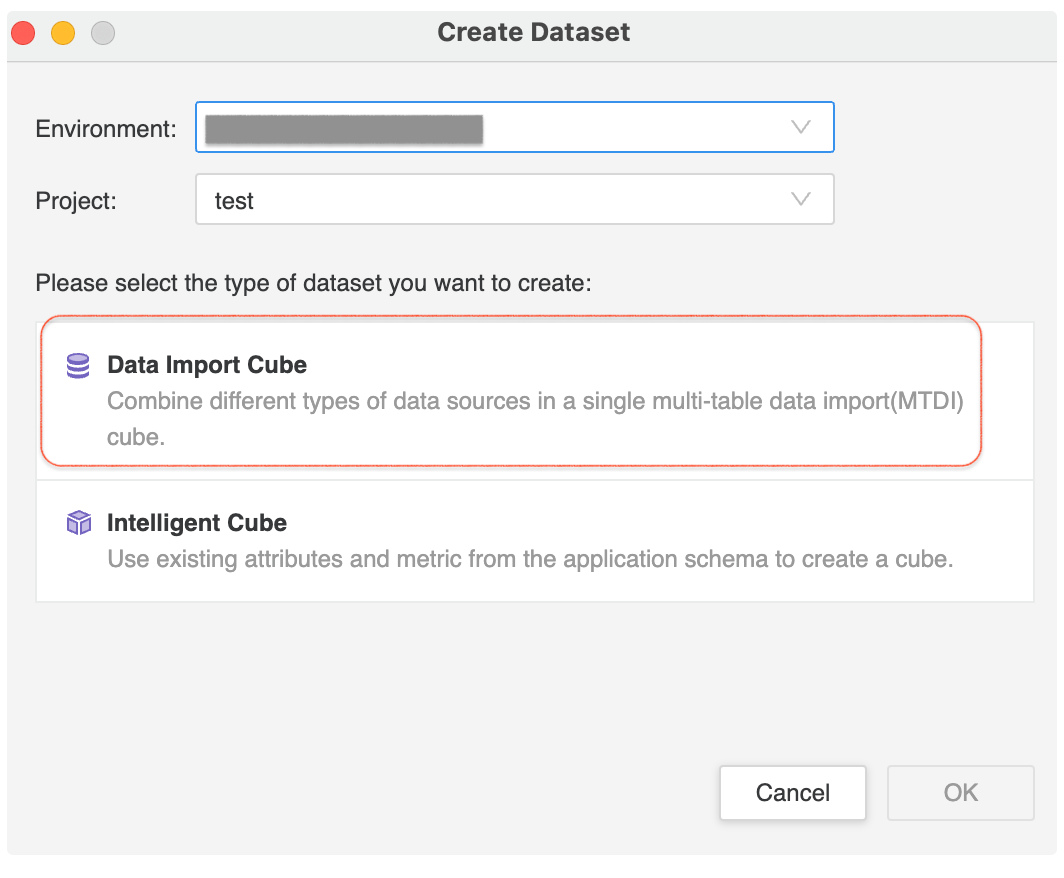
  1. Choose “Data Import Cube” type of dataset and click OK.
ka04W000000OeQSQA0_0EM4W000006zyYJ.jpeg


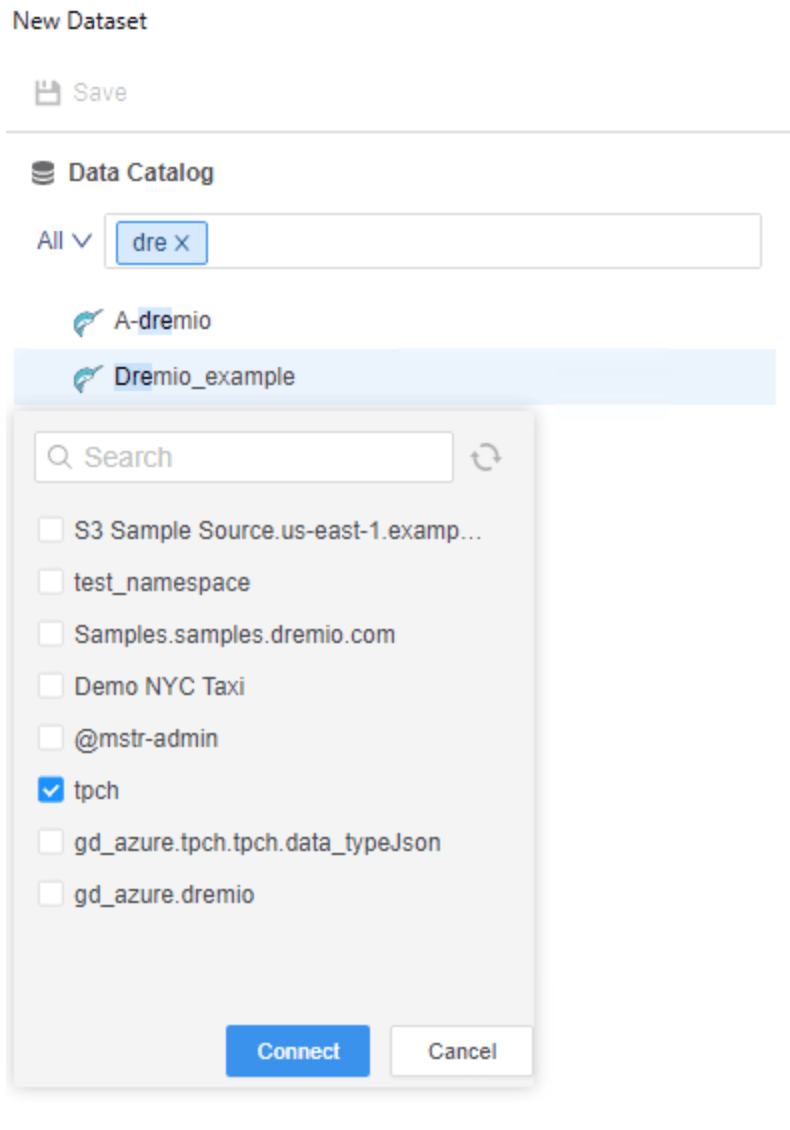
  1. On the left-side Data Catalog panel, click on the Data Source created in section 2 Create Connection, list of available schema will show up, and you can select one or more schemas, then click “Connect”. 
ka04W000000OeQSQA0_0EM4W000006zyYO.jpeg


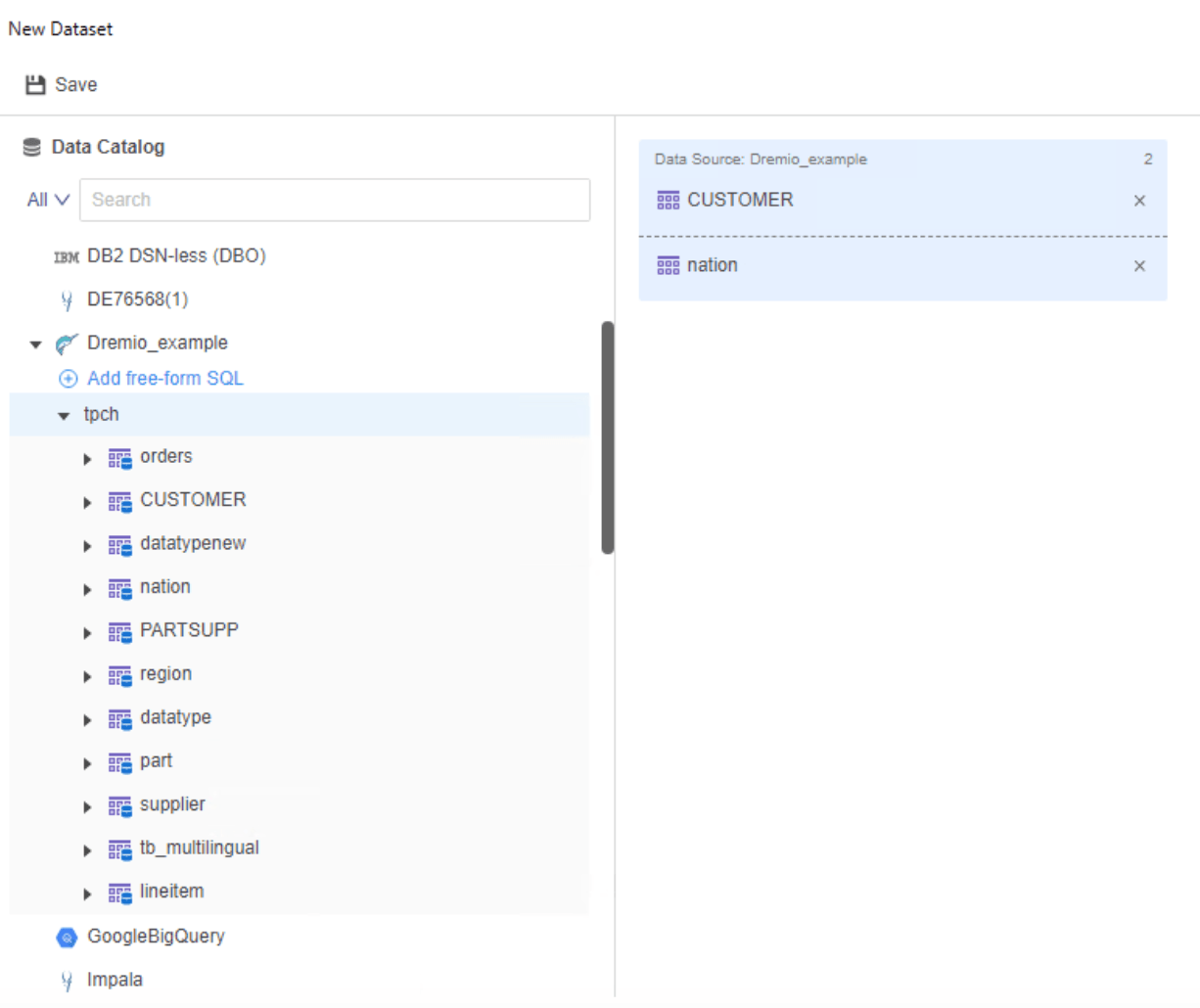
  1. A list of available tables will show up in the left panel, double click on the table to add it into Cube.
ka04W000000OeQSQA0_0EM4W000006zyYT.jpeg


Use Dremio for Schema Modeling


To create schema object against Dremio, the best practice is to use Workstation.
 

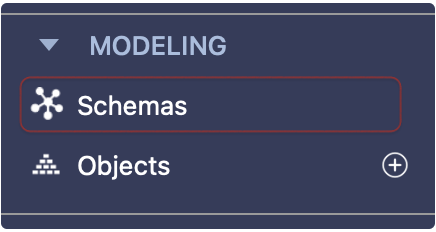
  1. In Workstation, connect to your environment, and select “Schema” in left panel.
ka04W000000OeQSQA0_0EM4W000006zyYi.jpeg


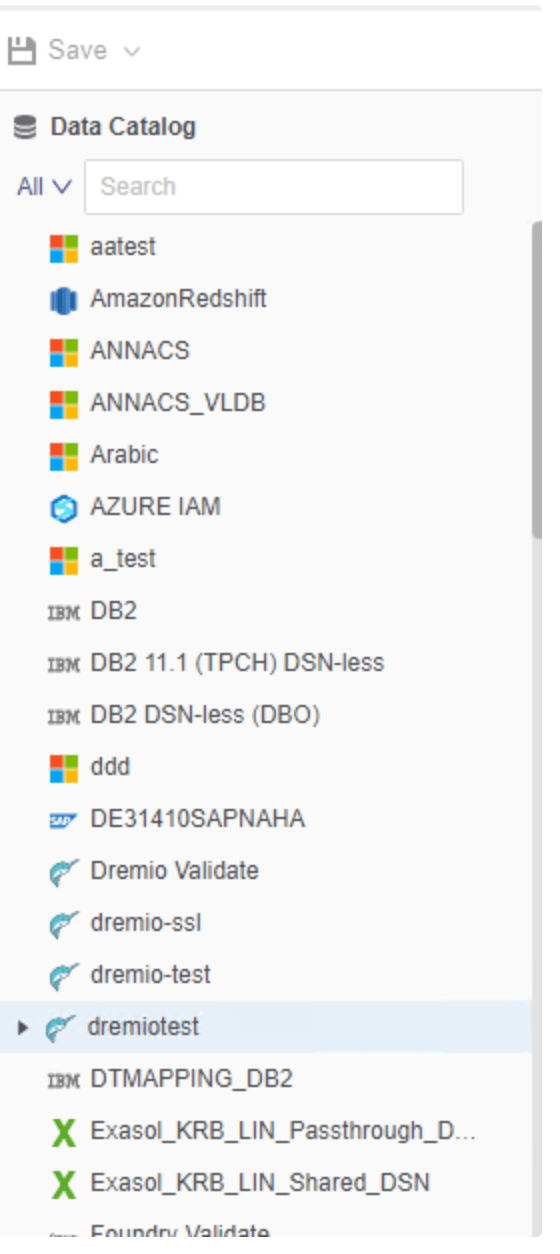
  1. Double Click on the Project you want to edit schema. On the left panel “Data Catalog”, all the Data Sources assigned for the project will show up. 
ka04W000000OeQSQA0_0EM4W000006zyYn.jpeg


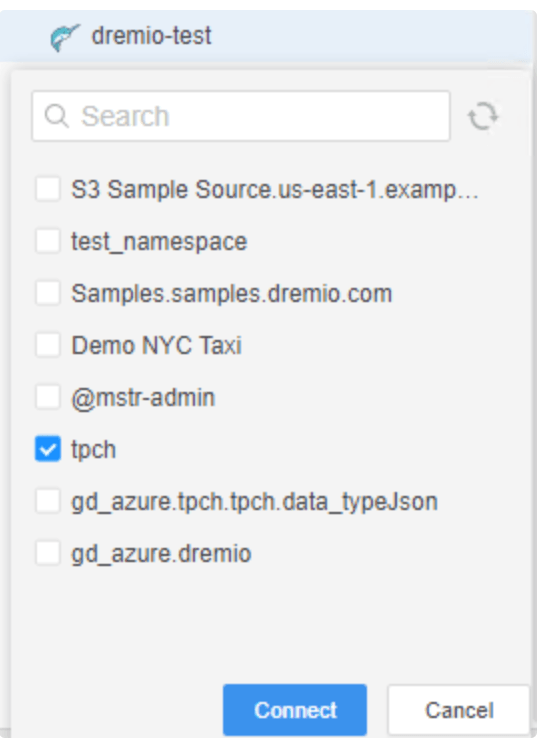
  1. Click on a Dremio Data Source, a list of namespaces will be listed. Select the namespaces you want to connect.
ka04W000000OeQSQA0_0EM4W000006zyYs.jpeg


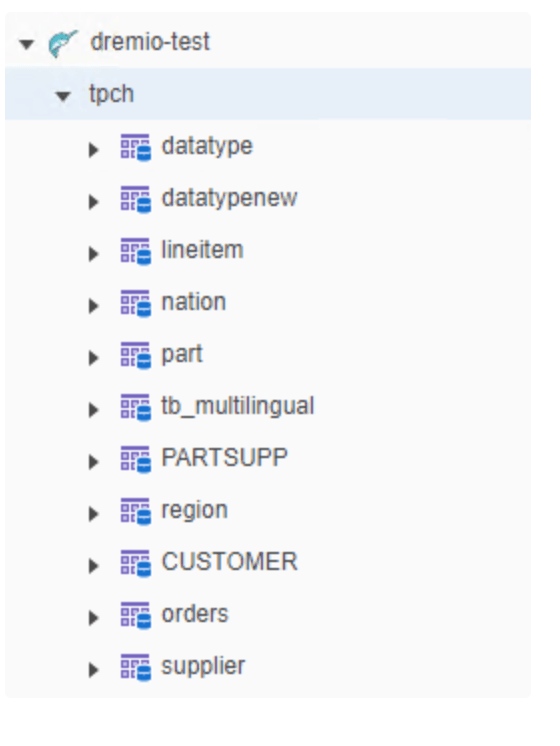
  1. All tables in the namespace will be showed up. Right-Mouse-Click the table, it will be added into schema.
ka04W000000OeQSQA0_0EM4W000006zyYx.jpeg
  1. Click “Save and Update Schema” button on the upper-left corner of Schema Editor.
  2. We can create Schema Objects based on the newly added table.

Unsupported functionality/Limitations

  • Driver has not shipped
  • MTDI Web and Old Dataset workflow CANNOT create or see the Dremio DB connection
  • Parameterized Query is not supported by Dremio.
  • OAuth Authentication Method for JDBC driver is not supported currently.
  • SSL connection is not certified.


Comment

0 comments

Details

Knowledge Article

Published:

March 3, 2023

Last Updated:

March 3, 2023