There's no difference between the usage of iOS Strategy Mobile app and iOS Strategy Library app to enable the AppConfig. The only difference is in Part II upload apps. Please upload the app you want to use: Strategy Mobile app or Strategy Library app.
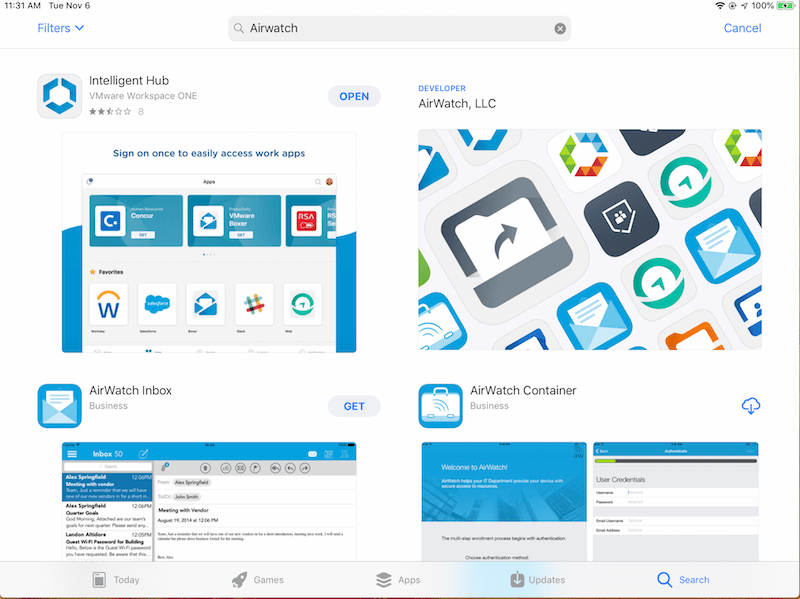
1. Download "Intelligent Hub" on your device. Go to App Store and search airwatch you will find an app named “Intelligent Hub” and download it to your device.
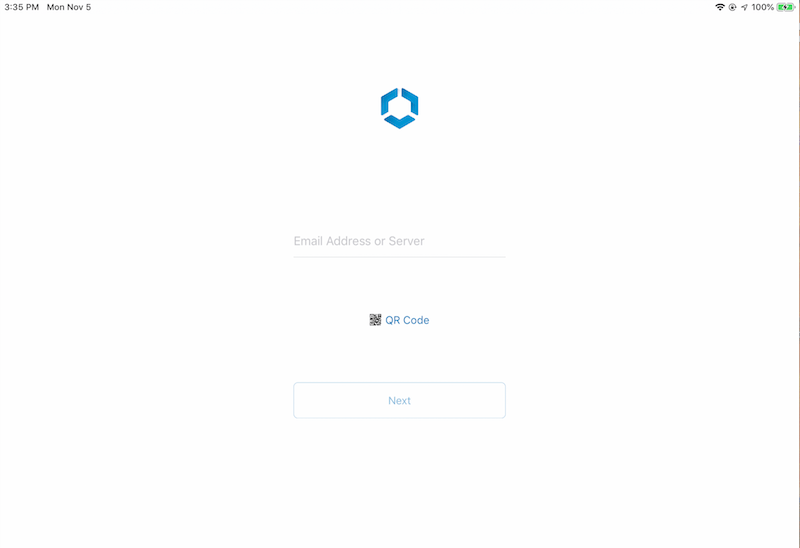
2. Open "Intelligent Hub" on your device. You will be required to register it via email address or server or QR code.
3. Go to AirWatch console to enroll your device.
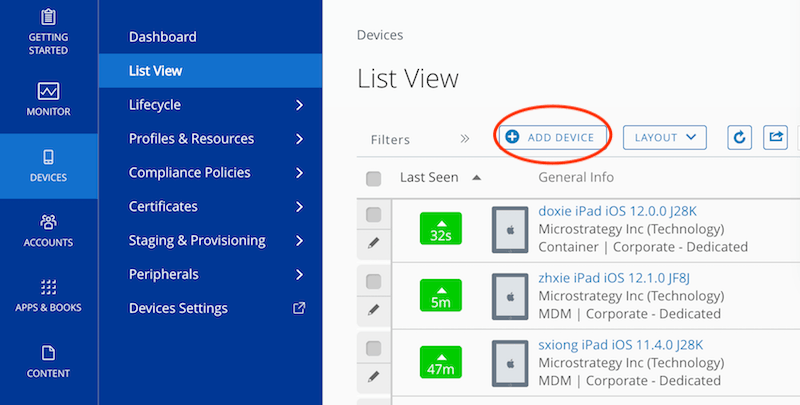
a. Login to AirWatch console and DEVICES -> List View -> ADD DEVICE.
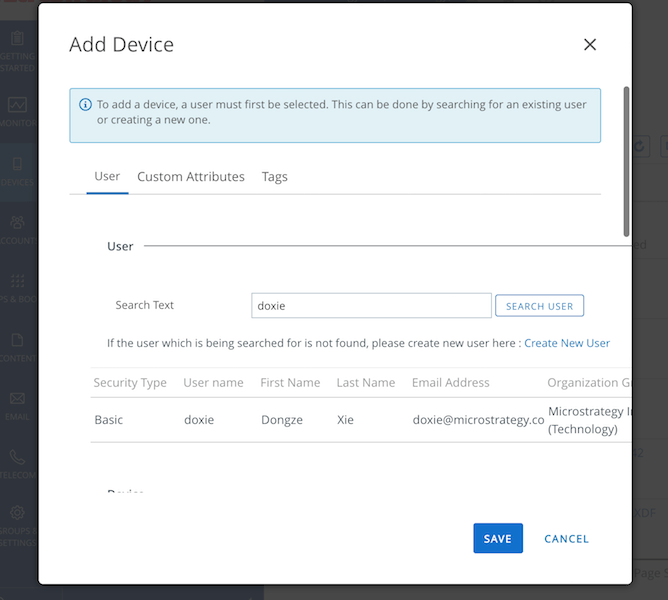
b. Choose the user you want to enroll.
Then you will receive an email.
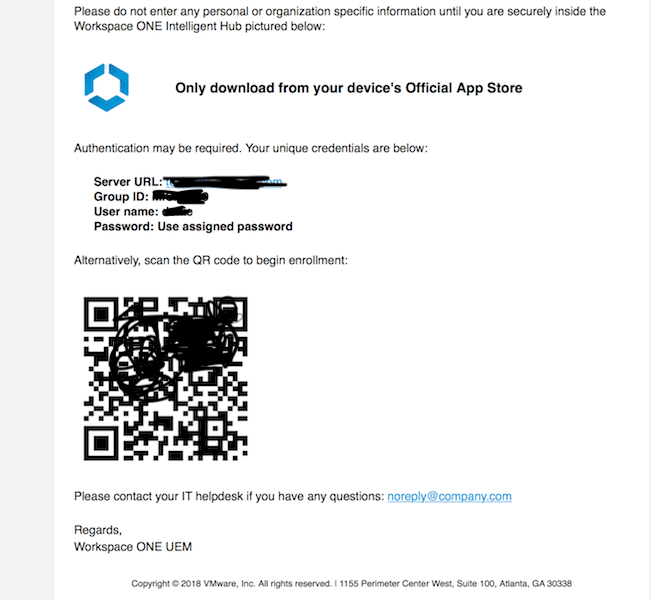
4. Use your device to scan the QR code to enroll your device. Then the "Intelligent Hub" will show you login page.
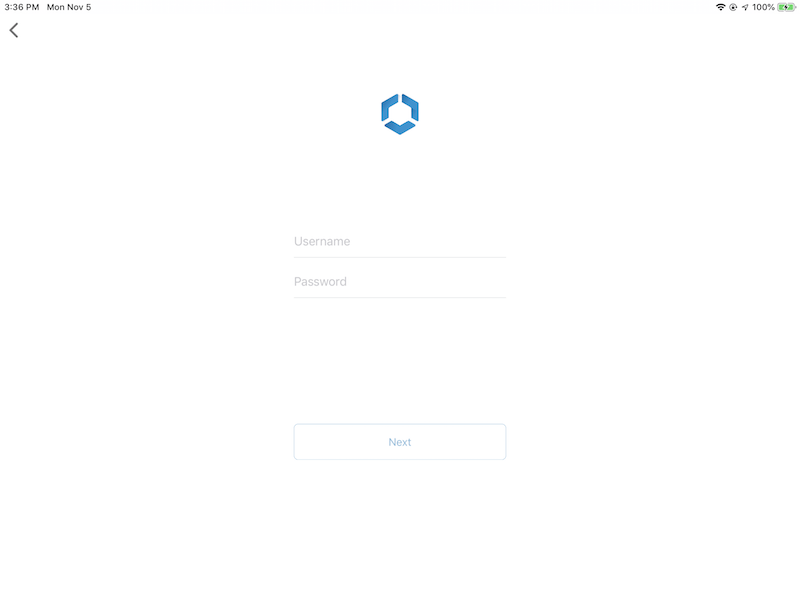
login with your AirWatch console account. Then follow the instructions to install profile and create passcode.
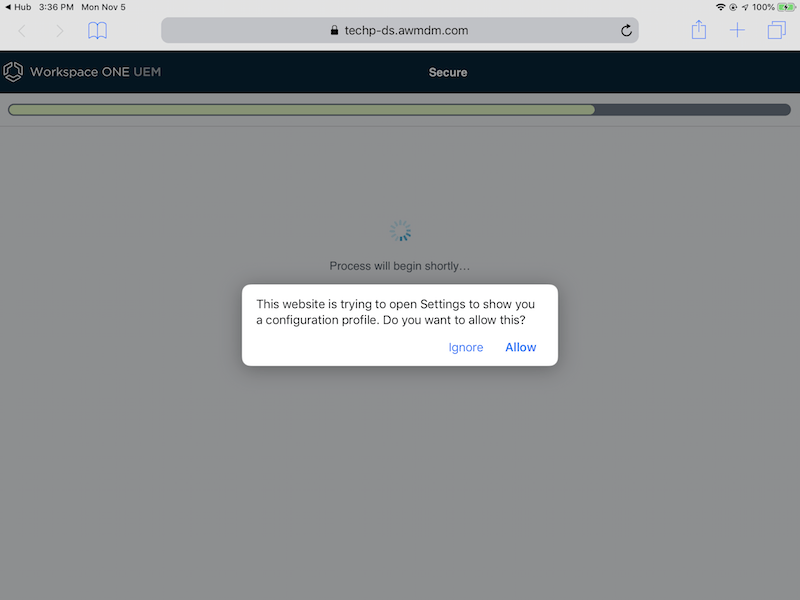
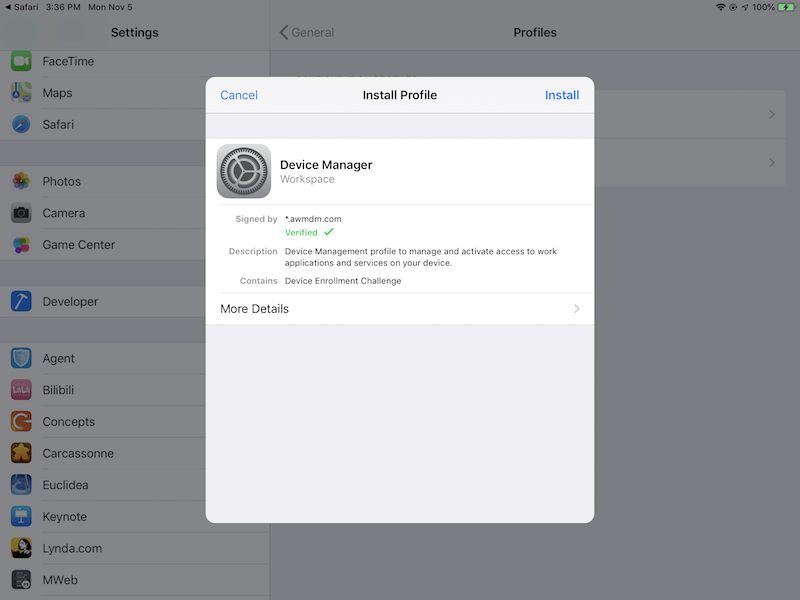
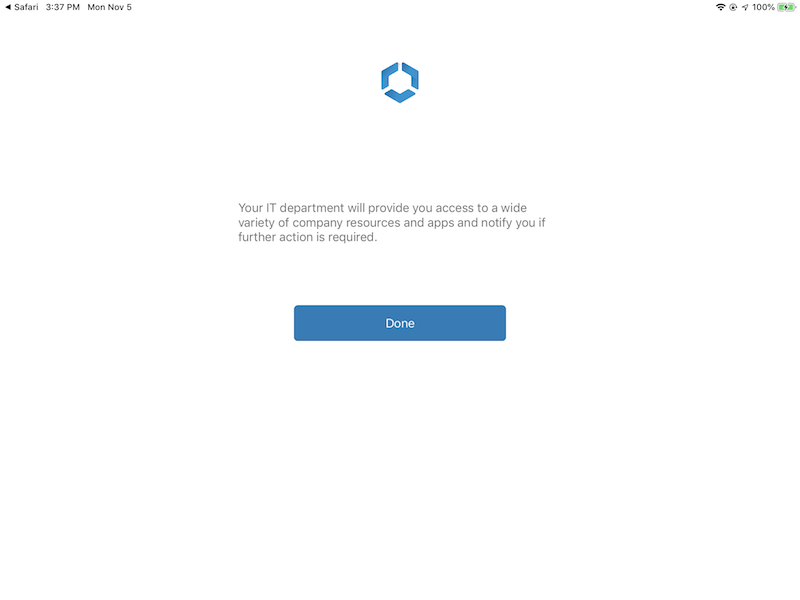
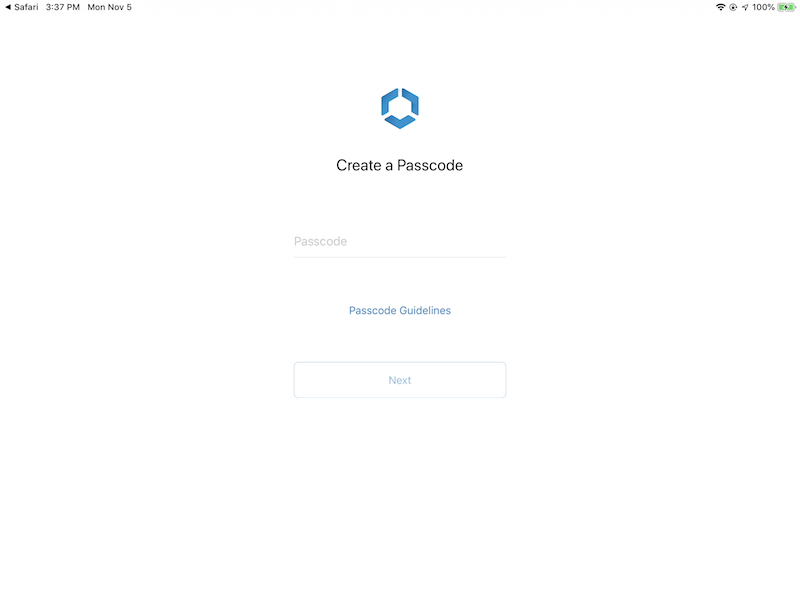
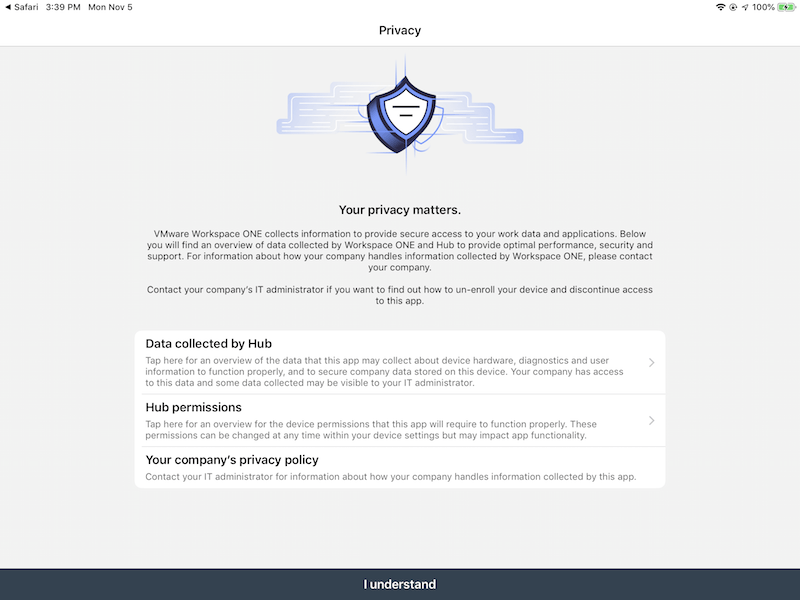
Now you have enrolled your device successfully.
You can add public apps like the apps in the app store to your AirWatch console or add internal app to AirWatch for users to download.
1. Login to AirWatch console and APPS & BOOKS -> Native -> Public -> ADD APPLICATION
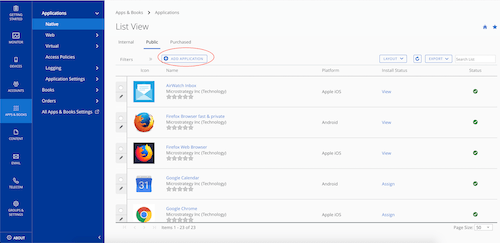
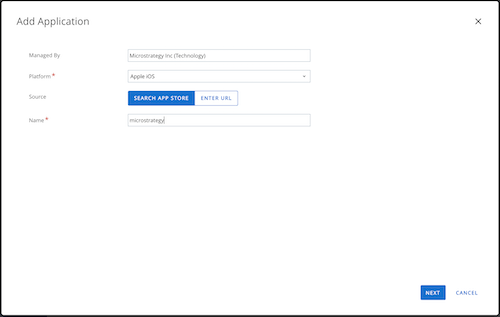
2. Choose the platform of "Apple iOS" and search for "Strategy" to find Strategy applications.
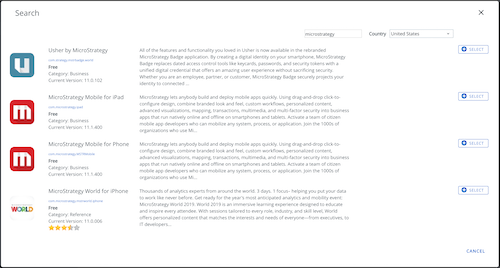
3. Click "SELECT" for the application you want to add.
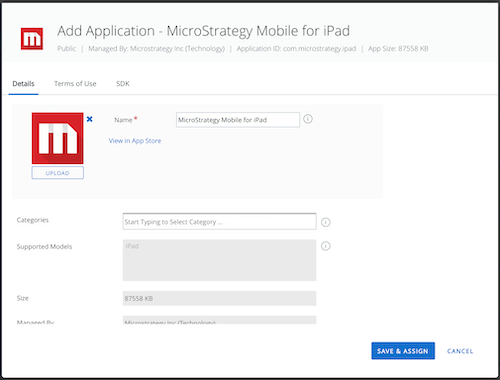
4. Edit the application, such as upload a different icon, set appropriate category, click "Save and Assign"
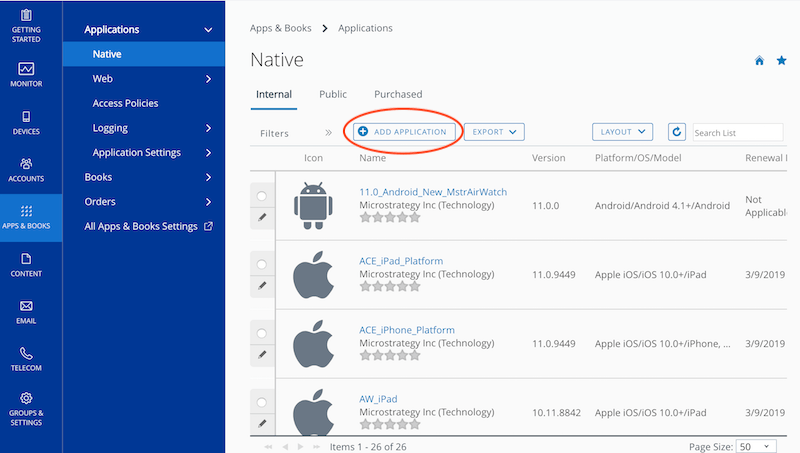
1. Login to AirWatch console and APPS & BOOKS -> Native -> Internal -> ADD APPLICATION
2. Choose the app you want to upload, MSTR app or Library app.
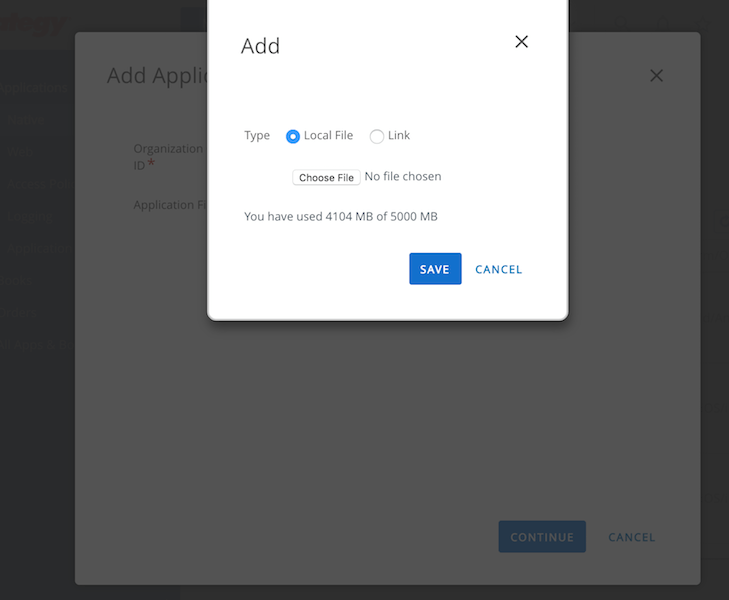
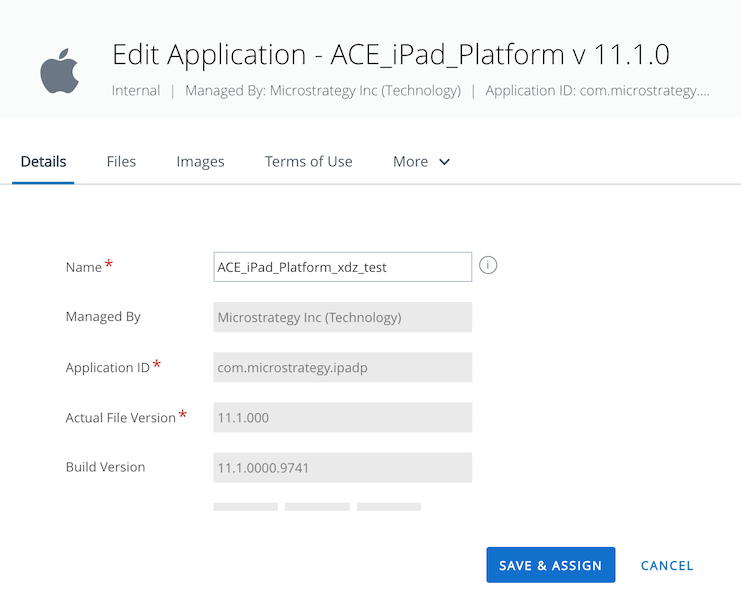
3. fill the information of the app you upload. Including app name, version and so on.
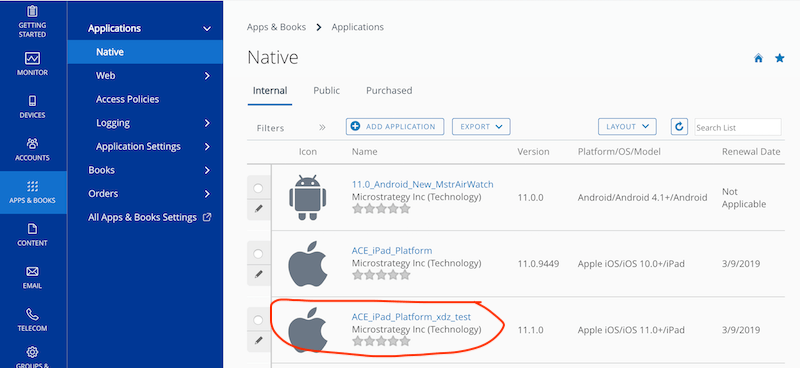
You will find the app in the list after you finished upload the app.
You can assign the app you uploaded to users.
1. Login to AirWatch console then APPS & BOOKS -> Native to open the app you uploaded.
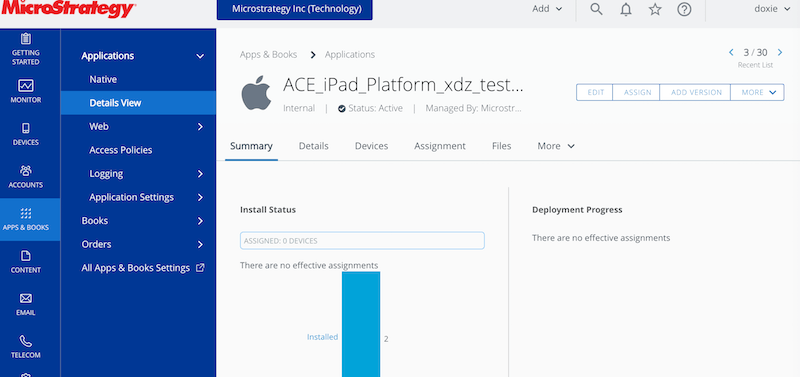
2. Click "ASSIGN" button to open assign page then Click "ADD ASSIGNMENT"
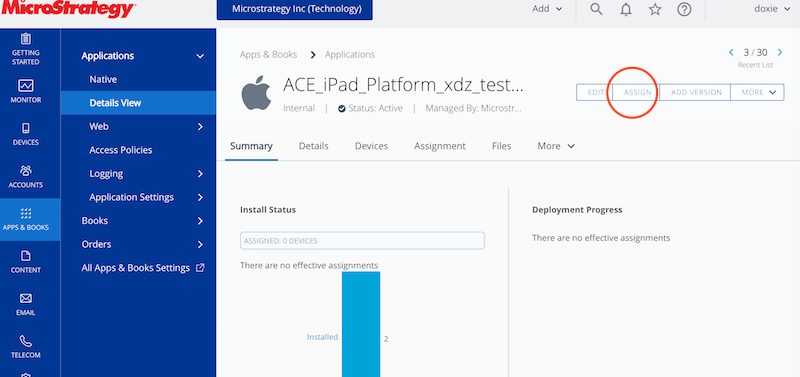
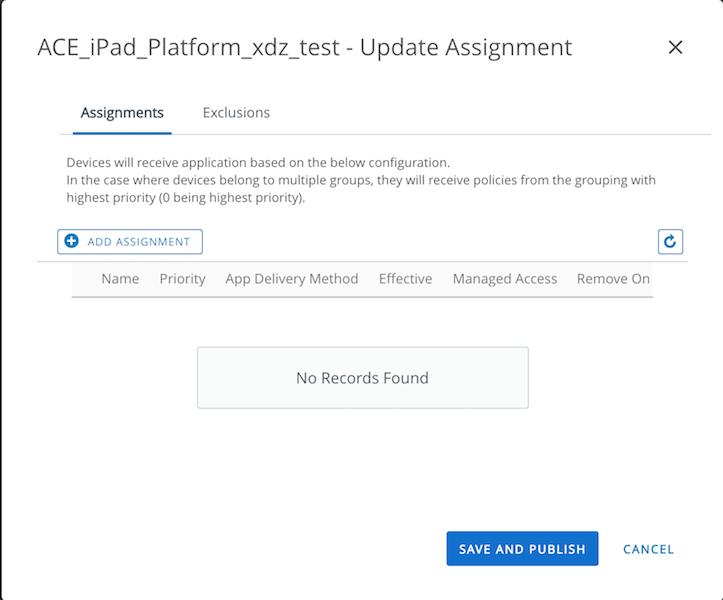
3. Choose the "SMART GROUP" you want to assign.
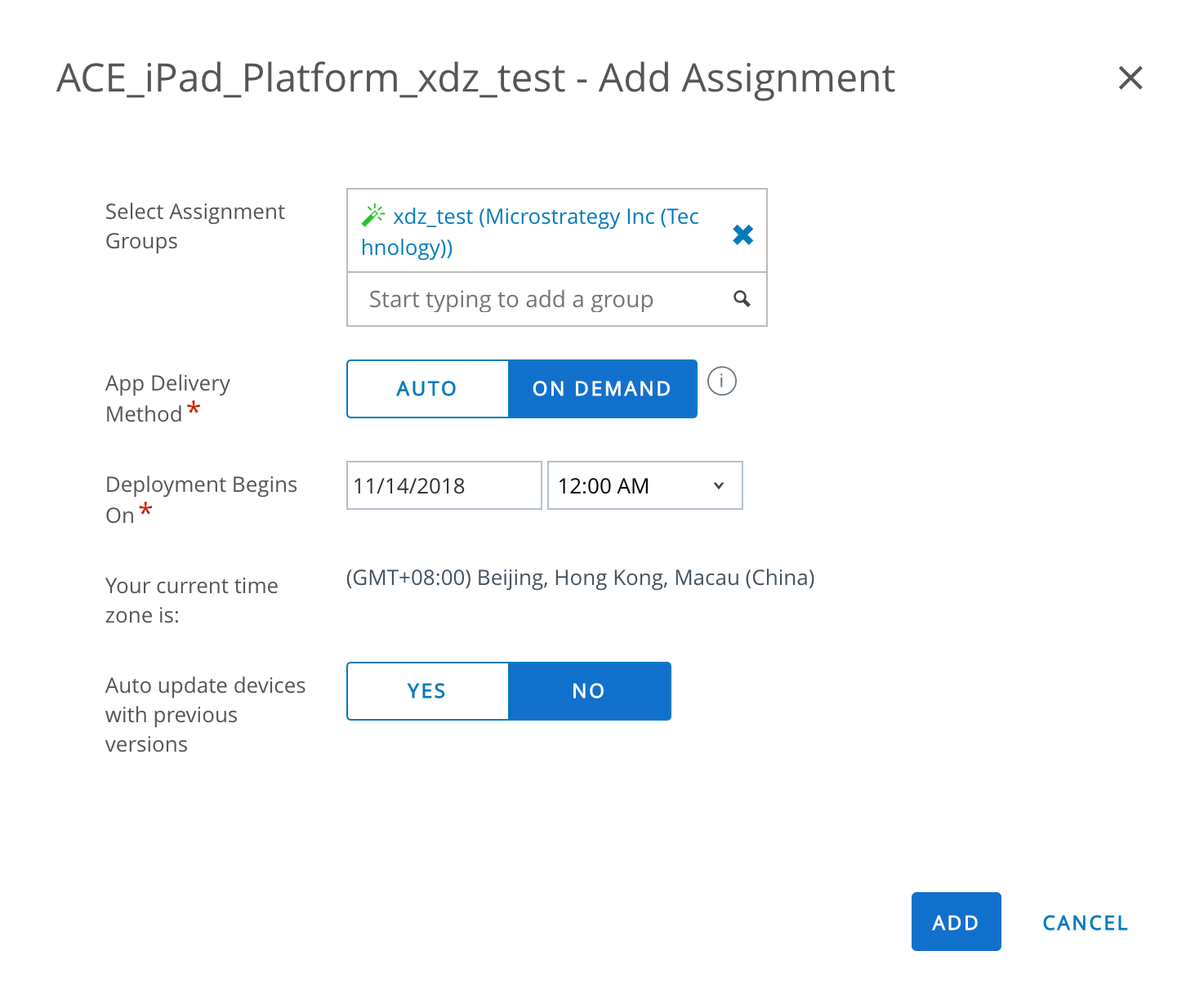
4. Fill the other information for assignment. I enable "App Tunneling" and "Application Configuration" here.
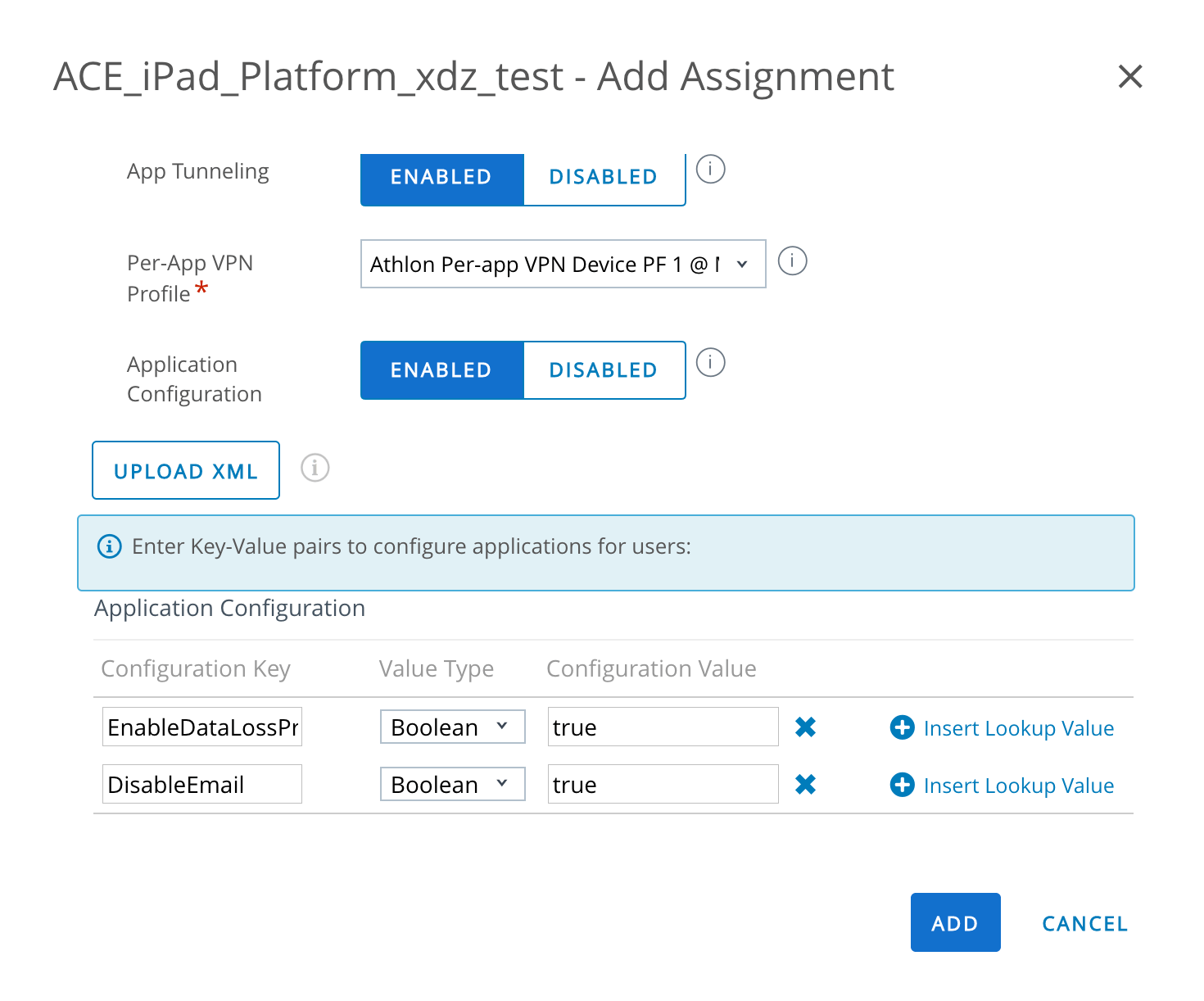
In Application Configuration part, set configuration key and value to control application behaviors. Please see the below table for all supported keys and sample values.
ConfigurationURL | ConfigurationURL | mstr://?url=http%3A%2F%2F10.199.56.62%3A80%2FMicroStrategyMobile%2Fasp%2FTaskProc.aspx%3FtaskId%3D getMobileConfiguration%26taskEnv%3Dxml%26taskContentType%3Dxmlanf%26configurationID%3Dc45a415b-0609-4ab3-aaf8-1b82d5c0bf4c&authMode=1&dt=2 |
EnableDataLossPrevention | EnableDataLossPrevention | EnableDataLossPrevention |
DisableEmail | DisableEmail | DisableEmail |
DisableOpenIn | DisableOpenIn | DisableOpenIn |
DisablePrint | DisablePrint | DisablePrint |
DisableCopyPaste | DisableCopyPaste | DisableCopyPaste |
DisableCameraAccess | DisableCameraAccess | DisableCameraAccess |
DisableLocationServices | DisableLocationServices | DisableLocationServices |
DisableSaveToPhotos | DisableSaveToPhotos | DisableSaveToPhotos |
EnableDataLossPrevention should be set to true to make other boolean values to take effect.
5. Click "ADD" then "SAVE AND PUBLISH" to publish your assignment.
After you enrolled your device with "Intelligent Hub" you will find there is another app named "Catalog" on your device.
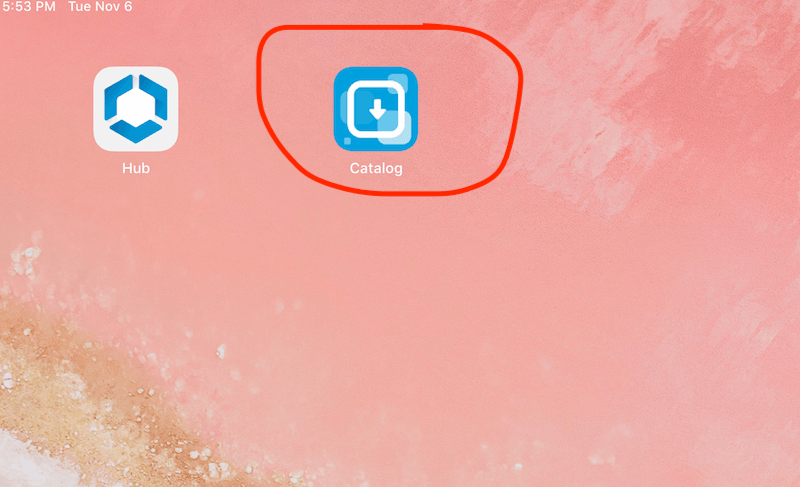
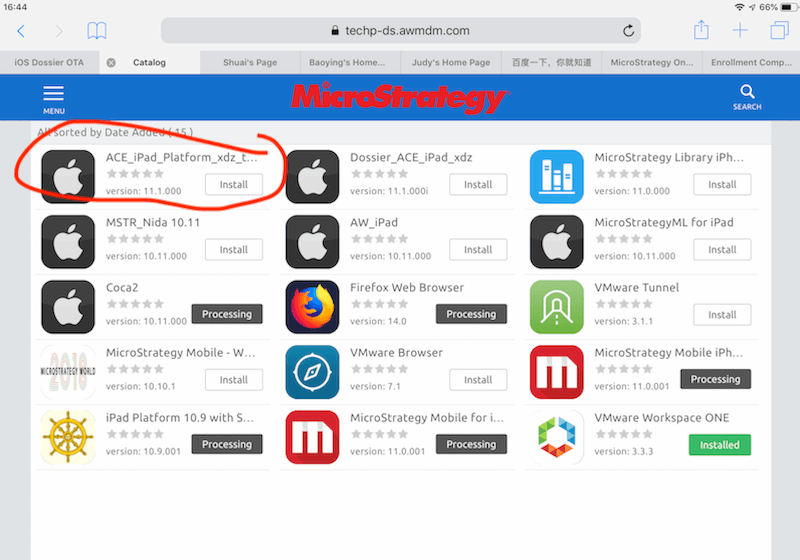
Open "Catalog" you will see the app you have assigned to you and download it.
In previous section. When I create assignment I have enabled "App Tunneling" and choose a existed Per-App VPN Profile and enabled "Application Configuration" and add two key-values pairs to control my app can send email or not.
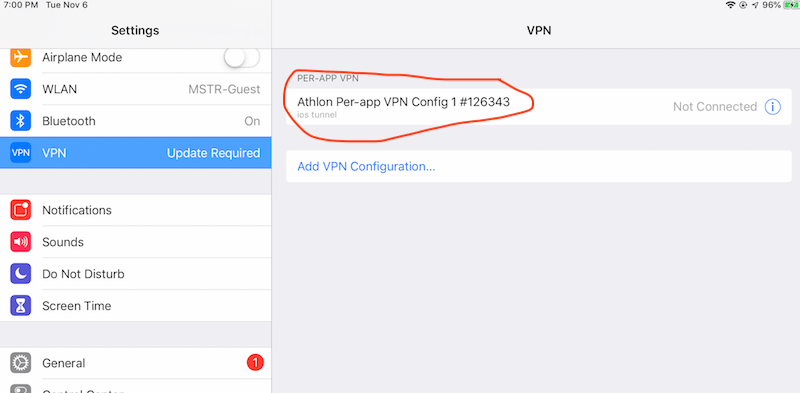
Since I have enabled App Tunneling and choose a Per-App VPN Profile there will be a profile auto downloaded to my device and you will see it in the Settings -> VPN
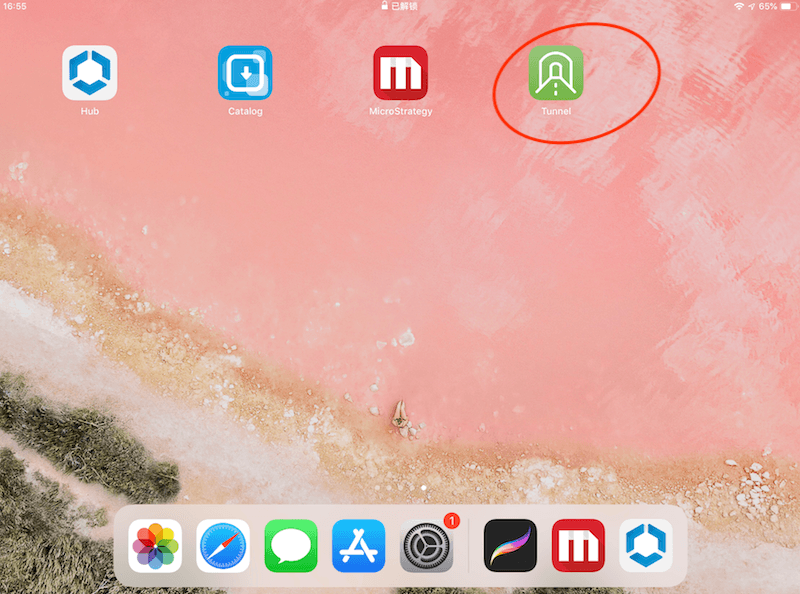
You need to download an app named "Tunnel" for App Tunneling feature.
When you open the app you assigned to your device with App Tunneling feature on you will see the VPN mark on the left top corner on your device.
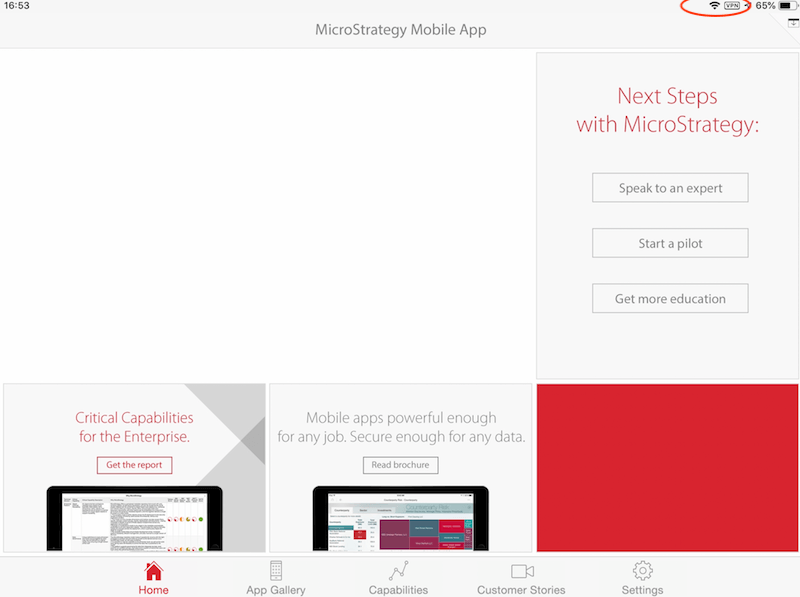
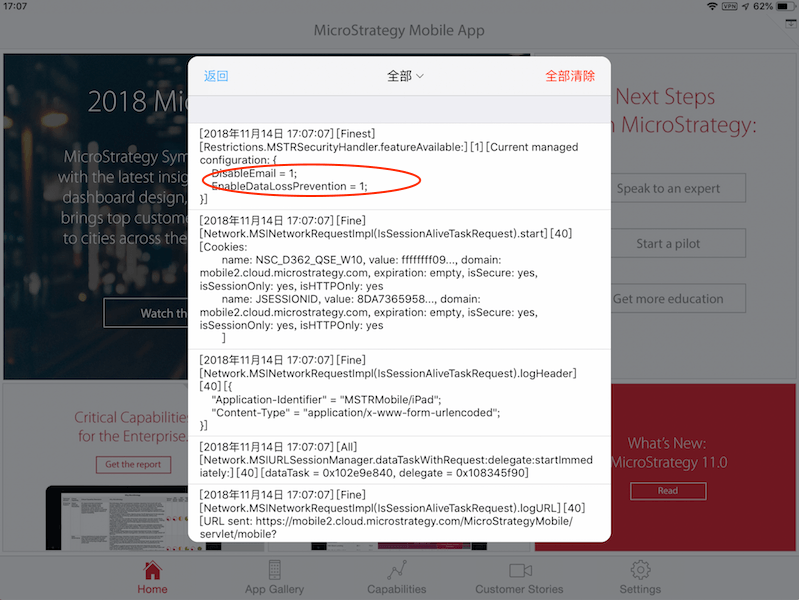
Here I have enabled "Application Configuration" and add two key-values pairs to control my app can send email or not.
EnableDataLossPrevention: true
DisableEmail: true
This means that I have disabled the send email feature in my app.
We can also view the configuration we push in the log:
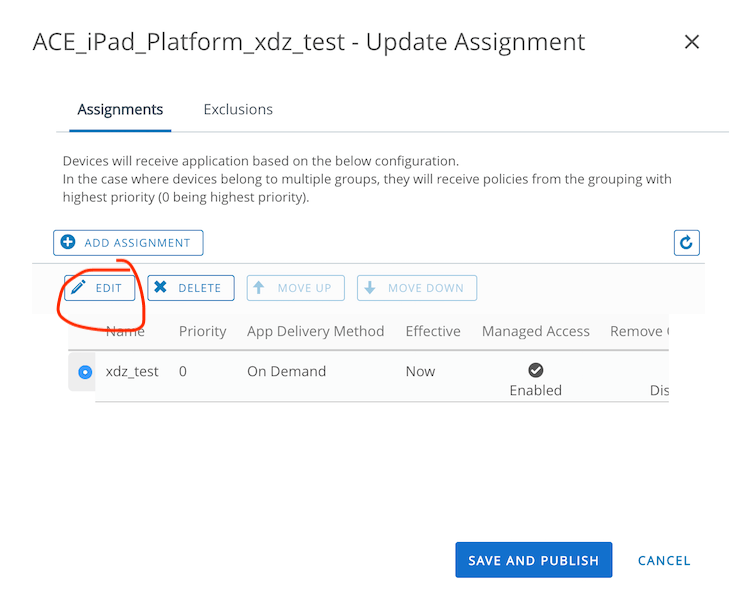
1. Login to AirWatch console then go to APPS & BOOKS -> Native and choose your app and click it.
2. Click "ASSIGN" button.
3. Choose the assignment you want to modify and click "EDIT".
4. Modify the configuration in your assignment. I disable App Tunneling and change the DisableEmail to false which means I don't disable email in my app.
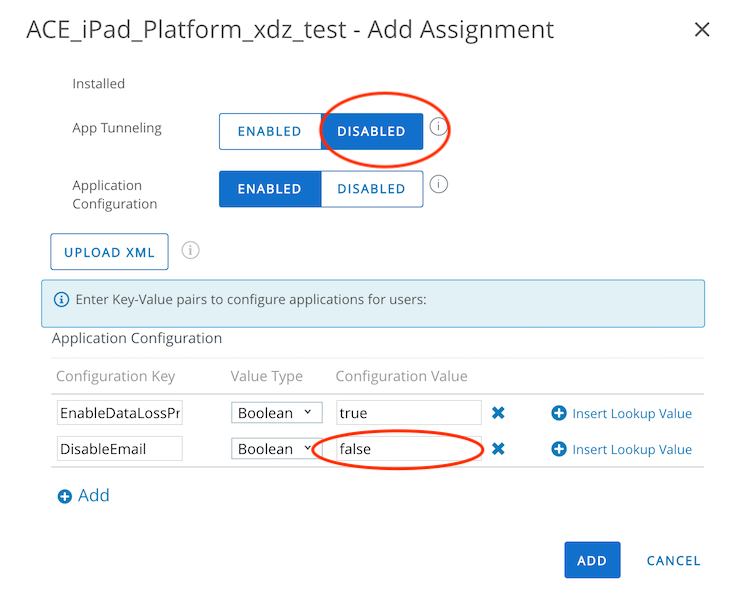
5. Add and publish. Then you will find that the VPN mark has gone and I can send email in my app.
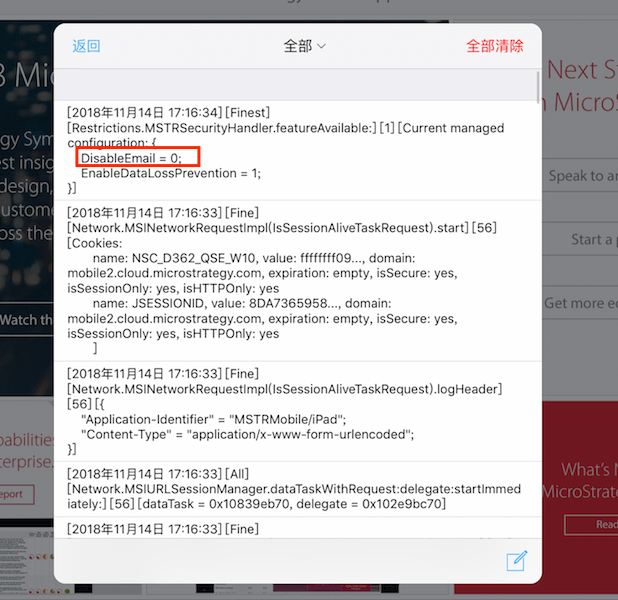
We can also view the result in the log:
KB442304
