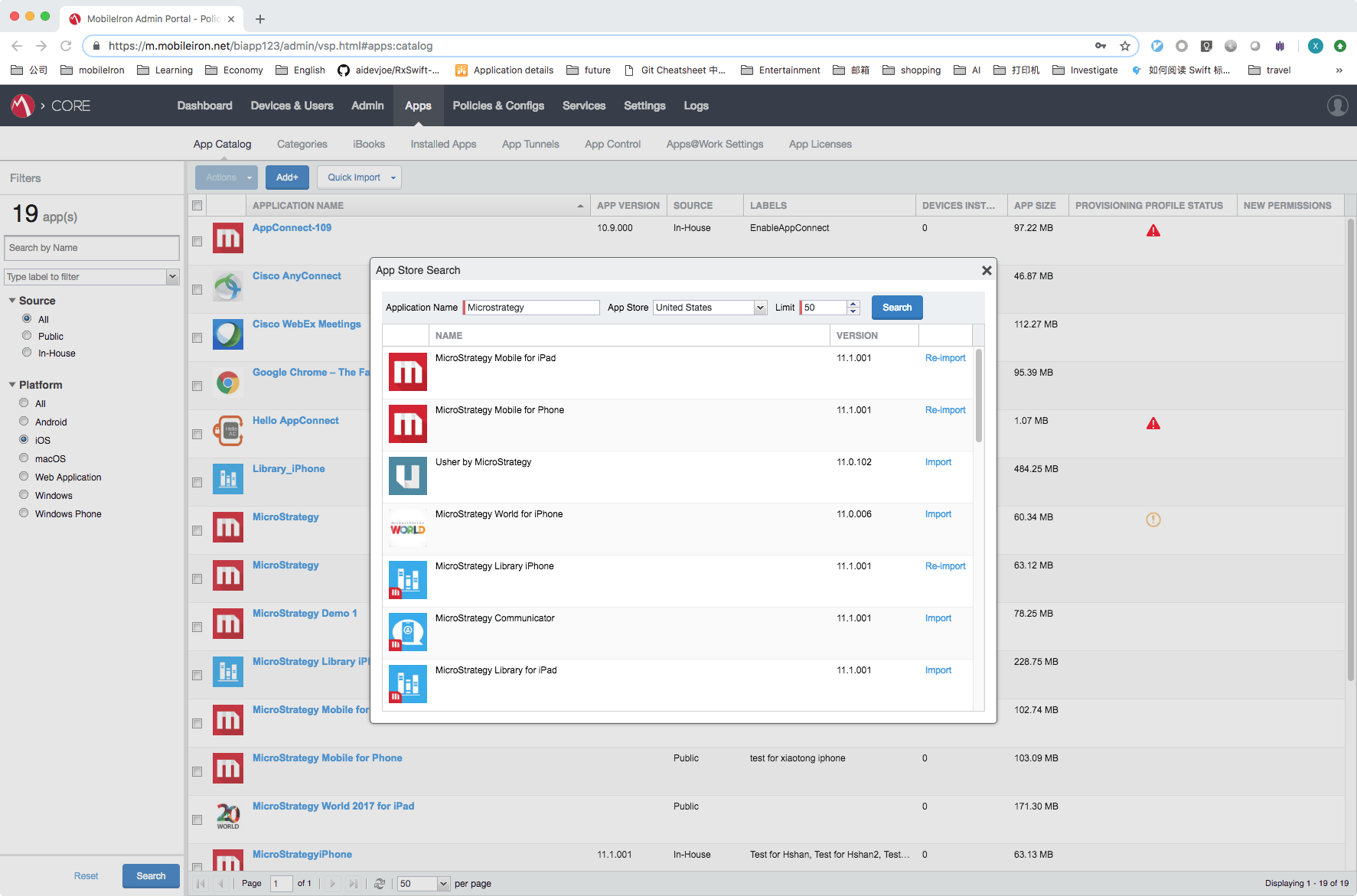
Go to Apps → App Catalog, import an internal app through Add+ or add an app from app store through Quick Import.
Apply label to this app, this label should also be applied to your device, or you would not find the app in Apps@Work.
There are 2 ways for App Config (ACE). One is legacy way using mobileIron managed app config. The other one is App Catalog method.
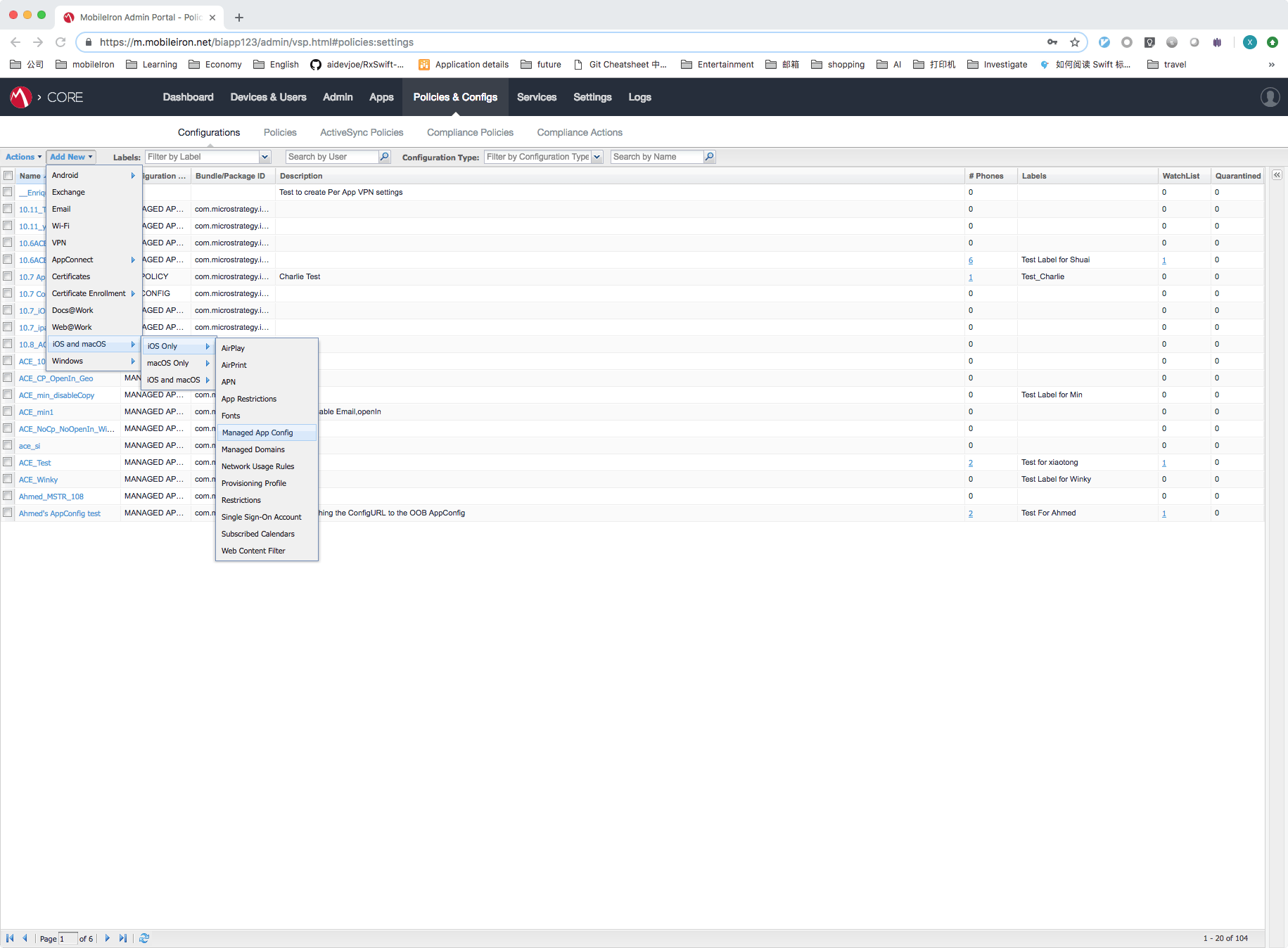
Login to Mobile Iron Core, go to “Configurations & Policies” -> “Configurations”. Add a configuration of type “Managed App Config”, give it a name and upload a property list file. This property list file should contain the configurations you need.
Apply this configuration with the label you have applied to your device and the app.
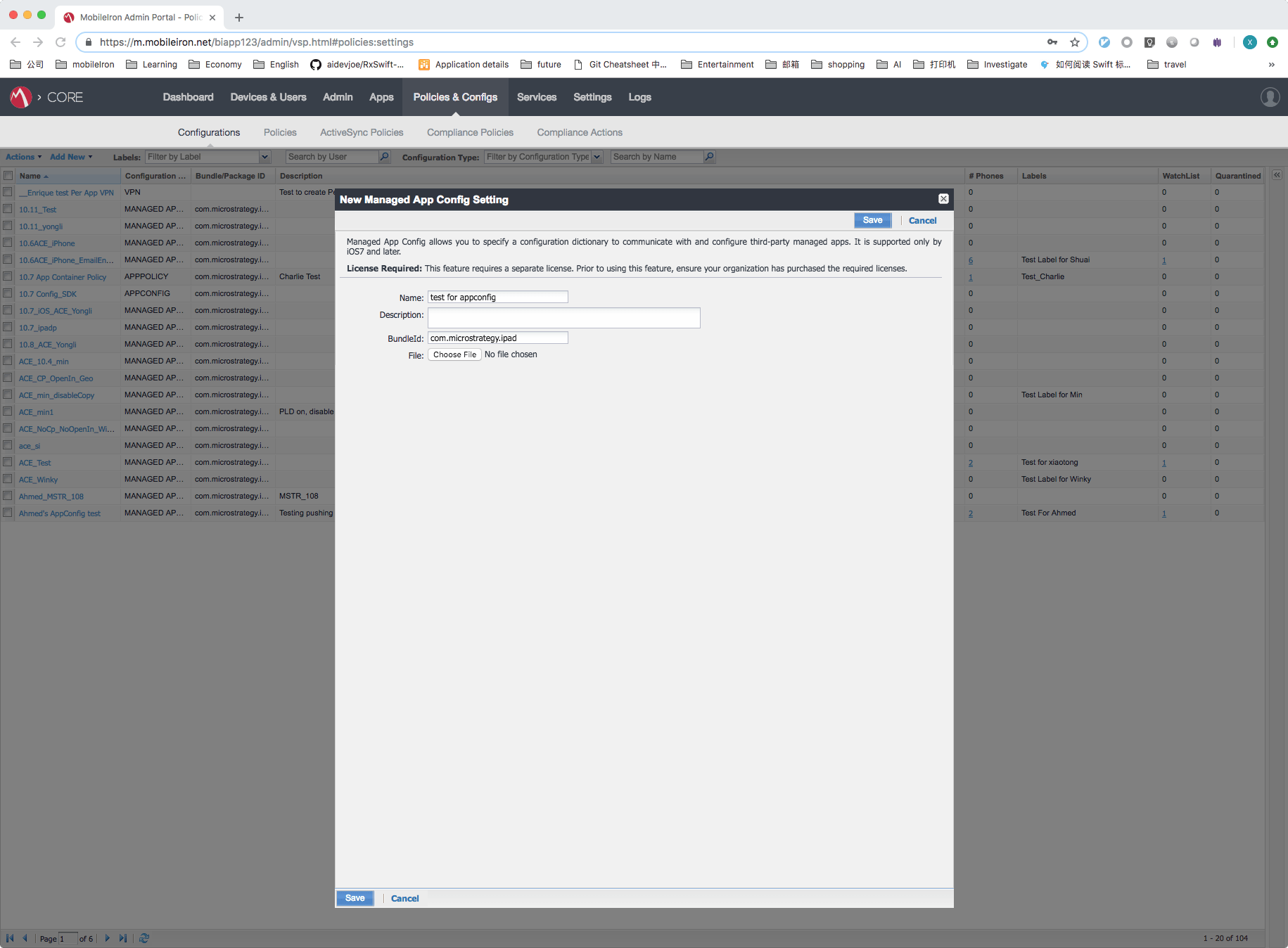
Here is an example of the plist file:
<?xml version="1.0" encoding="UTF-8"?>
<!DOCTYPE plist PUBLIC "-//Apple//DTD PLIST 1.0//EN" "https://www.apple.com/DTDs/PropertyList-1.0.dtd">
<plist version="1.0">
<dict>
<key>DisableSaveToPhotos</key>
<true/>
<key>DisableLocationServices</key>
<false/>
<key>DisableCameraAccess</key>
<false/>
<key>DisablePrint</key>
<true/>
<key>DisableOpenIn</key>
<false/>
<key>DisableEmail</key>
<false/>
<key>DisableCopyPaste</key>
<true/>
<key>ConfigurationURL</key>
<string>mstr://?url=http%3A%2F%2F10.197.32.63%3A8080%2FStrategyMobile%2Fservlet%2FtaskProc%3FtaskId%3DgetMobileConfiguration%26taskEnv%3Dxml%26taskContentType%3Dxmlanf%26configurationID%3Db6071730-53c8-4e6c-821a-444c3ba1409d&authMode=1&dt=2</string>
<key>EnableDataLossPrevention</key>
<true/>
</dict>
</plist>
Note: If use this xml file way, then the configuration link need to change. After copy the generated mobile configuration link from mobile admin page, user need to replace "&" with "&" just like above example.
Here is a brief introduction about mobileIron App catalog method:
Enterprises use Enterprise Mobility Management (EMM) services to manage mobile devices, including the apps and content on those devices. OneTouch streamlines the purchasing, discovery, deployment, configuration, feedback and adoption of your apps by enterprise customers.Managed app configuration with App catalog method uses native iOS capabilities for managed apps and managed app configuration. Managed apps are apps that are distributed and managed using an EMM service.
Managed app configuration with with App catalog method:
For managed app configuration via app catalog the app developer creates an .xml file using this http://appconfig.org/appconfigspeccreator/ and provides it to MobileIron.
We now have delivered one .xml to mobileIron and mobileIron upload it manually.
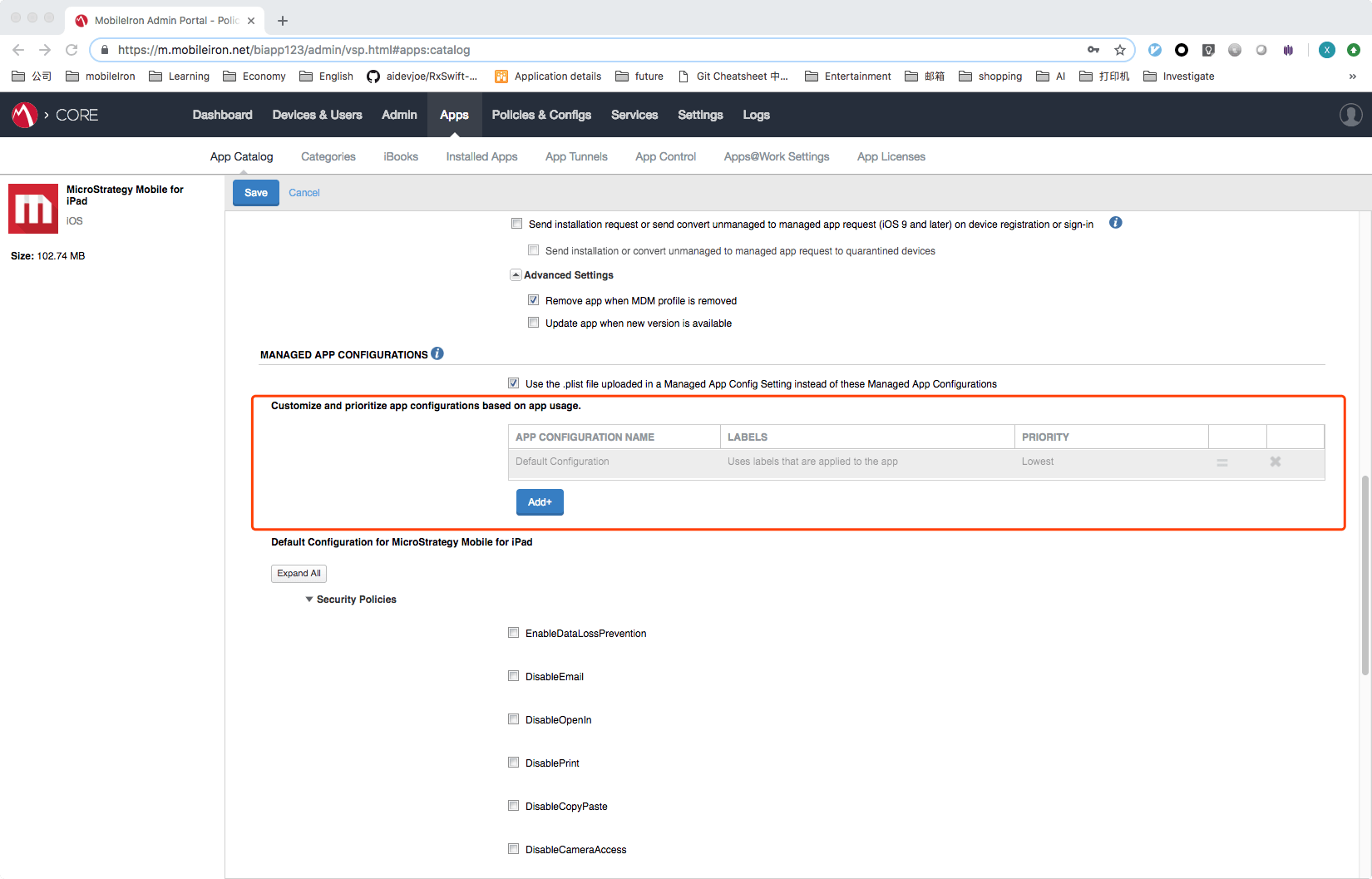
After that, take a look at the app configuration page → MANAGED APP CONFIGURATIONS
There will be 3 parts in this section:
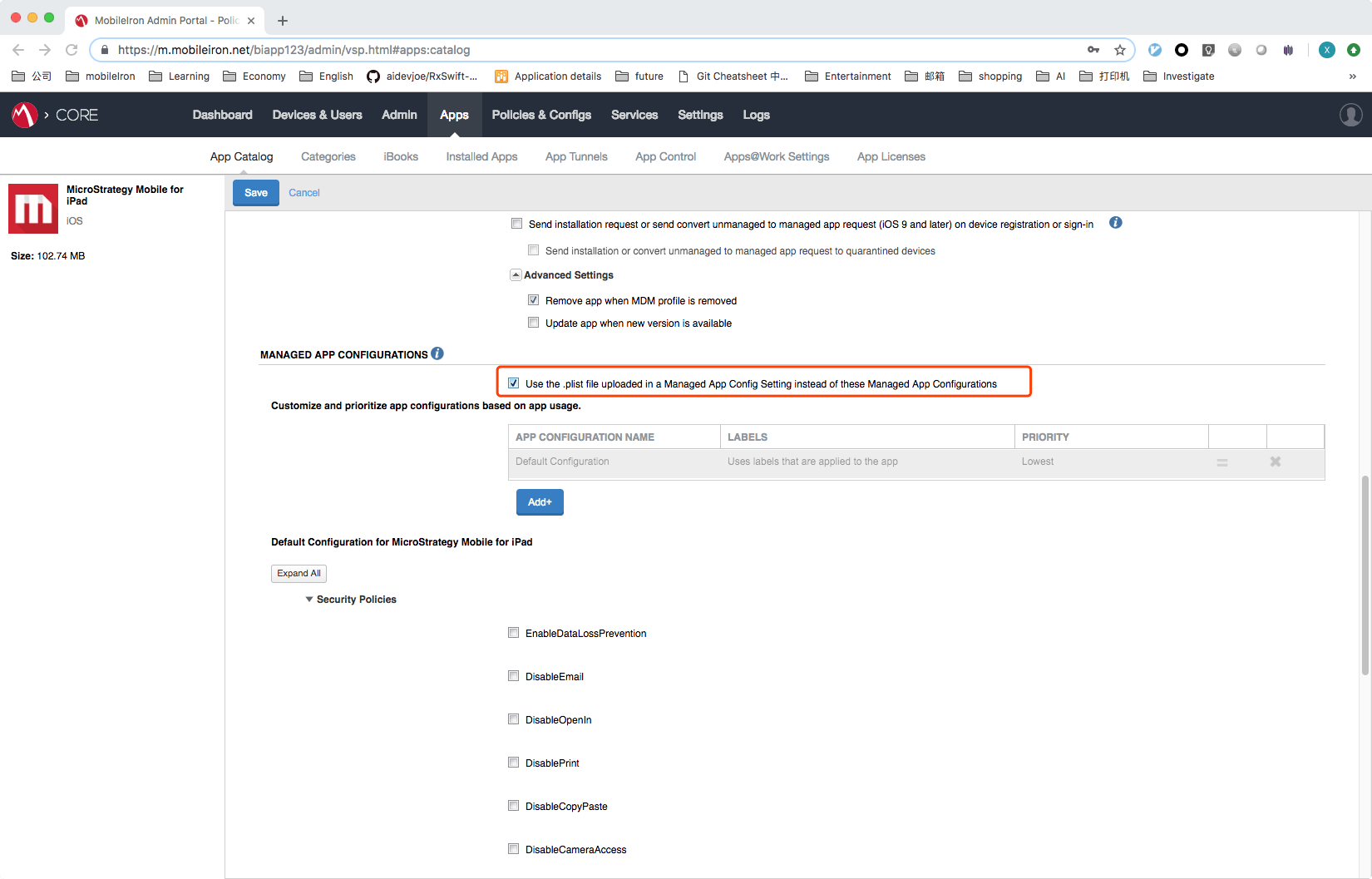
1. If you still want to use legacy way which is using the .plist, manually check this and apply the label of the managed app config you have created in the previous section to this app. Legacy way would work.
2. If you want to use this App catalog method, just check ones you want, by default it would work.
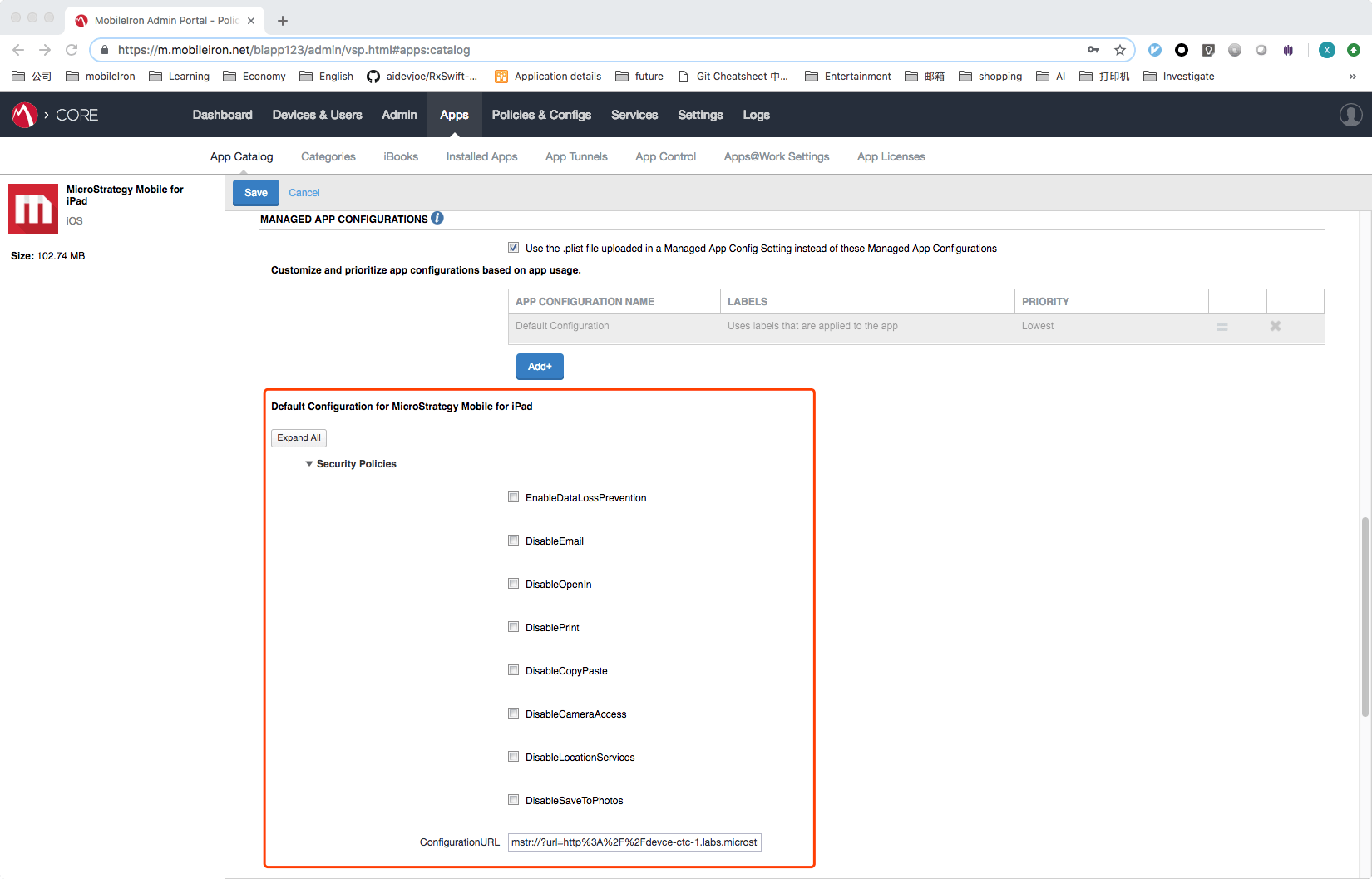
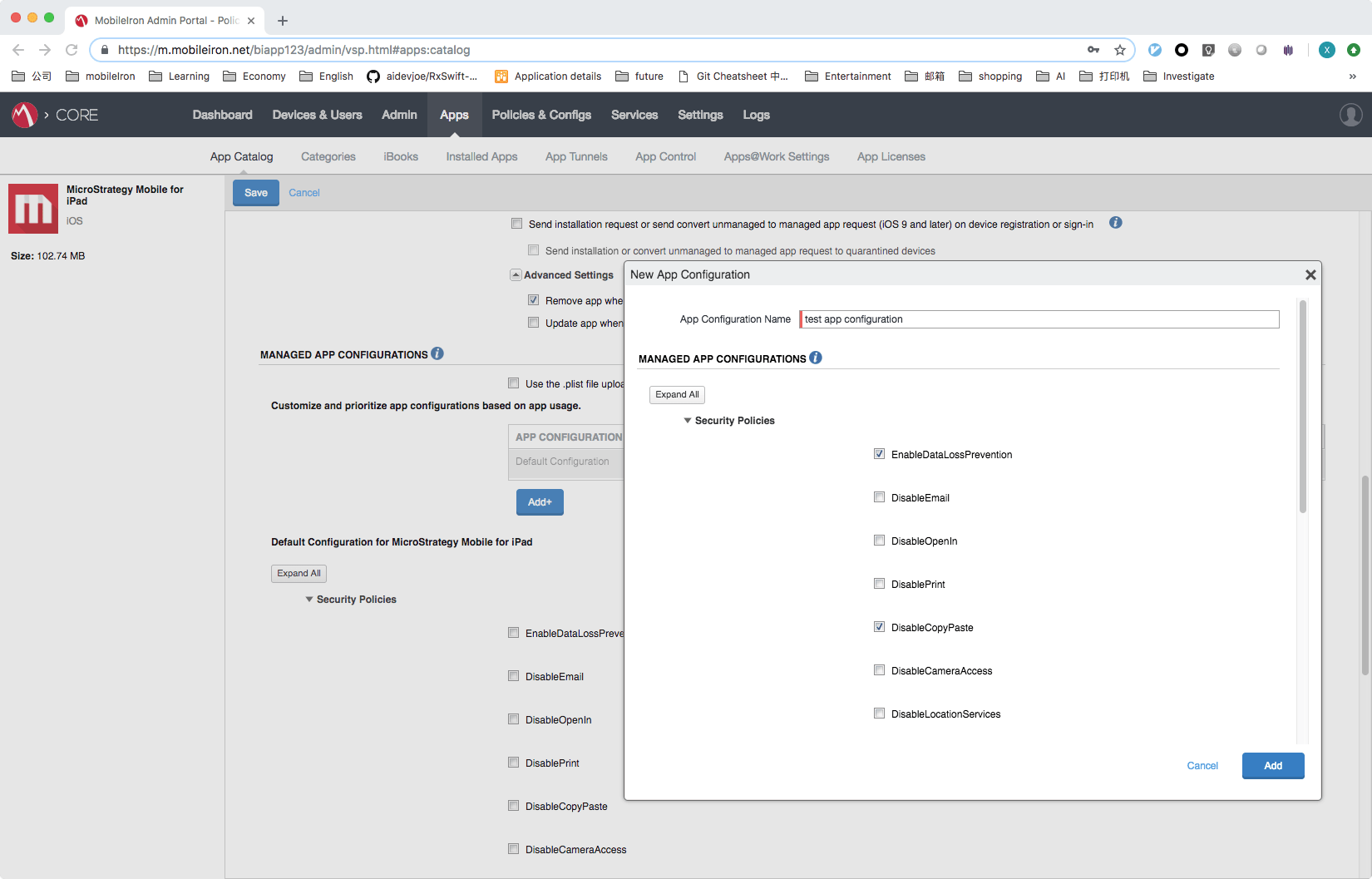
3. If you want to use a new app configuration but you don't want to modify the default one. Create a new configuration, and this would overwrite the default one.