EducationSoftwareStrategy.com
StrategyCommunity

Knowledge Base

Product

Community

Knowledge Base

TopicsBrowse ArticlesDeveloper Zone

Product

Download SoftwareProduct DocumentationSecurity Hub

Education

Tutorial VideosSolution GalleryEducation courses

Community

GuidelinesGrandmastersEvents
x_social-icon_white.svglinkedin_social-icon_white.svg
Strategy logoCommunity

© Strategy Inc. All Rights Reserved.

LegalTerms of UsePrivacy Policy
  1. Home
  2. Topics

KB485692: Filter Out the Current Month in a Dossier


Aaron Ehrlich

Sales Engineer • MicroStrategy


This article shows you how to filter a current month from a visualization on a Dossier. This can be especially useful when it is the beginning of a new month, and you don’t want to show a big dip in your data.

Starting with the release of Strategy ONE (March 2024), dossiers are also known as dashboards.

Symptom


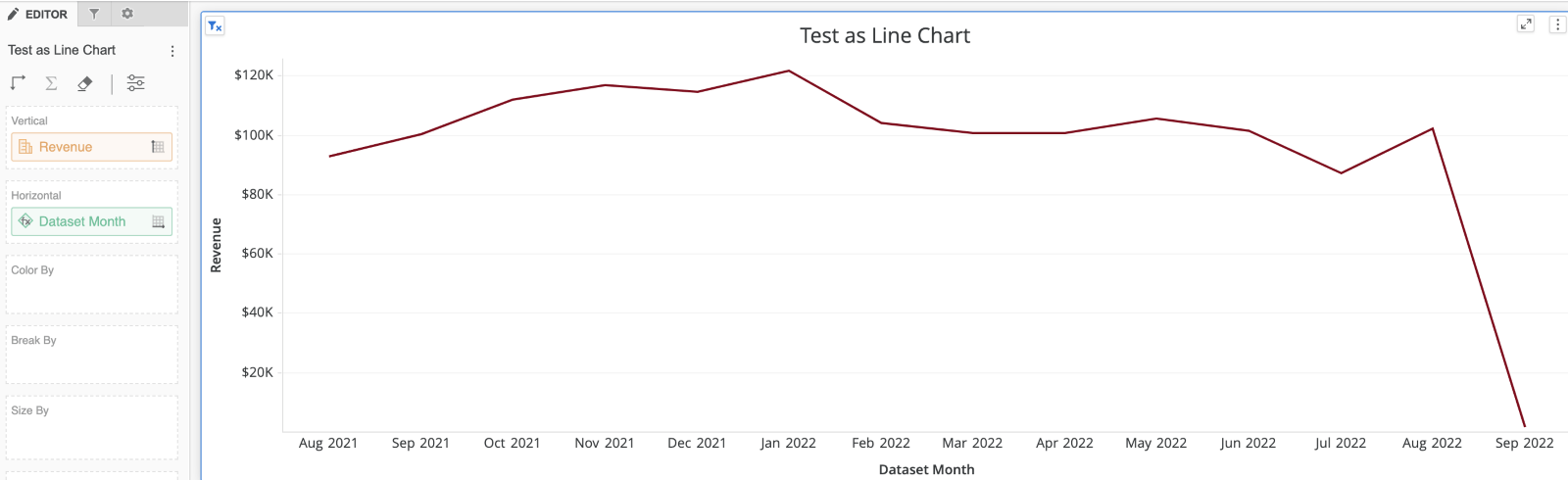
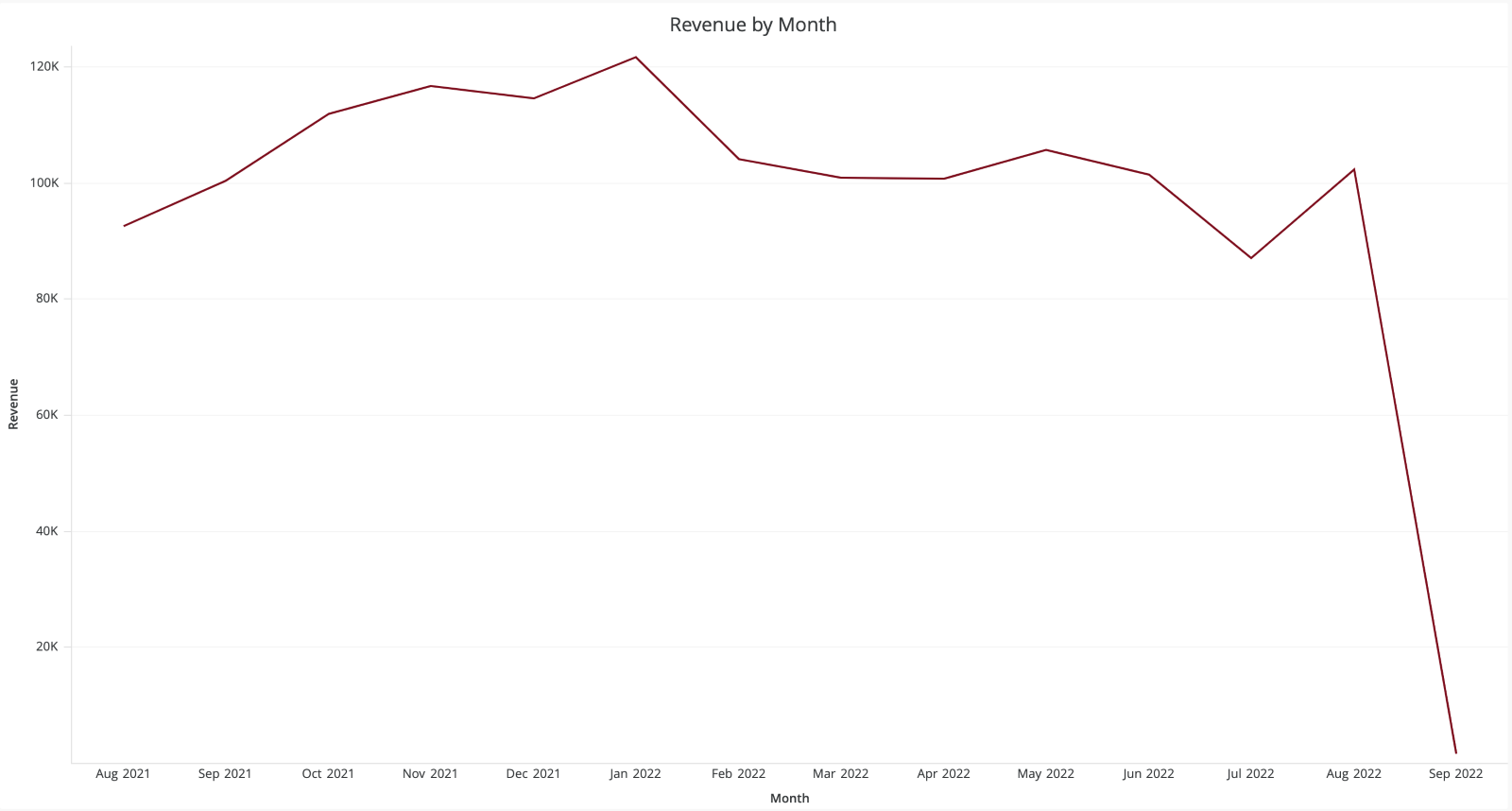
A new month just began, and your line chart showing revenue by month has included the new month. Instead of promising growth, it now looks like your revenue has taken a steep decline. However, this is only because there are just a few days of revenue in this month. Let’s create a filter to remove the current month. 
ka0PW0000001JjGYAU_0EM4W000005nLaf.png


Action

Basic Steps

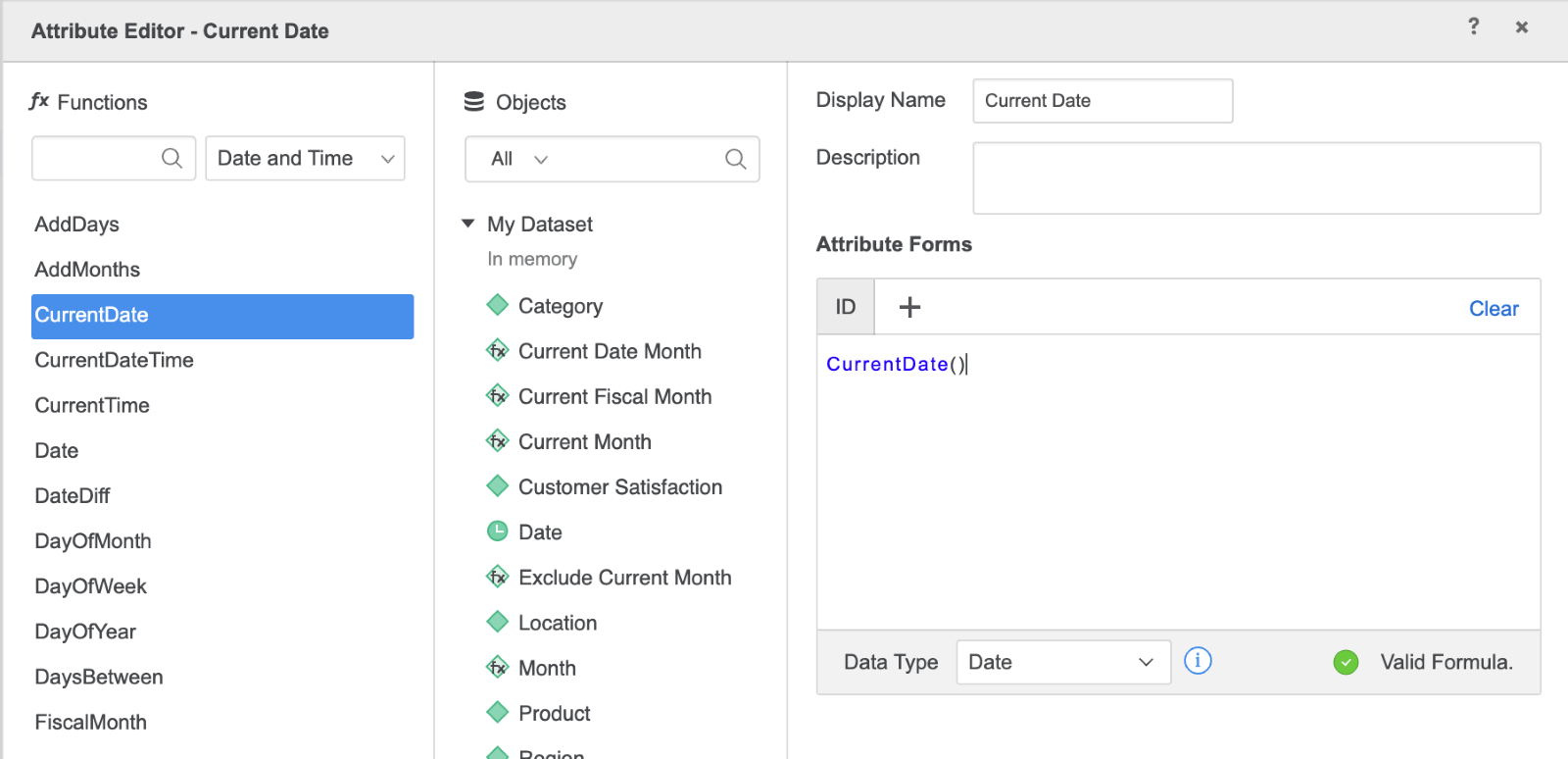
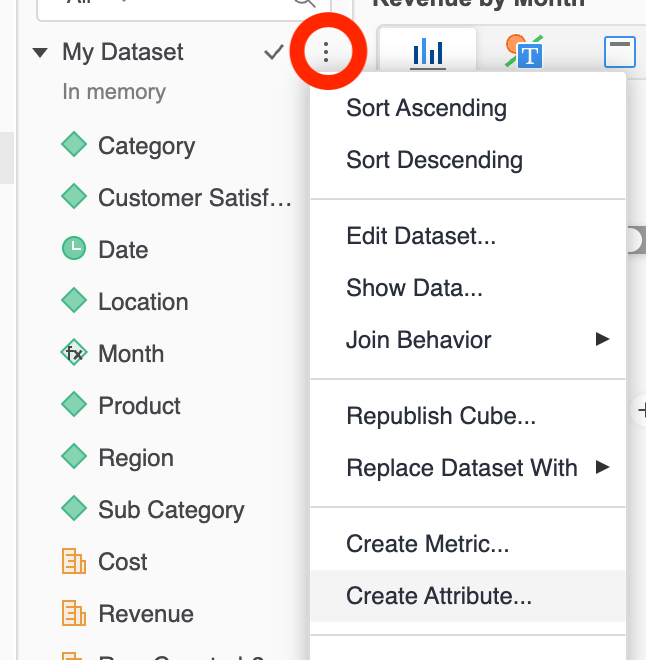
  1. Create an attribute for the Current Month. First we will create a Current Date attribute using the
    CurrentDate()
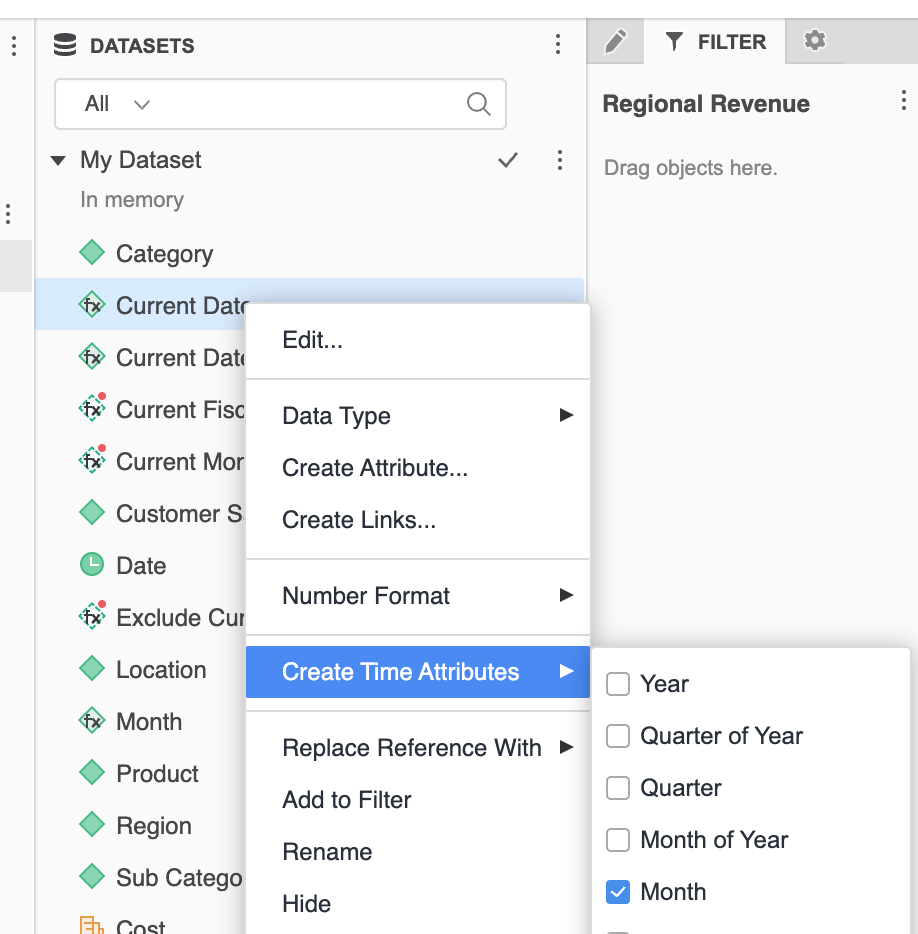
    function. Next, we create a Current Month attribute by right-clicking on Current Date and selecting Create Time Attributes > Month 
 

ka0PW0000001JjGYAU_0EM4W000005nLag.png


ka0PW0000001JjGYAU_0EM4W000005nLah.png


ka0PW0000001JjGYAU_0EM4W000005nLai.png


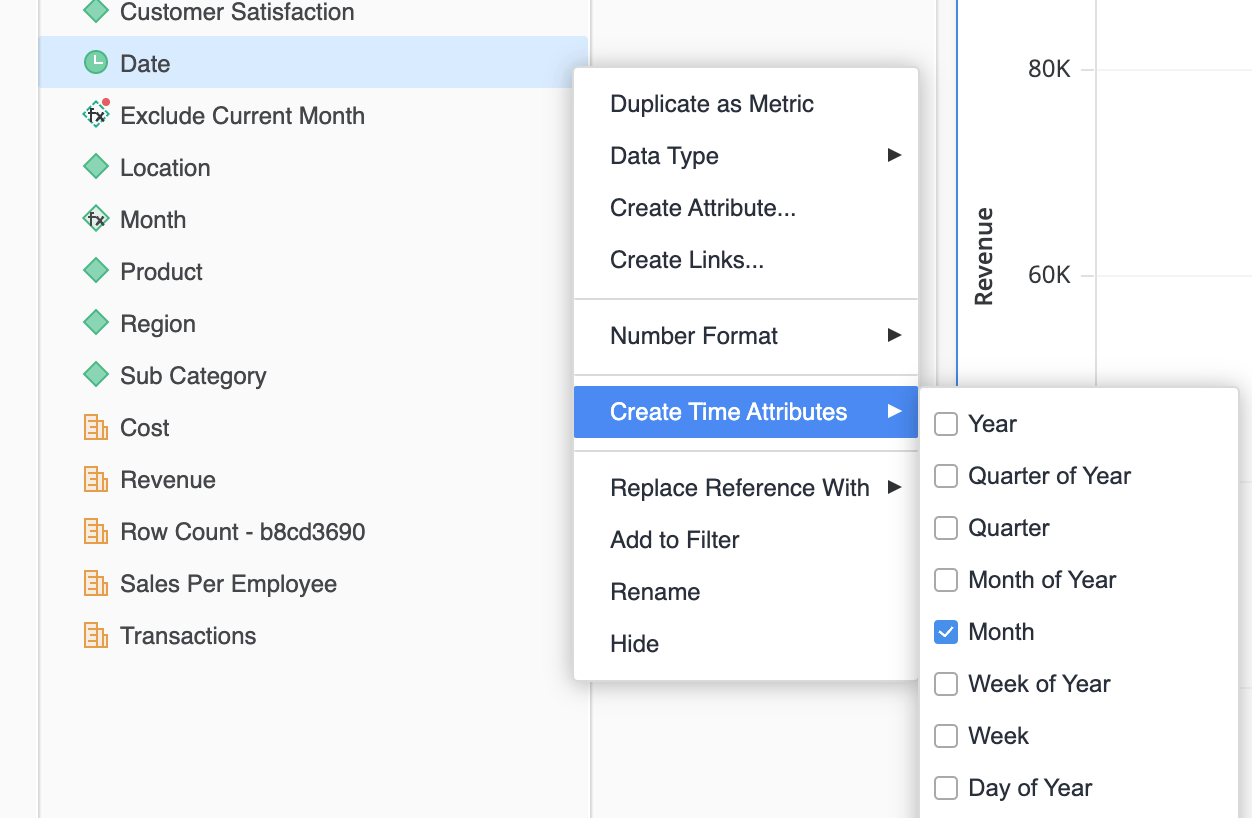
  1. This article assumes a Date attribute in the dataset at the day level (mm/dd/yyyy). Create a Month attribute on the Date attribute in the dataset using Create Time Attributes > Month. (You may already have a Month attribute in your dataset.) We want to use the Date attribute form of the Month attribute that gets created. Ultimately, we just want the first of the month as a date from your dataset.  
ka0PW0000001JjGYAU_0EM4W000005nLbh.png


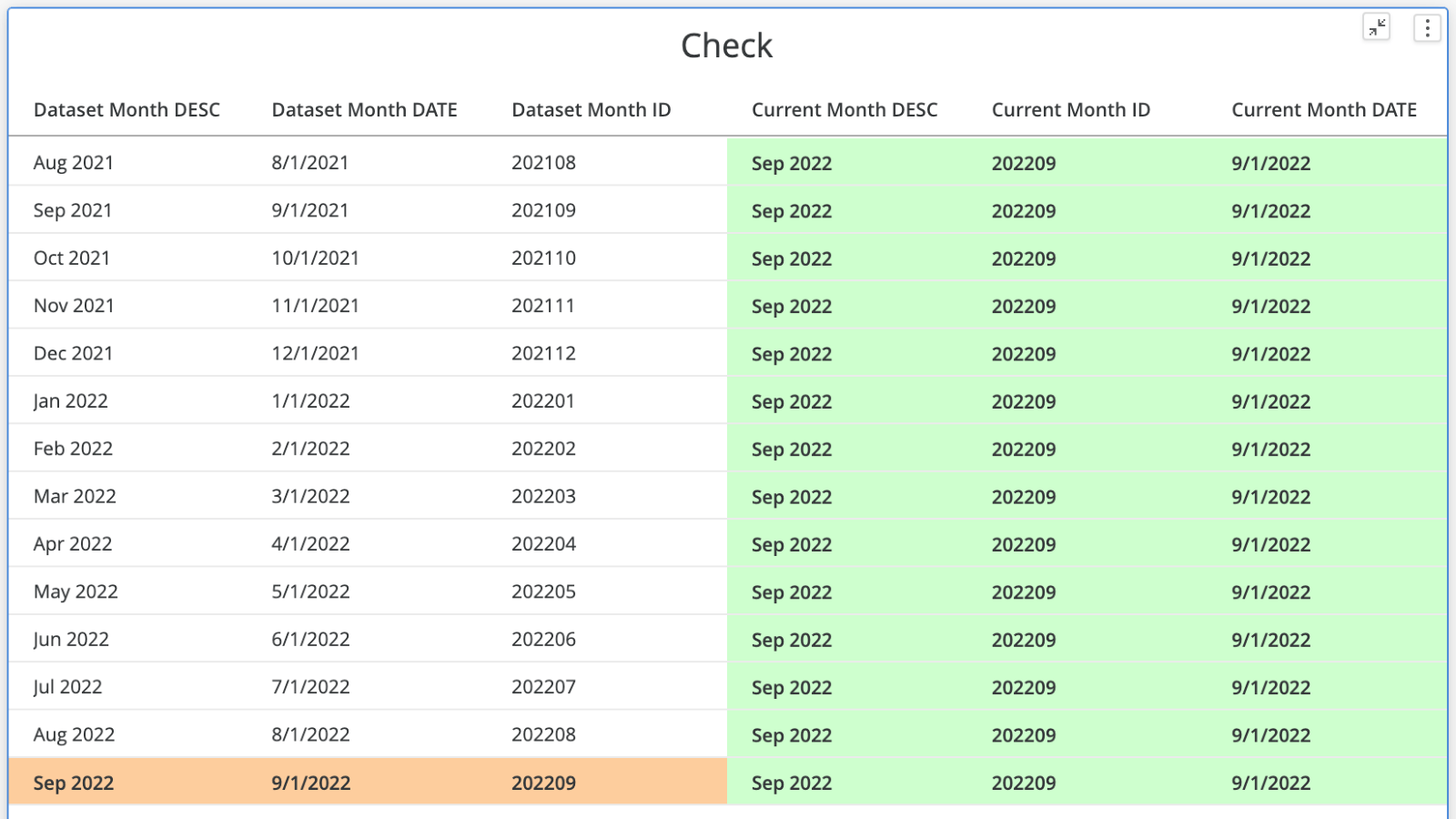
  1. You can check you have right attributes by pulling in your Dataset Month and Current Month attributes into a grid and displaying all their attribute forms. It should look like this (thresholding for clarity): 
ka0PW0000001JjGYAU_0EM4W000005nLbi.png


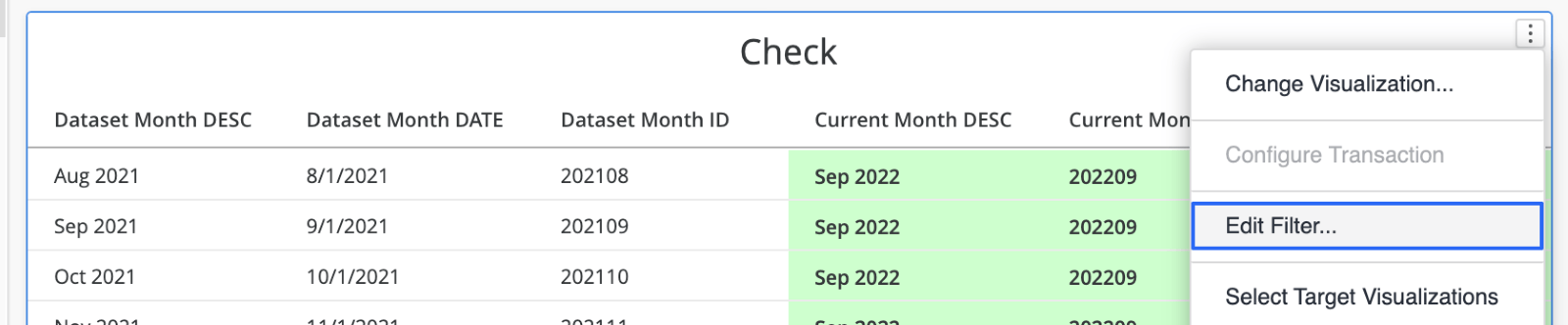
  1. Now let’s use the current month attribute to filter out the unwanted month of our visualization. For clarity, I will start by filtering the grid in step 3.  
  • Start by clicking on the 3 dots in the top right corner and select “Edit Filter”
ka0PW0000001JjGYAU_0EM4W000005nLbj.png


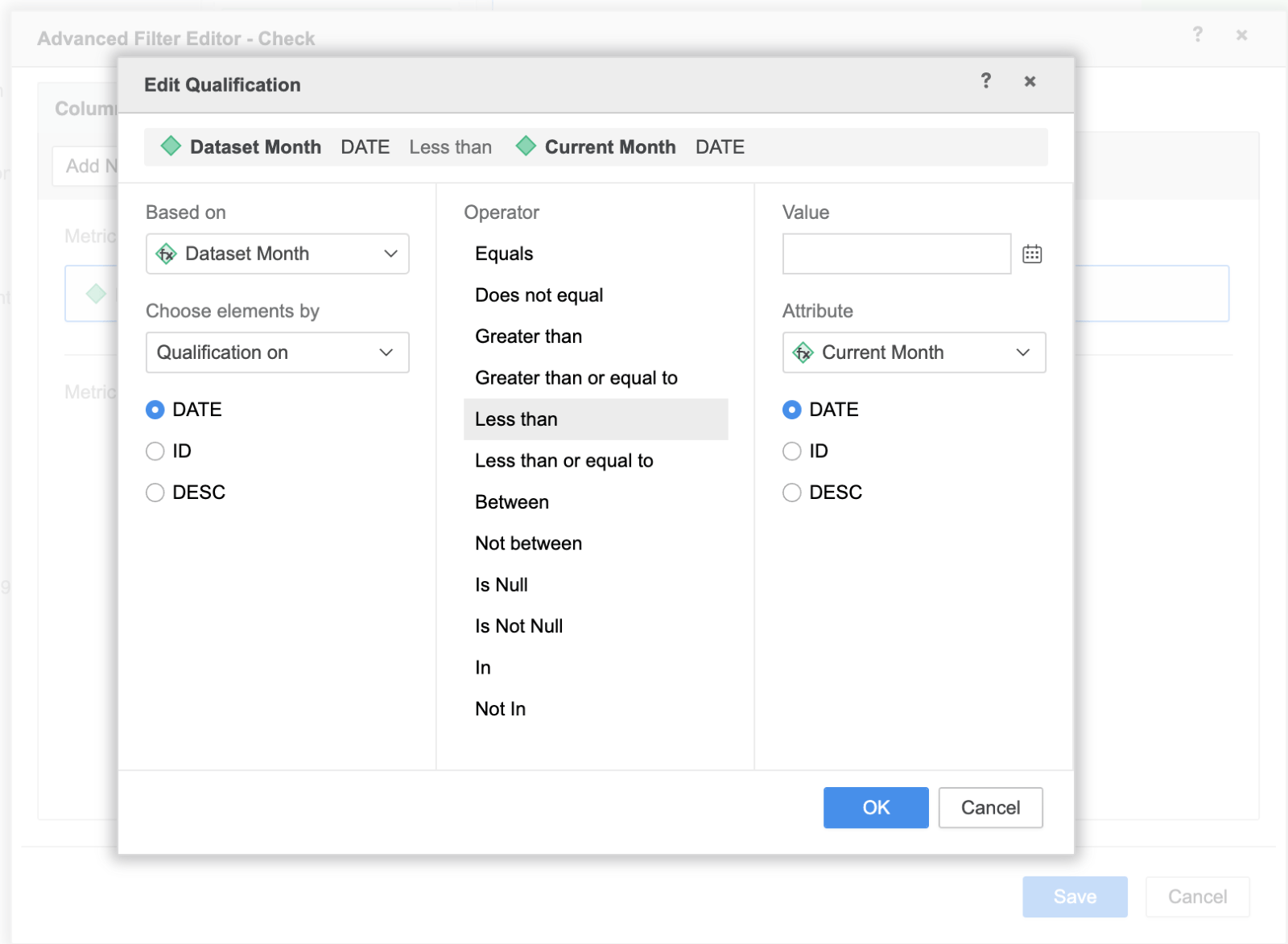
  • Set Dataset Month to Qualify on Date where it is less than Current Month Date. Or in other words, we’re telling Strategy “only give me Dataset Months with start dates that are earlier than the start date of my Current Month attributes.  
ka0PW0000001JjGYAU_0EM4W000005nLbk.png


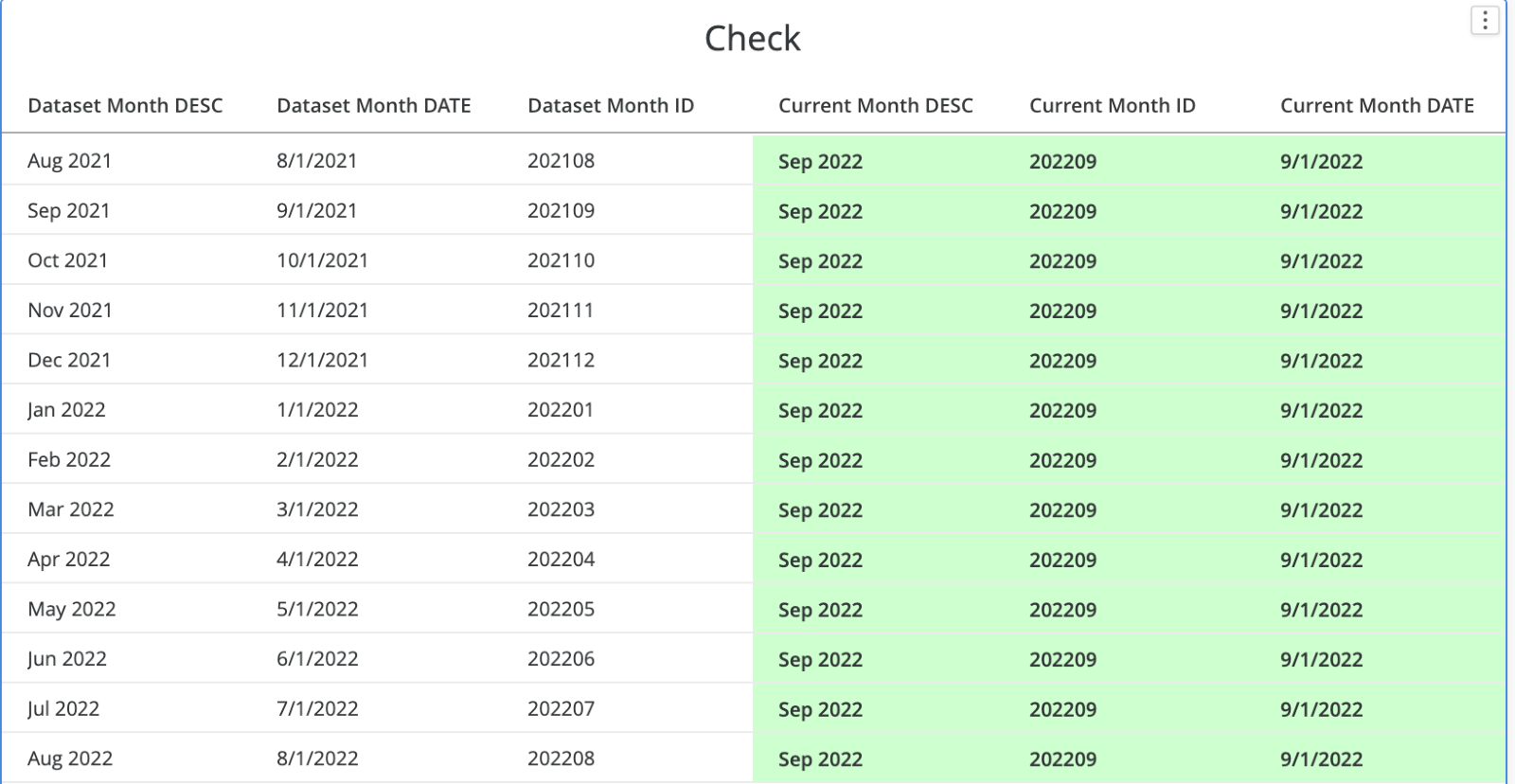
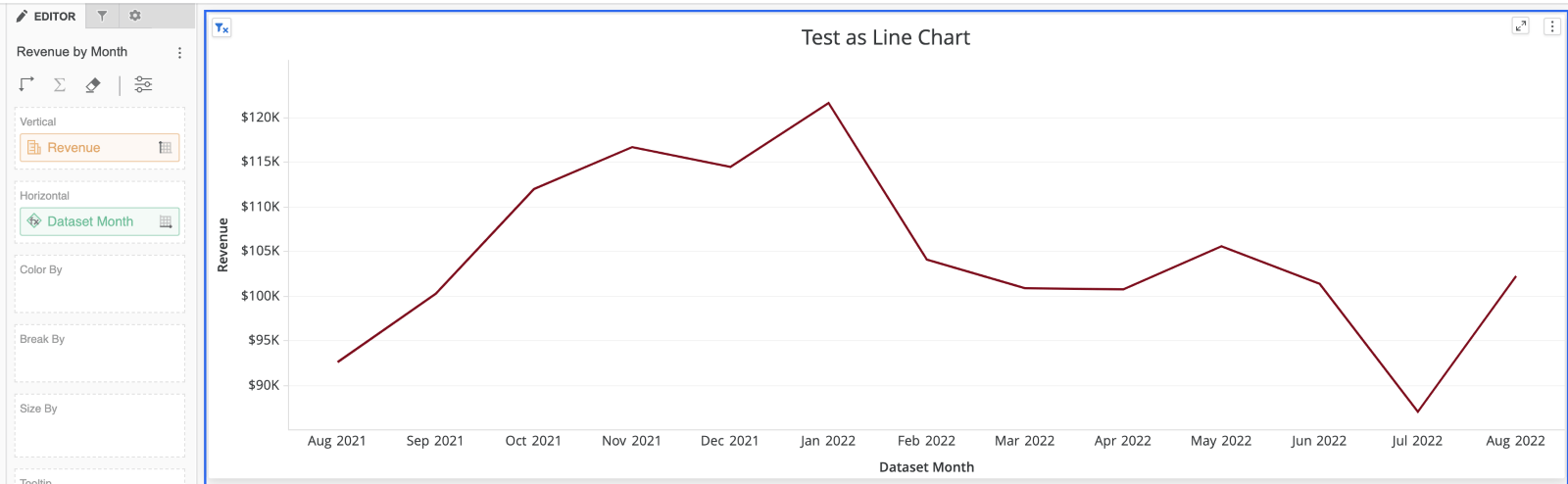
  • It worked! 
ka0PW0000001JjGYAU_0EM4W000005nLbl.png


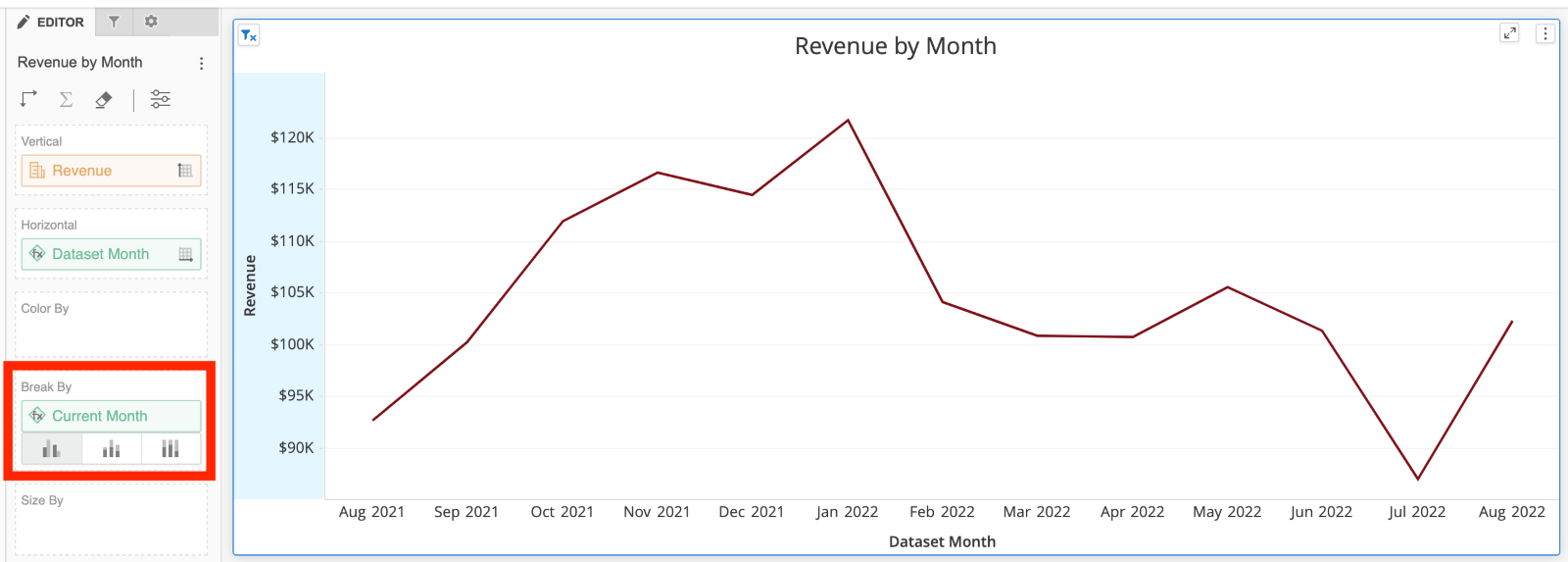
  • NOTE: In order the filter to be applied, all the data fields in the filter (Current Month & Dataset Month) need to be in the field for the Visualization. Since Current Month has the same value for every value of Dataset Month, place Current Month in “Break By” Field.  
ka0PW0000001JjGYAU_0EM4W000005nLbm.png


Automation


The basic steps show us how to remove a current month. But let’s see if we can automate applying this filter based on the day of the month. Let’s decide that if it’s on or before the 10th of the month, we remove the current month. If it’s after the 10th of the month, we will show the current month. 
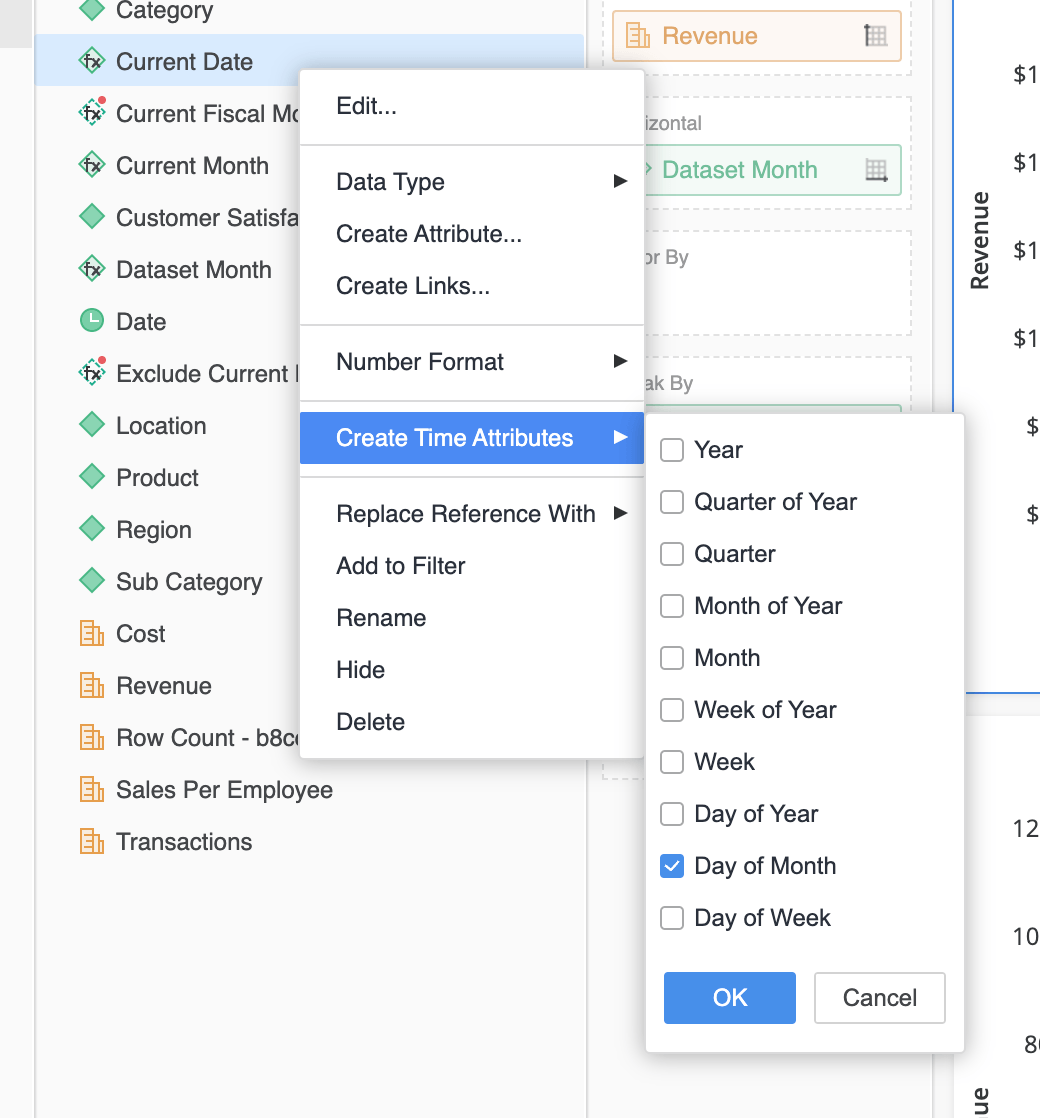
  1. Create Day of Month attribute by clicking on Current Date > Create Time Attributes > Day of Month. Renamed to Current Day of Month 


ka0PW0000001JjGYAU_0EM4W000005nLbn.png


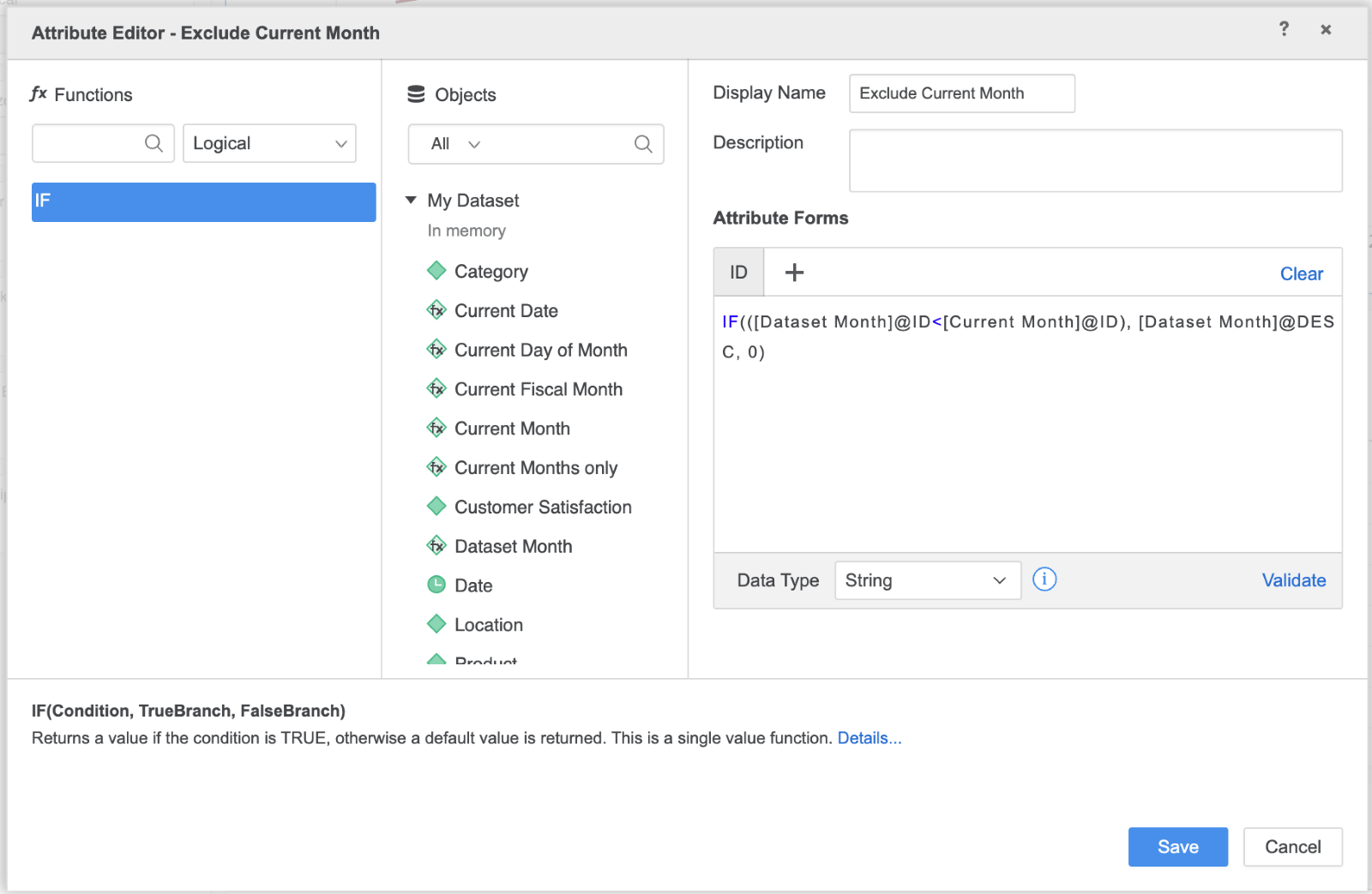
  1. Create an attribute called “Exclude Current Month”. This will be an attribute that returns all months that come before the current month. It applies the Filter Condition to return only Dataset Months with Dates less than Current Month, but in an IF clause within the attribute. The TRUE branch will return Dataset Month DESC (i.e. Aug 2022). The False branch will return 0.  
ka0PW0000001JjGYAU_0EM4W000005nLbo.png


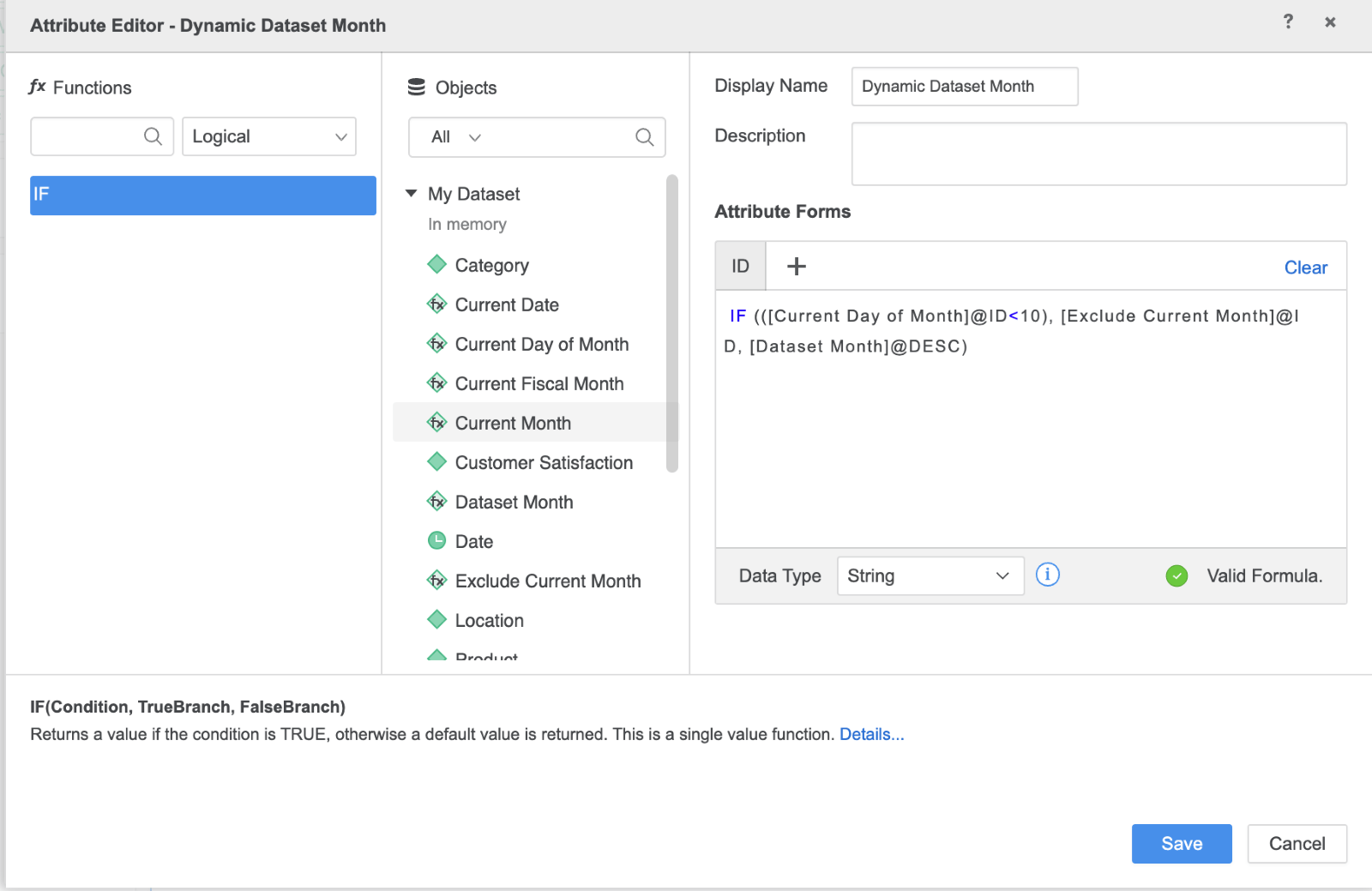
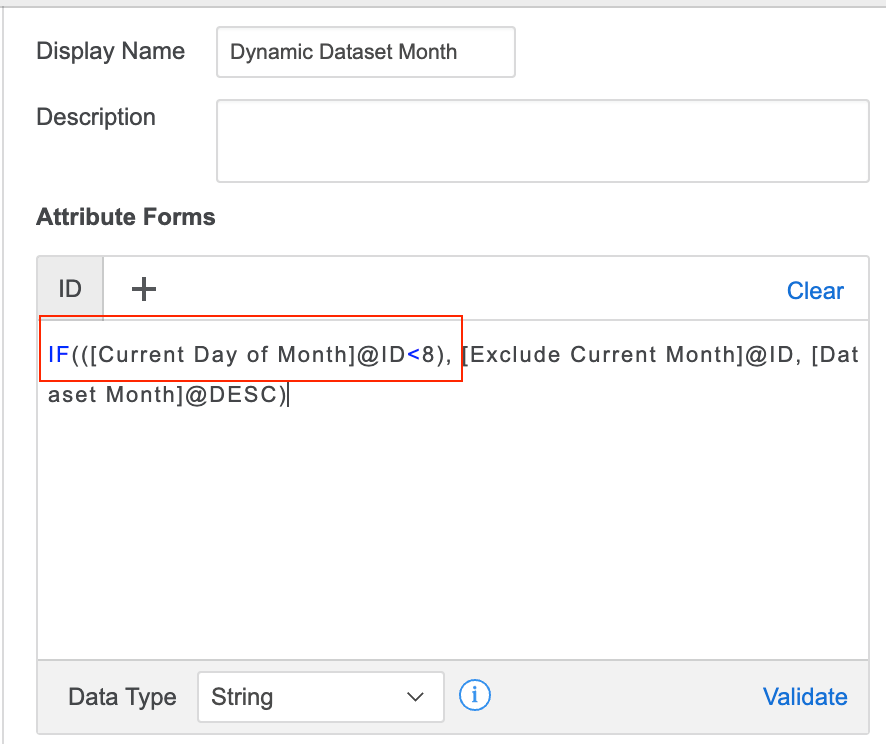
  1. Create another attribute and call it “Dynamic Dataset Months”. This attribute will exclude or include the current month based on the day of the month. This attribute also uses an IF clause. This time, the condition is Current Day of Month@ID < 10 (or day of month of your choosing). The true branch is the Exclude Current Month months, and the false branch returns Dataset Months like normal.  
ka0PW0000001JjGYAU_0EM4W000005nLbp.png


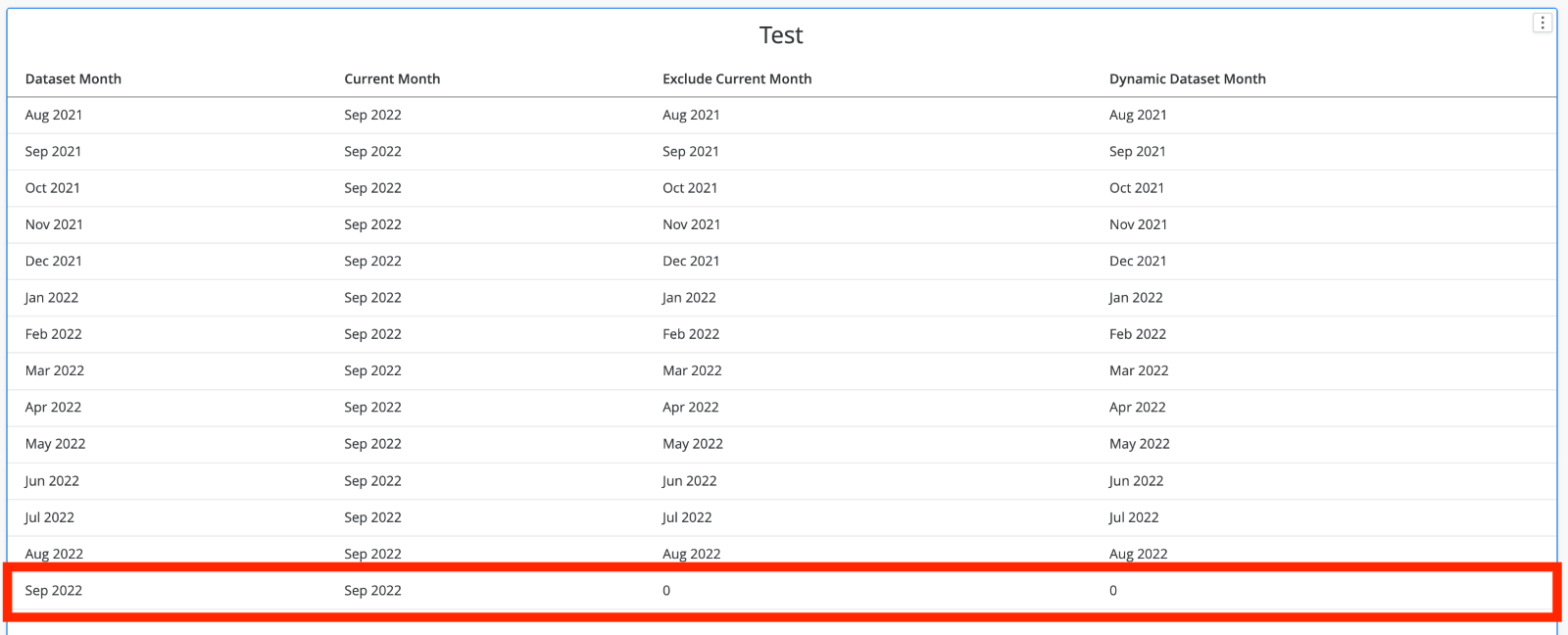
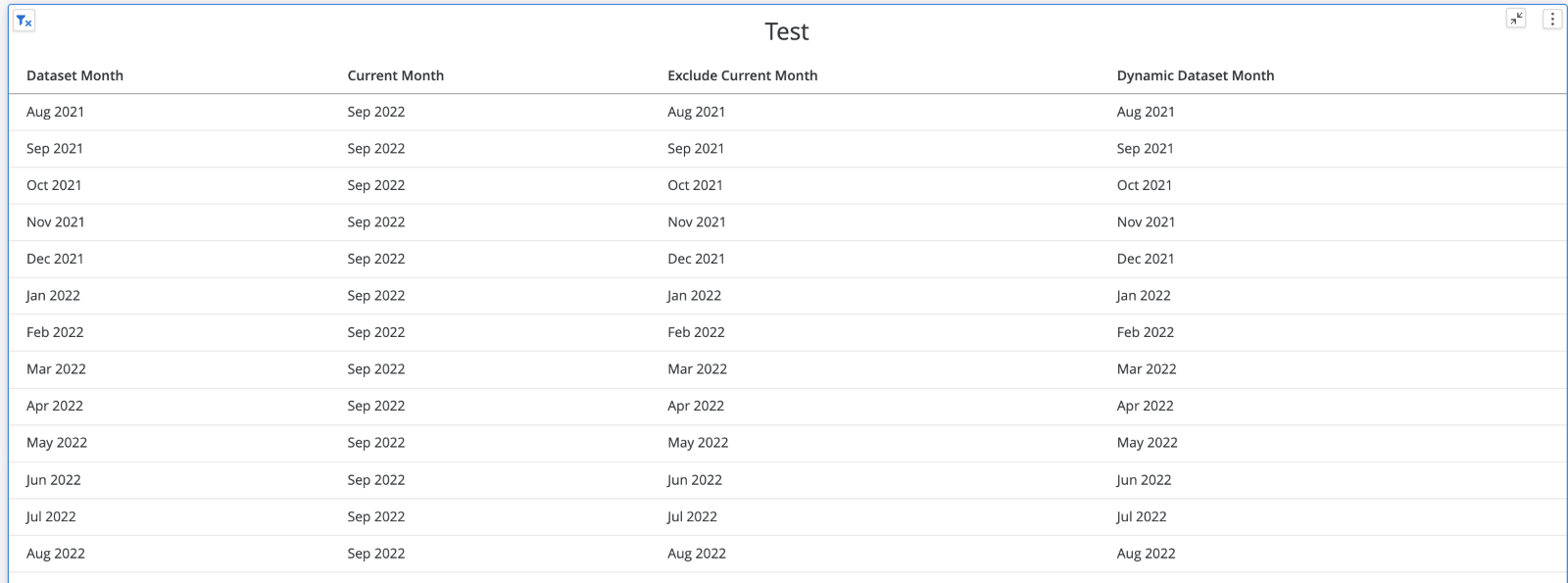
  1. Let’s test this out. Create a grid with Dataset Month, Current Month, Exclude Current Month, and Dynamic Dataset Month. Notice that Exclude Current Month and Dynamic Dataset Month will return 0s depending on the day of the month. For this article, assume this test was done on Sept 9th 2022. Meaning, the Day of Month < 10 condition is met to exclude the current month. (Test this by changing the condition in Dynamic Dataset Month to be the day of the month of tomorrow!) 
ka0PW0000001JjGYAU_0EM4W000005nLbq.png


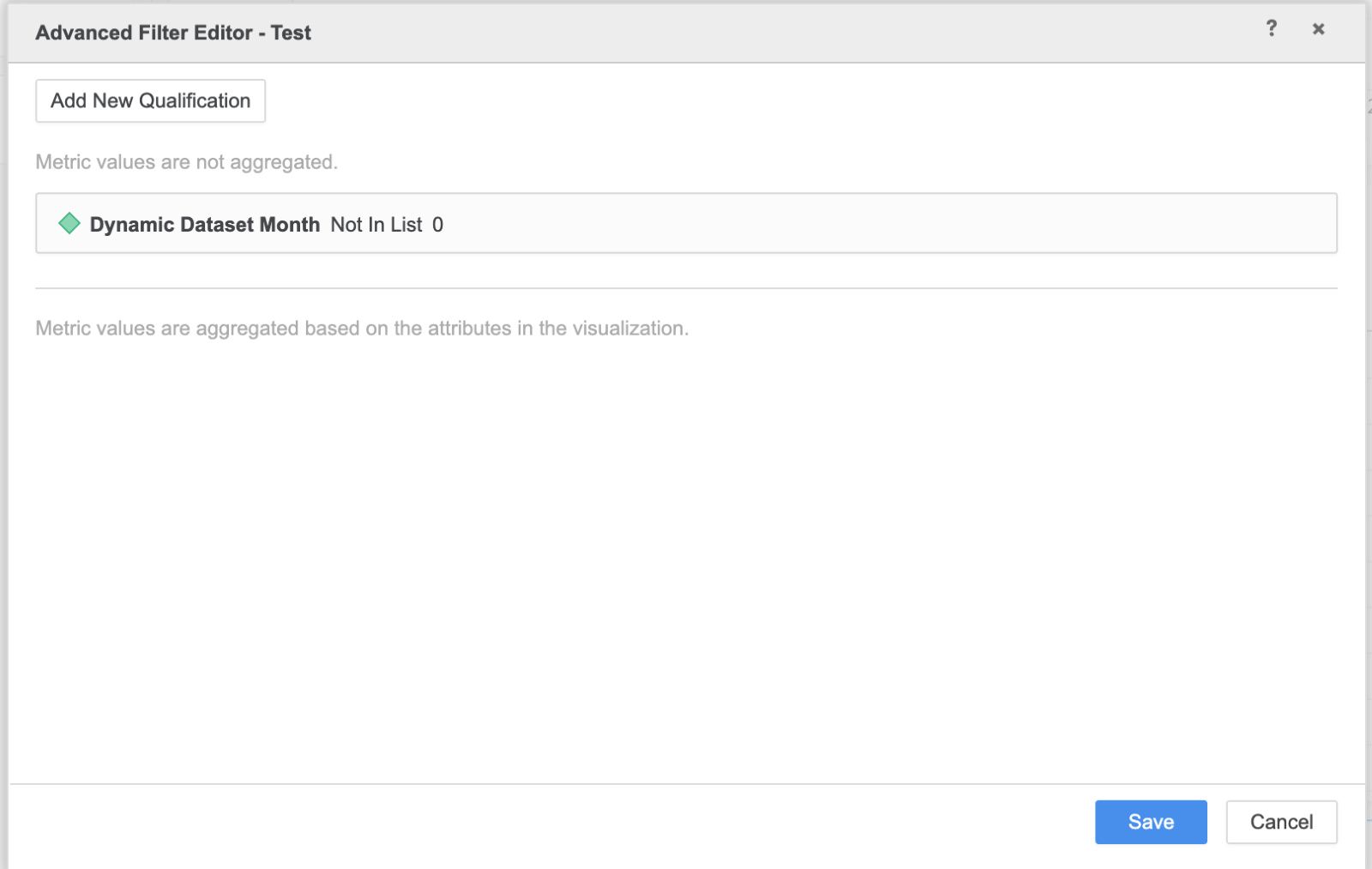
  1. Finally, apply a filter to the visualization that will filter out when Dynamic Dataset Month = 0.  
ka0PW0000001JjGYAU_0EM4W000005nLbr.png

Dynamic Dataset Month will filter out the current month. 
ka0PW0000001JjGYAU_0EM4W000005nLbs.png

It works! 

ka0PW0000001JjGYAU_0EM4W000005nLbt.png

You can test inserting the current month by changing the value in the Dynamic Dataset Month condition. In this case, I would change the 10 to another value the is before the current day of the month.  
 

ka0PW0000001JjGYAU_0EM4W000005nLbu.png


ka0PW0000001JjGYAU_0EM4W000005nLbv.png


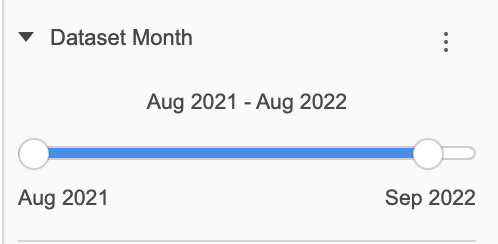
  1. (EXTRA) If you want to filter your entire Dossier Chapter, I’d recommend placing Dataset Month in the Filter Panel and changing the display style to slider (a). BUT if you want a button to exclude current month… 


ka0PW0000001JjGYAU_0EM4W000005nLbw.png

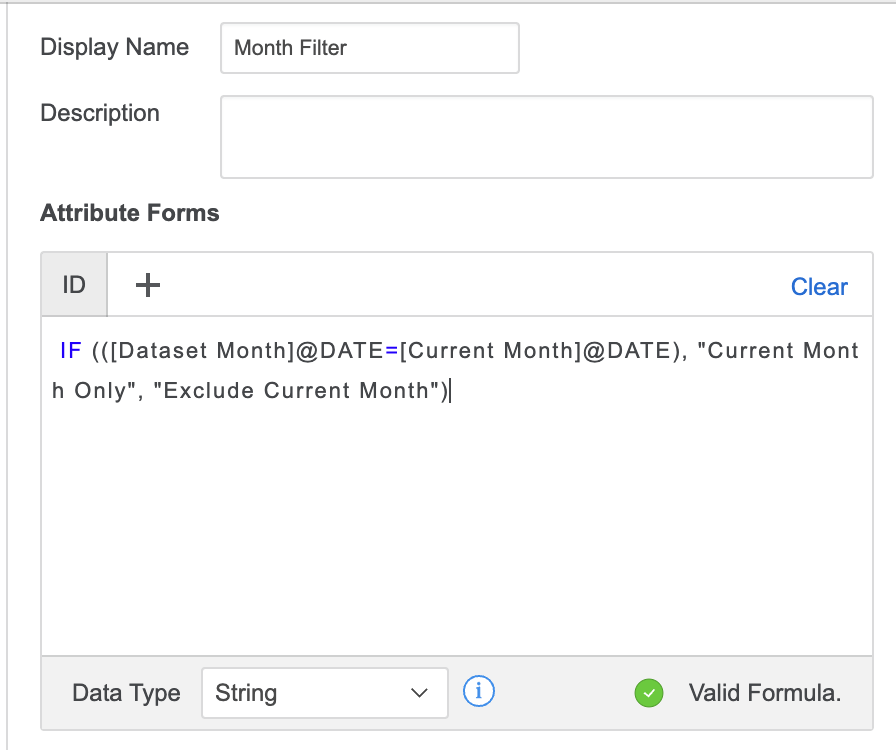
Create another attribute called “Month Filter”. Use an IF clause with the conditions below. 
ka0PW0000001JjGYAU_0EM4W000005nLbx.png

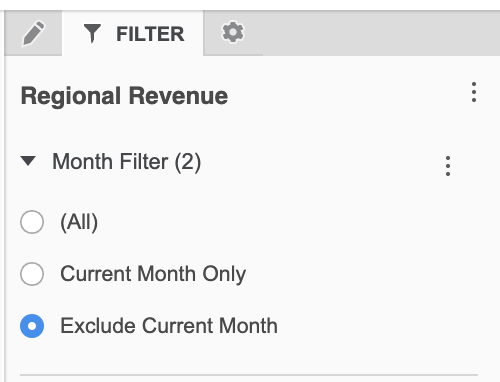
Add the attribute to the filter panel and change display style to Radio buttons, enabling the selection for All. 
ka0PW0000001JjGYAU_0EM4W000005nLby.png


Comment

0 comments

Details

Knowledge Article

Published:

September 28, 2022

Last Updated:

March 21, 2024