EducationSoftwareStrategy.com
StrategyCommunity

Knowledge Base

Product

Community

Knowledge Base

TopicsBrowse ArticlesDeveloper Zone

Product

Download SoftwareProduct DocumentationSecurity Hub

Education

Tutorial VideosSolution GalleryEducation courses

Community

GuidelinesGrandmastersEvents
x_social-icon_white.svglinkedin_social-icon_white.svg
Strategy logoCommunity

© Strategy Inc. All Rights Reserved.

LegalTerms of UsePrivacy Policy
  1. Home
  2. Topics
  3. Filtering a Set of Elements by a Smaller Subset Built with a Complex Filter (Groups)

Filtering a Set of Elements by a Smaller Subset Built with a Complex Filter (Groups)


Robert Prochowicz

Manager, Sales Engineering • MicroStrategy


Learn how to use the grouping feature to filter a subset of attribute elements. For example, you may want to select a subset of regions for Sales data, or a subset of customers at a technology company. Groups allow you to easily see combined data.

Starting with the release of Strategy ONE (March 2024), dossiers are also known as dashboards.
Troubleshooting
Filtering a Set of Elements by a Smaller Subset Built with a Complex Filter
Imagine you have a report showing Revenue per Region. Within each Region you have Gold Customers and Silver customers, though in some Regions you don't have both. You want to be able to filter any visualization in your Dashboard in such a way that only Regions with both Gold customers AND with Silver customers are displayed. In other words, you want to create a set of elements based on some conditions and you use this set for filtering other visualizations.
To accomplish this, you can use Strategy's grouping feature. 
See the image below to get started with the process. 
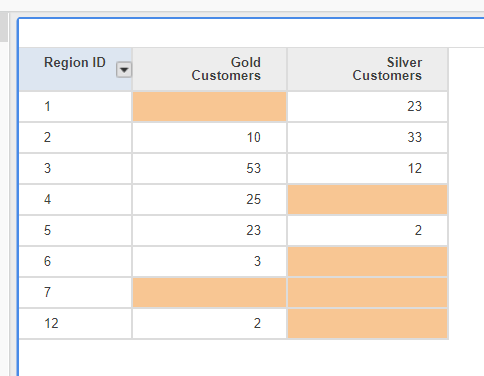
 

ka0PW0000001JX9YAM_0EM44000000Q8J5.png

Get started with using the grouping feature
 

  1. In a separate chapter, create two filters:


  • Gold Customers > 0
  • Silver Customers > 0

With that you receive a list of Regions that have both Gold and Silver Customers.
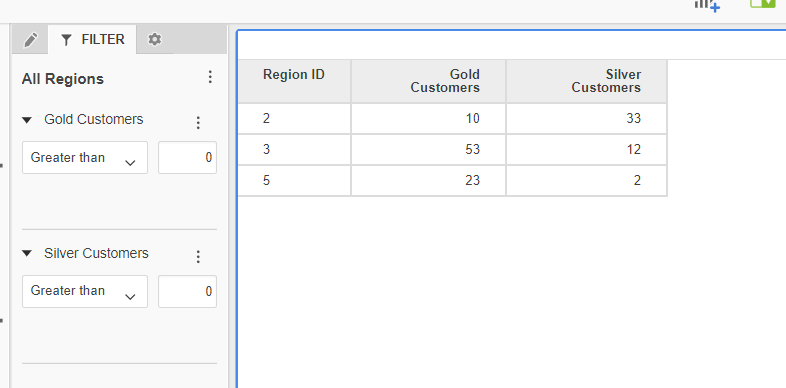
ka0PW0000001JX9YAM_0EM44000000Q8Jo.png


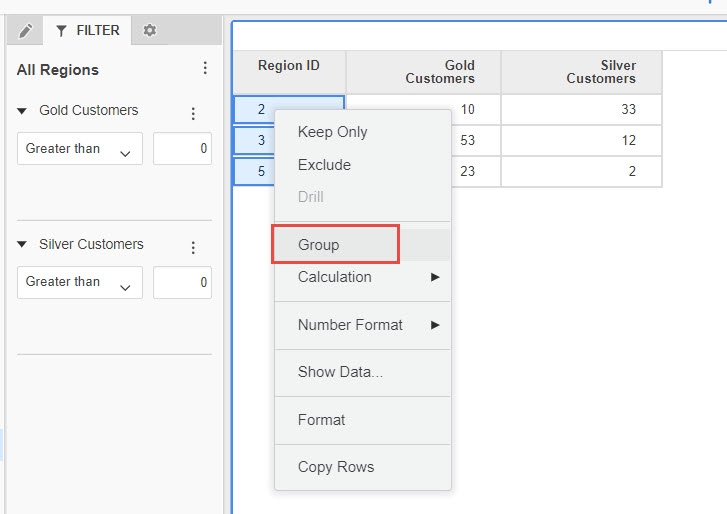
  1. Multi-select all of the displayed Regions.
  2. Right click and click Group.
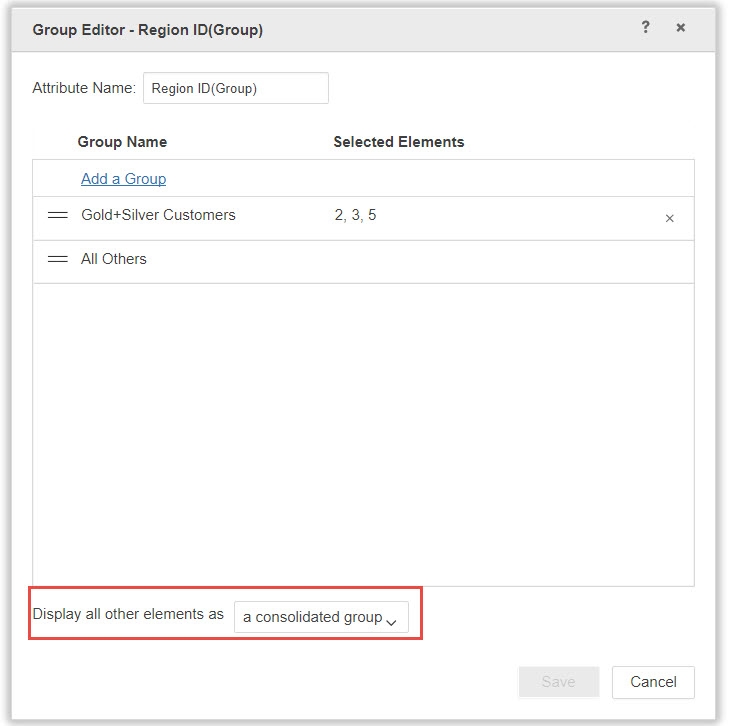
  3. Name the group: "Gold + Silver Customers".


ka0PW0000001JX9YAM_0EM44000000Q8Jt.jpeg


  1. In the group properties, specify you want to display all other elements as a consolidated group.


ka0PW0000001JX9YAM_0EM44000000Q8Jy.jpeg

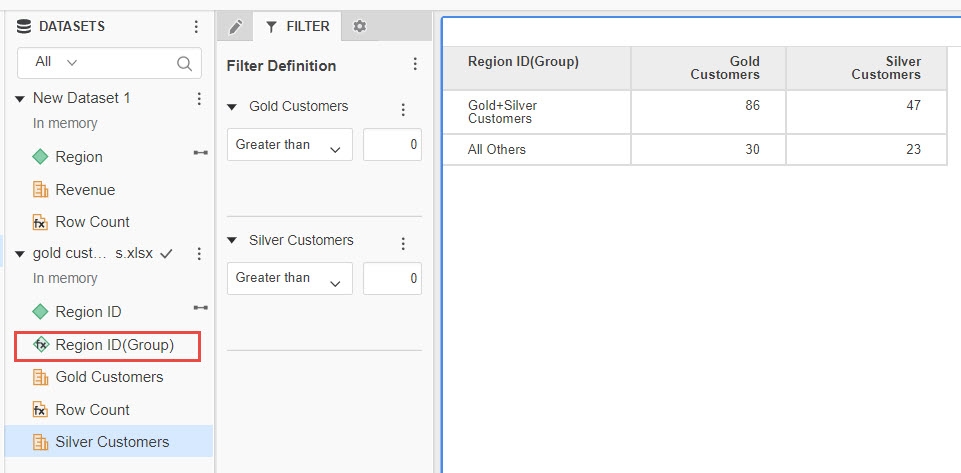
The new Group (Region ID - Group) is visible within the Dataset Pane.
View the image below to see the group.
ka0PW0000001JX9YAM_0EM44000000Q8KI.jpeg


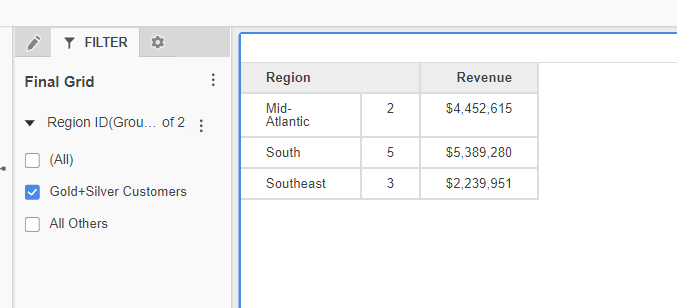
  1. In a new chapter, create a new grid with Regions.
  2. Drag and drop your Group to the filter panel and select "Gold + Silver Customers".
  • Note that filters from other chapters will not be applied throughout the entire dossier.


That's it!  All visualizations within this chapter will now be filtered by your group.
ka0PW0000001JX9YAM_0EM44000000Q8K8.png

Note: Remember that selections within your group are static. You will need to manually update it each time your data changes.
Make sure to view the attached files: MSTR file (dossier) and Excel file (Gold & Silver Customers).
If you have any other questions, feel free to comment on this article or start a discussion!


Comment

0 comments

Details

Example

Published:

November 27, 2017

Last Updated:

March 21, 2024