Strategy Web can be considered as most websites, composed of the following:
This tutorial focuses on the CSS aspect of Strategy Web, and how it can be leveraged to customize the look and feel of almost any component of Strategy Web. The HTML & Javascript driving Strategy Web can also be manipulated and/or interacted with to a certain extent, although those aspects of the Web SDK are outside the scope of this tutorial.
This is often included with many modern browsers, and greatly simplfiies the processes of both inspecting parts of the page & testing custom CSS temporarily. In this tutorial we will be using Google Chrome's developer tools feature, primairly on the "Elements" tab to inspect HTML and styles affecting that selected HTML:
https://developer.chrome.com/docs/devtools/css/
https://developer.chrome.com/docs/devtools/css/reference/
https://developer.chrome.com/docs/devtools/css/animations/
https://developer.chrome.com/docs/devtools/css/grid/
More information on this can be found online, for example:
https://www.w3schools.com/css/css_syntax.asp
HTML often contains a "class" property or an "ID" property, but not always both.
As a Strategy-specific example, this is one of the menu items in the project landing page:
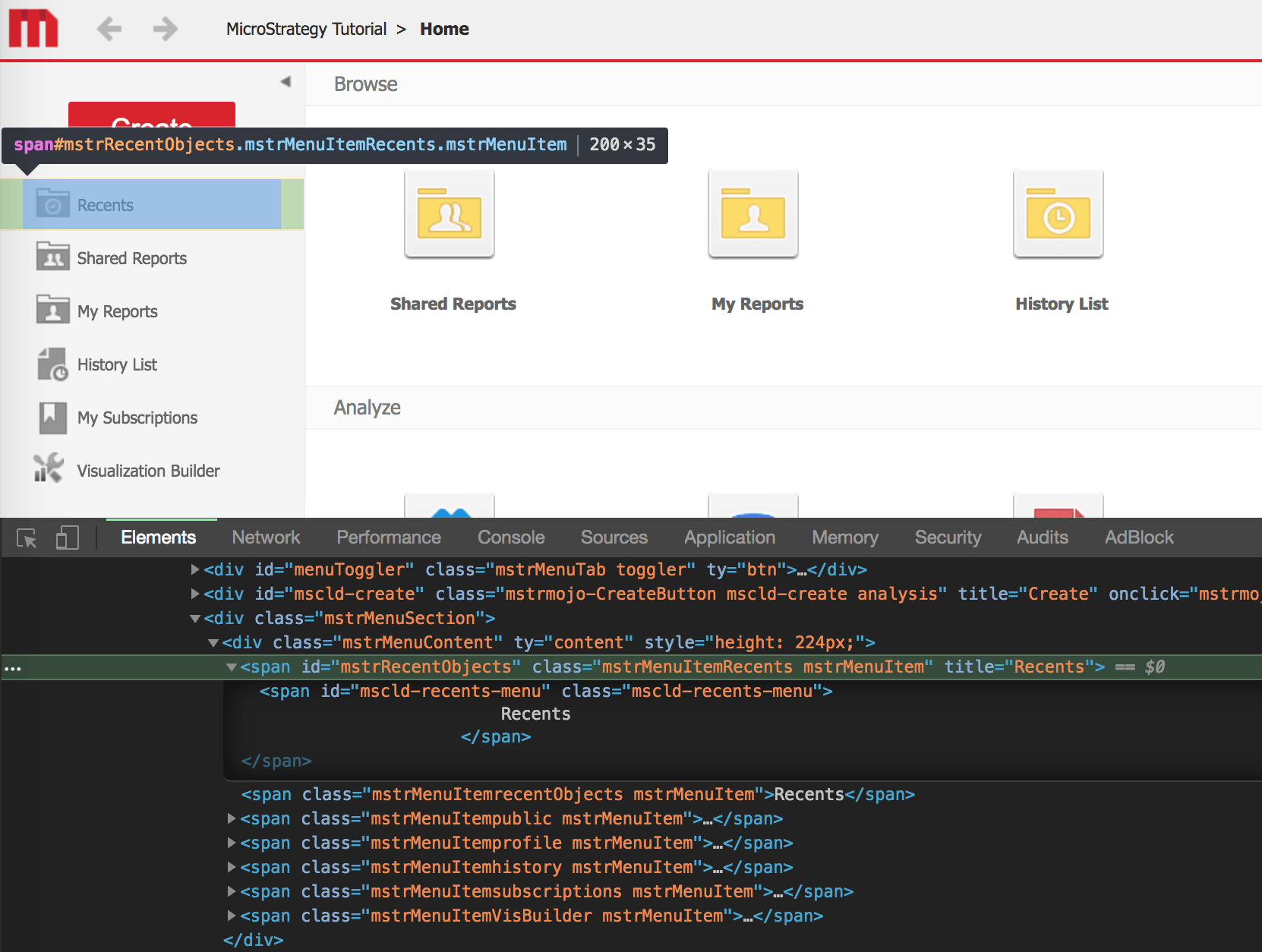
We can see the HTML driving this element has a "parent" element of the "span" tag with the ID property set to "mstrRecentObjects" and the class property has the values "mstrMenuItemRecents mstrMenuItem".
From the findings above we can see three immediate ways to target this element using a CSS selector:
https://community.Strategy.com/s/article/How-to-Modify-a-Specific-Selector-in-Chrome-Developer-Tools-to-Change-the-Look-and-Feel-of-Strategy-using-the-Web-SDK
https://community.Strategy.com/s/article/Implementing-a-Plugin-to-Change-the-Look-and-Feel-of-Strategy-Web-using-Web-SDK
