EducationSoftwareStrategy.com
StrategyCommunity

Knowledge Base

Product

Community

Knowledge Base

TopicsBrowse ArticlesDeveloper Zone

Product

Download SoftwareProduct DocumentationSecurity Hub

Education

Tutorial VideosSolution GalleryEducation courses

Community

GuidelinesGrandmastersEvents
x_social-icon_white.svglinkedin_social-icon_white.svg
Strategy logoCommunity

© Strategy Inc. All Rights Reserved.

LegalTerms of UsePrivacy Policy
  1. Home
  2. Topics

Finding the Current Page Name in Microstrategy Web Using Developer Tools


Community Admin

Placeholder •


For many page-specific customizations, it's essential to determine the internal name of a page within the architecture of MicroStrategy Web. This tutorial demonstrates two methods for obtaining this.

Starting with the release of Strategy ONE (March 2024), dossiers are also known as dashboards.
Different parts of Strategy Web are architecturally organised into pages:
https://www2.microstrategy.com/producthelp/Current/WebSDK/Content/topics/pagecontent/The_page_Node.htm
For many page-specific customizations, it's essential to determine the internal name of a page within the architecture of Strategy Web.
There are two methods to finding this:

  1. Inspecting the page source and looking for "pageName".
  2. Using the javascript console.

1) Finding the page name using the page source


Most pages contain a reference to the page name in the page source. This can be found via the following process:
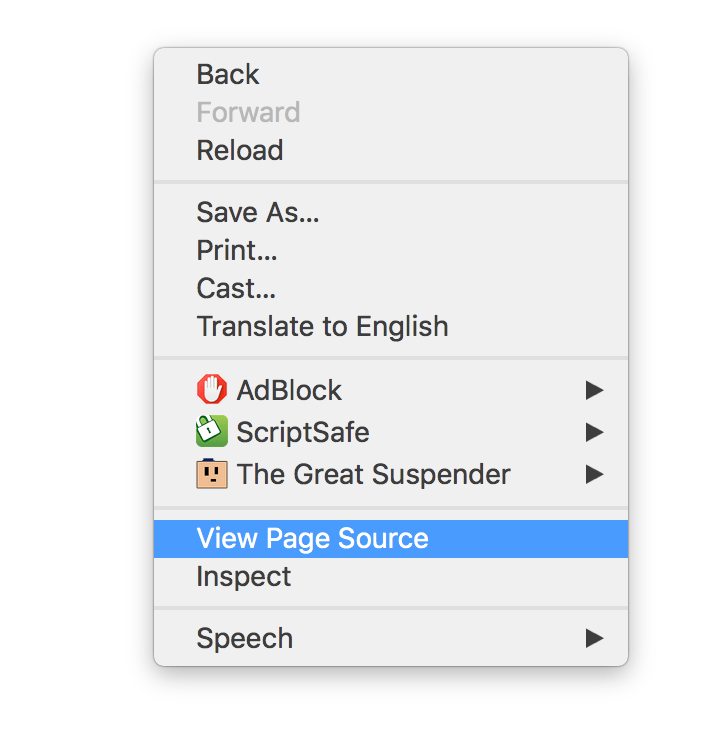
  • Right-click the page and choose "view source" (in google chrome):

​​

ka0PW0000001JmLYAU_0EM44000000Wdbn.png
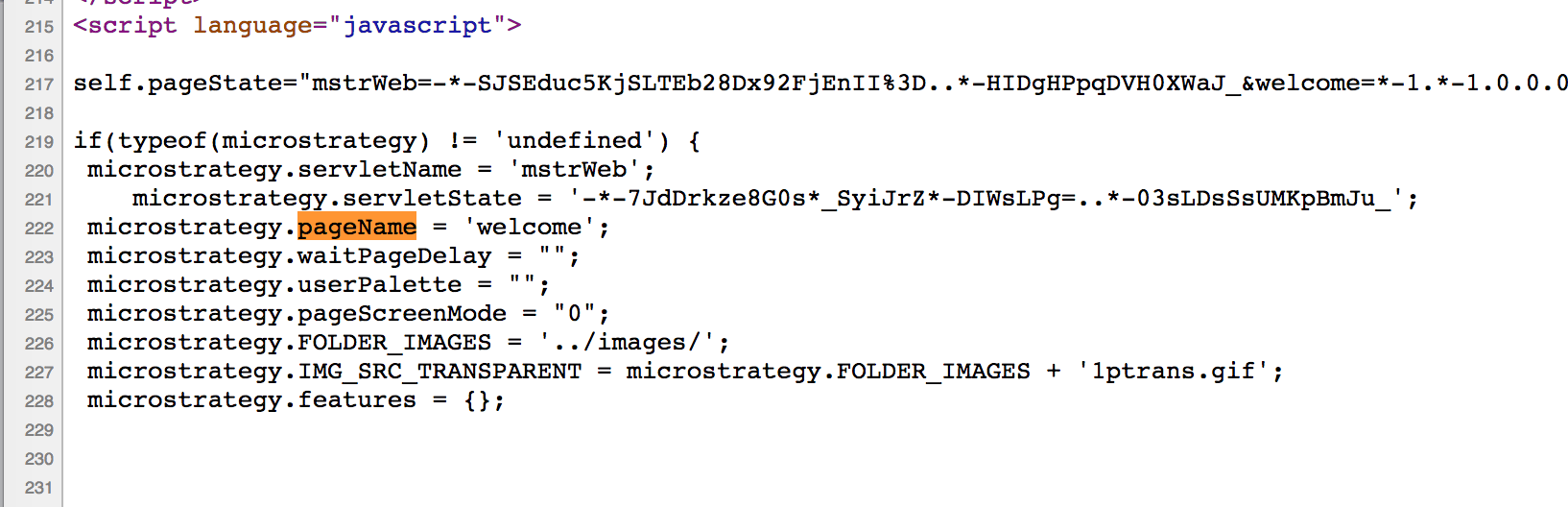
  • Once in the page source, search for "pageName", which leads you to a javascript variable:

​​

ka0PW0000001JmLYAU_0EM44000000Wdbs.png
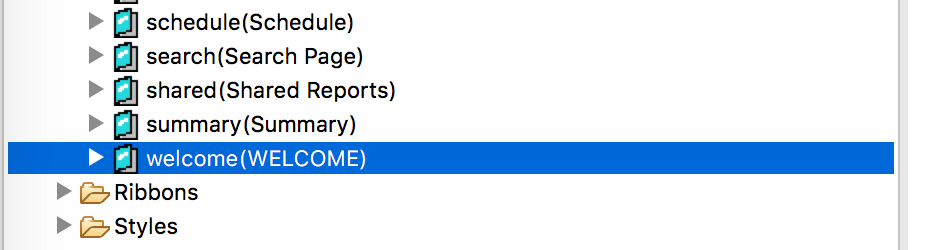
  • We can see in this example, the page is internally known as "welcome". This page can therefore be found with this name, within the Web Customization Editor:
ka0PW0000001JmLYAU_0EM44000000Wdbx.png

Summarised steps

  1. Navigate to the page of interest in Strategy Web.
  2. Right-click on the page and select "View Source" to see the page's renerated source code.
  3. In the page source, search for "pageName". This variable contains the name of the current page.

Tips & Tricks

  • Right-click doesn't show a view source option in Google Chrome
    • Some pages override the right-click menu, such as the dossier execution page.
    • Use other methods of viewing the page source:
      • Use the keyboard shortcut, e.g cmd + option + U, with google chrome on macOS.
      • Use the menubar to access the view source feature
        • View -> Developer -> View Page Source
  • No pageName match exists in the page source or the name seems incorrect.
    • Try the other method for reading the page name using the javascript console.

2) Finding the page name using the javascript console


Each browser's developer tools feature often includes a javascript console of some form. Refer to your browser's documentation for detailed usage guidance.
The following steps demonstrate how to read the page name using various methods in the javascript console:
  • Navigate to the page of interest in Strategy Web.
  • Open developer tools in the browser.
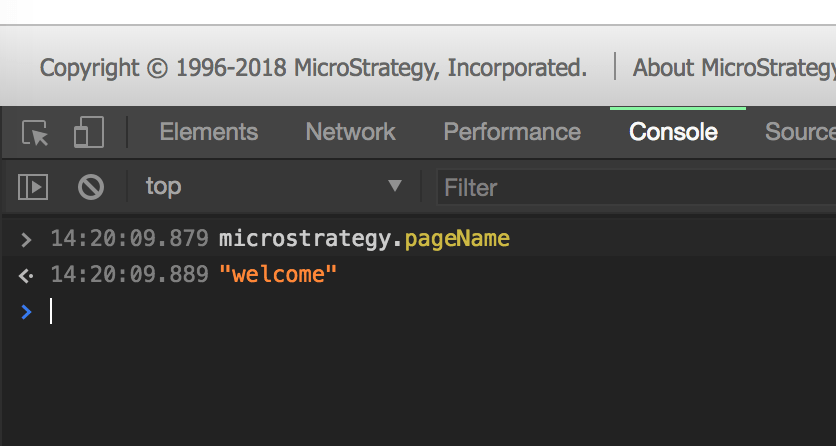
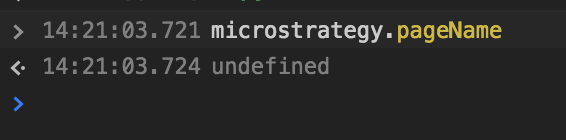
  • Type the following and hit enter:
    • Strategy.pageName
  • If successful, this will output the name of the current page:
ka0PW0000001JmLYAU_0EM44000000WdcR.png
    • ​
  • If unsuccessful, this will instead simply return "undefined":
ka0PW0000001JmLYAU_0EM44000000Wdcb.png
  • If this value returns "undefined", instead type the following and hit enter:
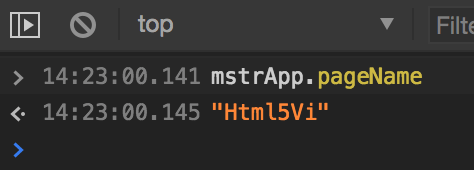
    • mstrApp.pageName
  • If successful, this will output the name of the current page, similar to the previous command:
ka0PW0000001JmLYAU_0EM44000000Wdcg.png

Comment

0 comments

Details

Knowledge Article

Published:

July 30, 2018

Last Updated:

March 21, 2024