EducationSoftwareStrategy.com
StrategyCommunity

Knowledge Base

Product

Community

Knowledge Base

TopicsBrowse ArticlesDeveloper Zone

Product

Download SoftwareProduct DocumentationSecurity Hub

Education

Tutorial VideosSolution GalleryEducation courses

Community

GuidelinesGrandmastersEvents
x_social-icon_white.svglinkedin_social-icon_white.svg
Strategy logoCommunity

© Strategy Inc. All Rights Reserved.

LegalTerms of UsePrivacy Policy
  1. Home
  2. Topics

For Text prompts, add a maximum length limitation for security concerns.


Wenxiong Hua

Software Engineer • MicroStrategy


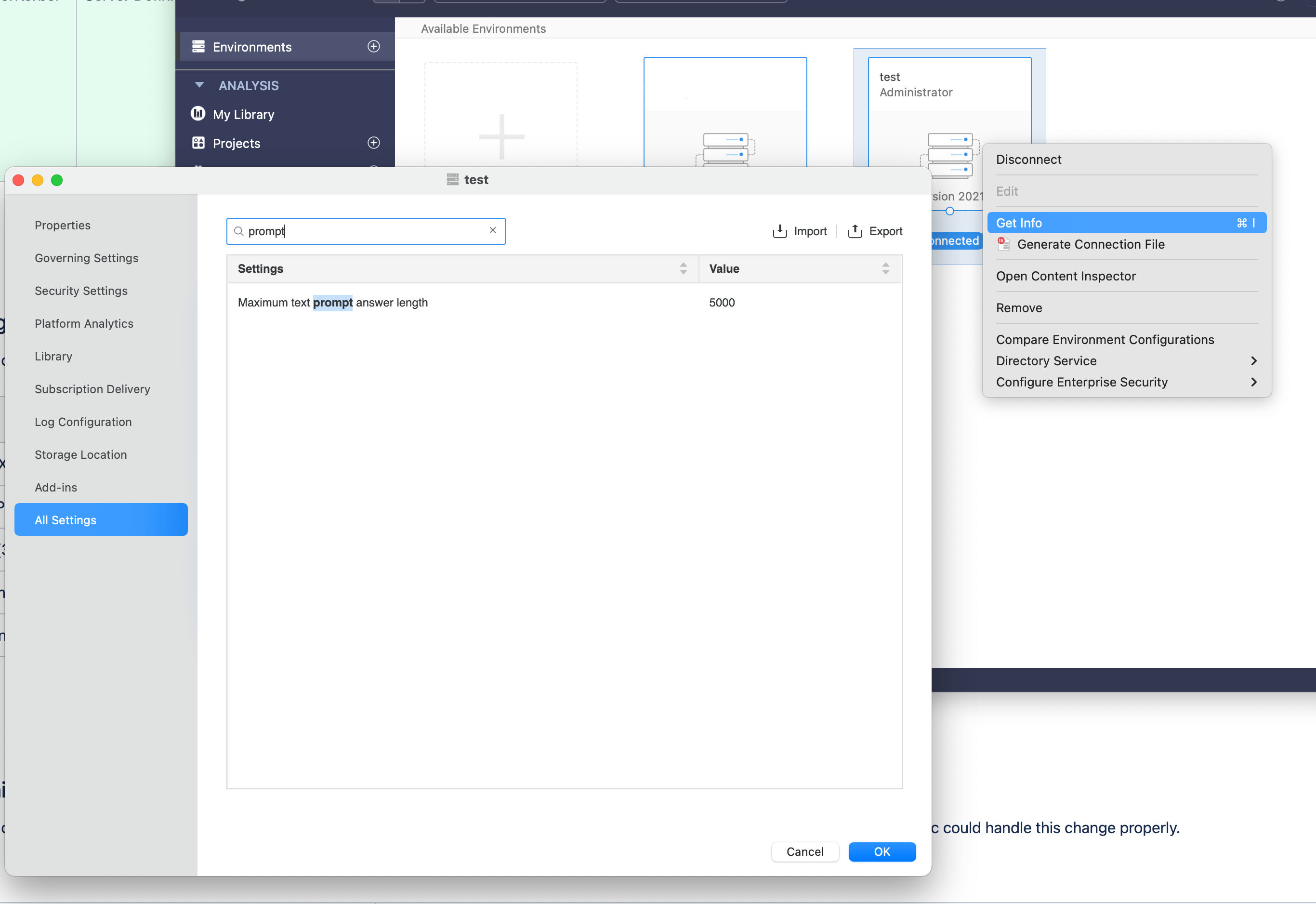
In 2021 Update 5, we add a limitation for the maximum length of the input string in text prompts for security concerns. The default limitation is 5000, however, customers can also set the value they want. This registry setting only takes effect in 2021Update5, we will not support this feature by registry after that release. We will retire registry “MaxTextPromptLength”, switch to “DssServerMaxTextPromptLength” setting in server definition. The corresponding name in customers’ GUL is “Maximum text prompt length“. The exposing “Maximum text prompt length” on Workstation is in 2021 Update6.

PHENOMENON

Before 2021 Update 5, the length of the input string in the text prompt has no limitation, the customer can input any strings.
 
In 2021 Update 5, if customers don’t do anything about this setting, the max length is 5000. Customers can set this value in the registry, any input of text prompt longer than this value will throw an error.
After 2021 Update 5, we use the configuration level setting in the Workstation to replace the registry:
ka04W000001IwbaQAC_0EM4W000005me74.jpeg


STEPS TO REPRODUCE

Here we set the value to 25, which can make it easy to display the error. The followings are the steps in detail.
Step 1: Set the value to 25 (MaxTextPromptLength).
The path is "SOFTWARE\\MicroStrategy\\DSS Server\\ObjectServer".

ka04W000001IwbaQAC_0EM4W000005me79.jpeg

Please restart the iServer to make this setting take effect.
Step 2: Create a report with a text prompt.

ka04W000001IwbaQAC_0EM4W000005me7E.jpeg

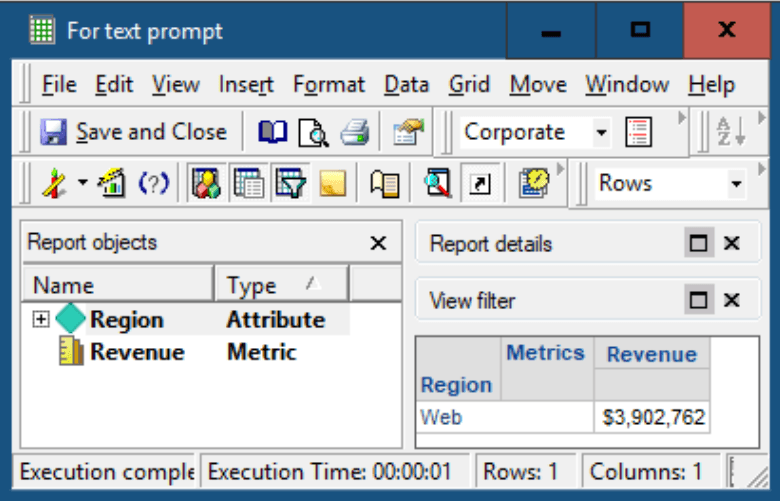
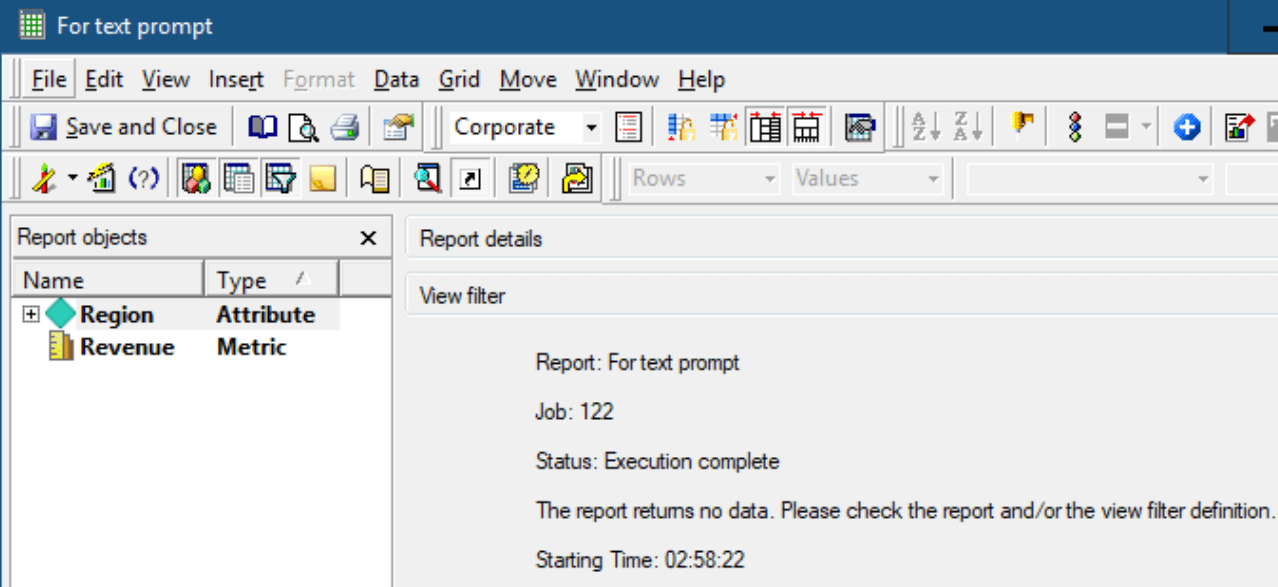
Step 3: Run this report with a text prompt. The string length will impact the result.
When input “Web”
ka04W000001IwbaQAC_0EM4W000005me7O.jpeg

When input “1234567890123456789012345“(25 characters)(No Region name this string)
ka04W000001IwbaQAC_0EM4W000005me7T.jpeg

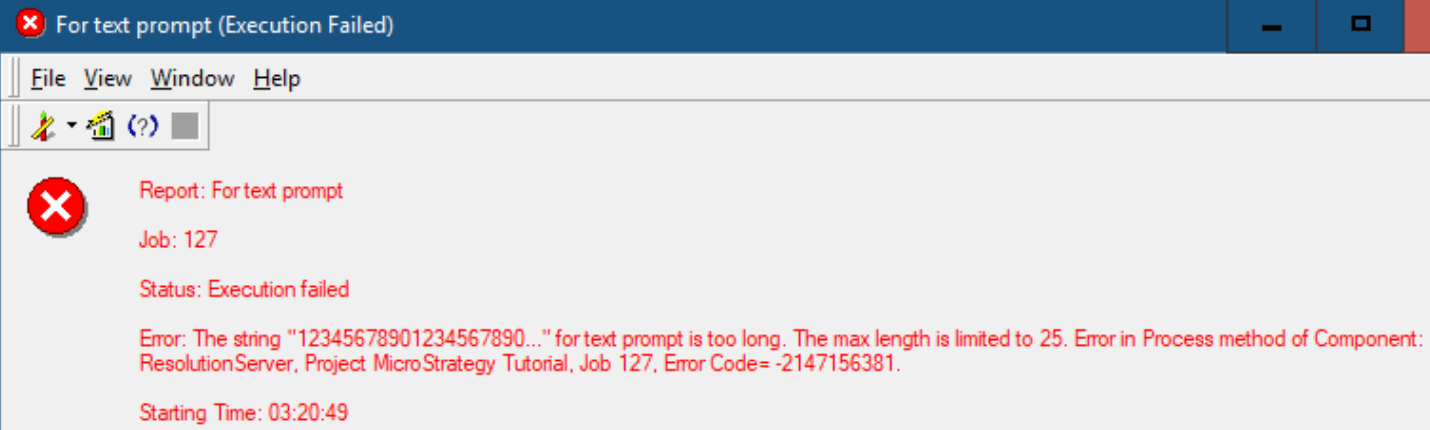
When input “12345678901234567890123456“(26 characters)
ka04W000001IwbaQAC_0EM4W000005me7Y.jpeg

The error message will show the input string and the max length limitation.
 

WORKFLOW

Here are the details to explain how the registry value (MaxTextPromptLength) work:

  • If customers don’t set this value, the default value 5000 will be set to limit the input.
  • If there exists “MaxTextPromptLength“ with type “REG_DWORD“ under correct registry path, this value set by customers will take effect after restart service.
     

ATTENTION

  • Only text prompt is limited, other prompts will not change.
  • If the value is set as a very small value, like 0, any input string will report this error.
  • If the error happens, the input string will be shown in this error. If the string is longer than 20, we cut the previous 20 characters and add “…“ to show it.
  • Please restart iServer and Developer to make it take effect.

Comment

0 comments

Details

Knowledge Article

Published:

January 20, 2022

Last Updated:

January 20, 2022