EducationSoftwareStrategy.com
StrategyCommunity

Knowledge Base

Product

Community

Knowledge Base

TopicsBrowse ArticlesDeveloper Zone

Product

Download SoftwareProduct DocumentationSecurity Hub

Education

Tutorial VideosSolution GalleryEducation courses

Community

GuidelinesGrandmastersEvents
x_social-icon_white.svglinkedin_social-icon_white.svg
Strategy logoCommunity

© Strategy Inc. All Rights Reserved.

LegalTerms of UsePrivacy Policy
  1. Home
  2. Topics

KB441900: Heat Map Widget Threshold Set Colors Do Not Appear on iPad


Community Admin

• Strategy


In MicroStrategy 10.X, Heat Map Threshold Colors for iPad do not appear. A workaround is provided.

SYMPTOM:
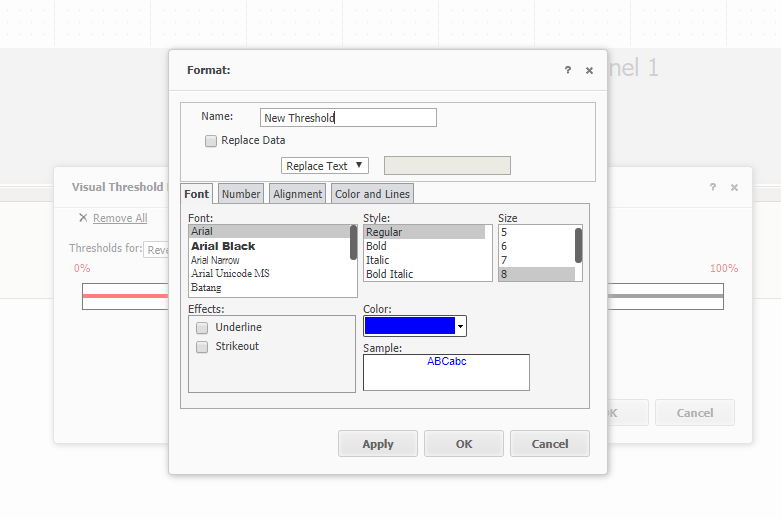
Report Services Document contains a DHTML Heat Map Widget with Thresholds set that differentiate by color. When threshold colors are defined in the Font color editor, the colors display correctly in Web.
ka04W000000Ob1kQAC_0EM44000000QtyL.png

However, the colors are not visible when deployed and rendered on iPad. The iPad shows a black and white Heat Map:

ka04W000000Ob1kQAC_0EM44000000QtyQ.png

STEPS TO REPRODUCE:

  1. Create a Report Services Document and add a Heat Map (DHTML Widget option).
  2. Add data (attribute and metric values) to the Heat Map widget.
  3. In Design Mode, right click on the Heat Map, go down to Thresholds, you have options for Advance or Visual, select Visual.
  4. In the Threshold, Editor creates the Threshold.
  5. Once you make the Threshold, double-click on each partition or threshold to get a Format dialog box to appear.
  6. Here change the Font color to the desired color. Click Apply and Ok.
  7. Repeat the last two steps for other partitions or thresholds.
  8. In the Threshold Editor window, click Apply and Ok.
  9. Run the Report Service Document in Strategy Web and users can see the colors render based on Threshold.
  10. Execute the Report Services Document on Strategy Mobile and users will see the widget in black and white.

CAUSE:
Font Color Thresholds do not for Heat Map on iPads.
 
ACTION:
The workaround is to repeat the steps above, however, in the Threshold Format dialog box (step #5) do the following:
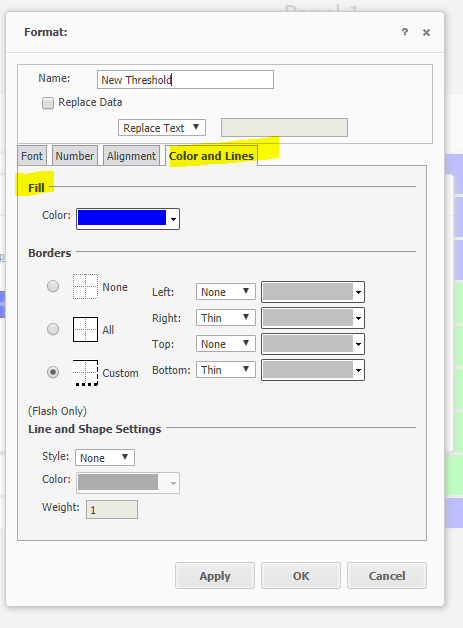
  • In the Format box, click on Color and Lines.
  • Edit the Threshold color under Fill. 
ka04W000000Ob1kQAC_0EM44000000QtyV.png
  • Continue to follow the remaining steps above.


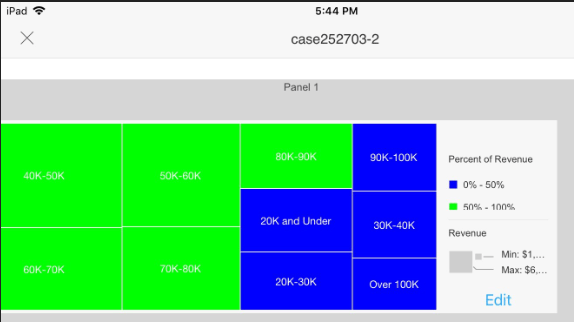
When the Heat Map renders on the iPad the chosen colors are visible.
 

ka04W000000Ob1kQAC_0EM44000000Qtya.png

 
  KB441900


Comment

0 comments

Details

Knowledge Article

Published:

September 24, 2018

Last Updated:

January 1, 2019