The following Knowledge Base article assumes there is only 2 nodes in a single Intelligence Server cluster that is connected to the Web Server. In a clustered Intelligence Server environment, there may be multiple Intelligence Servers of which the user can potentially connect. Even if one server from the cluster is specified in the getSessionState task, the servers will still be properly load balanced by the environment and the user will connect to the next Intelligence Server up for a session based on the Load Balance Factor specified on the Strategy Web Administrator page. The following custom task created below will bypass the out of the cluster logic to allow session creation on the Intelligence Server node specified. In the below logic, the Intelligence Server specified will be the node that is still connected to the Web Server.
Strategy SDK provides a Web Customization Editor that can be used to create a customization plug-in. The following steps show how to create the plug-in and deploy.
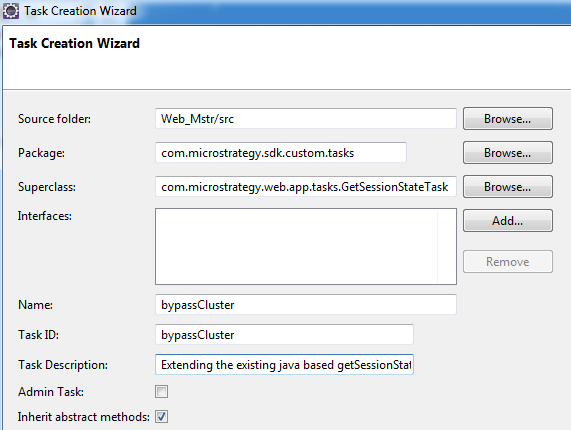
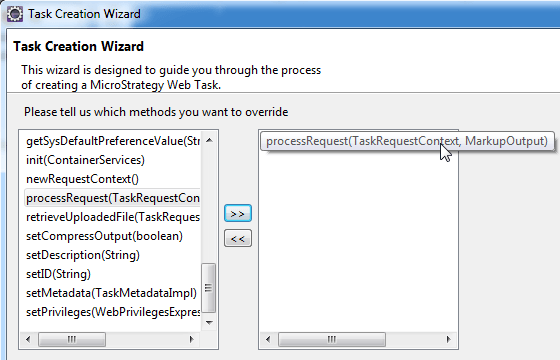
     public void processRequest(TaskRequestContext context, MarkupOutput out) throws TaskException {
        WebObjectsFactory factory = null;
        WebIServerSession serverSession = null;

        try {
            // This task assumes that there is at least one node running and connected to the Web Server.
            out("entering processRequest");

            // Step 1. Determine if all nodes in the cluster are running.  If yes, then run task as usual (call super)
            String serverName = ""; // This variable will contain the Intelligence Server to be connected to (could be an array if needed).
            WebClusterAdmin admin = WebObjectsFactory.getInstance().getClusterAdmin();

            admin.refreshAllClusters();
            Enumeration <?> clusters = admin.getClusters().elements();

            out("# Intelligence Server Clusters connected: " + admin.getClusters().size());
            // If the size of the cluster is max (all nodes connected), run task per usual
            if (admin.getClusters().size()==2) {
                out("Returning Super");
                super.processRequest(context, out);
                return;
            }

            // Step 2. If one node is down, then manually create the Session and update the TaskOutput accordingly.
            // Iterate through all clusters and output nodes connected to the Web Server
            if (clusters.hasMoreElements()) {
                WebCluster cluster = (WebCluster) clusters.nextElement();

                out("Cluster size: " + cluster.size());

                // Iterate through each cluster
                for (int i = 0; i < cluster.size(); i++) {
                    out("     Name of Node " + i + ": " + cluster.get(i).getNodeName());
                }

                // Save one of the nodes in the cluster into the serverName variable.
                // Assuming that there is only 1 cluster, 2 nodes, the following will capture the node that is connected
                serverName = cluster.get(0).getNodeName();
            }
                // Create factory object
                factory = WebObjectsFactory.getInstance();
                serverSession = factory.getIServerSession();
                // Set up session properties
                serverSession.setServerName(serverName); //Should be replaced with the name of an Intelligence Server
                serverSession.setServerPort(Integer.parseInt(context.getRequestKeys().getValue(PARAM_NAME_PORT)));
                serverSession.setProjectName(context.getRequestKeys().getValue(PARAM_NAME_PROJECT)); //Project where the session should be created
                serverSession.setLogin(context.getRequestKeys().getValue(PARAM_NAME_LOGIN)); //User ID
                serverSession.setPassword(context.getRequestKeys().getValue(PARAM_NAME_PASSWORD)); //Password
                serverSession.setAuthMode(Integer.parseInt(context.getRequestKeys().getValue(PARAM_NAME_AUTH_MODE))); //Password
                // ** FLAG TO BYPASS CLUSTER: documentation here  **
                serverSession.setSessionFlags(EnumDSSXMLSessionFlags.DssXmlSessionBypassClustering);

                out(serverSession.getSessionID());
                String minSessionState = serverSession.saveState(EnumWebPersistableState.MINIMAL_STATE_INFO);
                String maxSessionState = serverSession.saveState(EnumWebPersistableState.MAXIMAL_STATE_INFO);
                String sessionInfo = serverSession.saveState(EnumWebPersistableState.TYPICAL_STATE_INFO);
                String projectID = serverSession.getProjectID();

                // XML output using the XMLBuilder class
                XMLBuilder xmlbuilder = new XMLBuilder();
                xmlbuilder.addChild("session-states-custom");
                xmlbuilder.addChild("min-state").addText(minSessionState);
                xmlbuilder.addSibling("max-state").addText(maxSessionState);
                xmlbuilder.addSibling("session-info").addText(sessionInfo);
                xmlbuilder.addSibling("project-id").addText(projectID);
                xmlbuilder.closeAll();
                out.append(xmlbuilder);

        } catch (TaskException e) {
            e.printStackTrace();
        } catch (WebObjectsException e) {
            e.printStackTrace();
        }

    }
public void out(String msg) {
		System.out.println(msg);
}import java.util.Enumeration; import com.Strategy.utils.serialization.EnumWebPersistableState; import com.Strategy.utils.xml.XMLBuilder; import com.Strategy.web.app.tasks.GetSessionStateTask; import com.Strategy.web.beans.MarkupOutput; import com.Strategy.web.objects.WebCluster; import com.Strategy.web.objects.WebClusterAdmin; import com.Strategy.web.objects.WebIServerSession; import com.Strategy.web.objects.WebObjectsException; import com.Strategy.web.objects.WebObjectsFactory; import com.Strategy.web.tasks.TaskException; import com.Strategy.web.tasks.TaskRequestContext; import com.Strategy.webapi.EnumDSSXMLSessionFlags;
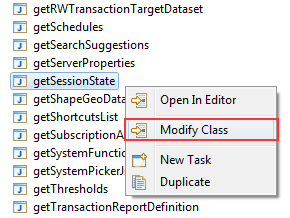
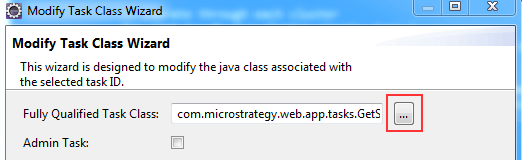
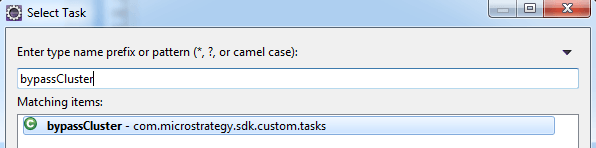
Note: This task will only override out of the box getSessionState task if there is only 1 node of a 2-node cluster connected to the Web Server. If both nodes (of a 2-node cluster are connected to the Web Server, the original getSessionState task will execute.
ADDITIONAL INFORMATION:
The Strategy SDK allows you to customize several Strategy products and extend and integrate the Strategy business intelligence functionality into other applications. However, before changing the way Strategy products look or behave, it is helpful to understand how the application is built. For more information regarding the Strategy products or the process of customizing Strategy products, please refer to Strategy Developer Zone (https://developer.microstrategy.com).
To access the Strategy Developer Zone, you must have access to the Strategy Knowledge Base, you must have purchased the Strategy SDK, and you must be current on your Strategy maintenance agreement. If you are a US-based business and believe that you satisfy all three of these conditions but you do not have access to the Strategy Developer Zone, please contact Strategy Technical Support at support@microstrategy.com or at (703) 848-8700. If you are an international business, please contact Strategy Technical Support at the appropriate email address or phone number found at https://www.microstrategy.com/us/services/support/contact.
CUSTOMIZATION WARNING:
This customization is provided as a convenience to Strategy users and is only directly applicable to the version stated. While this code may apply to other releases directly, Strategy Technical Support makes no guarantees that the code provided will apply to any future or previous builds. In the event of a code change in future builds, Strategy Technical Support makes no guarantee that an updated version of this particular customization will be provided. In the event of a code change in future builds, Strategy may not be able to provide additional code on this matter even though this customization is provided at this time for this specific build. For enhancements to this customization or to incorporate similar functionality into other versions, contact your Account Executive to inquire about Strategy Consulting assistance.
