EducationSoftwareStrategy.com
StrategyCommunity

Knowledge Base

Product

Community

Knowledge Base

TopicsBrowse ArticlesDeveloper Zone

Product

Download SoftwareProduct DocumentationSecurity Hub

Education

Tutorial VideosSolution GalleryEducation courses

Community

GuidelinesGrandmastersEvents
x_social-icon_white.svglinkedin_social-icon_white.svg
Strategy logoCommunity

© Strategy Inc. All Rights Reserved.

LegalTerms of UsePrivacy Policy
  1. Home
  2. Topics

How can I filter a visualization on a dossier that users can’t view or manipulate?


Lauren O'Connor

Vice President, Product Marketing • MicroStrategy


When designing dossiers, authors can leverage innovative filters to narrow the data, such as visualizations as filters and linking pages. End users can view and manipulate these filters in MicroStrategy Library. But what if you want to narrow the data displayed without allowing end users to update filter selections? For example, in a bar graph visualization detailing quarterly profits, you only want to display quarters in 2017, but your data includes years 2010-2017. To display only 2017 in your bar graph, you can add an advanced filter to the visualization.

Starting with the release of Strategy ONE (March 2024), dossiers are also known as dashboards.
Troubleshooting
How can I filter a visualization on a dossier that users can't view of manipulate?
When designing dossiers, authors can leverage innovative filters to narrow the data, such as visualizations as filters and linking pages. End users can view and manipulate these filters in Strategy Library.  But what if you want to narrow the data displayed without allowing end users to update filter selections? For example, in a bar graph visualization detailing quarterly profits, you only want to display quarters in 2017, but your data includes years 2010-2017. To display only 2017 in your bar graph, you can add an advanced filter to the visualization. Keep reading to learn the next steps!
Adding an Advanced Filter
To add an advanced filter to a visualization:
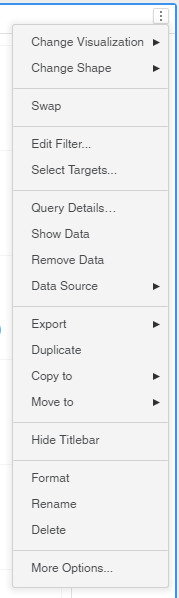
 

  1. Select the visualization you with to filter, then click the Menu icon.  
  • The Menu icon appears as an "ellipses" icon or three dots within a square.


​

ka0PW0000001JPWYA2_0EM44000000A6DP.png


  1. Select Edit Filter.
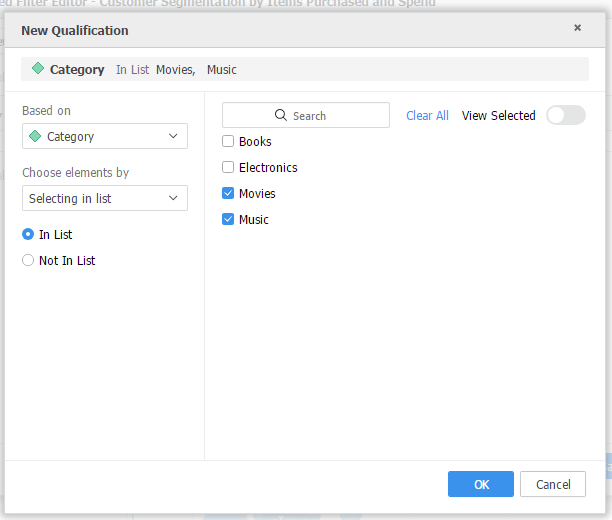
  2. Click Add New Qualification.
  3. Select the attribute or metric to base the filter on.
  4. If you are filtering on a metric, select the operator on which to base the filter.
  • For example, profit less than $1,000.
  1. If you are filtering on an attribute, from the Choose Element By drop-down list.
  2. Select either Qualification on or Selecting in list.

What does all of this mean?
 

  • Qualification on allows you to filter data based on an attribute form. For example, to allow users access to data for only those customers whose last names start with the letter H, you can create an attribute form qualification defined with the form Last Name, the operator Begins With, and the letter H as the value.
  • Selecting in list allows you to filter the data based on the list of attribute elements belonging to that attribute. For example, in a dataset containing the Region attribute, you can use an attribute element list qualification to allow access to data for only those regions you specify in your filter.


ka0PW0000001JPWYA2_0EM44000000A6DU.png


  1. Click Ok.
  2. Click Save. The data changes based on the filter, but only the author can manipulate the filter.

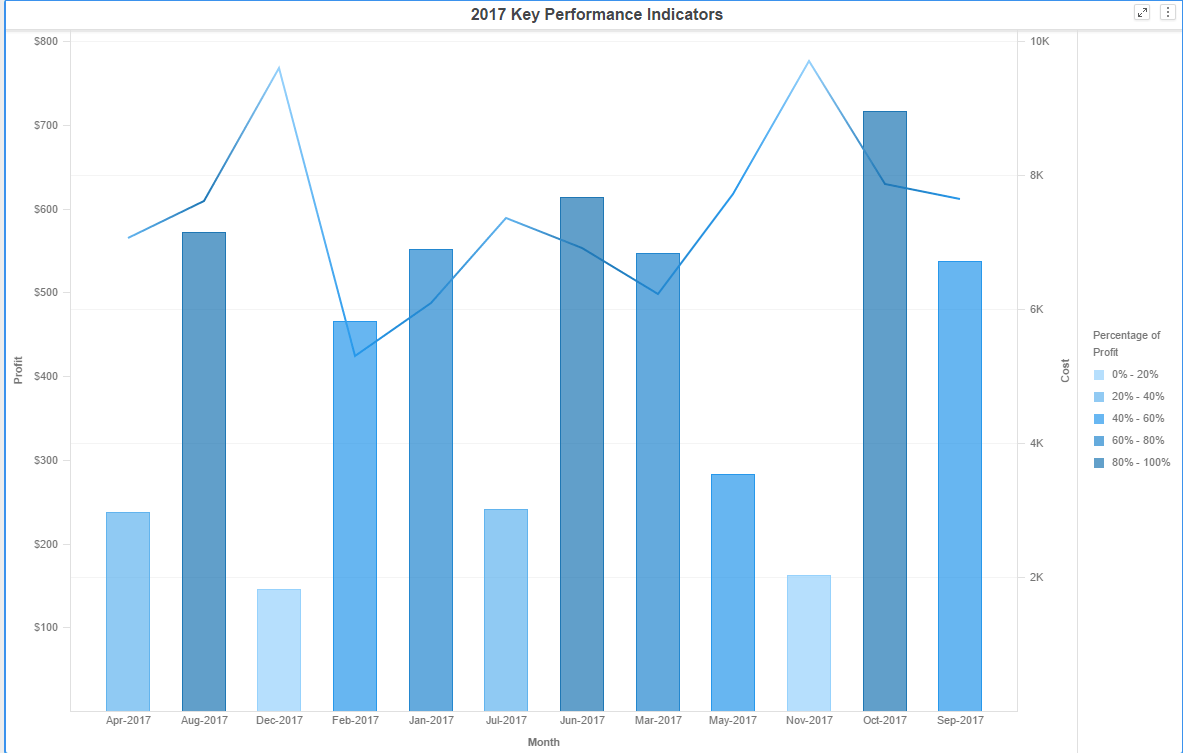
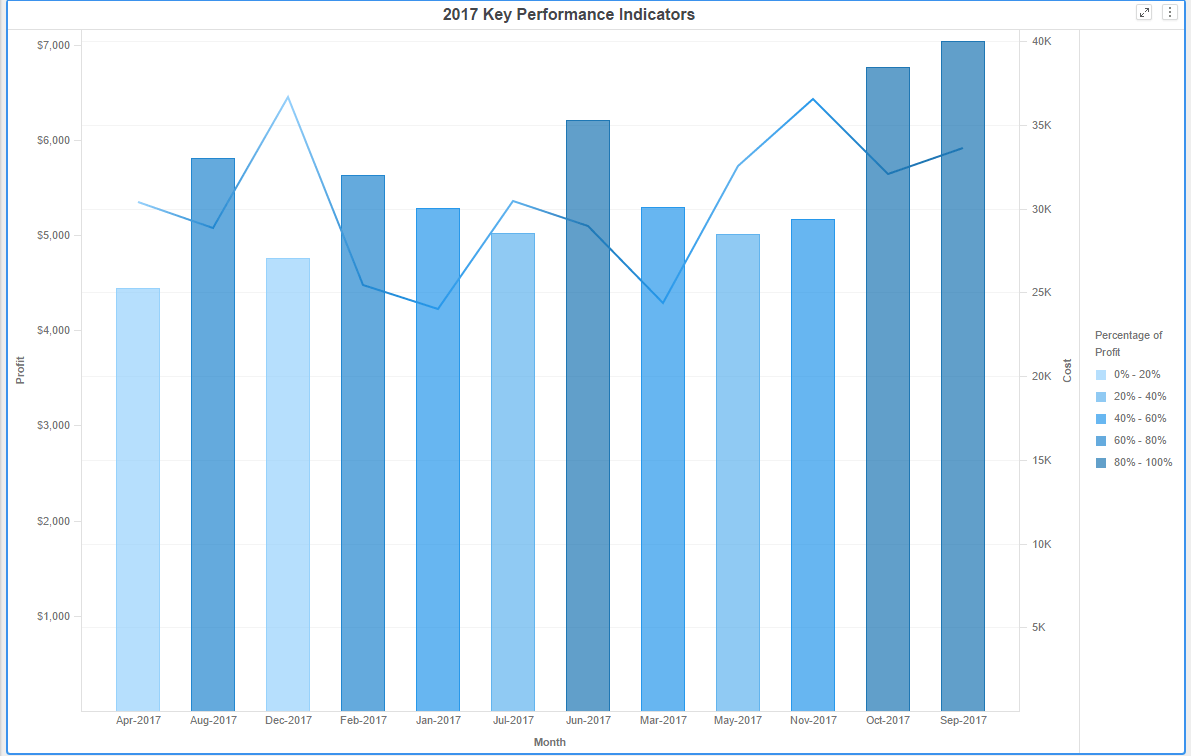
The image on the right does not have a filter, the image on the left has a selecting in list qualification applied. 
ka0PW0000001JPWYA2_0EM44000000A6DZ.png


ka0PW0000001JPWYA2_0EM44000000A6De.png

You are now ready to go! 
Have other questions?
Feel free to start a discussion, visit the Learning Center,  or reach out to Strategy for other learning materials!


Comment

0 comments

Details

Knowledge Article

Published:

March 28, 2018

Last Updated:

March 21, 2024