EducationSoftwareStrategy.com
StrategyCommunity

Knowledge Base

Product

Community

Knowledge Base

TopicsBrowse ArticlesDeveloper Zone

Product

Download SoftwareProduct DocumentationSecurity Hub

Education

Tutorial VideosSolution GalleryEducation courses

Community

GuidelinesGrandmastersEvents
x_social-icon_white.svglinkedin_social-icon_white.svg
Strategy logoCommunity

© Strategy Inc. All Rights Reserved.

LegalTerms of UsePrivacy Policy
  1. Home
  2. Topics

How can users enable and show the search box for the "Check Boxes" filter display style in Visual Insight and Dossier in MicroStrategy Web


Community Admin

• Strategy


Starting with the release of Strategy ONE (March 2024), dossiers are also known as dashboards.
SYMPTOM:
In some scenarios, the "Check Boxes" style filter provides a search box to help in narrowing down the list of available filtering elements. This search box is added automatically.
However, this search box might not always show. For example:
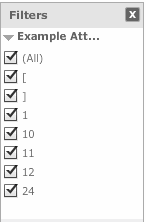
ka0PW0000001JPTYA2_0EM4400000026Ls.png

 
CAUSE:
This seach box automatically displays after 15 or more attribute elements are available to be selected.
 
ACTION:
The attribute being filtered on needs to contain 15 or more elements for this search box to be shown automatically.
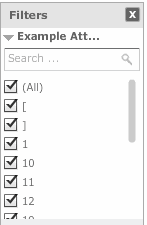
ka0PW0000001JPTYA2_0EM4400000026Lq.png

If a search box is desired when filtering on fewer than 15 elements, the "Search Box" display style may be more suitable than the "Check Boxes" display style:

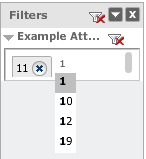
ka0PW0000001JPTYA2_0EM4400000026Lm.png


ka0PW0000001JPTYA2_0EM4400000026Lo.png

Article Reference Number: KB42749


Comment

0 comments

Details

Knowledge Article

Published:

July 10, 2017

Last Updated:

March 21, 2024