Feature Overview
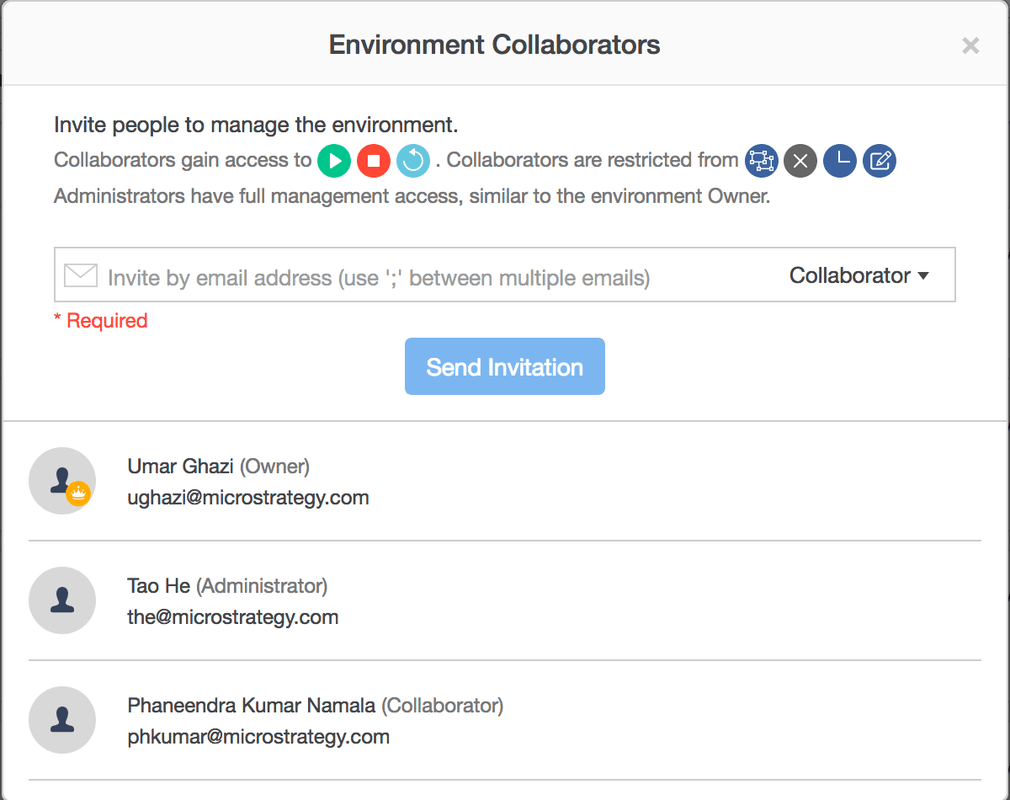
The Add Collaborator feature allows you to grant other users access to support administration of your environment in just a few clicks. You can choose to give a user full management access to your environment by adding them as an Administrator, or you can give them more limited access by adding them as a Collaborator. After a user has been added to the environment, they can administer the environment from their own account. All Collaborators can Start, Stop, and Reboot the environment while Administrators additionally gain access to Resize and Terminate the environment. A full list of privileges for each type of user is provided below. To get started with collaboration, simply follow these steps:
1. Select your environment and click the Add Collaborators button

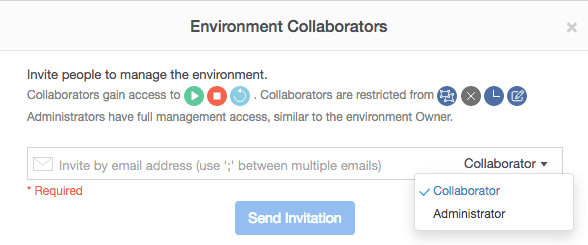
2. Type an email address to invite a user and select a role based on privileges you want to share. Refer to the tables at the bottom of the page to see which privileges are available for each role.
3. After the user accepts the administration invitation, they will be listed on the Environment Collaborators window.