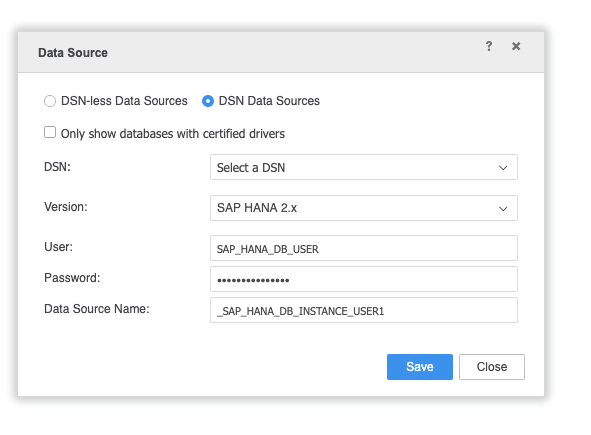
The following instructions explain how to set up SSL/TLS connection between Strategy clients and a SAP HANA server (version 2.00.033.00.1535711040).
These instructions assume that the SAP HANA server is already configured to allow for SSL/TLS communication and that you have an ODBC driver installed on the client machine.
The following instructions detail:
How to configure the ODBC driver with Windows
How to configure the ODBC driver with Linux
How to set up connection without DSN
How to set up connection with DSN
To configure SSL/TLS connection when the ODBC driver is installed on a Windows machine:
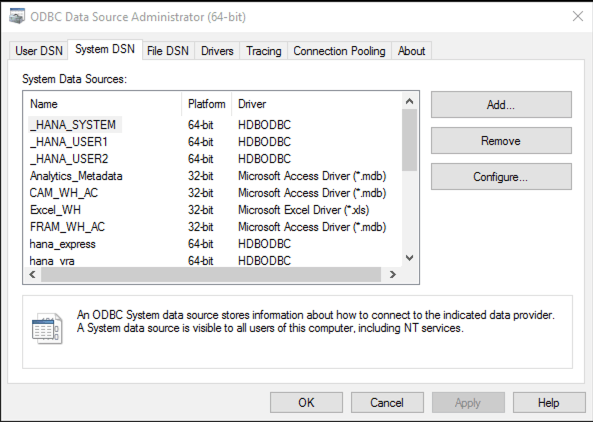
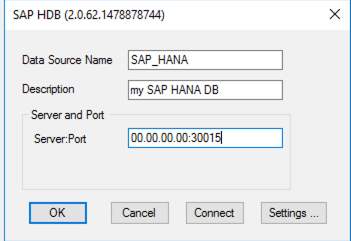
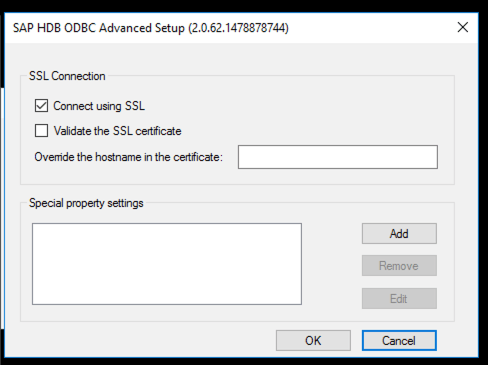
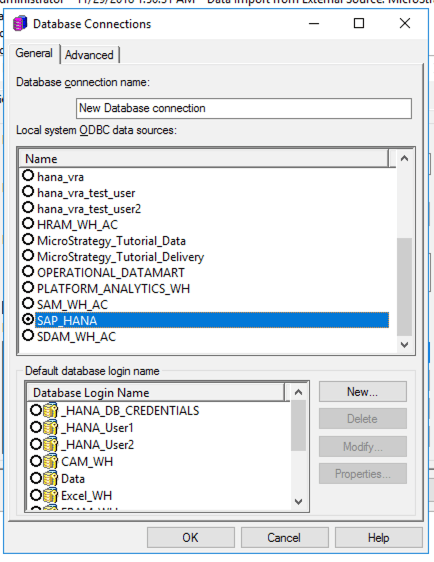
You must update three files when the ODBC driver (version 2.0.62) is installed on the Intelligence server. Each file must point to the ODBC driver, or the folder containing it, to successfully connect.
The three files are:
[ODBC Data Sources]section in the file.

Servernode=HANA instance IP and port
User=HANA database user
Password=HANA database password
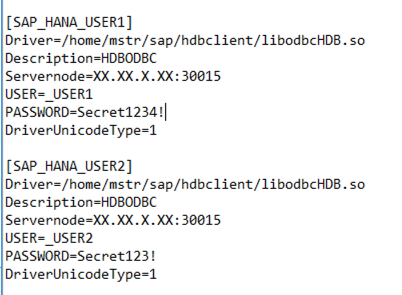
encrypt=1 sslvalidatecertificate=0
encryptparameter corresponds to SSL encryption and
sslvalidatecertificatecorresponds to the validation status of the server certificate. 1 indicates it is validated, 0 indicates it is not validated.
Navigate to /opt/mstr/Strategy and open the odbcinst.ini file. Ensure
Driver=and
Setup=are pointing to the HDBODBC driver.
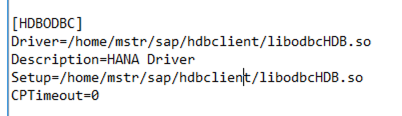
Navigate to /opt/mstr/MicroStrategy/enc and open the ODBC.sh file. Ensure
SAPHANA_PATH=is pointing to the foldering containing the HDBODBC driver.
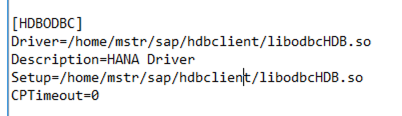
Once the ODBC driver is installed, Web users can set up a connection with the database. The following steps detail how to establish a connection without a DSN.
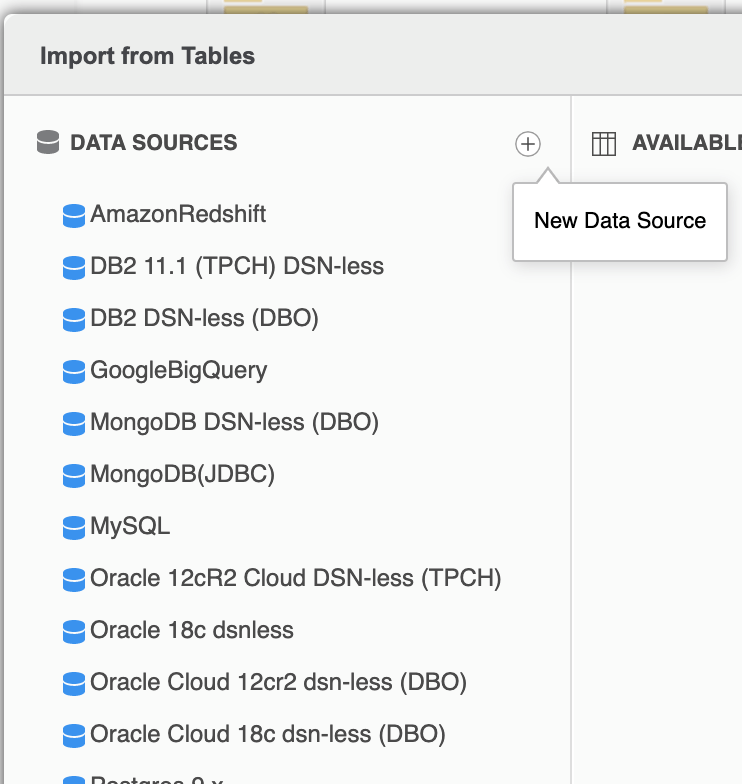
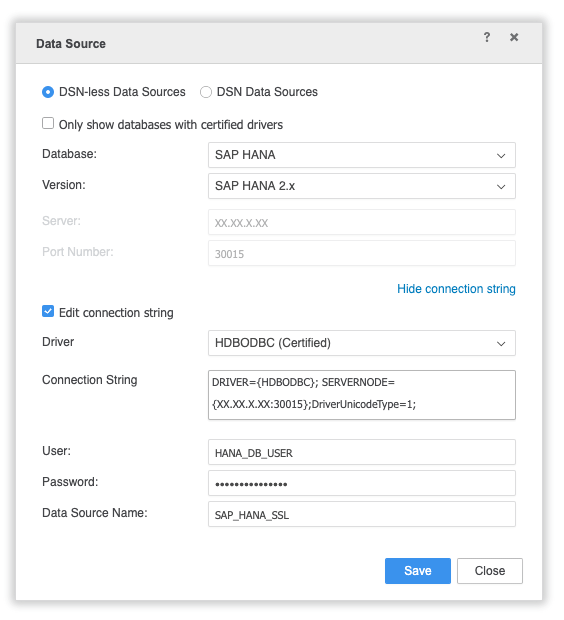
encrypt=1; sslvalidatecertificate=0;
encryptparameter corresponds to SSL encryption and
sslvalidatecertificatecorresponds to the validation status of the server certificate. 1 indicates it is validated, 0 indicates it is not validated.
To set up the data source with a DSN connection, use the following instructions.