EducationSoftwareStrategy.com
StrategyCommunity

Knowledge Base

Product

Community

Knowledge Base

TopicsBrowse ArticlesDeveloper Zone

Product

Download SoftwareProduct DocumentationSecurity Hub

Education

Tutorial VideosSolution GalleryEducation courses

Community

GuidelinesGrandmastersEvents
x_social-icon_white.svglinkedin_social-icon_white.svg
Strategy logoCommunity

© Strategy Inc. All Rights Reserved.

LegalTerms of UsePrivacy Policy
  1. Home
  2. Topics

How to Connect to Teradata


Norman Matos

Associate Scrum Master • Strategy


This tutorial explains how to connect to Teradata in MicroStrategy.

This tutorial explains the following topics with respect to connecting to Teradata:
1. Connectivity via DSN
2. Connectivity via JDBC
3. Connectivity via Teradata Parallel Transporter (TPT)
4. Password Authentication
5. LDAP Authentication
6. Kerberos Authentication
 

1. Connectivity via DSN

Strategy Secure Enterprise uses the Teradata ODBC driver for analytical requests and for Strategy Metadata operations.
This section describes driver configuration, and the settings that are known to enhance performance of Strategy when connecting to Teradata.
 
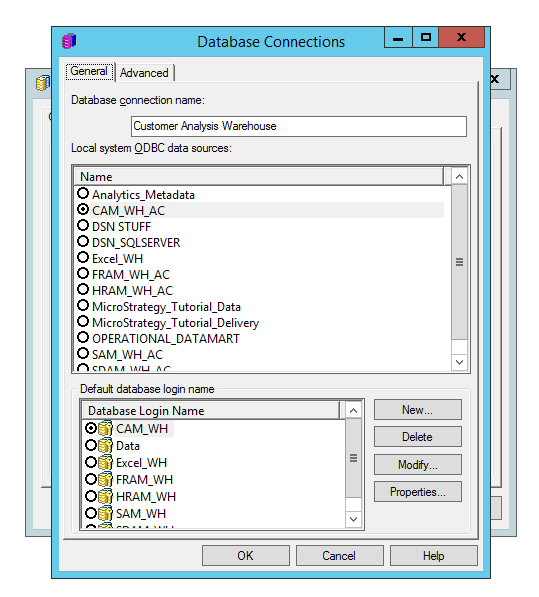
Configuration: consists of three steps: create database instance, create a database connection, and configure and store credentials.
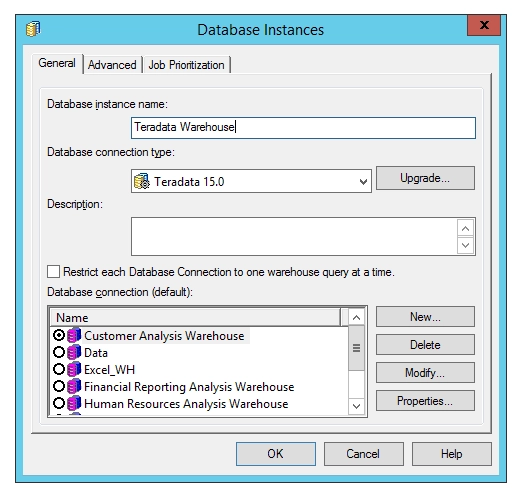
  1. Create a new database instance:
ka044000000kQ2cAAE_0EM440000002Oa7.png
  1. Create a database connection that points to the DSN:
ka044000000kQ2cAAE_0EM440000002OaC.png
  1. Configure and store credentials for the login:
ka044000000kQ2cAAE_0EM440000002OaH.png

Optimization:  To fully leverage Teradata for analytical SQL requests, the Teradata DSN configuration should be modified from its default values as follows:
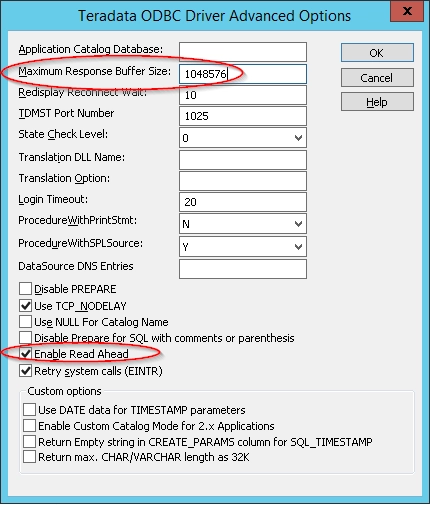
  • Maximum Response Buffer Size - should be increased to an acceptable value
  • Enable Read Ahead - for interleaved fetches should be enabled (selected)
ka044000000kQ2cAAE_0EM440000002OaR.png

Additionally, when using Teradata as Strategy Metadata, the Teradata ODBC driver options should be set as follows
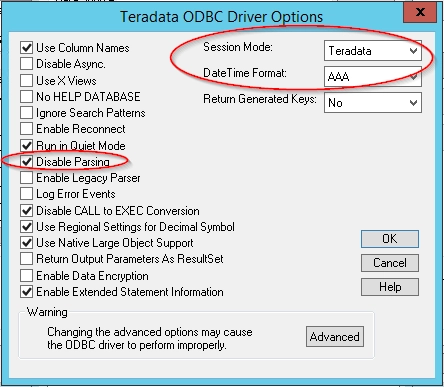
  • Session Mode = Teradata
  • DateTime Format = AAA
  • Disable Parsing = enabled (selected)
ka044000000kQ2cAAE_0EM440000002OaW.png


2. Connectivity via JDBC


This section describes driver configuration, and the parameters that are known to optimize performance of Strategy when connecting to Teradata.
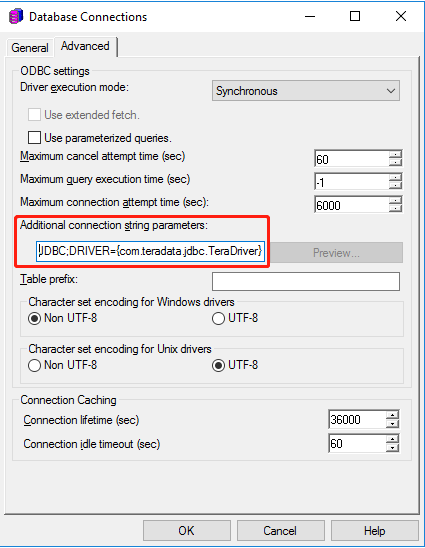
  1. Create a new database instance, using JDBC connection string instead of DSN
ka044000000kQ2cAAE_0EM44000000QoQv.png
  1. Create a database connection that points to the instance
  2. Configure and store credentials for the login

Optimization: To better support UTF-16 characters used in namespace, table name, column name, etc, we recommend adding Unicode encoding parameters to JDBC connection string as
JDBC;DRIVER={com.teradata.jdbc.TeraDriver};URL={jdbc:teradata://@server/CHARSET=UTF16,DATABASE=@databasename };
 

3. Connectivity via Teradata Parallel Transporter (TPT)


For a more in-depth coverage of how to connect to the Teradata Parallel Transporter API in Strategy, see the following link:

How to Connect to Teradata with Teradata Parallel Transporter 

Teradata developed its own API, the Teradata Parallel Transporter API (TPT API) with multiple protocols such as “FastLoad”, “Multi-Load”, “FastExport”. These protocols enabling users to load and unload data quickly and efficiently.  Strategy supports the “FastExport” protocol from TPT API, allowing users to export data out of Teradata into Strategy Cubes. The “FastExport” protocol is capable of exporting data out of Teradata utilizing parallel sessions and therefore has a higher throughput rate than a single session traditional ODBC. Users can download the driver corresponding to TPT API and install it to connect through it and need to follow the below steps to setup the connectivity. 
 
Note that having a functional ODBC or JDBC driver is a prerequisite for using TPT API, as the driver is used to access catalogue, tables, and to preview data during the import process. The API is only used to publish a cube.
 
Prerequisite

  • Strategy is configured, and a user is able to run the report and retrieve the data via ODBC.


The configuration is different in Strategy Developer and in Strategy Web as described below:
 
Strategy Developer:
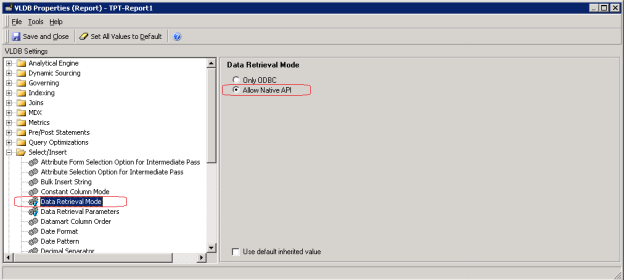
1. Set Data Retrieval Mode to the setting Allow Native API at the report level:
ka044000000kQ2cAAE_0EM44000000VlQA.png

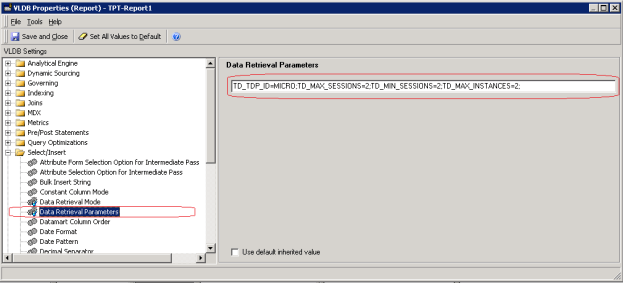
2. Set Data Retrieval Parameters to the following setting at the report level
TD_TDP_ID=<MICRO>;TD_MAX_SESSIONS=2;TD_MIN_SESSIONS=2;TD_MAX_INSTANCES=2;
Note: TD_TDP_ID must be supplied by your Teradata database administrator.
An example is shown in the following figure.
ka044000000kQ2cAAE_0EM44000000VlQF.png

Note: Even though the VLDB settings Data Retrieval Mode and Data Retrieval Properties are available at both the report level and database instance level, it is recommended that a user sets VLDB settings at the report level for specific cube reports on a case-by-case bases.
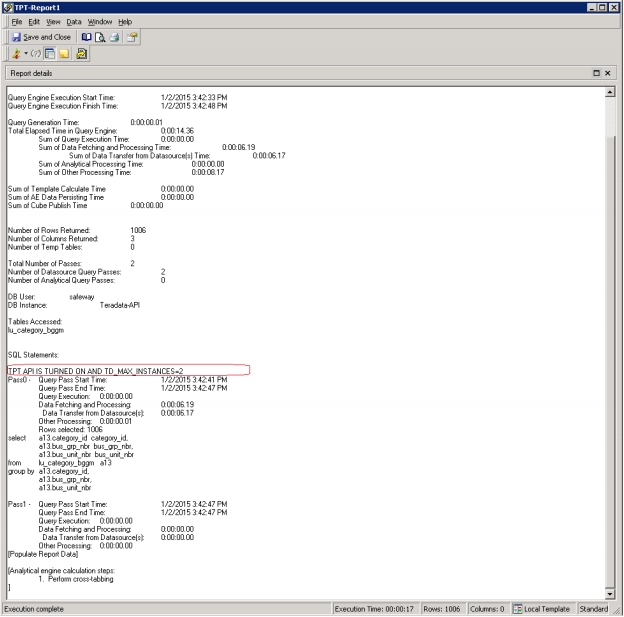
3. After these parameters are set, retrieve the data via TPT API. When running the report, note the message “TPT API IS TURNED ON AND TD_MAX_INSTANCES=*” on the top of all the select passes that have been retrieved by TPTAPI.
The following figure shows that the particular SQL pass is being fetched by the PTP API, instead of ODBC.
ka044000000kQ2cAAE_0EM44000000VlQK.png

Strategy Web: 
1. Create a database instance as shown below and note that apart from the usual ‘Server Name’, ’Database Name’, ’User’, ’Password’, ’Data Source Name’ for ODBC connections, the following changes must be made:
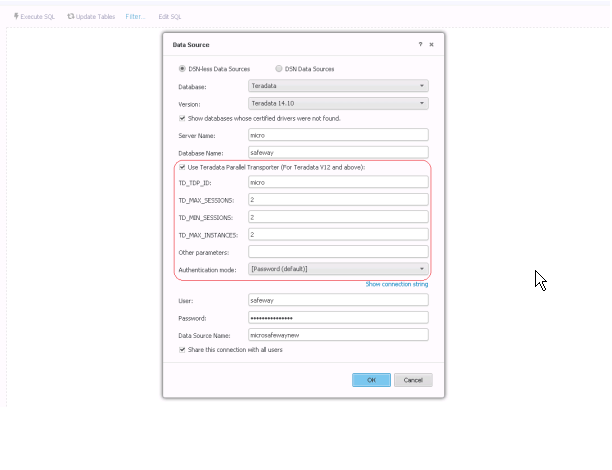
  • Set the checkbox Use Teradata Parallel Transporter (this check box sets the Data Retrieval Mode VLDB setting at the database connection level)
  • Set parameters ‘TD_TDP_ID’, ’TD_MAX_SESSIONS’, ’TD_MIN_SESSIONS’, ’TD_MAX_INSTANCES’ (these textboxes set the Data Retrieval Mode VLDB setting at the database connection level)
ka044000000kQ2cAAE_0EM44000000VlQP.png

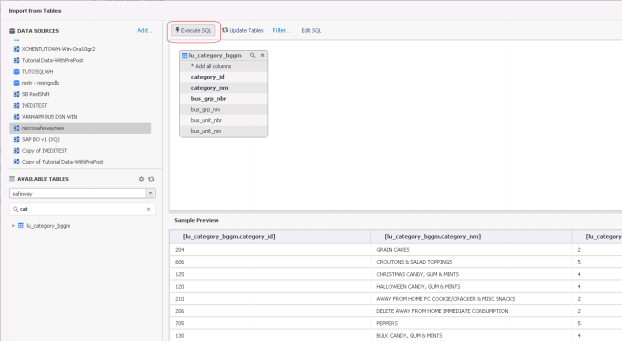
2. After creating the database instance, click the particular database instance, enter the relevant namespace and select tables, and create a query. The calls for retrieving the tables are made through ODBC.
ka044000000kQ2cAAE_0EM44000000VlQU.png

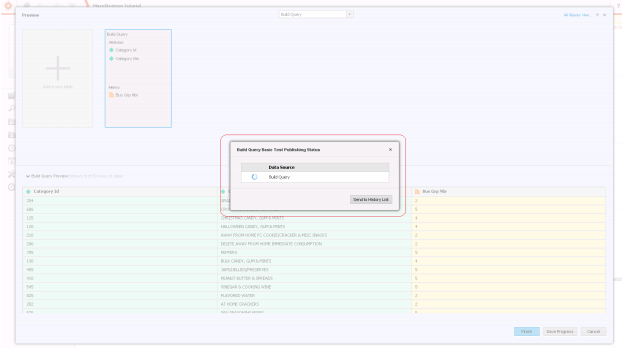
3. After clicking Finish, the “publish dialog” opens and the data is retrieved via TPT API.
ka044000000kQ2cAAE_0EM44000000VlQZ.png

4. Password Authentication 


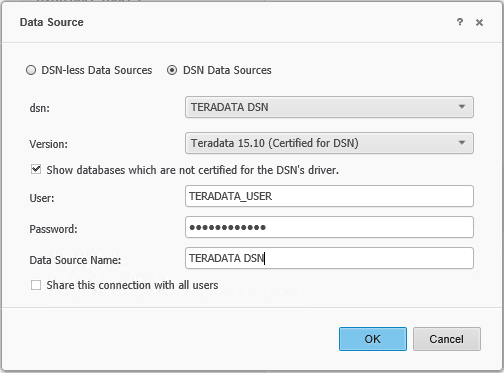
Password authentication is the default authentication mechanism for Strategy users when connecting to Teradata. The screenshots below show how to set it in the ODBC driver, and for DND and DNS-less connection.
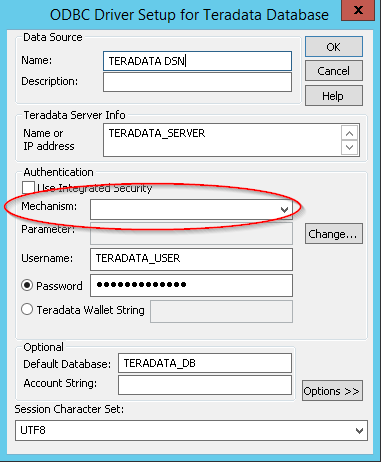
  • Driver configuration: When configuring the Teradata ODBC DSN, make sure to leave the Mechanism field blank.
ka044000000kQ2cAAE_0EM440000002OTQ.png
  • In Strategy Web/Desktop:
    • When using an existing DSN there is no option to choose the type of authentication as the underlying DSN determines the authentication mechanism.
ka044000000kQ2cAAE_0EM440000002OTa.png
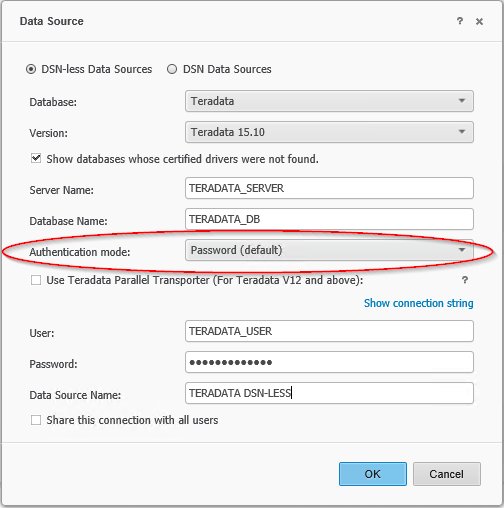
  • When using a DSN-less connection the default option is to use password authentication:
ka044000000kQ2cAAE_0EM440000002OTu.png


5. LDAP Authentication

When LDAP authentication is selected, authentication parameters are stored in metadata and a message is sent to driver to use LDAP to verify them.
 
If the Teradata Server is configured to use the external LDAP directory server for authentication, Strategy users can take advantage of the Teradata-LDAP integration. The users then authenticate against Strategy using LDAP authentication, and the same credentials are then passed through for authentication when connecting to the database during report execution.
LDAP support must be configured on the Teradata server, ODBC driver, and Intelligence Server as follows:
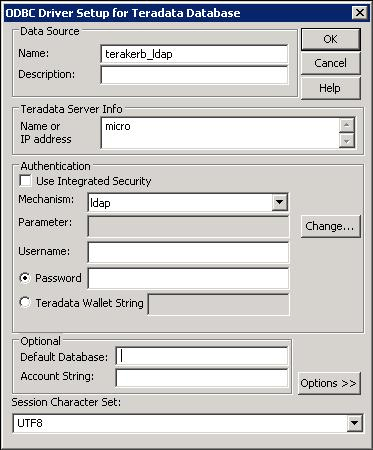
  • ODBC Driver: After the Teradata server is configured with LDAP settings, a user sets up relevant LDAP options in ODBC DSN settings, as shown in the following figure.
ka044000000kQ2cAAE_0EM440000002OU4.png
  • Intelligence Server: Use Strategy Intelligence Server Configuration editor > LDAP settings
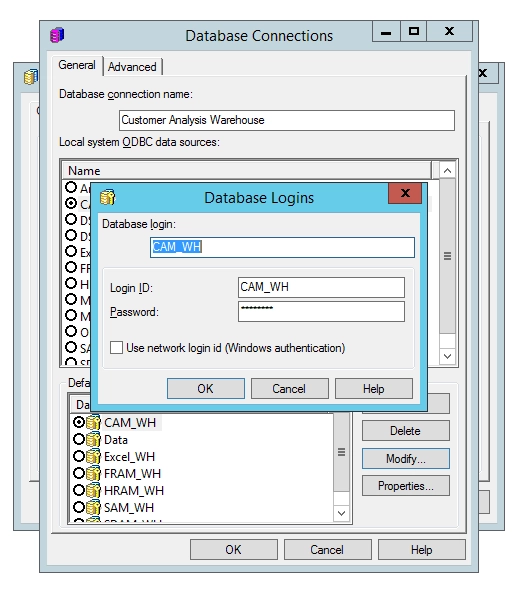
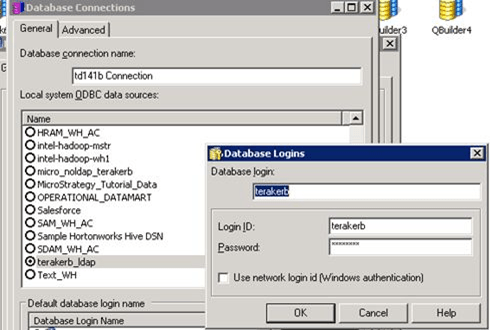
    • Edit the project's warehouse DB Instance > DB Connection > DB Login and provide the domain user’s username and password. Note that in the screenshot below, the username seen is the same as the Teradata username. However, this is not always the case. The network username can be different from the Teradata username.
ka044000000kQ2cAAE_0EM440000002OU9.png
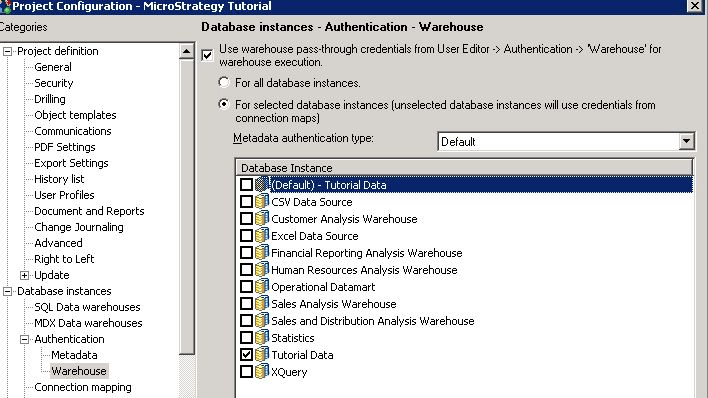
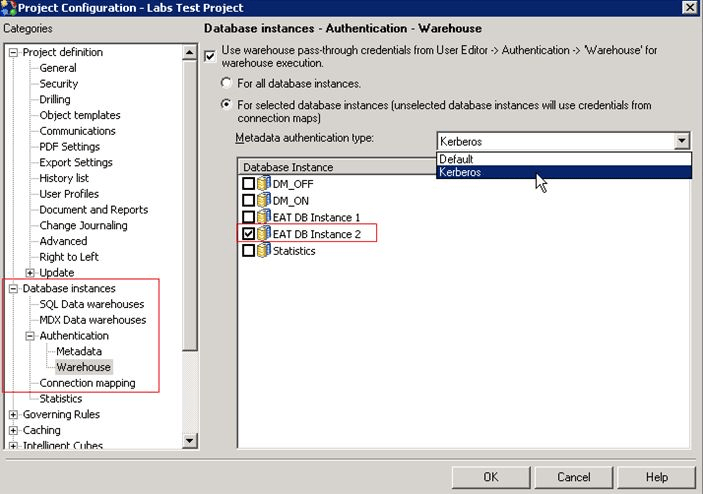
  • Project Configuration: Edit the project configuration and go to database instances > authentication > warehouse. Make sure that the option Use warehouse pass-through credentials from User Editor for warehouse execution is checked, and choose the second option For selected database instances…, and select the required Teradata database instance.
ka044000000kQ2cAAE_0EM440000002OUO.png

 
Strategy also supports passing separate credentials to the warehouse for particular LDAP users:
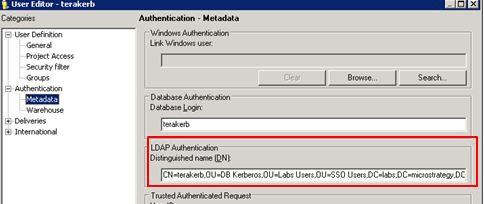
 

  • When the option to import LDAP users is checked, and the user logs in to Strategy for the first time, Strategy creates a user object in the metadata under the LDAP Users group. This user object will have the LDAP DN populated, as shown below. Optionally, administrators have the ability to bulk import LDAP users into the metadata.
ka044000000kQ2cAAE_0EM440000002OUY.png
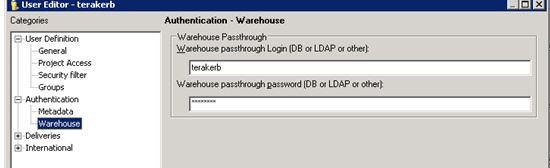
  • The administrator can manually populate the credentials for warehouse pass-through in the user editor as shown in the following figure.
ka044000000kQ2cAAE_0EM440000002OUi.png


6. Kerberos Authentication


The following Kerberos flavor is supported:

  • Windows (when Intelligence Server resides on Windows)


The following Kerberos flavor is not supported:

  • MIT Kerberos
     

Linux: Starting in Secure Enterprise 10.2, Strategy updated the code to support Kerberos Authentication on Linux.
Strategy supports Single Sign-On (SSO) access to Teradata (using Kerberos) when the Strategy Intelligence Server resides on a Windows operating system or Linux operating system. Following steps outline the SSO Connectivity:
  • Create user on Active Directory and assign the SPN
  • Setup Single Sign-On with Teradata
  • Test SSO Configuration on the Teradata Server
  • Configure Strategy Intelligence Server and Database Instance/Connection:
    • Setup Kerberos (integrated) authentication for Strategy Intelligence Server  running on Windows
    • Finish the configuration to setup Kerberos with Teradata and Strategy
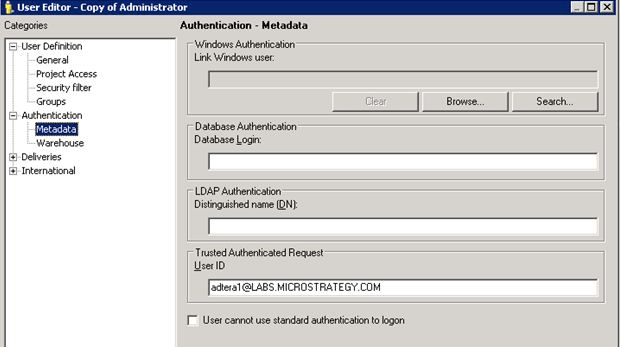
    • For the required Strategy user, a trusted user ID should be added as shown in the following figure
ka044000000kQ2cAAE_0EM440000002OVM.png
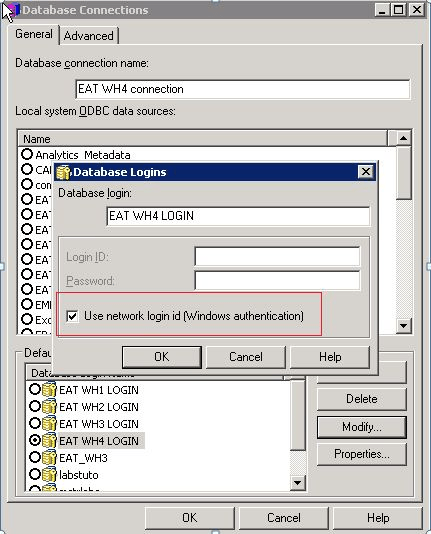
  • Ensure that the Database Login in the Database Instance is using Windows Authentication as shown below.


ka044000000kQ2cAAE_0EM440000002OVC.png
  • To use database pass-through (i.e., for the credentials to be passed to the database for report executions), from the Metadata authentication type pull-down menu in the project configuration editor, select Kerberos. Select the database instance that is connecting to the Teradata warehouse and is configured to use windows authentication, as shown above.
ka044000000kQ2cAAE_0EM440000002OV2.png
  • When the setup is complete, login to the client machine using the Kerberos user defined in Active Directory. The user should be able to login to the Strategy Intelligence Server without being prompted for credentials and the same credentials should be passed on to the Teradata database server for report execution.


Comment

0 comments

Details

Knowledge Article

Published:

August 16, 2017

Last Updated:

August 16, 2017