EducationSoftwareStrategy.com
StrategyCommunity

Knowledge Base

Product

Community

Knowledge Base

TopicsBrowse ArticlesDeveloper Zone

Product

Download SoftwareProduct DocumentationSecurity Hub

Education

Tutorial VideosSolution GalleryEducation courses

Community

GuidelinesGrandmastersEvents
x_social-icon_white.svglinkedin_social-icon_white.svg
Strategy logoCommunity

© Strategy Inc. All Rights Reserved.

LegalTerms of UsePrivacy Policy
  1. Home
  2. Topics

How to Deploy Community Connectors on a MicroStrategy IIS Web Server with a 401 Unauthorized Error


Zhen Yao

Software Engineer, Senior • MicroStrategy


This article explains how to resolve the 401 Unauthorized error that appears when deploying a Community Connector on an environment set up with an IIS Web server.

Description


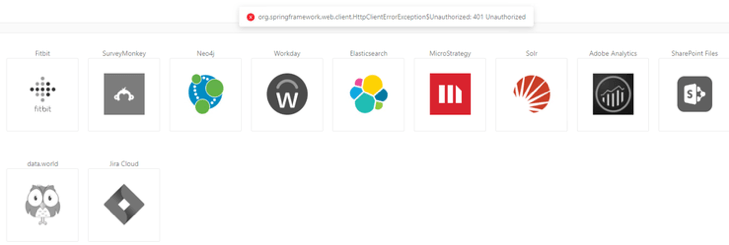
If a Strategy environment is set up with an IIS Web server, you may encounter a 401 Unauthorized error when deploying a Community Connector.
ka02R000000g1JXQAY_0EM2R000000ldmE.jpeg


Why is this happening? 


When a Community Connector is deployed, your Strategy Web server host is added into a whitelist and the connector is then added to Strategy Web. When this error appears, it means the process of adding your Web server host to the whitelist has failed.
 

Solution


To utilize the Community Connectors, you can manually add your Strategy Web server hostname to the whitelist.txt file.
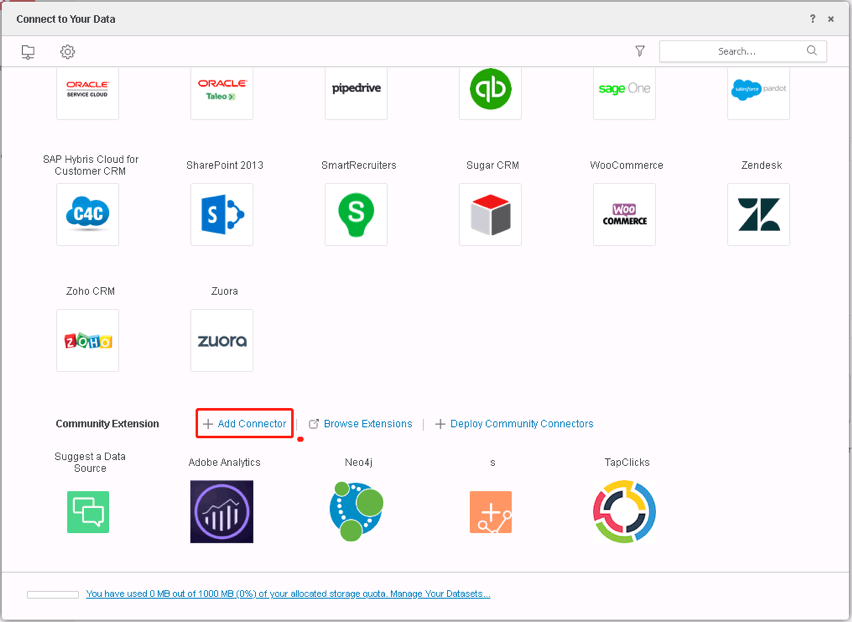

  • From the Community Connectors Gallery, download a Community Connector as an .mstrcc file.
  • Open Strategy Web, and click Add External Data > Add Connector.
ka02R000000g1JXQAY_0EM2R000000ldnW.jpeg
  • Upload the .mstrcc file and click Add.
  • Navigate to your Community Connector server, which is usually in Tomcat in the file path [Tomcat]\webapps\CommunityConnectors\WEB-INF\whitelist.txt.
  • Add a new line and enter your Strategy Web server hostname.
ka02R000000g1JXQAY_0EM2R000000ldnb.jpeg


For more information on Community Connectors, see MicroStrategy Community Data Connectors.


Comment

0 comments

Details

Knowledge Article

Published:

August 13, 2019

Last Updated:

August 13, 2019