EducationSoftwareStrategy.com
StrategyCommunity

Knowledge Base

Product

Community

Knowledge Base

TopicsBrowse ArticlesDeveloper Zone

Product

Download SoftwareProduct DocumentationSecurity Hub

Education

Tutorial VideosSolution GalleryEducation courses

Community

GuidelinesGrandmastersEvents
x_social-icon_white.svglinkedin_social-icon_white.svg
Strategy logoCommunity

© Strategy Inc. All Rights Reserved.

LegalTerms of UsePrivacy Policy
  1. Home
  2. Topics

How to Deploy Kafka MirrorMaker with an Existing MicroStrategy Project


Community Admin

• Strategy


This article provides instructions on how to deploy Kafka MirrorMaker with Platform Analytics.

To support fault tolerance in a multi-data center environment, Strategy recommends using Kafka MirrorMaker with Platform Analytics. 

Data Structure


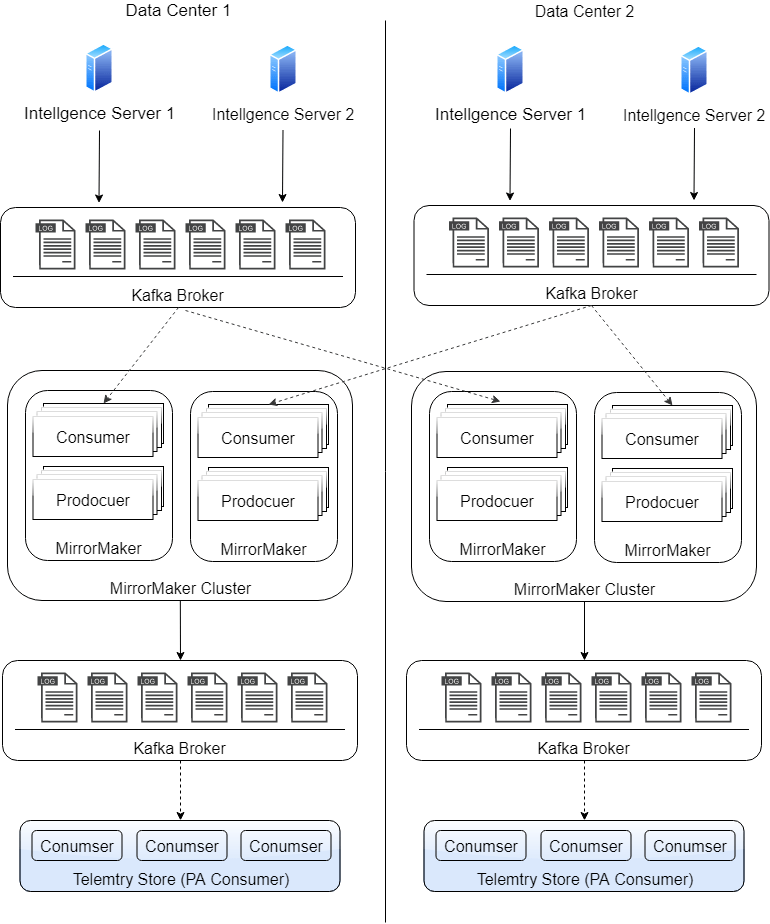
Adding Kafka MirrorMaker enhances the original data structure by introducing more than one Kafka broker. 

Original Design

ka04W000001Iwy0QAC_0EM2R000000lo36.jpeg


Adding MirrorMaker

ka04W000001Iwy0QAC_0EM2R000000lo2w.jpeg

How to Add MirrorMaker to Platform Analytics

  1. Create a new Kafka broker by downloading and unzipping Kafka. Ensure the Kafka version matches the version of the original broker. 
  2. Open the new folder and click the config folder.
  3. Modify the following values in the zookeeper.properties file:
    1. Modify the
      ClientPort
      value to a port number different from the existing zookeeper.
      For example,
      ClientPort=2185

    2. Modify the server's data directory. For example:

      Windows
      dataDir=C:\\Program Files (x86)\\MicroStrategy\\Messaging Services\\tmp-1\\zookeeper

      Linux
      dataDir=/tmp/zooker/tmp-1      

  4. Modify the following values in the server.properties file:
    1. Edit the
       zookeeper.connect=localhost:<port>
      to the port number used in the
      ClientPort
      parameter.
    2. Change the
      broker.id 
      value to a unique integer for the new broker. 
    3. Modify the Log Directory. For example, 
      Windows
      log.dirs=C:\\Program Files (x86)\\MicroStrategy\\Messaging Services\\tmp-1\\kafka-logs

      Linux
      
      /opt/mstr/MicroStrategy/install/MessagingServices/Kafka/tmp-1/kafka-logs

      Modify the
      listerns=PLAINTEXT://:<port>
      to the port used in the
      ClientPort 
      parameter.
  5. In the producer.properties file, modify the
     bootstrap.servers=localhost:<port>
    to the port used in the
    ClientPort 
    parameter. 
  6. Set up two consumers for each broker. One for the existing local broker, and one for the new remote broker. Ensure that your group.id names are not the same.
    For example,
    #consumer-1.properties
    bootstrap.servers=localhost:9092
    exclude.internal.topics=true
    group.id=test-consumer-group-1 
    
    #consumer-2.properties
    bootstrap.servers=[remote-ip]:9092
    exclude.internal.topics=true
    group.id=test-consumer-group-2 

  7. Open the PAConsumerConfig file and change the zookeeper connection and bootstrap servers in the YAML file.
    For example,
    #PAConsumerConfig.yaml
    zooKeeperConnection: 127.0.0.1:2182
    bootstrap.servers: 127.0.0.1:9093

    If you are using a Windows machine, you will need to download the Kafka binary zip file and replace the zookeeper-server-start.bat, zookeeper-server-stop.bat, kafka-server-start.bat, and kafka-server.stop.bat with the contents of the new file.
  8. Stop the Platform Analytics Consumer by navigating to Platform Analytics/bin/ in the command line and entering one of the following commands:
    Windows
    platform-analytics-consumer.bat stop

    Linux
    platform-analytics-consumer.sh stop

  9. Start Zookeeper on the folder C:\kafka_2.11-2.3.0, which is located:
    Windows
    bin\windows\zookeeper-server-start.bat config\zookeeper.properties


    Note: When you install Strategy on Windows, you may need to change a parameter in the kafka-run-class.bat file. On line 158 and line 161, change 
    %JAVA_HOME%
     to 
    %KAFKA_JAVA_HOME%.


    Linux
    bin/zookeeper-server-start.bat config/zookeeper.properties

  10. Start the Kafka server.
    Windows
    bin\windows\kafka-server-start.bat config\server.properties

    Linux
    bin/kafka-server-start.bat config/server.properties

  11. Start MirrorMaker. If you have two sources, you need two mirror makers on each node. For example,
    Windows

    bin\windows\kafka-mirror-maker.bat --new.consumer --consumer.config config\consumer-1.properties --producer.config config\producer.properties --whitelist ".*"
     

    bin\windows\kafka-mirror-maker.bat --new.consumer --consumer.config config\consumer-2.properties --producer.config config\producer.properties --whitelist ".*"
     
    Linux

    bin/kafka-mirror-maker.sh --new.consumer --consumer.config config/consumer-1.properties --producer.config config\producer.properties --whitelist ".*"
     

    bin/kafka-mirror-maker.sh --new.consumer --consumer.config config/consumer-2.properties --producer.config config\producer.properties --whitelist ".*"

  12. Start the Platform Analytics Consumer by navigating to Platform Analytics/bin/ in the command line and entering one of the following commands:
    Windows
    platform-analytics-consumer.bat start

    Linux
    platform-analytics-consumer.sh start

  13. Check if MirrorMaker works correctly by publishing a cube and check if the access_transaction table in platform_analytics_wh has this transaction.


If you run into any problems during the deployment of Kafka MirrorMaker, please see the Deploying Kafka MirrorMaker Troubleshooting article.


Comment

0 comments

Details

Knowledge Article

Published:

August 28, 2019

Last Updated:

August 28, 2019