EducationSoftwareStrategy.com
StrategyCommunity

Knowledge Base

Product

Community

Knowledge Base

TopicsBrowse ArticlesDeveloper Zone

Product

Download SoftwareProduct DocumentationSecurity Hub

Education

Tutorial VideosSolution GalleryEducation courses

Community

GuidelinesGrandmastersEvents
x_social-icon_white.svglinkedin_social-icon_white.svg
Strategy logoCommunity

© Strategy Inc. All Rights Reserved.

LegalTerms of UsePrivacy Policy
  1. Home
  2. Topics

KB483668: How to Enable Debug Logging for Topology


Michael Ostrich

Lead Support Engineer - Austin • MicroStrategy


This article details how to enable debug logging in topology.

Before troubleshooting an error in Topology, it's recommended to enable debug mode in the installation_list.yaml file. The debug logs provide a clearer understanding of why an error occurred, which can allow you to troubleshoot more effectively.

How to Enable Debug Logging for Topology

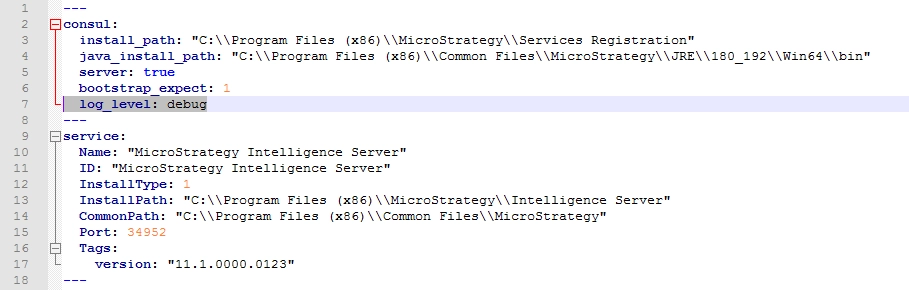
  • On the server(s) with Service Registration installed, navigate to Services Registration\yaml and open the Installation_list.yaml file.
  • Add the line log_level: debug in the file.
    Note: You must add two spaces before
    log_level:
    and a space before
    debug.


ka02R000000g2ybQAA_0EM2R000000mCML.jpeg
  • Save the file.
  • Delete the data folder in the Services Registration folder.


If you encounter a problem with Topology, send the yaml folder containing your installation_list.yaml and mstr_services_config.yaml files, and the most recent log files under the Services Registration folder to Strategy Technical Support.
For troubleshooting steps, see Troubleshooting Topology.


Comment

0 comments

Details

Knowledge Article

Published:

September 27, 2019

Last Updated:

September 27, 2019