EducationSoftwareStrategy.com
StrategyCommunity

Knowledge Base

Product

Community

Knowledge Base

TopicsBrowse ArticlesDeveloper Zone

Product

Download SoftwareProduct DocumentationSecurity Hub

Education

Tutorial VideosSolution GalleryEducation courses

Community

GuidelinesGrandmastersEvents
x_social-icon_white.svglinkedin_social-icon_white.svg
Strategy logoCommunity

© Strategy Inc. All Rights Reserved.

LegalTerms of UsePrivacy Policy
  1. Home
  2. Topics

How to use Guacamole to copy and paste text or files in MicroStrategy on AWS


Community Admin

• Strategy


Description

In this knowledge base article, we will review how to use Guacamole to copy and paste text or files in MSTR on AWS.
 

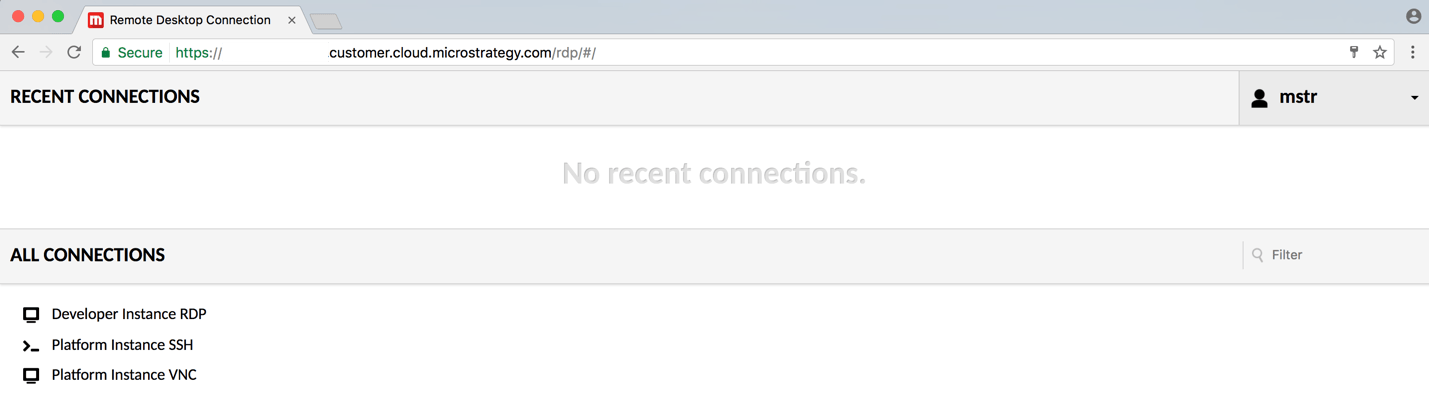
Guacamole Home Screen

On clicking any of the connections, the connection to the instance opens in the current web window.
                    

ka04W000001Ix1dQAC_0EM440000002SPB.png

 
Once the connection is opened, a real time view of the remote is displayed.

Guacamole Menu

The guacamole menu is a sidebar which is hidden.
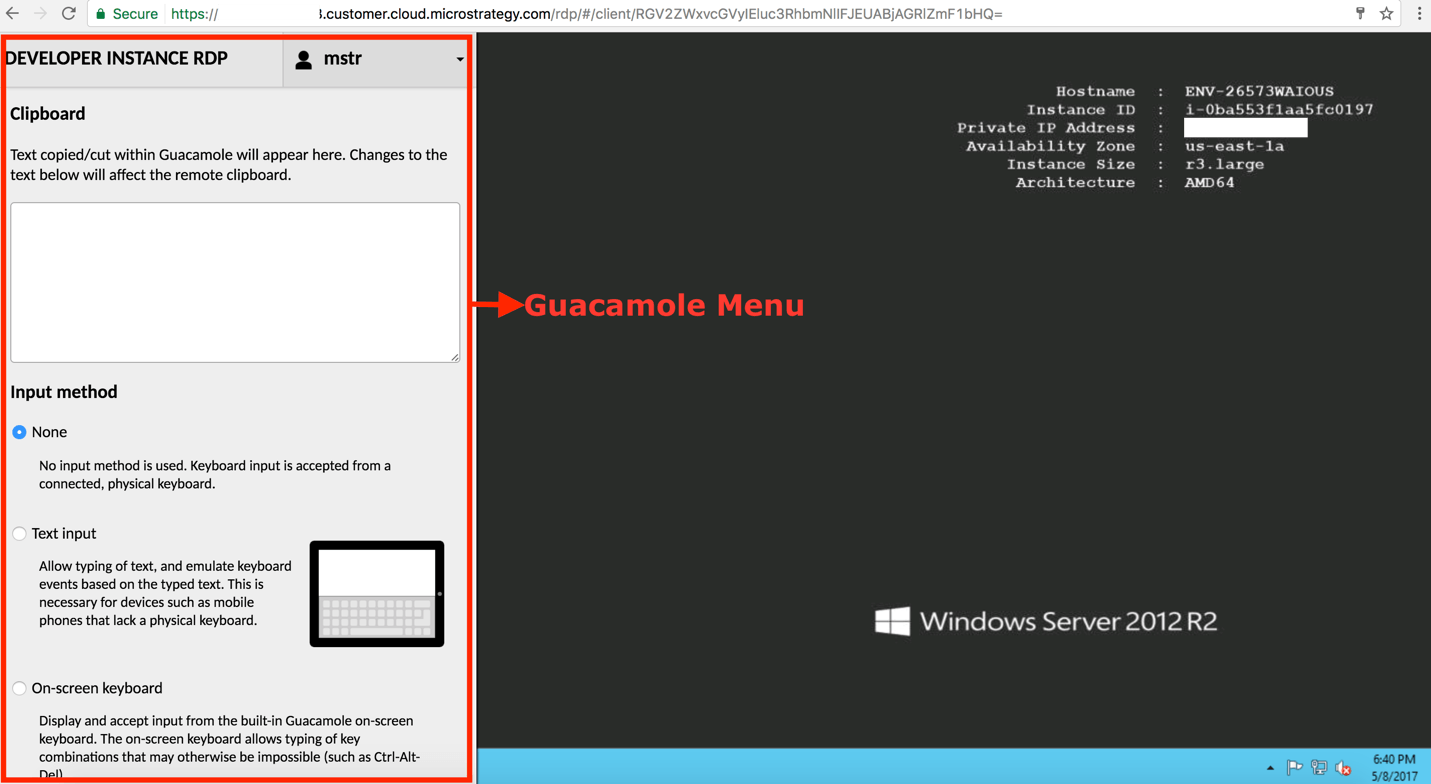
  1. On a Windows device with an external keyboard, the guacamole menu is displayed by pressing Ctrl+Alt+Shift
  2. On a Mac device with an external keyboard, the guacamole menu is displayed by pressing Ctrl+Command+Shift    


ka04W000001Ix1dQAC_0EM440000002SPp.png

​


  1. On a device that doesn’t have a keyboard, e.g. mobile or touchscreen device, the guacamole menu is displayed by swiping right from the left edge of the screen.
  2. To Hide the guacamole menu, press Ctrl+Alt+Shift/ Ctrl+Command+Shift or swipe left across the screen again.


Copying or Pasting Text

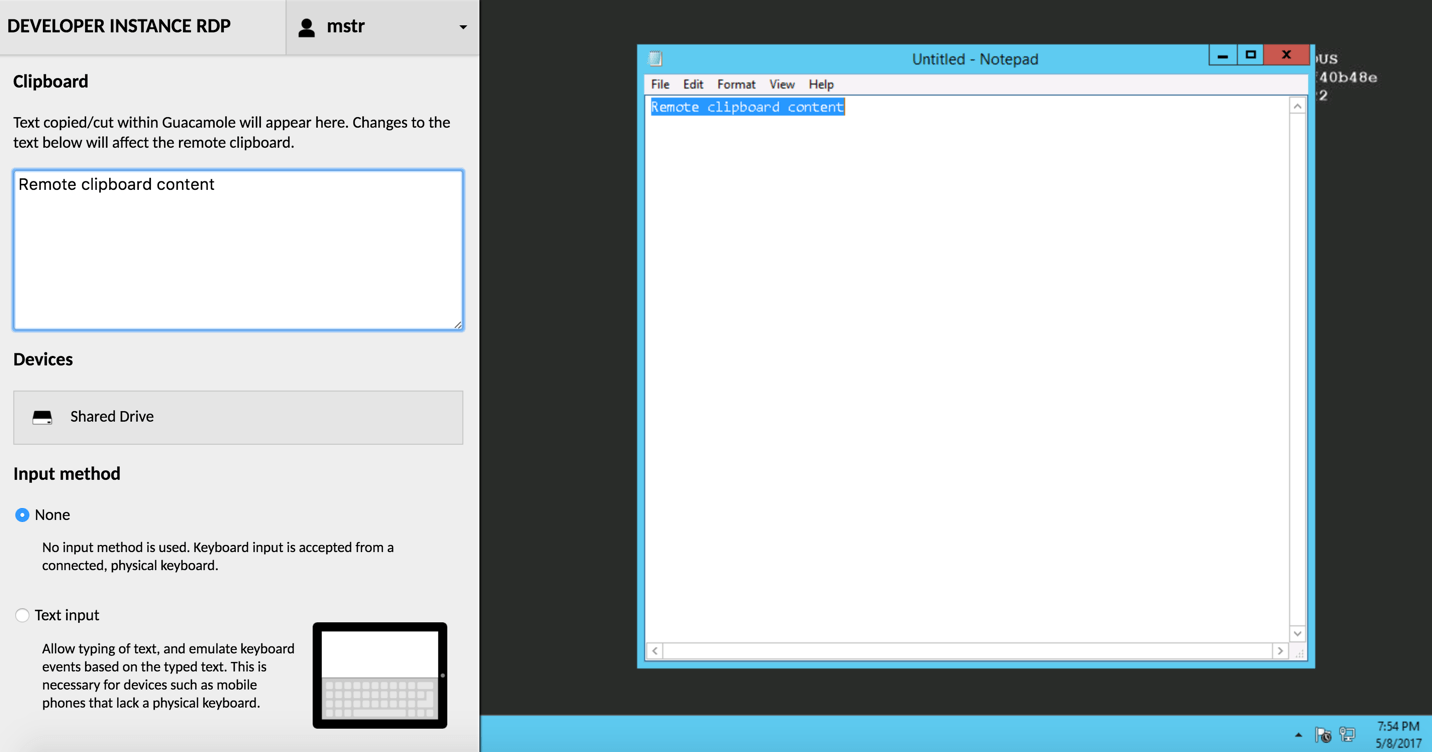
The Clipboard text area functions as an interface between the remote clipboard and local clipboard.
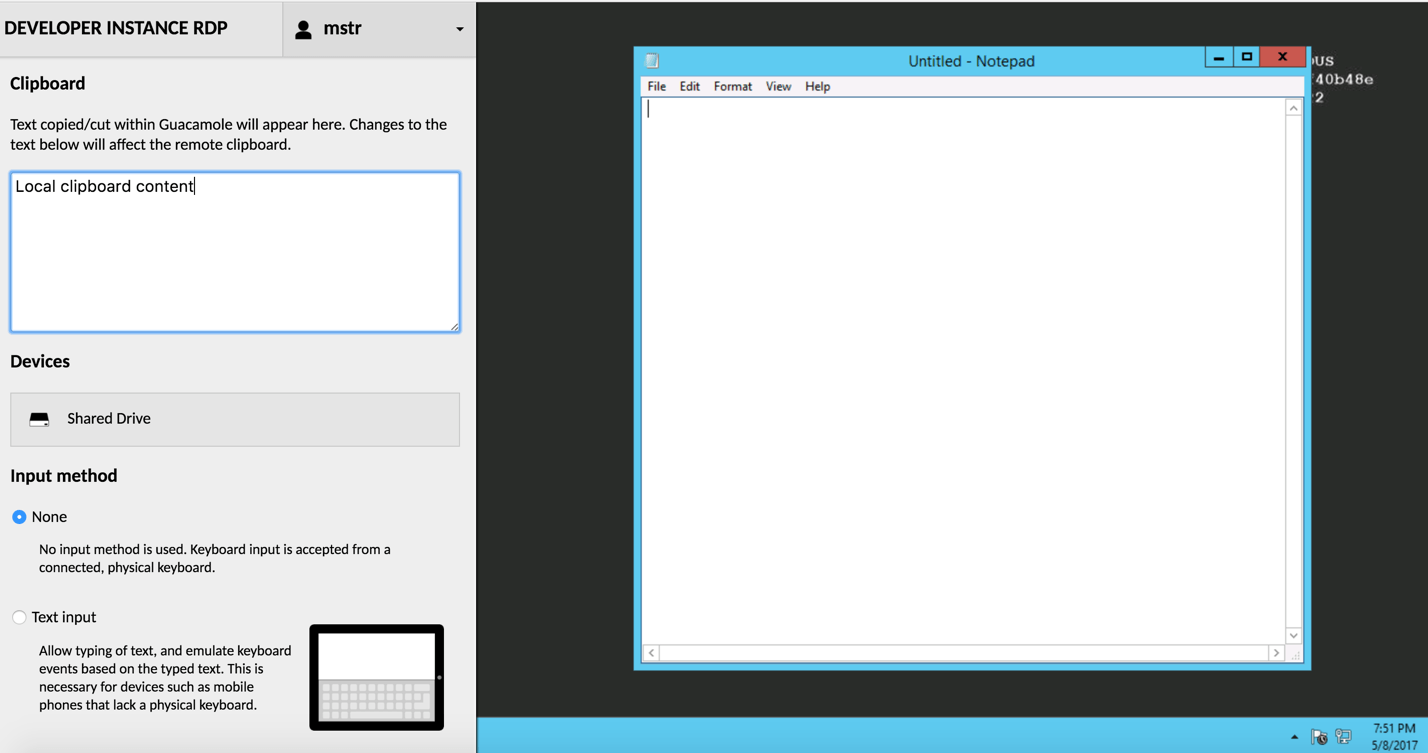
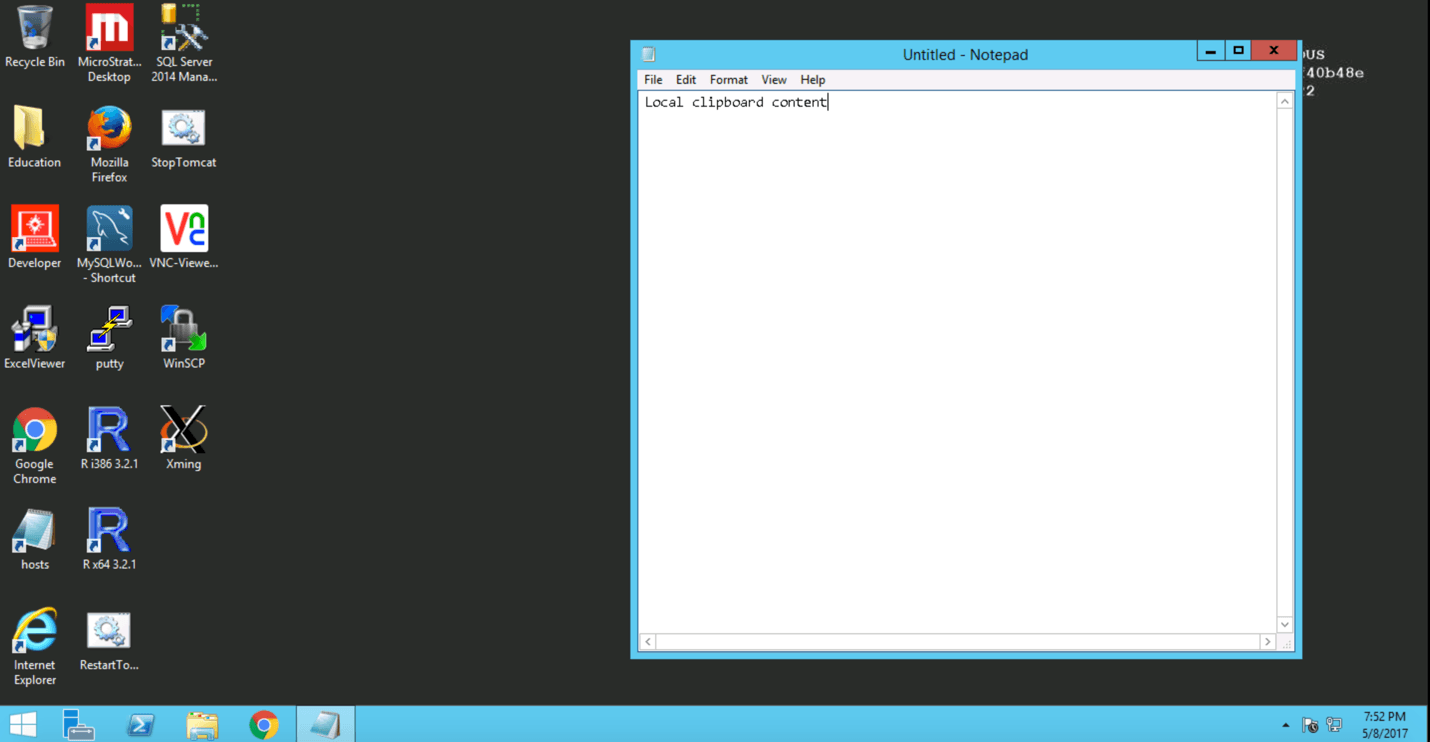
  • Text from the local clipboard can be pasted into the text area, and the text is sent to the remote clipboard.      
                                                                                                                                                                         
ka04W000001Ix1dQAC_0EM440000002SPu.png
  • ​

​

  1. After the text is copied to the remote clipboard, the Guacamole menu can be closed.

    The text from the clipboard can be pasted in the desired location.


ka04W000001Ix1dQAC_0EM440000002SPQ.png

                                                                         
​

  1. Similarly, copying text from the remote desktop sends the text to the Clipboard text area on the Guacamole Menu, which can then be copied to the local clipboard.                        
ka04W000001Ix1dQAC_0EM440000002SPV.png

                                                               
​

Transferring File

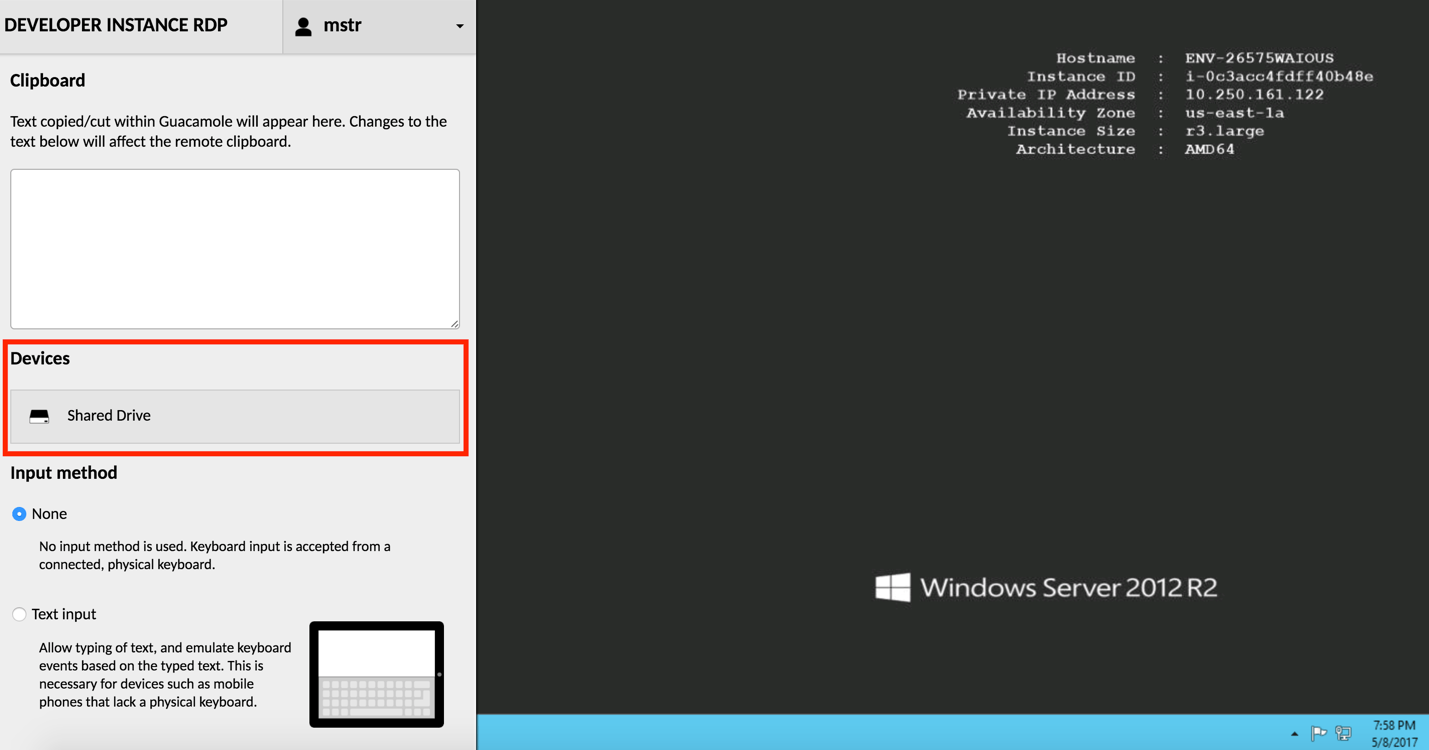
  1. Files can be transferred by using the File browser in the Guacamole menu  


ka04W000001Ix1dQAC_0EM440000002SPa.png

                                                     
​

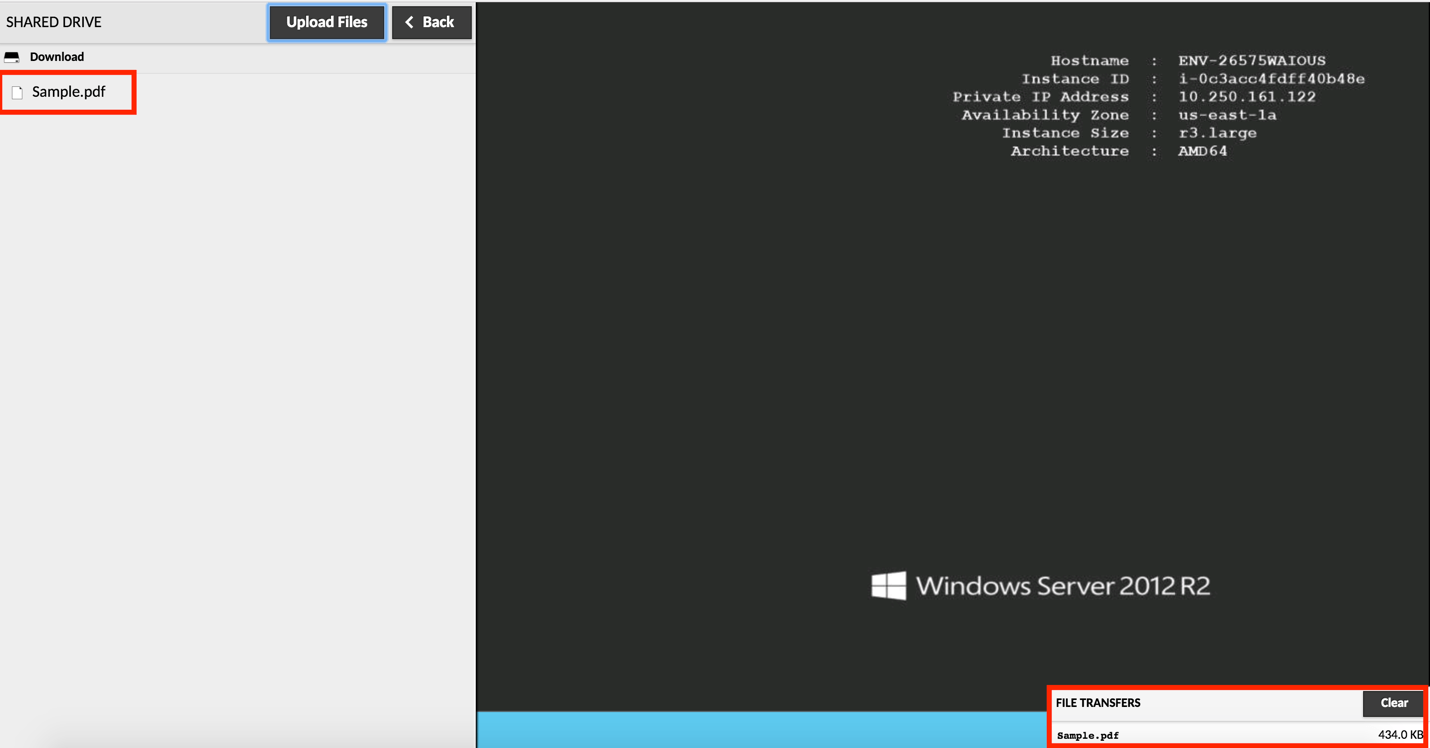
  1. The file is transferred successfully after upload as shown below.

 
​​​​​​​

ka04W000001Ix1dQAC_0EM440000002SPf.png

​

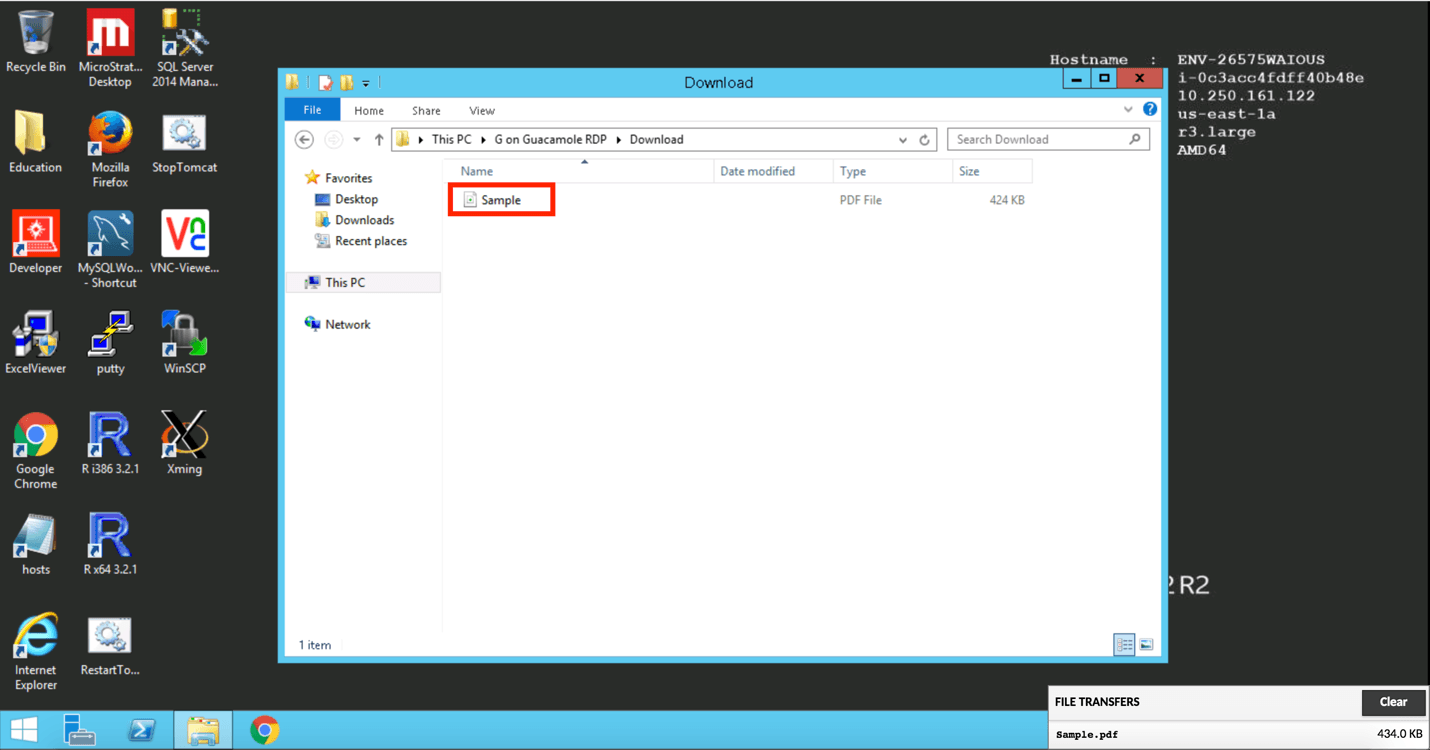
  1. After closing the Guacamole option, the file which was uploaded can be found on the remote desktop as shown.


ka04W000001Ix1dQAC_0EM440000002SPk.png

​

  1. Files can also be dragged and dropped from local desktop into the Guacamole desktop browser window.


    ​​​​​​​

Comment

0 comments

Details

Knowledge Article

Published:

June 24, 2017

Last Updated:

September 22, 2022