EducationSoftwareStrategy.com
StrategyCommunity

Knowledge Base

Product

Community

Knowledge Base

TopicsBrowse ArticlesDeveloper Zone

Product

Download SoftwareProduct DocumentationSecurity Hub

Education

Tutorial VideosSolution GalleryEducation courses

Community

GuidelinesGrandmastersEvents
x_social-icon_white.svglinkedin_social-icon_white.svg
Strategy logoCommunity

© Strategy Inc. All Rights Reserved.

LegalTerms of UsePrivacy Policy
  1. Home
  2. Topics

KB439566: How to apply thresholds to subtotals and/or metrics using the Advanced Threshold Editor in Visual Insight.


Community Admin

• Strategy


This Knowledge Base article describes how to apply a threshold to subtotals using the Advanced Threshold Editor.

SYMPTOM:
A threshold can be set on metrics to help visually distinguish a level, point or value that has been reached. With the Advanced Threshold Editor, users can specify thresholds to apply to both metrics and subtotals.
 
ACTION:
See below for steps to create and apply a threshold to metrics and subtotals.
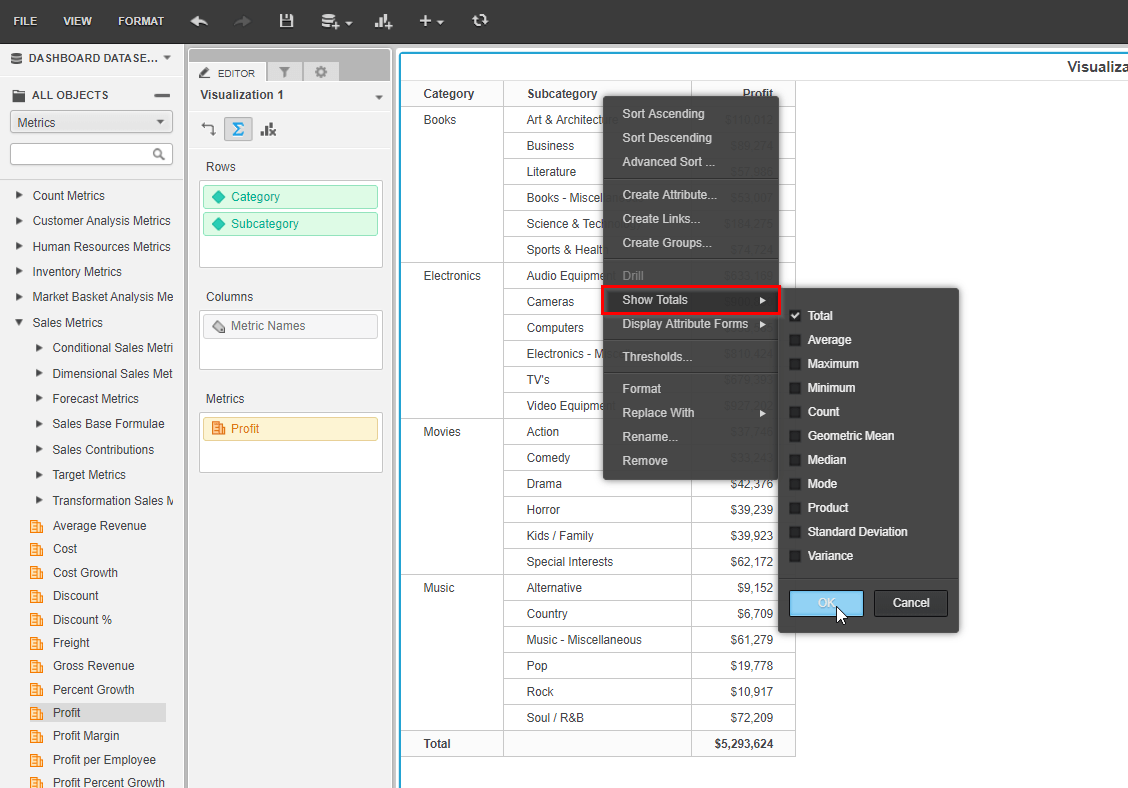
 

  • In Strategy Tutorial, create a grid with attributes and metrics. Right-click an attribute and select “Show Totals”.
ka04W000000OcMjQAK_0EM44000000QHeC.png


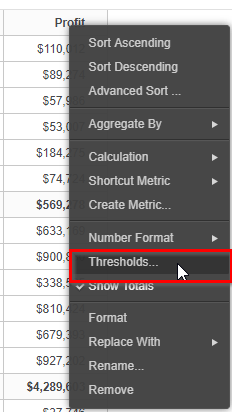
  • Right-click on a metric and select Thresholds.
ka04W000000OcMjQAK_0EM44000000QHeH.png


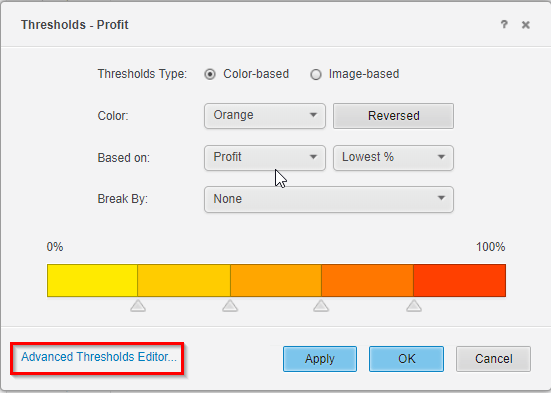
  • Define a threshold, click apply and select Advanced Thresholds Editor.


ka04W000000OcMjQAK_0EM44000000QHeM.png


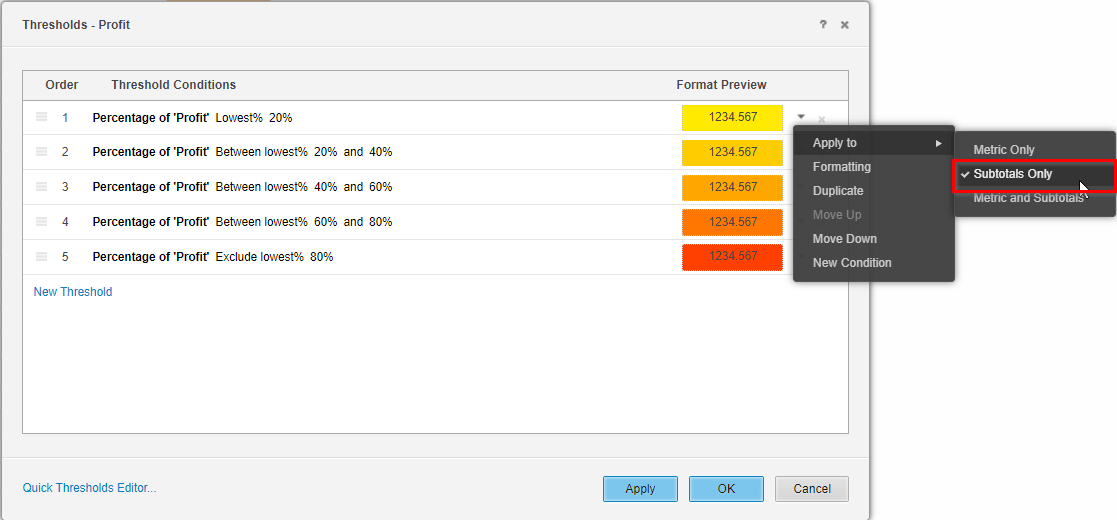
  • Once in the Advanced Threshold Editor, users can see all the defined threshold conditions. Next to each condition format preview there is a dropdown arrow. Click on the arrow and select if this condition should apply to one of the following:
    • Metric Only
    • Subtotals Only
    • Metric and Subtotals
ka04W000000OcMjQAK_0EM44000000QHeI.png

  KB439566


Comment

0 comments

Details

Knowledge Article

Published:

January 30, 2018

Last Updated:

December 28, 2018