Starting with the release of Strategy ONE (March 2024), dossiers are also known as dashboards.
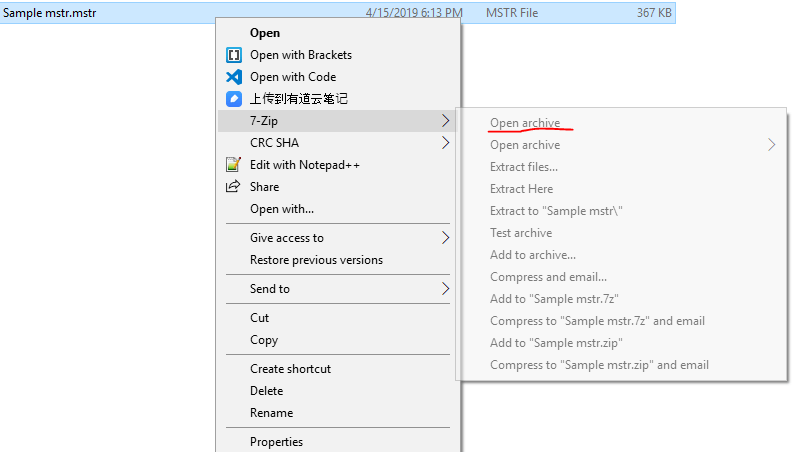
The .mstr file is a zipped file of object definition package and cube files. In reality, an .mstr file is actually a .zip file, with the .mstr suffix. This means you can manually change the suffix to .zip and use 7Zip, or similar tools, to unzip it.
The .mstr file can be opened in Strategy Desktop and Strategy Workstation. You can use Strategy files to migrate your dashboard from Web to Desktop or Workstation, or to other projects and share it with other users.
Sometimes, after downloading and opening an. mstr file, you may receive the following error:
The mstr file contains live connection data from XXX, but you are not connected to this application.
This is because some cube data in the .mstr file is not packaged on the server side. You need to connect to the server to retrieve the data.
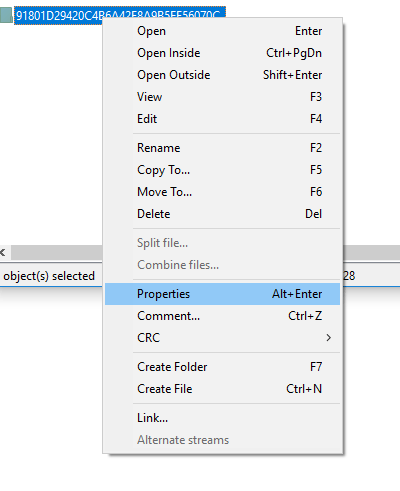
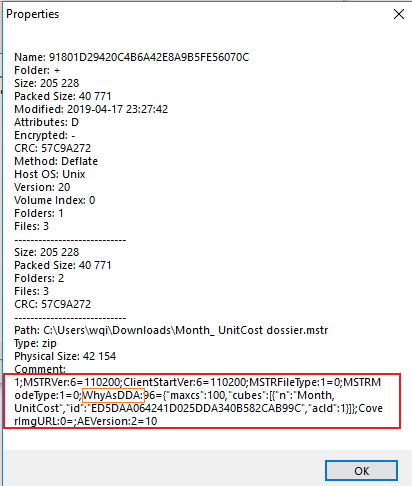
You can access a quick description in the Comment field without opening the .mstr field.
MSTRVer=10500;ClientStartVer=10500;MSTRFileType=0;MSTRModeType=0;WhyAsDDA=
1;MSTRVer:6=110200;ClientStartVer:6=110200;MSTRFileType:1=0;MSTRModeType:1=0;WhyAsDDA:0=;CoverImgURL:0=;AEVersion:2=10
MSTRVer: The version of the .mstr file. It's the version of the code base where the .mstr file gets exported.
ClientStartVer: The minimum version of the client or Intelligence Server that can import this .mstr file.
MSTRFileType: The .mstr file can contain exported dashboard (=0) or a single cube (=1).
MSTRModeType: If the mode is 1, after being imported to Desktop, the .mstr file can be executed in presentation mode.
WhyAsDDA: DDA means direct data access. This is a .json string which records why some datasets are exported as DDA mode. Clients can use it to pop up some message to inform the end user.
CoverImgURL: This is to store the cover image of the dossier.
AEVersion: This is to store the AEversion of the project it comes from. For The AE Version setting, please refer to this doc.
WhyAsDDA can explain why the .mstr file is downloaded as live dataset mode.
Starting in the Strategy 2021 release, the cause can also be found in MSTRFile > Trace (it can be enabled in Diagnostics). Here's are sample messages.
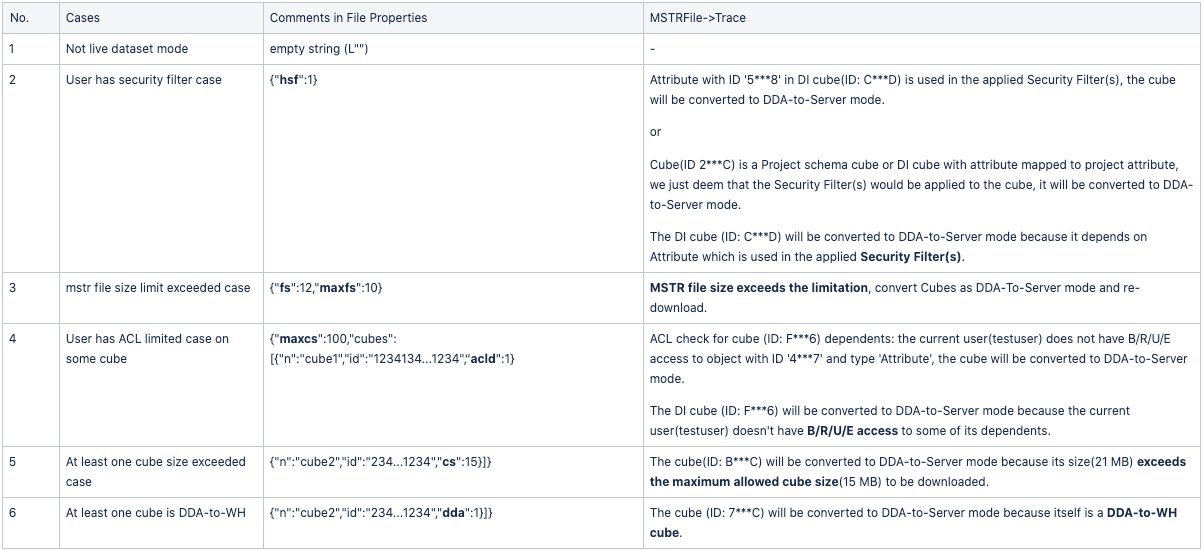
Note: maxcs is always there for the potential need to display the message. For each cube exported as a DDA cube, there will be only one reason in the .json file, like "dda":1, "acld":1, or "cs":15, in this order.
For the DDA-to-WH case, it means the data is retrieved directly from the warehouse. You do not need to reconnect to the Intelligence Server.
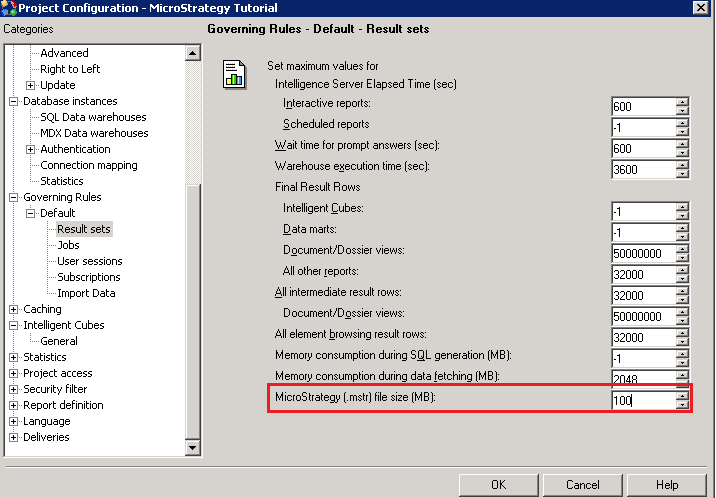
When the cube in memory size is larger than the limitation, the cube will download as DDA to the Intelligence Server.
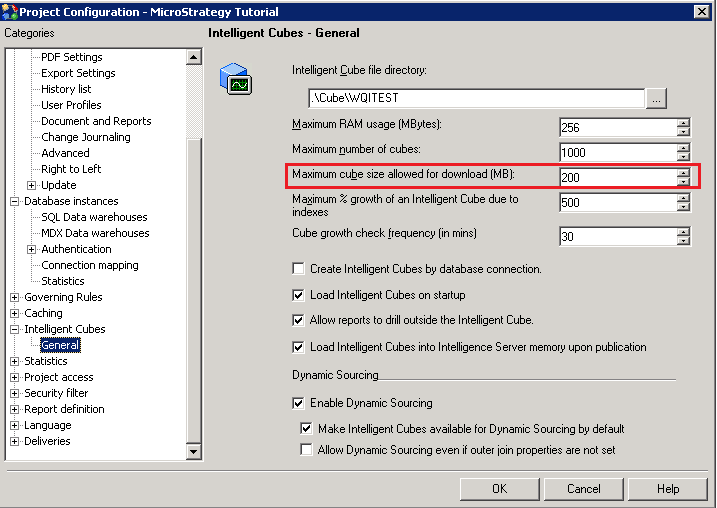
The Intelligence Server will try to package the objects and compress them into an .mstr file. If the file size is greater than the limitation, the cubes will be converted to DDA to the Intelligence Server. The report cannot be converted to DDA to the Intelligence Server and the download will fail if the Intelligence Server tries to covert the report to DDA mode.