EducationSoftwareStrategy.com
StrategyCommunity

Knowledge Base

Product

Community

Knowledge Base

TopicsBrowse ArticlesDeveloper Zone

Product

Download SoftwareProduct DocumentationSecurity Hub

Education

Tutorial VideosSolution GalleryEducation courses

Community

GuidelinesGrandmastersEvents
x_social-icon_white.svglinkedin_social-icon_white.svg
Strategy logoCommunity

© Strategy Inc. All Rights Reserved.

LegalTerms of UsePrivacy Policy
  1. Home
  2. Topics

KB485586: How to configure Microsoft Azure for OIDC with multi-factor authentication to work with MicroStrategy Mobile and MicroStrategy Library Mobile


Pascal Deguine

Principal Product Specialist • Strategy


This knowledge base article provides general guidance on how to configure Microsoft Azure as Identity Provider for OIDC authentication with multi-factor authentication enabled.

Starting with the release of Strategy ONE (March 2024), dossiers are also known as dashboards.
Content:
General guidance to configure OIDC authentication for Strategy using Microsoft Azure is provided here: https://www2.microstrategy.com/producthelp/Current/SystemAdmin/WebHelp/Lang_1033/Content/oidc_azure_ad.htm
In order to enable Azure multi-factor authentication (MFA) through Azure Conditional Access policies, the following additional steps must be performed for MFA to be triggered when accessing the environment through Strategy Mobile or Strategy Library Mobile:
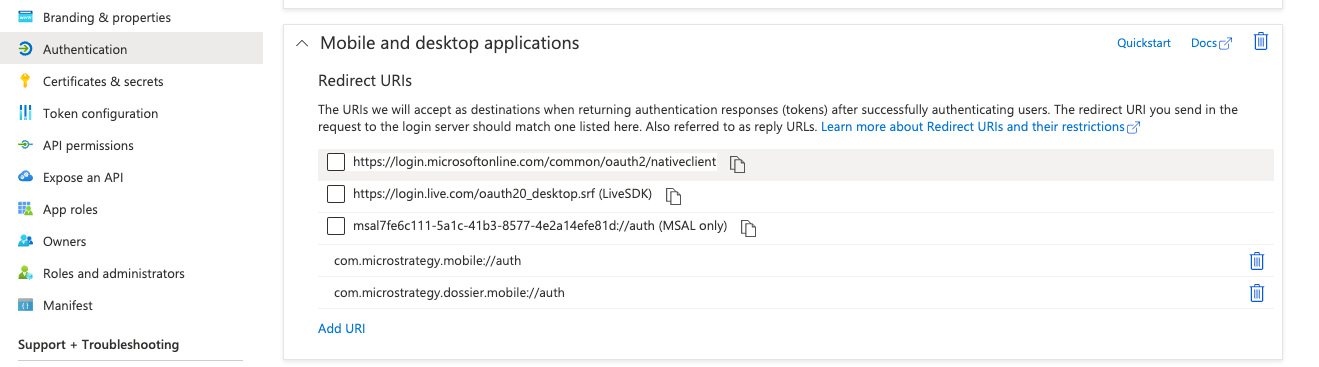
 

  1. Ensure the Strategy Mobile and Strategy Library Mobile redirect URIs are correctly set under Authentication > Mobile and desktop applications:
    1. com.Strategy.mobile://auth
    2. com.Strategy.dossier.mobile://auth
ka0PW0000001JiSYAU_0EM4W000005kzww.png


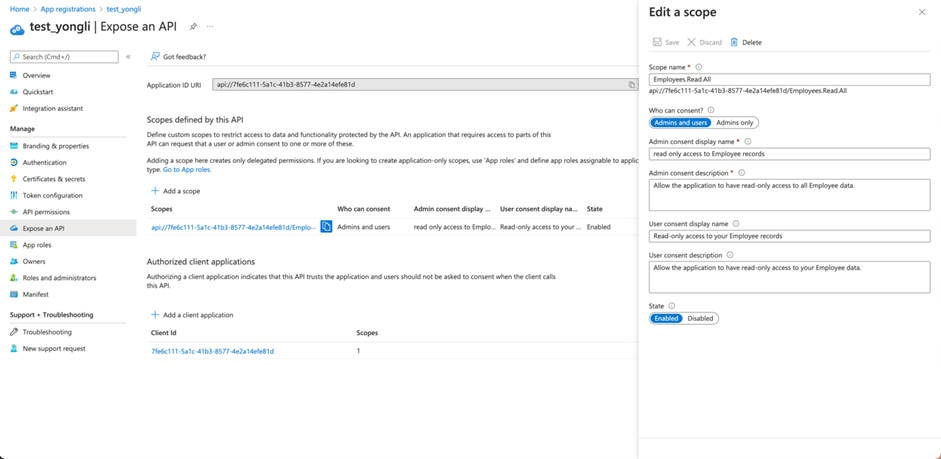
  1. Under Expose API, create a new scope:
    1. Scope name: Employees.Read.All
    2. Who can consent: Admins and users
    3. Admin consent display name: Read only access to Employee records
    4. Admin consent description: Allow the application to have read-only access to all Employee data.
    5. State: Enabled
ka0PW0000001JiSYAU_0EM4W000005lSvi.jpeg
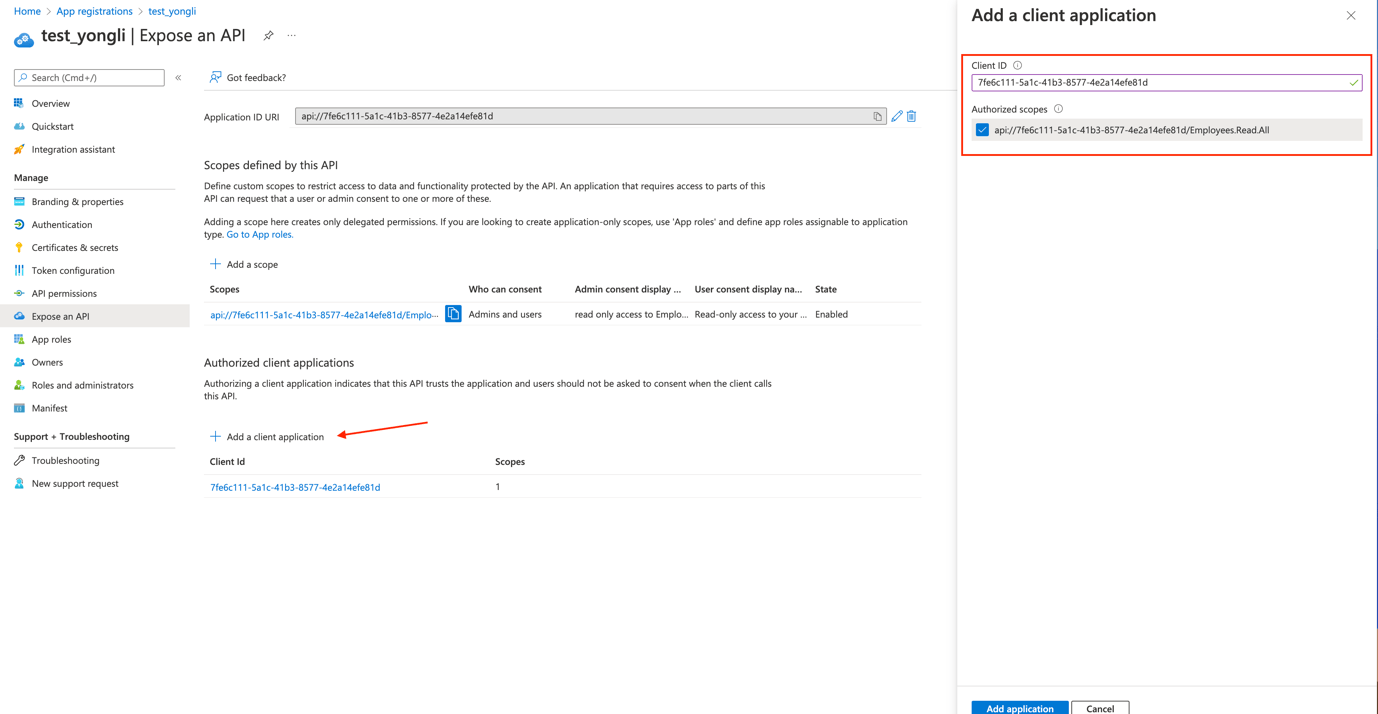
  1.  Select “Add a client application”:
    1. Enter the applications client ID that can be retrieved from “App Registration” > YOUR_APP > Overview.
    2. Select the applicable scope created in the previous step.
ka0PW0000001JiSYAU_0EM4W000005kzwy.png


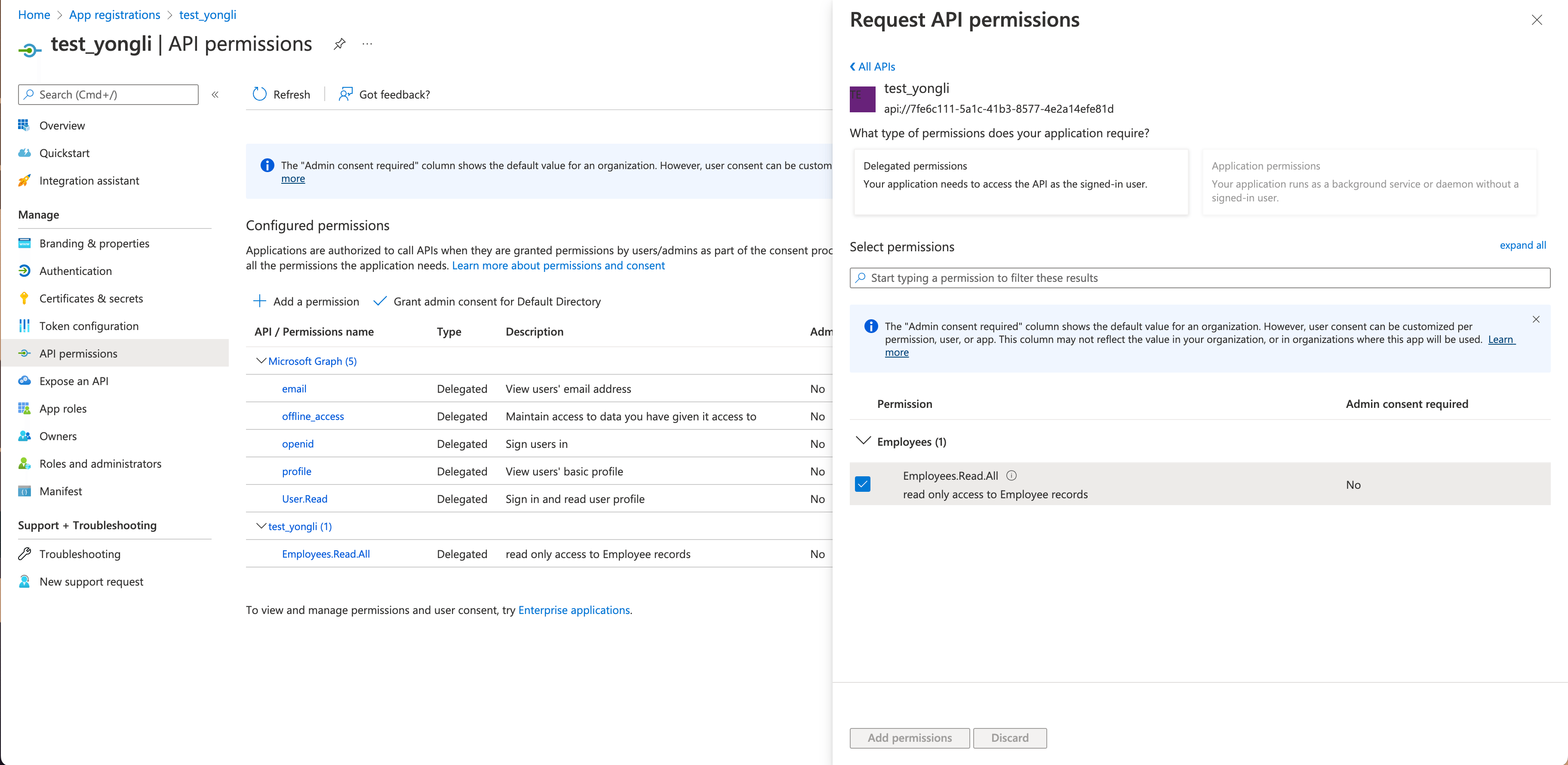
  1. Select App registration > YOUR_APP > API permissions:
    1. Click “Add a permission”
    2. Select “My APIs” and choose the newly created API permission
ka0PW0000001JiSYAU_0EM4W000005kzwz.png


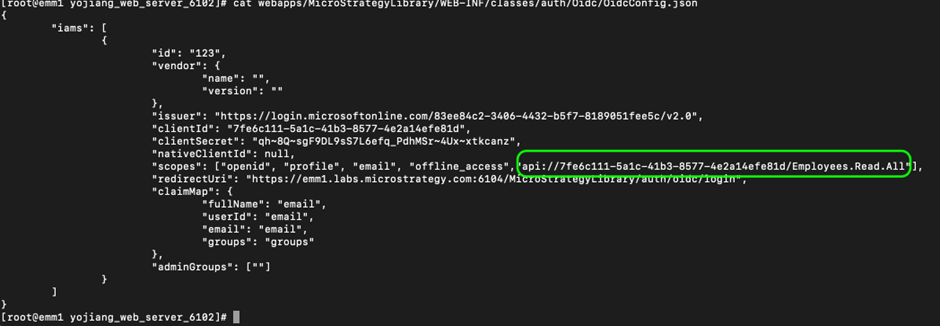
  1. Add the scope to OidcConfig.json:
    1. Navigate to [Mobile_Library_Home]\WEB-INF\classes\auth\Oidc\OidcConfig.json:
    2. Add the scope to scopes as seen on the screenshot
ka0PW0000001JiSYAU_0EM4W000005lSwg.jpeg

For steps required to enable MFA through Azure Conditional Access policy, refer to Microsoft documentation.
Third Party Software Installation: WARNING:
The third-party product(s) discussed in this technical note is manufactured by vendors independent of Strategy. Strategy makes no warranty, express, implied or otherwise, regarding this product, including its performance or reliability.


Comment

0 comments

Details

Knowledge Article

Published:

July 8, 2022

Last Updated:

March 21, 2024