EducationSoftwareStrategy.com
StrategyCommunity

Knowledge Base

Product

Community

Knowledge Base

TopicsBrowse ArticlesDeveloper Zone

Product

Download SoftwareProduct DocumentationSecurity Hub

Education

Tutorial VideosSolution GalleryEducation courses

Community

GuidelinesGrandmastersEvents
x_social-icon_white.svglinkedin_social-icon_white.svg
Strategy logoCommunity

© Strategy Inc. All Rights Reserved.

LegalTerms of UsePrivacy Policy
  1. Home
  2. Topics

KB485186: How to configure OAuth parameters for a data source on MicroStrategy Library


Rong Yu

Quality Engineer, Senior • MicroStrategy


This article provides steps for configuring OAuth parameters when using data sources.

Starting with the release of Strategy ONE (March 2024), dossiers are also known as dashboards.

Description 


When upgrading from Strategy 2019 or 2020 to Strategy 2021, using OAuth data sources in Strategy Library may return the following error. 
error=redirect_uri_mismatch&error_description=redirect_uri%20must%20match%20configuration

ka0PW0000001Jh8YAE_0EM4W000004Y8N3.jpeg

Why is this happening? 


The Callback URL is not added to the third-party application's configuration page. The following data sources require you to configure an OAuth connection between your third-party data source and Strategy Library Web:

  • Dropbox
  • Google Analytics
  • Google Drive
  • Google BigQuery (Native API)
  • Salesforce Reports
  • Twitter
  • Click New Dossier button ‘+’  > New Data.
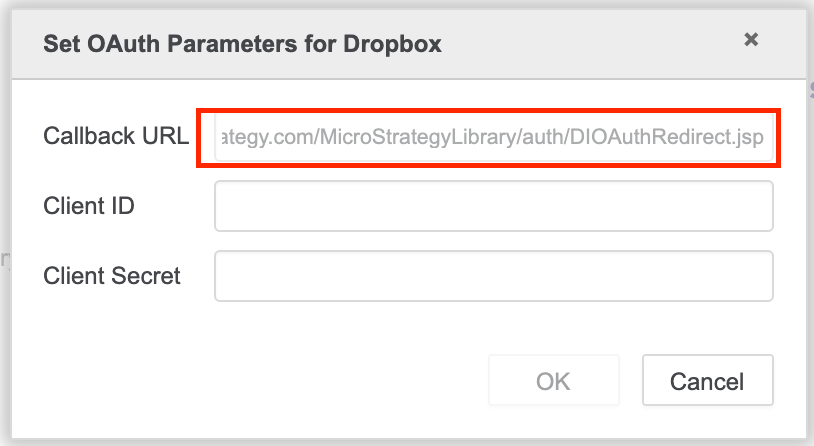
  • Hover over the enabled OAuth sources and click Set OAuth Parameters. The Set OAuth Parameters dialog appears.
  • Currently, there is no need to set Callback URL as it is auto-filled based on the current platform. The callback URL format is like the following:
    https://<FQDN>:[PORT]/MicroStrategyLibrary/auth/DIOAuthRedirect.jsp
ka0PW0000001Jh8YAE_0EM4W0000038ikQ.jpeg
  • Copy Callback URL and paste it to the source app settings without any change.
  • Get the app’s Client ID and Client Secret.
  • Complete the Client ID and Client Secret fields as described in step 3 with the ones you get from the third-party application’s configuration page.
  • Click OK to save the setting.

Comment

0 comments

Details

Knowledge Article

Published:

September 30, 2021

Last Updated:

March 21, 2024