Introduction
For certain database platforms, the Strategy Intelligence Server can be configured to connect using Kerberos authentication as opposed to traditional user / password authentication. This functionality is provided by the relevant ODBC or JDBC driver for the database connection, but some configuration is required on the Strategy Intelligence Server to make use of it.
Depending on the database type and driver in use, it may also be possible to configure warehouse pass-through authentication using Kerberos to provide a Single Sign-On functionality that connects to the database with the credentials of the end user who performs the action that requires the database connection. This article will cover the requirements and configuration steps for pass-through authentication using Kerberos.
It is also possible to configure the Intelligence Server for fixed-credential authentication, where a single set of Kerberos credentials (typically those belonging to the Strategy Intelligence Server service account) is used for all connections to the database. See How to configure the MicroStrategy Intelligence Server running on Unix / Linux Operating Systems for fixed-credential Kerberos authentication to databases for more information on fixed-credential Kerberos authentication.
Prerequisites:
This article will cover some non-mandatory testing steps that will be useful for troubleshooting. Depending on the configuration of the Strategy environment, some steps may not be possible to perform and may be omitted.
Active Directory configuration
Intelligence Server configuration
Enable delegation for the Intelligence Server service:
In order for warehouse pass-through authentication to work, the Intelligence Server service must be able to obtain delegated credentials to the warehouse on behalf of the end-user. To enable this, edit the user account associated to the Intelligence Server SPN on the Active Directory machine and select the Trust this user for delegation to any service (Kerberos only) option on the Delegation tab:

NOTE: In versions of Strategy prior to 10.11, the Trust this user for delegation to specified services only option will not work. The option for delegation to any service MUST be selected.
Beginning in 10.11, Strategy can also use the Trust this user for delegation to specified services only option (known as Constrained Delegation) for improved security. For more information on using this option, see KB440503: New in MicroStrategy 10.11: Kerberos Constrained Delegation.
This concludes the configuration required on the Active Directory.
Verify that it is possible to kinit on the Intelligence Server machine with the desired user principal. After running the kinit command and entering the password, run the klist command to verify that a ticket was created for the krbtgt service (this is actually the ticket that entitles the user to get other tickets in the realm after authenticating).
[mstr@exampleserver Strategy]# kinit mstr-enduser
Password for mstr-enduser@EXAMPLE.COM:
[mstr@exampleserver Strategy]#
[mstr@exampleserver Strategy]# klist
Ticket cache: FILE:/tmp/krb5cc_0
Default principal: mstr-enduser@EXAMPLE.COM

Valid starting     Expires            Service principal
08/23/17 10:35:44  08/23/17 20:35:32  krbtgt/EXAMPLE.COM@EXAMPLE.COM
        renew until 08/30/17 10:35:44
[mstr@exampleserver Strategy]#
Verify that it is possible to manually obtain a ticket for the database SPN. Assuming that the mstr-enduser user is still authenticated on the Intelligence Server machine, use the kvno <SPN> command to obtain a ticket. After running the kvno command, run the klist command to verify that a ticket was created. This ticket should match the SPN for the database service.
[mstr@exampleserver Strategy]#
[mstr@exampleserver Strategy]# kvno hive/hiveserver.example.com@EXAMPLE.COM
hive/hiveserver.example.com@EXAMPLE.COM: kvno = 2
[mstr@exampleserver Strategy]#
[mstr@exampleserver Strategy]# klist
Ticket cache: FILE:/tmp/krb5cc_0
Default principal: mstr-enduser@EXAMPLE.COM
Valid starting Expires Service principal
08/23/17 10:35:44 08/23/17 20:35:32 krbtgt/EXAMPLE.COM@EXAMPLE.COM
renew until 08/30/17 10:35:44
08/23/17 10:51:25 08/23/17 20:35:32 hive/hiveserver.example.com@EXAMPLE.COM
renew until 07/20/17 11:09:42
[mstr@exampleserver Strategy]#
If a DSN has not yet been created for the desired database connection, do so now following the appropriate steps according to the database type. Consult the driver vendor's documentation to determine the necessary parameters to configure for using Kerberos (typically there will be a parameter to indicate the use of Kerberos, and the SPN for the database service will need to be specified in some way). An example DSN created in Strategy 10.4 to connect to Hive is provided below, with the relevant parameters bolded:
[hiveexample]
Driver=/opt/Strategy/lib/libhiveodbc_sb64.so
Description=Strategy Hive ODBC Driver
AuthMech=1
DefaultStringColumnLength=2147483647
FastSQLPrepare=0
GetTablesWithQuery=1
HiveServerType=2
Host=hiveserver
Port=10000
Schema=default
ThriftTransport=1
UseNativeQuery=0
KrbHostFQDN=hiveserver.example.com
KrbServiceName=hive
KrbRealm=EXAMPLE.COM
After the DSN has been configured, test the connection using the mstrtodbcx tool to ensure that it can connect successfully. This step requires that the ticket for the database service has been successfully obtained as in Check Point 2. Make sure that the same shell (terminal) is used to launch DB Query tool after generating the ticket. Since the Kerberos credentials will be used for authentication, a username and password will not need to be specified for the login attempt. If desired, one or more test queries may be run after connecting to ensure that the data returned is as expected per the user principal used.
[mstr@exampleserver Strategy]# bin/mstrtodbcx
Strategy ODBC Test Tool
  Version 10.4.0026.0049

Type .help (including the period) for help.

- > .cn -d hiveexample
# Data Source Name: hiveexample
# Login:
# Connection type : Strategy DB Classes

hiveexample > .quit
[mstr@exampleserver Strategy]#
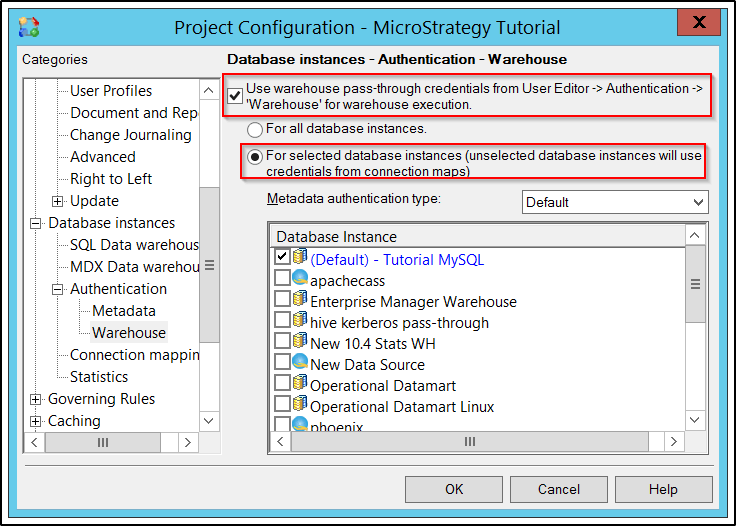
In order to configure the relevant Database Instance to use warehouse pass-through authentication, open Developer and select Project Configuration for the relevant project, then navigate to Database instances > Authentication > Warehouse. Ensure that the Use warehouse pass-through credentials option is enabled, and select For selected database instances.
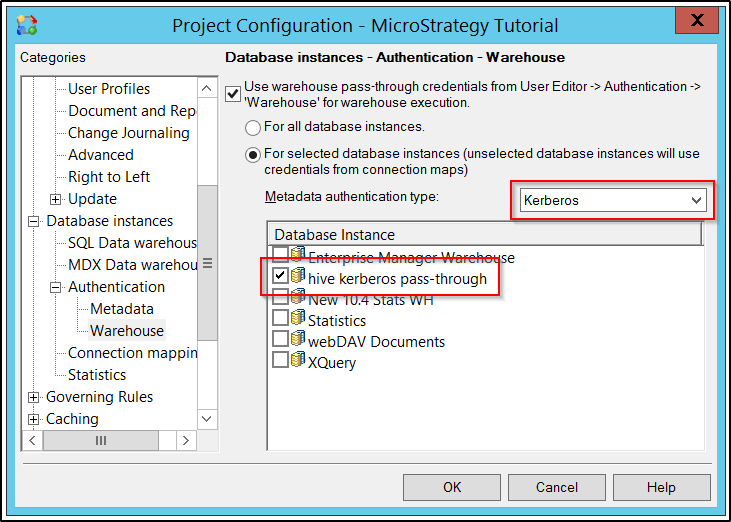
Open the Metadata authentication type drop-down menu and select Kerberos. Then, enable the checkbox for the relevant Database Instance(s) to use warehouse pass-through with. Note that only Database Instances that support Kerberos warehouse pass-through will be displayed once Kerberos is selected from the drop-down menu.
This conclude the configuration in Strategy Developer. Kerberos warehouse pass-through should now be operational when running reports on the selected Database Instance(s) if the end-user has connected with Integrated Authentication.
The Strategy internal reference number for this Knowledge Base article is KB438879. 438879 KB438879
