EducationSoftwareStrategy.com
StrategyCommunity

Knowledge Base

Product

Community

Knowledge Base

TopicsBrowse ArticlesDeveloper Zone

Product

Download SoftwareProduct DocumentationSecurity Hub

Education

Tutorial VideosSolution GalleryEducation courses

Community

GuidelinesGrandmastersEvents
x_social-icon_white.svglinkedin_social-icon_white.svg
Strategy logoCommunity

© Strategy Inc. All Rights Reserved.

LegalTerms of UsePrivacy Policy
  1. Home
  2. Topics

KB423909: How to connect MicroStrategy Desktop to a Web Server configured to use SSL (HTTPS)


Monica Gallegos Salazar

Principal Product Specialist • MicroStrategy


In order to connect an instance of MicroStrategy Desktop to a SSL enabled Web Server (HTTPS), the SSL certificate needs to be properly installed

In order to connect an instance of Strategy Desktop to a SSL enabled Web Server (HTTPS), the following steps must be done:
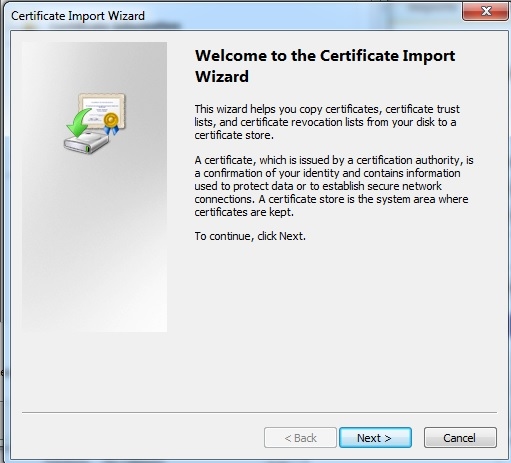
1. Install the certificate on the client machine that has Desktop installed. Make sure the file type is CERT. To install, double click on the cert file and follow the Certificate Import Wizard to properly install the certificate
ka02R000000kb3nQAA_0EM440000002MUm.jpeg

2. Open the cert in note pad. Copy the content of this cert file and append it to the end of cacert.pem which is located under C:\Program Files\MicroStrategy\Strategy Desktop. The cert file must be in a .cert .cer or .crt format that is recognized by Windows Explorer as a certificate.
Example displays the content of a certificate:

ka02R000000kb3nQAA_0EM440000002MV1.jpeg

KB423909


Comment

0 comments

Details

Knowledge Article

Published:

May 22, 2017

Last Updated:

December 27, 2018