It is recommended that you review the first chapter before reading chapter 2
Refer to the following Community article for general details on how to connect to data sources using JDBC drivers KB250923: Connecting to Databases using JDBC Drivers in MicroStrategy 10.x
Strategy can integrate with Amazon Athena using the JDBC driver that can be downloaded from: http://docs.aws.amazon.com/athena/latest/ug/connect-with-jdbc.html
The minimum version of the JDBC driver should be 41-1.0.1 or above.
To connect to Strategy Web, the JDBC driver must be downloaded and saved in the Strategy JDBC folder described above, in the operating system that contains the Strategy Intelligence server. To copy the JDBC driver file into the Strategy JDBC folder, refer to the following default locations:
Steps to connect:
1. Connect to your data by clicking on “Add External Data”
2. Find Amazon Athena in the dropdown options in data import.

3. Create a new DSN-less connection by filling up the required parameters of Amazon region and S3 staging directory. The username and password here are same as the Amazon access key ID and Secret key that you should receive from the administrator of your Athena data source.
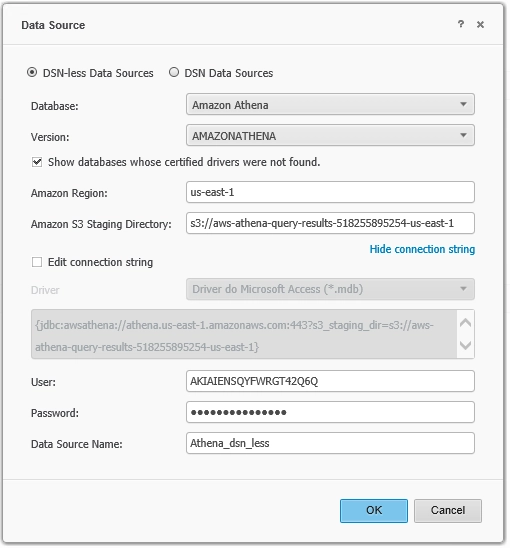
NOTE: Users may need to manually edit the connection string to add in any needed connection string parameters
4. Click on your DSN less connection and that should bring a list of schemas. When you click on your schema name, that should bring up a list of tables. You can click on your tables that you need to do analysis on and publish a cube using it, or click on “Connect Live” option to do analysis right away.

